
Need to disable headphone mode on Android? This guide shows the fastest working fixes to get your phone playing through its speakers instead of treating the jack or Bluetooth connection as headphones. If the mode is stuck after removing your headset, you’ll learn the exact settings and troubleshooting steps that reliably switch it off.


As an Amazon Associate I earn from qualifying purchases.
If your Android is stuck in “headphone mode,” the fastest fix is usually to ensure nothing is physically or virtually connected (including a dirty audio jack), then restart your phone and switch the Media audio output back to Phone speaker in Sound settings. If it still persists, reset audio routing (or try Safe Mode/Developer options), and only then consider a factory reset to clear corrupted audio-routing settings.
Check for a Proper Disconnect (and Clean the Jack)
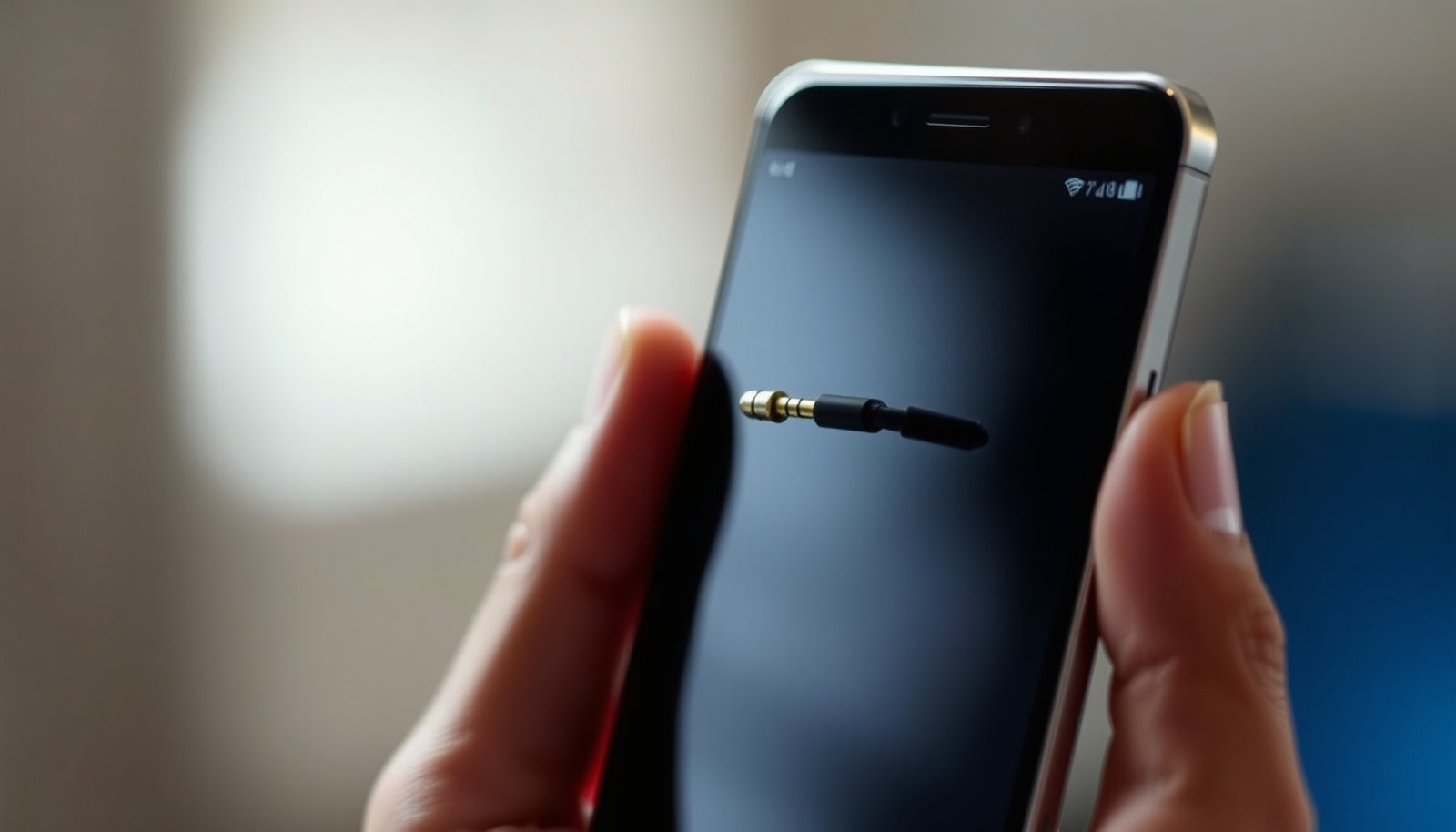
Headphone mode on Android is typically triggered when the phone believes a 3.5mm headset (or compatible dongle) is still connected. This can happen even after you unplug—dust, lint, or moisture can keep the connector from fully “releasing” inside the port.
Start with these checks:
- Confirm physical disconnect:
Remove any wired headphone plug, audio dongle, or extension. If you use USB-C wired audio, unplug the dongle (and any inline adapters) and try again.
- Check for Bluetooth devices still “taking over”:
Even if headphones are not actively playing, an auto-reconnected Bluetooth headset can keep Android routing audio away from the speaker.
- Inspect the headphone jack carefully (especially after travel or pocket use):
Lint and debris are extremely common causes of false “headset detected” behavior. A small amount of buildup can prevent the internal switch contacts from returning to speaker mode.
If you recently used wired headphones, clean the port safely:
- Power down the phone (optional but safer).
- Use dry compressed air first to dislodge loose debris.
- If needed, use a lint-free swab lightly moistened with 70% isopropyl alcohol (avoid soaking the port).
- For stubborn lint, a plastic or non-metal toothpick can help gently, but avoid scratching the internal contacts.
Quick test: After cleaning and replugging nothing, open an audio app (or YouTube) and press play. If the speaker works immediately, you likely had a detection problem rather than a system-wide software issue.
Restart Your Phone (Quick Audio Refresh)
If the jack and connected devices look correct, the next high-impact step is a restart. Android’s audio routing is managed by system services (often including the media/audio stack and routing logic). When headphone mode gets “stuck,” those services may retain the last known audio path longer than they should.
When you reboot:
- The system reinitializes audio routing from scratch.
- Media apps rebind to the correct output device.
- Any temporary routing locks are released.
Do this:
1. Restart your Android (not just sleep/wake).
2. Once it boots, wait 10–20 seconds.
3. Play a short audio clip before you touch output settings.
Why test early? Some apps or smart features (like Bluetooth reconnection or voice assistant audio) can re-route output as soon as the app starts. Testing immediately helps you isolate whether the routing logic is fixed by reboot alone.
Toggle Bluetooth and Audio Output
Even when you didn’t “use” Bluetooth intentionally, a paired headset, car audio system, earbuds case, or previous call connection can cause routing conflicts—especially if Android believes a Bluetooth device is the active media target.
Try this sequence:
- Turn Bluetooth OFF completely (not just disconnect).
- Turn Bluetooth back ON, then disconnect any active/persistent paired device.
- Start playback, and verify the audio comes from the speaker.
Then confirm the output target:
- If your Android offers output switching (often via the media volume slider or quick settings), switch from Bluetooth / headset back to Phone speaker.
What you’re eliminating: Bluetooth can engage different audio profiles (like SCO for calls vs. A2DP for media). If the wrong profile stays “active,” Android may keep routing through the headset path even when you think nothing is connected.
Disable Headphone/Bluetooth Routing in Settings
Most users overlook a critical detail: even if nothing is plugged in, Android can still hold onto a prior “preferred routing” decision. OEMs (Samsung, Pixel, Xiaomi, OnePlus, etc.) vary the exact menu names, but the logic is consistent: you must ensure that the Media audio output is set to the speaker.
Look for a setting such as:
- Sound & vibration → Media audio
- Sound → Audio output
- Notifications/Calls/Media output (may be separated by category)
Then select:
- Phone speaker (or the non-headphone, non-Bluetooth output option)
If you see separate toggles for ringtone vs. media, set Media audio first—stuck headphone mode is most obvious when playing music, video, or system sounds from apps.
Here’s a practical checklist of common fixes, how quickly you can test them, and how effective they typically are for stuck headphone mode:
Android Headphone-Mode Fix Priorities (Practical Effectiveness & Test Time)
| # | Fix step | Test time | Where to check | Typical impact |
|---|---|---|---|---|
| 1 | Disconnect audio jack/dongle + clean the port | 3–8 min | Headphone port | ★★★★★ |
| 2 | Restart Android (full reboot) | 1–3 min + boot | Power menu | ★★★★☆ |
| 3 | Toggle Bluetooth + disconnect active devices | 2–5 min | Settings → Bluetooth | ★★★☆☆ |
| 4 | Set Media audio to Phone speaker | 30–60 sec | Sound/Audio settings | ★★★★★ |
| 5 | Reset audio routing (Safe Mode / system audio restart) | 5–15 min | Developer/system tools | ★★★★☆ |
| 6 | Developer-option headphone/output routing toggles | 10–25 min | Developer options | ★★☆☆☆ |
| 7 | Factory reset (last resort) | 30–90 min | System reset menu | ★★★★☆ |
Use an Audio/Headset Reset App or Developer Options
If the problem persists after disconnect/restart/output changes, you’re likely dealing with a routing cache issue, a conflicting system setting, or a misbehavior introduced by an app or system update.
Two approaches can help:
1) Audio “reset” tools (use carefully)
Some OEMs and trusted utilities offer ways to reset or restart audio routing components. If you use an app:
- Prefer tools that clearly describe what they reset (audio routing / output selection), not just “volume boosters.”
- Avoid granting unnecessary permissions.
- After using the tool, test with both music and a system sound (like a video ad or ringtone preview).
If you suspect a third-party app is interfering, Safe Mode can help by temporarily disabling non-system apps. This is an effective diagnostic step: if speaker output returns in Safe Mode, uninstall the most recently added audio-related apps (media equalizers, Bluetooth managers, “volume enhancement,” call recorders).
2) Developer options (model-dependent)
Developer options vary heavily by manufacturer. You may find toggles related to:
- forcing audio to a particular device,
- routing behavior,
- Bluetooth audio settings, or
- audio codec/profile behavior.
Use this as a controlled experiment:
- Change only one setting at a time.
- Record the original value so you can revert.
- If you’re unsure what a toggle does, leave it alone—incorrect routing can make the issue worse or mask the real cause.
Factory Reset Only If Headphone Mode Keeps Returning
A factory reset is the most decisive (and most disruptive) option. Use it only when:
- the phone consistently returns to headphone mode after every restart,
- a recent system update triggered the issue, or
- none of the routing/output fixes work.
Before you reset:
- Back up photos, documents, and app data (use Google backup or your OEM’s backup tool).
- Ensure you know your Google account credentials and any device unlock method.
- Expect Bluetooth re-pairing and reconfiguration of audio preferences after the reset.
Why it helps:
- It clears corrupted or conflicting audio-routing state and settings that survive over-the-air updates.
- It removes misconfigured customizations that can override the speaker output.
After reset, test speaker playback immediately (before reinstalling multiple audio apps) to confirm the root cause is resolved.
Headphone mode should stop once Android detects the correct audio output again, so start with the simplest checks (disconnect, clean port, restart) and move to settings-based fixes. If it persists, try resetting audio routing and only consider a factory reset if nothing else works—then tell me your Android model and symptoms for more tailored steps.
Frequently Asked Questions
How do I disable headphone mode on my Android phone?
Start by unplugging your wired headphones and rebooting your Android device to clear the audio routing state. If the phone is still stuck in headphone mode, check the headphone jack for lint or debris and gently clean it with compressed air or a soft, dry tool. You can also try toggling the Bluetooth audio off and on, since some phones switch back to “headphones” when a Bluetooth profile is active.
What should I do if my Android shows “headphone mode” even when nothing is plugged in?
This usually happens due to a stuck headphone detection sensor, a misread connection, or an app/audio setting issue. Look for a “Headphone” or “Sound effects” toggle under Settings > Sound (wording varies by brand), then restart your phone to reset audio outputs. If it persists, inspect the headphone port for dirt, and consider testing with another pair of headphones or a USB-C audio adapter to confirm the issue.
Why is my Android stuck in headphone mode and how can I fix it?
Android enters headphone mode when it detects a wired headset plug or an internal sensor reading that looks like one. Physical debris in the headphone jack, a failing headset port, or software audio glitches can all trigger this behavior. Try cleaning the port, restarting, disabling Bluetooth, and updating your audio-related apps or system software; if none works, the hardware jack may need service.
Which Android audio settings can help turn off headphone mode?
Check Settings > Sound for output selection options such as “Media volume,” “Sound output,” or “Bluetooth audio” and switch playback to “Phone speaker” if available. Also disable any connected Bluetooth devices in Settings > Bluetooth, because the system can keep routing audio as if headphones are connected. If your device supports it, review Accessibility or audio enhancement features that may force external routing.
What’s the best way to disable headphone mode using software and without hardware repairs?
The most effective quick steps are to restart the phone, toggle Bluetooth audio off, and then test audio playback through the phone speaker. You can also try safe-mode testing (to rule out a misbehaving audio app) by rebooting into Safe Mode and playing sound again. If the issue continues, use system updates and consider a full audio reset (factory reset only as a last resort) because persistent headphone-mode lockups often indicate a hardware sensor problem.