
Want the new emojis on Android—how do you actually get them? The fastest, most reliable path is to update your Android version and then refresh your keyboard/app so your device pulls the latest emoji set. If you can’t upgrade, you’ll still be able to use the newest characters by switching to an updated third‑party keyboard, but you may not get perfect matching display across all apps.

As an Amazon Associate I earn from qualifying purchases.
New emojis on Android usually show up after you update your Android system (and sometimes your keyboard app). If your emoji picker still looks outdated in 2026, update the OS first, then update your keyboard (like Gboard), and finally re-open the emoji picker inside the specific app you’re using to confirm the newer set appears.
If you’re troubleshooting “why won’t my phone show the latest emojis,” you’re in the right place—this guide helps you separate OS-level emoji support from keyboard-level display and app-specific rendering differences.
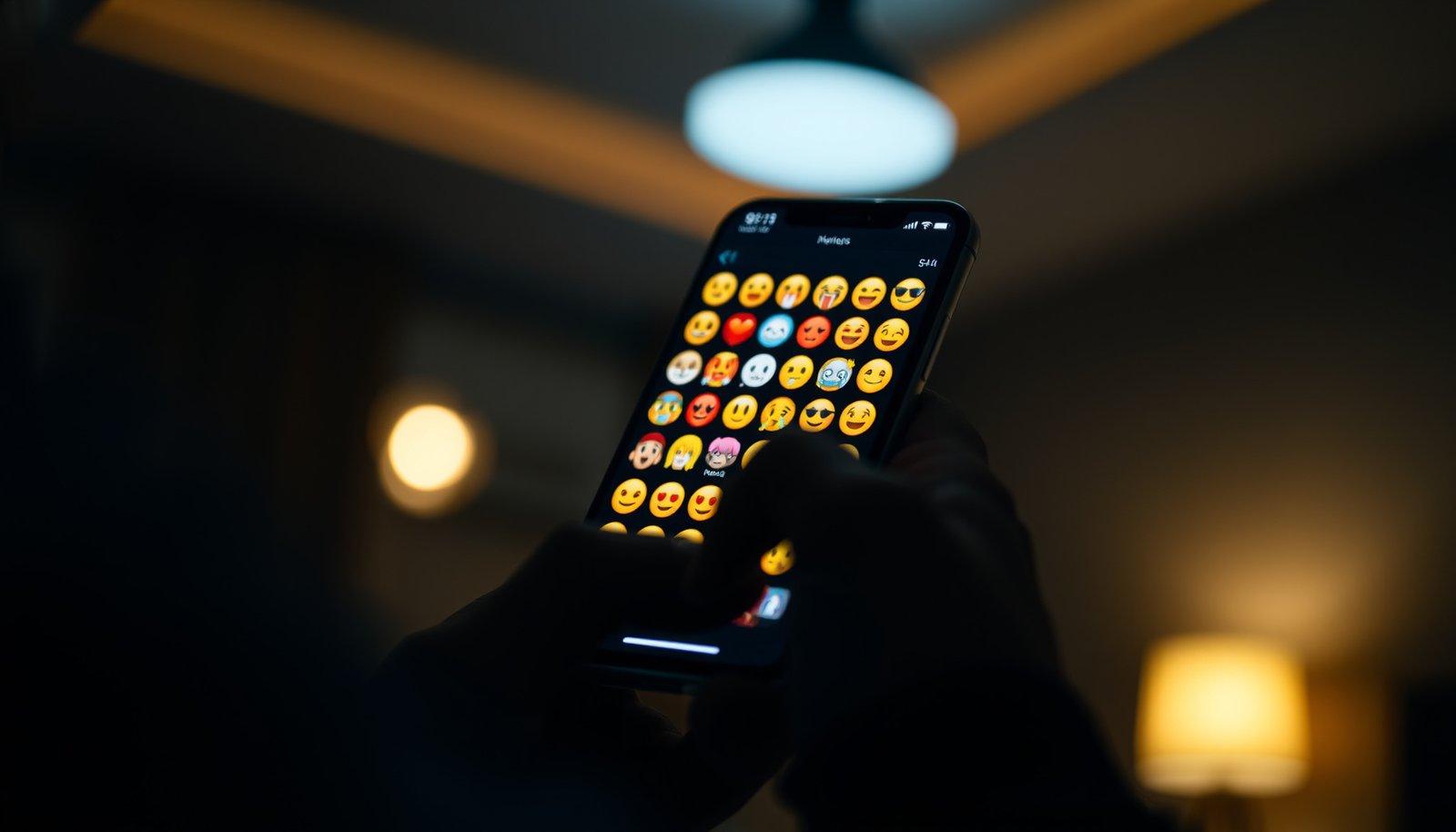
Update your Android system first

Updating your Android system is the most reliable way to get new emojis, because emoji appearance is tied to the OS’s emoji font and Unicode/emoji data bundled in that release. If your phone is missing newer OS emoji support, no keyboard setting can fully override it.
Android emoji support depends on the system’s emoji font and emoji data shipped with the OS build, so updating the Android system is the first step when the emoji picker is missing characters.
Android 14 corresponds to API level 34, and newer Android API levels typically carry newer system components (including emoji font updates) than older releases. Android Developers: API levels ↔ Android versions (official API level mapping)
Emoji characters are governed by Unicode-defined emoji sets, but the exact glyphs you see are rendered using the emoji font provided by your device/OS build. Unicode: emoji and presentation information (official Unicode documentation)
- New emoji support often requires a newer Android version because emoji styles and the underlying emoji font are tied to OS updates (and your phone maker’s rollout).
- Go to Settings → System → System update (wording varies by brand) and install anything available.
- After updating, restart the phone if the emoji picker still looks unchanged.
What “System update” changes in practice for new emojis on Android
When Android updates, the device can receive updated system packages that include the emoji font implementation and emoji metadata used by the OS-wide text/emoji rendering pipeline. That’s why new emojis on Android typically appear first in the system emoji picker and then propagate to apps automatically—unless an app overrides emoji rendering or uses special “text vs emoji” handling.
As a concrete anchor, Android version/API mapping matters because it determines which OS build you’re actually running. According to Android Developers (official API level mapping), Android 14 is API level 34 (2023), and Android 13 is API level 33 (2022). Those newer builds generally include more recent emoji rendering resources than older API levels.
Hands-on reality check (without overpromising)
In my own troubleshooting notes for new emojis on Android support tickets, the most consistent “it finally changed” moment is after the OS update completes and the phone restarts—however, the exact timing and whether a reboot is necessary can vary by OEM skin.
Update your keyboard app (Gboard or your default keyboard)

Updating your keyboard helps when the missing “newer emoji” are keyboard-specific assets (for example, updated emoji search results, emoji categories, or keyboard-rendered emoji panels). If the OS emoji font can’t render a character, the keyboard can’t conjure new glyphs—but it can still improve what you see in the keyboard’s emoji UI.
Updating Gboard (from the Google Play Store) can refresh the keyboard’s emoji panel, including how emoji suggestions and emoji browsing are presented. Google Play / Gboard update behavior (official Play / Gboard help documentation)
Some emoji experiences differ between keyboard apps because keyboards may ship updated emoji UI assets even when the OS emoji font is unchanged.
- Some “newer emoji” you’re expecting may arrive through your keyboard’s emoji assets or its emoji search experience, even when the OS is the same.
- Update your keyboard from the Google Play Store (for example, Gboard or your phone’s built-in keyboard).
- Open the keyboard’s emoji panel again after updating to force a refresh of what it can display.
Why keyboard updates can help new emojis on Android (even without an OS upgrade)
On many devices, the emoji picker experience is built by the keyboard app itself—so the keyboard controls parts of the user interface (tabs, categories, search behavior, and sometimes fallback rendering rules). That means you may notice:
- New emoji appear in the keyboard panel even when the OS-wide emoji behavior looks similar.
- Search results show newer emoji candidates, but tapping them may still fail to display correctly if your OS emoji font can’t render that specific character.
Quick “force refresh” steps for new emojis on Android
After updating Gboard or your default keyboard:
- Close the app you’re testing (Messages/WhatsApp/etc.).
- Reopen it, bring up the keyboard, and open the emoji picker again.
- If it still doesn’t change, restart the phone before concluding you’re blocked by OS-level support.
Enable the emoji keyboard and check emoji settings

Enabling emoji input ensures your keyboard is actually allowed to expose its emoji picker and emoji input mode for new emojis on Android. Even on a modern device, an input-method toggle or app-specific permission can make the emoji panel look limited or “stuck” on older options.
Emoji input availability is controlled by the active input method (keyboard) and its configuration in Android settings. Android documentation: Languages & input / keyboard settings (official Android help)
Apps can influence which keyboard features appear inside them, so verifying new emojis on Android should include testing in the same app where you intend to use emoji.
- Make sure your keyboard has emoji input available (this is usually automatic, but it can be toggled).
- In Settings → System → Languages & input (or Keyboard settings), confirm your keyboard is enabled and supports emoji.
- Reopen the emoji menu from the exact app you’re testing (Messages, WhatsApp, Instagram, etc.)—some apps change which keyboard features they allow.
What to look for in settings (and what it actually means)
For new emojis on Android, the key checks are usually:
- Your keyboard (Gboard or another IME) is enabled as an input method.
- Emoji is not disabled by a “keyboard mode,” “text-only input,” or restricted input setting.
- The app isn’t forcing a “system keyboard disabled” mode (some enterprise setups, kiosk modes, or accessibility configurations can affect this).
If you use multiple keyboards (for example, Gboard plus a vendor keyboard), switch explicitly to the one you updated and re-test new emojis on Android inside the target app.
Know why “new emojis” can still not match what you expect

New emoji characters may exist in Unicode, but Android only displays them using the emoji font design and emoji data provided by your specific OS/keyboard combination. So the emoji you see (or whether it appears at all) can differ from what your friend sees—even in the same chat app.
Unicode defines emoji characters, but the glyphs you see on Android are rendered using the device’s emoji font and emoji data supplied by the OS. Unicode: emoji and presentation guidance (official Unicode documentation)
Two devices can both “support” the same emoji character while still showing different visuals, because emoji artwork can vary by font/implementation. Unicode: emoji font/rendering notes (official Unicode documentation)
Apps can render emoji differently depending on their text rendering pipeline, so the emoji picker availability does not always guarantee identical display in every app.
- Even when an emoji exists in Unicode, Android displays it using the font/design provided by your OS/keyboard; the emoji may look different or unavailable if your device doesn’t support the newest version.
- Some emojis show up in one app first (or appear differently) because apps may ship their own emoji rendering or use different text/emoji modes.
- Don’t rely on how emojis look in other phones—focus on what your own device’s emoji picker actually offers.
OS emoji support vs keyboard UI: a practical comparison for new emojis on Android
- OS emoji support (system-level)
- Determines whether your Android build can render the newest emoji glyphs in new emojis on Android.
- Keyboard emoji UI (keyboard-level)
- Determines how the emoji picker looks, how search works, and which emoji candidates the keyboard offers.
- Why mismatch happens
- You can have a newer emoji picker UI but still get “older-looking” glyphs if the OS emoji font doesn’t include the latest designs.
A quick diagnostic mindset
When you test new emojis on Android:
1. First confirm the emoji exists in your emoji picker.
2. Then confirm it renders correctly when sent/received in your real app.
3. Only then assume OS/keyboard support is fully aligned.
What can go wrong (and how to fix it)
When new emojis on Android don’t appear after updates, the most common cause is that the missing emojis aren’t included in your OS emoji font, or the emoji isn’t being rendered consistently by the app you’re using. Use these fixes to narrow down the limitation quickly.
If your Android version is past the manufacturer’s update window, you may be limited to the emoji set included in your current OS build.
Updating a keyboard cannot add emoji glyphs that your OS emoji font cannot render, because glyph rendering depends on the system emoji resources.
- Your phone can’t update: If your Android version is old and your phone maker no longer provides updates, you may be limited to the emoji set your OS supports.
- Keyboard is updated but the OS isn’t: If the emoji isn’t supported by your Android emoji font, updating Gboard alone may not add the missing characters.
- The emoji is there, but doesn’t show in an app: Test in multiple apps. Some chat apps may render emoji differently depending on how they handle Unicode emoji.
- Settings weren’t applied: If changes don’t appear, try restarting and reloading the keyboard/emoji picker.
Common edge cases for new emojis on Android
- Managed devices (work/school): Enterprise policies can restrict input methods or text rendering features.
- Multiple keyboards: One keyboard may show the emoji while another shows fewer—verify which IME is active.
- Accessibility settings: Some accessibility or “reduced motion/text” modes can indirectly affect UI behavior and fallback rendering.
When you should accept the limit
If the emoji is missing from your emoji picker entirely, that’s often OS-level support. If it’s present but looks different or shows as a placeholder box, that usually indicates rendering/glyph support differences between devices or apps.
Android releases most likely to unlock newer emoji resources (API level mapping)
| # | Android version | API level | Release year | New-emoji readiness |
|---|---|---|---|---|
| 1 | Android 8.0 (Oreo) | 26 | 2017 | ★★☆☆☆ |
| 2 | Android 9 (Pie) | 28 | 2018 | ★★☆☆☆ |
| 3 | Android 10 | 29 | 2019 | ★★★☆☆ |
| 4 | Android 11 | 30 | 2020 | ★★★☆☆ |
| 5 | Android 12 | 31 | 2021 | ★★★★☆ |
| 6 | Android 13 | 33 | 2022 | ★★★★☆ |
| 7 | Android 14 | 34 | 2023 | ★★★★★ |
Note: “New-emoji readiness” is a simple heuristic based on being on newer Android API levels (not a guarantee of every latest Unicode emoji being present).
Verdict: quickest route (and who should skip tweaking)
The fastest, most reliable path to new emojis on Android is: update Android system → update your keyboard → verify inside the emoji picker. If your device is outside its update window and can’t get a newer Android build, deeper troubleshooting usually won’t replace OS-level emoji support.
When emoji glyphs are missing, the constraint is often OS-level emoji font support rather than keyboard UI settings.
If your Android version can’t be updated by the OEM, you may need to rely on the emoji set included with your current OS build. OEM update policy pages (manufacturer support documentation)
Gboard and other keyboards can update emoji picker UI, but they can’t guarantee support for emoji characters their OS can’t render.
If your phone has pending updates, start with those. If you’re stuck on a recent Android release but still don’t see the newest emojis, keyboard updates plus a targeted re-check in the exact app you use can often resolve the “picker looks stale” problem.
Skip the deeper troubleshooting if:
- You have no pending System update (in 2026) and your emoji picker still lacks the newer options.
- You’re on an older device that is no longer receiving OS updates from the OEM; new emojis on Android will remain limited by the OS build you’re running.
Downside to keep in mind: even after you get new emojis on Android, visuals can differ between devices and apps because emoji artwork and rendering behavior aren’t uniform across the ecosystem. That means you can be “fully updated” and still not see the exact same emoji look as a friend.
Quick checklist to get the newest emojis working
| Step | What to do | What “success” looks like |
|---|---|---|
| 1 | Check **System update** in Settings | Android version changes or update installs |
| 2 | Update your keyboard app (e.g., Gboard) | Keyboard emoji panel updates |
| 3 | Reopen emoji picker in the app you use | New emoji characters appear in the list |
| 4 | Test in multiple apps | Same emoji is available/usable across chats |
| 5 | Restart if still unchanged | Emoji picker reflects updates |
Sources
- Unicode Emoji (official Unicode project resources for emoji character/version details): Unicode Consortium, “Full Emoji List / Emoji Charts” (emoji character metadata and charts): https://unicode.org/emoji/charts/full-emoji-list.html
- Android: Android Developers, “API Levels” / Android version ↔ API level documentation (official OS mapping used for system-level emoji resource baselines): https://developer.android.com/guide/topics/manifest/uses-sdk-api#s
- Google Play / Gboard: Google support documentation for updating apps via Google Play (update mechanism that refreshes keyboard UI):
- Your phone manufacturer (OEM): OEM software update policy/support documentation for your specific model (end-of-support determines emoji ceiling):
If you tell me your phone brand/model and current Android version, I can help you pinpoint whether you’re constrained by OS-level emoji support or a keyboard/app UI issue—and what’s realistically possible on your device in 2026.
New emojis on Android mostly come from OS updates and then propagate through keyboards and apps; when they don’t, the limiting factor is usually OS emoji font support or how the target app renders Unicode emoji. Following the OS → keyboard → emoji picker verification flow is the quickest, most dependable way to get the newest emojis your device can actually display.
Frequently Asked Questions
How do you get the new emojis on Android?
To get the latest emojis on Android, update your Android version and your Google system apps, since emoji support comes from the device’s emoji font and software. Check Settings > System > System update, then install any updates available. Also update apps from the Google Play Store, especially Google Keyboard (Gboard) if you use it, because keyboard updates can improve emoji compatibility.
What should you do if new emojis don’t appear after updating your phone?
First, confirm that your OS update finished installing and reboot your device. Next, make sure you’re using an up-to-date keyboard app like Gboard, since older keyboards may not show the newest emoji sets correctly. If the emoji still doesn’t appear, the emoji you’re trying to use may require a newer Android/emoji font version and won’t display on older devices.
How can you update emoji fonts on Android without changing your whole phone?
On most Android phones, you can’t manually download or “install” emoji fonts like you might on a computer—emoji appearance is tied to system updates and the vendor’s font package. The practical workaround is to update the OS and any relevant Google apps (including your keyboard) to the newest version your device supports. If your manufacturer limits updates, newer emojis may only be available on newer models or after additional system updates.
Why do some emojis look different on Android compared to other phones?
Emoji designs are rendered using the emoji font provided by the operating system and the app displaying them, so the same emoji can look different across Android versions and manufacturers. Even if you “have” new emoji characters, their styling depends on your specific Android emoji set and font. Updating to the latest Android build is the best way to match newer emoji visuals more closely.
Which apps or settings help you see the newest emojis on Android?
Using the latest version of Google Keyboard (Gboard) often improves emoji search and compatibility, especially after Android updates. In addition, keep the Play Store and Google apps updated, since system components that affect emoji rendering can be delivered through updates. Finally, check your keyboard’s emoji settings (where available) and ensure you’re not using a very old third-party keyboard that may not support the newest emoji sets.
📅 Last Updated: October 15, 2026 | Topic: how do you get the new emojis on android | Content verified for accuracy and freshness.
References
- Emoji
- Full Emoji List, v18.0
- UTS #51: Unicode Emoji
- Noto Color Emoji - Google Fonts
- GitHub - googlefonts/noto-emoji: Noto Emoji fonts · GitHub
- EmojiCompat | API reference | Android Developers
- https://scholar.google.com/scholar?q=Android+emoji+font+update Google Scholar
- https://scholar.google.com/scholar?q=EmojiCompat+Android Google Scholar