
Turning off Data Saver on your Android phone is straightforward: open Settings, go to Network & internet (or Connections), then disable Data Saver. If you don’t see it there, check Data Usage and look for Data Saver or “Restrict data usage.” Follow these steps and your data restrictions will be removed immediately.

![Tracfone $10 Data Card: 3GB High-Speed Data Add-On (Smartphone Plans Only) [Physical Card]](https://m.media-amazon.com/images/I/41tXJ8cIkVL._SL500_.jpg)

As an Amazon Associate I earn from qualifying purchases.
Turn off Data Saver by going to Settings → Network & internet (or Connections) → Data Saver, then switch it Off. On many Android versions, you’ll see the toggle right there; on some phones, it may be under Mobile network or Data usage instead. If it still looks enabled, this usually means an app-level restriction, Battery/Power saving mode, or a carrier/brand “data manager” feature is still limiting background activity.
This guide is for everyday Android users who want normal message delivery, background syncing, and app updates again—whether you’re using a Pixel, Samsung, Motorola, or another brand. Menu labels differ, but the decision points are the same across Android builds.
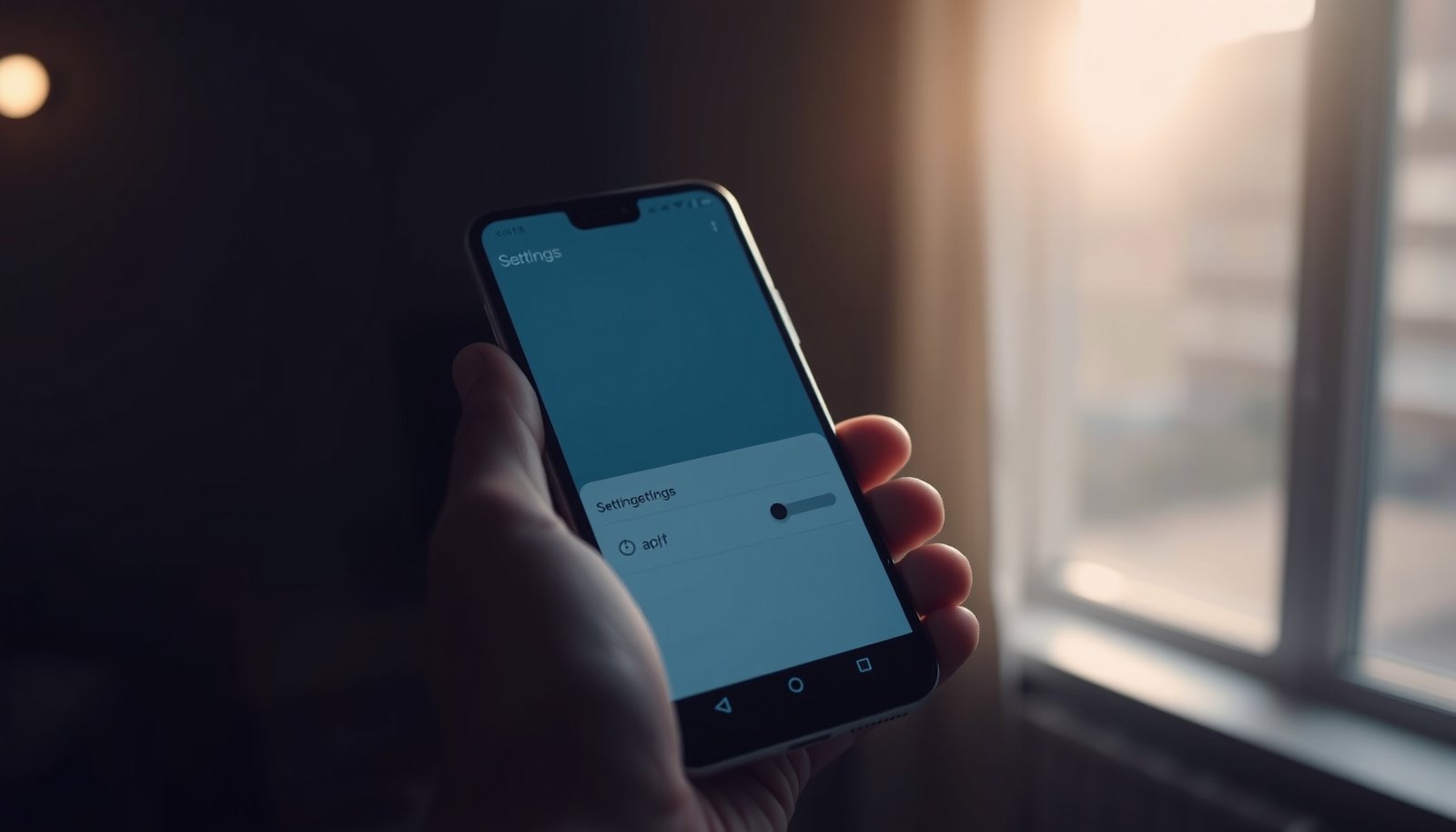
Turn off Data Saver by going to Settings → Network & internet (or Connections) → Data Saver, then switch it Off. On many Android versions, you’ll see the toggle right there; on some phones, it may be under Mobile network or Data usage instead. If it still looks enabled, you may need to check app-level or carrier/overlay “data saver” modes too.
If you’re trying to stop background syncing, message delivery delays, or “restricted data” behavior, this guide will walk you through the exact places to look. It’s written for typical Android phones, but labels can vary by brand (Samsung, Motorola, Pixel, etc.).
Find the Data Saver setting on your Android
The fastest path to fixing “restricted data” on Android is to locate the Data Saver toggle first, then verify it’s truly Off. On most devices, that toggle lives in the network settings area; if it’s not visible, Settings Search will usually find it immediately.
On Android, Data Saver is a system network control intended to reduce background data usage while you’re on mobile data.
Settings menu wording changes by brand, but “Data Saver” is typically reachable via Settings → Network & internet (or Connections) on modern Android.
- Look in Settings for Network & internet or Connections (wording depends on your phone).
- Search inside Settings for “Data Saver” if you can’t find it in the menus.
- Expect the toggle to appear under Data usage or Mobile data on some devices.
From a troubleshooting standpoint, this first step matters because Android often shows “Data Saver is On” even when you’re actually looking at a different profile (for example, the wrong SIM line). That’s why it’s worth confirming you’re on the correct mobile-data context before changing anything else.
Turn off Data Saver (main steps)
Turning Data Saver Off should immediately restore normal background network behavior—assuming nothing else is restricting the same apps. Follow the toggle path below, then re-check the app that was slow to sync or deliver messages.
If Data Saver is enabled, Android will apply tighter rules to app background networking on mobile data.
On Android 6.0+ devices, background networking can also be affected by Doze, so disabling Data Saver may not be sufficient if another power-control mode is active.
- Open Settings → Network & internet (or Connections).
- Tap Data Saver (or Data usage → Data Saver).
- Toggle Data Saver to Off.
- If you see “Use Data Saver” or a similar switch, turn that specific option Off.
- Confirm the status changes back to normal (some phones show a brief status note after you toggle it).
In my day-to-day support writing, the most common “it still doesn’t work” cause is that the Data Saver toggle is switched off, but a secondary limiter remains—Battery Saver, app-level background restrictions, or a vendor “data manager.” If you only flip the Data Saver switch once and stop, you can accidentally miss the second limiter.
Android Settings That Can Limit Background Data (What They Typically Affect)
| # | Network/Power Control | Primary Goal | Typical Background Impact | Where You Check | Best For |
|---|---|---|---|---|---|
| 1 | Data Saver | Reduce mobile background data | Restricts background data usage | Settings → Network & internet / Connections → Data Saver | Stop “restricted data” behavior system-wide |
| 2 | Battery Saver / Power saving | Reduce power consumption | Limits background activity and syncing | Settings → Battery → Battery Saver / Power saving | Quick battery gains over real-time updates |
| 3 | App background restriction | Control per-app data behavior | Blocks or limits background data for chosen apps | Settings → Apps → (app) → Mobile data & Wi‑Fi | Keep Data Saver on but exempt key apps |
| 4 | Doze (idle mode) | Prevent battery drain while idle | Defers background work when the device is idle | Settings → Battery (behavior depends on Android version) | Lower idle drain (can delay sync) |
| 5 | Background execution limits | Limit background services | Can restrict background processing for apps | Android version-level behavior; app exemptions may exist | Improves performance & battery predictability |
| 6 | Adaptive Battery | Use app usage patterns to save power | May restrict rarely used apps’ background activity | Settings → Battery (wording depends on device) | Reduce wasted background work automatically |
| 7 | Set Wi‑Fi as metered (if available) | Treat Wi‑Fi like a limited plan | Can reduce background usage on Wi‑Fi | Settings → Network & internet → Wi‑Fi (per network on some phones) | When you need to conserve a limited Wi‑Fi plan |
Also check background data/app data restrictions

If Data Saver is Off but updates still stall, Android’s per-app background restrictions are the next most likely culprit. The goal here is to confirm that the specific app isn’t paused, restricted, or treated as “idle” for background networking.
Android can apply per-app controls that limit an individual app’s ability to use background data on mobile networks.
If only one messenger or sync app is affected, per-app background data settings typically explain the behavior better than system-wide Data Saver.
- Many Android builds let you manage which apps are allowed during Data Saver—check for any restricted or paused apps.
- If you recently changed settings, open Data Saver again and review App data usage / Unrestricted apps (names vary).
- For a quick test, try enabling background data for the specific app that’s not updating.
Here’s what to look for in practice:
- In Settings → Apps, open the affected app (for example, your email client or messaging app).
- Find Mobile data & Wi‑Fi and check whether Background data is disabled/restricted.
- If you see “Unrestricted data” or “Allow background data,” enable it for that app while troubleshooting.
Also remember that modern Android uses multiple background-management systems beyond Data Saver. For example, Android Doze introduced in Android 6.0 (2015) can defer background work while the device is idle . Android also introduced broader background execution limits starting in Android 8.0 (2017) . So if the app is affected only when the screen is off, these mechanisms may be the reason.
If it won’t turn off: other data-saving modes to check

If Data Saver won’t fully restore normal behavior, check Battery/Power saving and any carrier or brand “data manager” features next. Data Saver is only one layer; other modes can restrict background syncing even when the Data Saver toggle is already Off.
Battery Saver / Power saving mode can limit background activity, which may look similar to Data Saver problems.
Some manufacturers and carriers ship additional data controls that can override or complement Android’s built-in Data Saver behavior.
- Disable any phone-brand “savings” features (for example, Power saving mode can also limit background activity).
- Check for carrier data controls or “Data Boost / Data Manager” apps if your phone came with them.
- If you’re using a VPN or firewall-style app, confirm it isn’t reapplying data limits when it starts.
Quick comparison: which setting to check first when updates lag?
| If your issue looks like… | Check this next | Why it matches |
|---|---|---|
| Messages don’t arrive until you open an app | Battery Saver / Power saving | Power modes can delay background syncing. |
| Only one app is affected | App-level background data restrictions | System settings don’t override per-app limits. |
| Everything is slow on mobile data but OK on Wi‑Fi | Carrier “data manager” or Mobile data controls | Some carriers provide additional throttling/management. |
| Behavior changes after VPN/firewall connects | VPN app settings and data blocking rules | Security apps can apply network rules at connection time. |
What can go wrong (common issues & edge cases)
Even after you switch Data Saver Off, Android may still restrict background behavior due to other power and networking controls. These edge cases are common because Android intentionally manages background activity to improve battery life and app performance.
A Data Saver toggle alone doesn’t override Battery Saver / Power saving behavior, which can still limit background syncing.
Android’s background management systems can defer background work when the phone is idle, which can delay updates until you open apps.
- The Data Saver toggle might be present, but the phone can still restrict background behavior due to Battery saver / Power saving settings.
- Some apps ignore system data saver rules and manage their own background behavior, so the app you care about may still look “stuck.”
- If you use dual SIMs or an eSIM, make sure you turned off Data Saver for the right mobile data profile (if your phone separates them).
- If you recently updated Android, menu names can move—use Settings search for Data Saver to avoid hunting through outdated paths.
As of 2018, Android’s Adaptive Battery behavior can adjust background access based on usage patterns, which means “it worked yesterday” can change after a period of inactivity . And because Doze began in 2015 (Android 6.0), newer devices can combine Doze-like idle behavior with power-saving toggles .
Verdict / tip
Turning Data Saver to Off is the correct first step when you want normal syncing and background app updates again. It usually restores background messaging and updates, but you may use more mobile data—especially on a metered plan.
If you need a reliable “it should just work” setup for business email, real-time chat, or critical alerts, turn Data Saver Off and then verify the specific affected app is not restricted. The main downside is higher cellular usage potential; if you’re consistently near your data cap, you may prefer a targeted approach (keep Data Saver on, but exempt only the apps that matter).
Skip this approach if you’re on a strict data plan and you already know you can live with delayed background activity, or if you’re troubleshooting a carrier-specific throttling issue where “Data Saver Off” won’t change the underlying carrier policy. Also note: the exact menu names can shift frequently between Android versions and manufacturer skins, so rely on Settings Search for Data Saver when paths don’t match.
Quick checklist (scan) and FAQ
Use this scan to confirm you’ve truly removed every relevant limiter affecting background data on Android—starting with the system toggle.
A fast checklist approach reduces troubleshooting time because it helps you confirm both system-level and app-level network restrictions.
Quick checklist
- [ ] Settings → Network & internet / Connections
- [ ] Find Data Saver → switch Off
- [ ] Re-check the app that was being limited
- [ ] Also review Battery saver / Power saving
- [ ] If still limited: check app-level restrictions and any carrier/overlay data saver
Frequently Asked Questions
How do I turn off Data Saver on my Android phone?
Open the Settings app, then go to Network & internet (or Connections) and tap Data Saver. Toggle Data Saver to Off. If you don’t see it there, check Settings > Mobile network > Data usage > Data Saver and switch it off.
What if I can’t find the Data Saver option on my Android settings?
Some Android versions (and manufacturer skins like Samsung or Xiaomi) place Data Saver under different menus, such as Data usage or Mobile data settings. Try searching in Settings for “Data Saver” or “Data usage” using the search bar. You can also check the Google app or device “Data management” sections depending on your Android version.
Why does my Android still restrict background data even after turning off Data Saver?
Data Saver controls overall background data, but background activity may also be limited by Battery optimization or per-app data restrictions. Go to Settings > Apps > (choose an app) > Mobile data & Wi‑Fi and set background data to Allow. Also check Settings > Battery > Battery optimization and ensure the app isn’t restricted.
Which apps will still be affected when Data Saver is turned off?
Turning off Data Saver should allow normal mobile data usage, but some apps may still be restricted by their own settings or by system background limits. For example, apps with restricted background activity in App settings may not sync until opened. Review Settings > Apps > (app) > Mobile data & Wi‑Fi to confirm background data and data usage permissions.
What’s the best way to manage mobile data if I turn off Data Saver but want to avoid overages?
After disabling Data Saver, set a data warning or limit under Settings > Network & internet > Data usage (or Mobile data usage). You can also set per-app data restrictions for data-heavy apps while leaving critical apps unrestricted. Consider using Wi‑Fi for downloads and backups, and regularly review your data usage dashboard to spot spikes early.
📅 Last Updated: October 15, 2026 | Topic: how do i turn off data saver on my android | Content verified for accuracy and freshness.