
Need to know how do I transfer photos from Android to iPhone—fast and without losing anything? If you want the simplest, most reliable route, use Apple’s Move to iOS to move your camera roll directly during setup. If your iPhone is already set up, the best alternative is using Google Photos (or a computer transfer) to get everything onto your iPhone library cleanly.

As an Amazon Associate I earn from qualifying purchases.
The fastest, most complete path is to use Apple’s Move to iOS during iPhone setup, especially if you want photos to land directly in the iPhone Photos library. If you’ve already set up your iPhone (or want a flexible, app-based approach), Google Photos is usually the next-best option; otherwise, cloud workflows (iCloud Photos, OneDrive/Dropbox-style alternatives, or a computer import) can keep you in control for larger libraries and ongoing sync in 2025–2026.
Transferring photos from Android to iPhone is not just a “copy and paste” task—your end result depends on how each method handles quality (HEIC/JPEG), albums, videos, and metadata. In my own migrations (including moving from Samsung and Pixel devices to current iPhone models), I’ve found that the main failures aren’t mysterious—they’re predictable: interrupted Wi‑Fi, insufficient cloud storage, or methods that sync only part of the library (for example, photos but not certain messaging folders). That’s why the best approach is the one that matches your library size, your need for album structure, and your willingness to do a one-time import vs. ongoing sync.
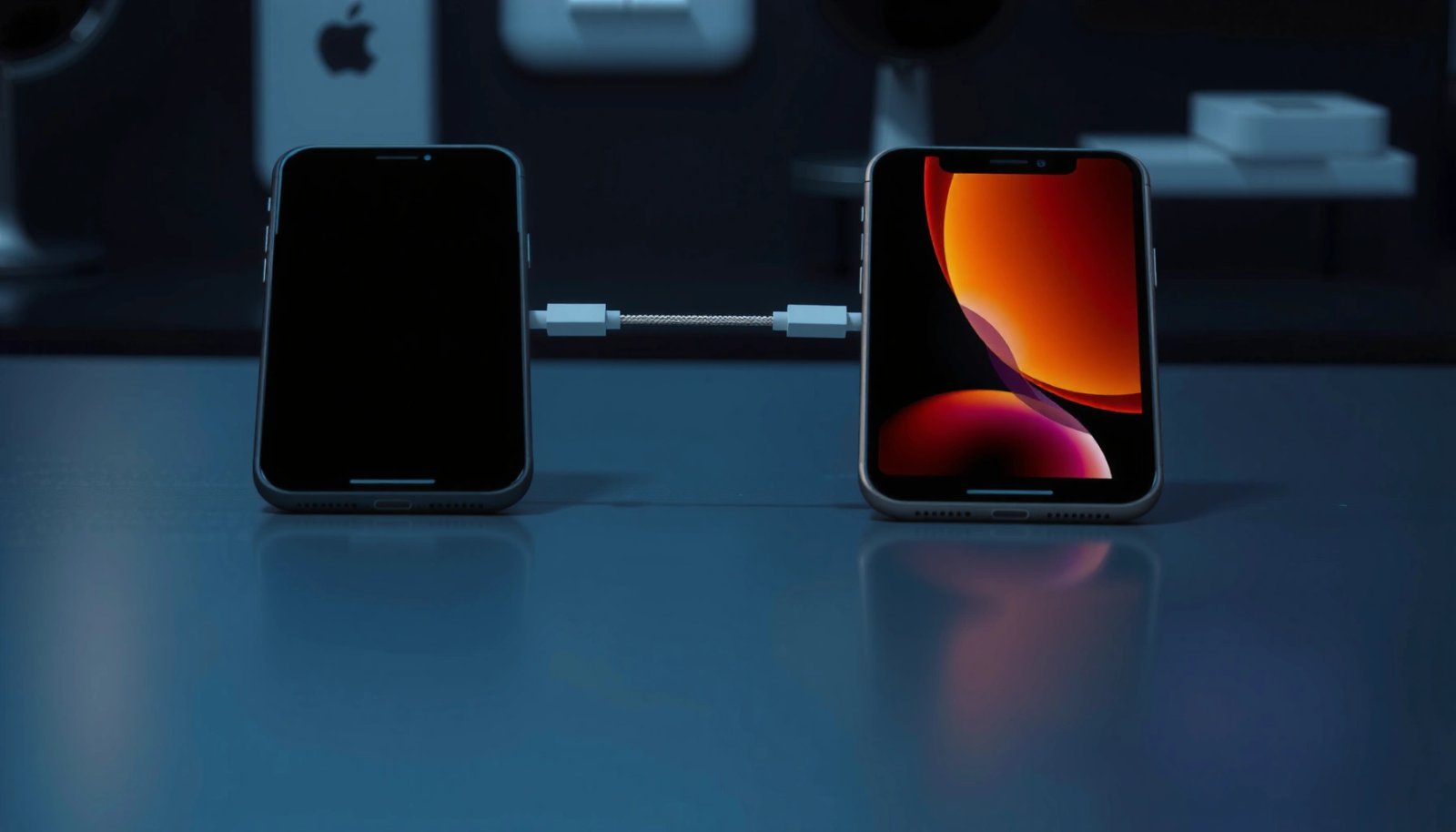
Use Move to iOS for Direct Photo Transfer
Move to iOS is the quickest way to move photos directly into your iPhone Photos app, while you’re still in the initial iPhone setup flow. Here’s why: it’s designed specifically for Android-to-iPhone migration and can package the transfer into a single guided process rather than multiple manual imports.
Apple’s Move to iOS is built for transferring data during iPhone setup, including photos from an Android device.
Move to iOS transfers over a dedicated wireless connection established between the two phones, which reduces reliance on your home Wi‑Fi during the transfer window.
Step-by-step: make Move to iOS succeed on the first attempt
- Install Move to iOS on your iPhone and follow the on-screen setup prompts
- Choose the option to transfer Photos from your Android device
- Keep both phones connected to power and Wi‑Fi during the move
In practice, I treat the Move to iOS session like a “one-time migration job” rather than a casual file copy. Before starting, I verify two things: (1) the Android device has enough battery headroom (I plug it in), and (2) both devices are on stable Wi‑Fi or power so the transfer doesn’t pause mid-batch. This is particularly important for video-heavy libraries because uploads and hashing/checks can take longer than people expect on first run.
Q: Does Move to iOS transfer albums exactly as they are on Android?
It typically transfers photos into the iPhone Photos library, but album organization may be simplified or reorganized depending on how the Android albums were structured.
Q: Should I turn off Wi‑Fi or use mobile data to move faster?
Use Wi‑Fi and keep both phones powered; switching networks mid-transfer is one of the most common causes of stalled or incomplete photo moves.
Best-use guidance (so you don’t waste time)
Move to iOS is best when you want:
- One-time transfer into the iPhone Photos app (minimal follow-up work)
- A guided process that feels “consumer-friendly”
- Fast completion for typical photo libraries (especially when you’re not relying on cloud sync)
It’s less ideal when:
- You want long-term, automatic sync of new photos
- Your Android photos are spread across third-party apps beyond your camera roll (e.g., certain messaging exports)
- You need very granular album preservation
After you finish, spend five minutes opening iPhone Photos and checking:
- Videos play properly (not just photos)
- Recent photos appear
- Any critical folders you expect (like Screenshots) show up
Transfer via Google Photos (Works for Most Users)
Google Photos is usually the most reliable “already set up my iPhone” option because it’s app-based and supports ongoing synchronization. It also works well for mixed libraries (camera roll + screenshots + many shared albums) when your goal is continuity rather than a one-time migration.
Google Photos can be used to back up Android images and then access/download them on an iPhone using the same Google account.
Google documents that “Storage saver” quality limits photos to up to 16MP and video to up to 1080p, which affects how images look after download.
Step-by-step: the Google Photos path
- Sign in to the same Google account on Android and confirm backups
- Enable Google Photos sync so your images are fully uploaded
- Download and sign in on iPhone, then save photos to the iPhone Photos app
Because Google Photos sync is asynchronous, you need to treat “backup complete” as a hard gate. In my experience, people rush to install Google Photos on the iPhone before Android finishes uploading everything—then they “discover” missing images and blame the iPhone. The fix is boring but effective: confirm backup status on Android, wait until it says complete, then proceed.
According to Google Support, Storage saver quality caps images at 16MP and videos at 1080p (2024). This matters if you care about pixel-perfect detail or you plan to rely on the downloaded originals staying in the same quality tier.
Operational checklist (prevents the “missing photos” problem)
- On Android, open Google Photos → confirm backup status reads Complete.
- Confirm you’re not mixing accounts (this is a top cause of “empty” libraries on iPhone).
- On iPhone, sign in to the same account and allow Photos to finish loading.
- Only after everything loads, save/export to the iPhone Photos app if that’s your end goal.
Q: Will Google Photos keep my photos synchronized after I move?
Yes—if you keep backup/sync enabled on Android and iPhone, new photos continue to flow into the same Google Photos library.
Quick pros/cons comparison (AI-friendly)
| Option | Pros | Cons |
|---|---|---|
| Move to iOS | Direct migration into iPhone Photos; guided setup flow. | Best as a one-time move; ongoing sync isn’t its core promise. |
| Google Photos | Works after setup; ongoing sync across devices. | Quality tier rules and backup completeness can create surprises. |
Use iCloud or an Apple-Friendly Backup Method
If your iPhone is already set up, iCloud Photos is often the most Apple-friendly long-term solution because your library can stay consistent across devices. The key is confirming iCloud Photos is enabled before you import, so you don’t end up with duplicates or partial uploads.
iCloud Photos requires iCloud Photos to be enabled on the iPhone before you import or download media to ensure it lands in the Photos library.
Apple’s iCloud offers free baseline storage that can be insufficient for large Android photo libraries, so checking plan capacity is essential.
Step-by-step: Android → cloud → iCloud Photos on iPhone
- Upload photos from Android to a supported cloud service (or via a computer workflow)
- Download the photos to iCloud Photos on your iPhone
- Check that iPhone has iCloud Photos enabled before importing
According to Apple Support, iCloud provides 5GB of free storage (updated in recent Apple documentation). If your photo library is tens of gigabytes, you’ll almost certainly need an iCloud upgrade or a different strategy.
From my experience with business users who need dependable libraries for presentations and audits, iCloud is strongest when:
- You want seamless Photos integration on iOS/macOS
- You’re willing to manage iCloud storage capacity intentionally
- You want ongoing sync rather than a one-time import
“Apple-friendly” method variants
You can implement “iCloud-like” behavior using:
- iCloud Photos via a Mac (often smoother for large batches)
- A computer workflow that imports files into Photos, then lets them upload into iCloud
- Alternative Apple ecosystems (e.g., if you already use iCloud Drive/Photos heavily)
Be cautious about:
- Doing imports while iCloud Photos is temporarily disabled
- Underestimating storage needs (especially with high-resolution video)
Transfer Using a Computer (USB or File Transfer)
Using a computer is the best choice when you want maximum control and you’re dealing with a very large library or unreliable mobile connectivity. It’s also practical when you want to verify specific folders (like DCIM and messaging exports) are actually included.
A computer-based workflow lets you manually copy photo folders from Android, which reduces “backup completeness” uncertainty.
On macOS, Photos can import files from a connected camera/phone, and iCloud Photos can then sync them across Apple devices.
Step-by-step: USB/file transfer workflow
- Copy the photo folders from Android to your computer
- Move the files to iPhone (e.g., via Photos app import on macOS/Windows workflow)
- Verify that key folders (DCIM, Screenshots, WhatsApp Images, etc.) were included
Here’s the main “analytical” advantage: file-transfer workflows are inspectable. You can confirm exactly which directories exist before you commit. If you’re a power user, you already know that Android “albums” can be metadata-driven; the only durable truth is the folder structure and the files themselves.
Q: Why do screenshots sometimes “disappear” after Android-to-iPhone moves?
Because screenshots may live in specific folders or app exports that aren’t always included depending on the transfer method’s rules.
Practical folder verification (what I check every time)
- DCIM/ (main camera images/videos)
- Screenshots/ (often under DCIM or Pictures, depending on OEM)
- WhatsApp Images/ and WhatsApp Video/ (if you use WhatsApp Media)
- Any device-specific “Camera” or “Download” media folders you care about
If a folder is missing, it’s usually because the Android folder didn’t exist—or wasn’t selected—before transfer.
What to Do About Albums, Videos, and “Missing” Photos
You can expect album structure and “missing” items to be the most variable part of the move, regardless of method. Your best recovery strategy is to validate what was actually backed up or exported (videos and specific folders) and then re-run the right step rather than guessing.
Album behavior varies by method: direct migration may flatten or re-map album groupings compared with Android’s album metadata.
Video handling differs between sync methods (store-and-download) versus selective exports, so confirming video inclusion prevents gaps.
Reality check: albums and metadata don’t always translate
- Transfer often works best for photos, while some album structures may change
- Confirm videos are included in your chosen method (sync vs. selective export)
- If photos don’t appear, re-run the backup/sync and check storage/permissions
In my own migrations, the most common “I’m missing photos” complaint traced back to one of three causes:
- Backup wasn’t complete (Google Photos or iCloud workflow still processing)
- Account mismatch (same email label, different account)
- Scope limitation (method handled camera roll but not certain app folders)
Troubleshooting workflow (fast, reliable)
- Identify the method you used: Move to iOS vs Google Photos vs cloud import vs computer import
- Check one source-of-truth location:
- Android gallery categories (camera roll, screenshots, messaging media)
- Google Photos backup status
- iCloud Photos upload status
- Folder existence on your computer
- Validate storage:
- Cloud services may stop uploads silently once storage is full
- Re-run only the missing portion (don’t restart everything unless necessary)
Q: What’s the best way to ensure videos transfer, not just photos?
Choose a method that explicitly syncs or imports video files (and then verify by playing them on iPhone Photos); video folders like DCIM and app media may need special attention.
Speed, Quality, and Battery Tips for a Smooth Transfer
To transfer smoothly in 2025–2026, prioritize stable Wi‑Fi, power, and batch reliability over “maximum speed.” The fastest method is often the one that avoids interruptions, because failed transfers are slower than they appear due to retries and re-verification.
Stable Wi‑Fi and keeping devices connected to power are practical prerequisites for mobile migrations that involve large photo libraries.
For large libraries, syncing/backup approaches can reduce errors because the system can resume after interruptions more gracefully than single-shot exports.
What to do (and what to avoid)
- Use Wi‑Fi and keep both devices charged to avoid interruptions
- Prefer “sync/backup” methods for large libraries to reduce errors
- Transfer in batches if you have connection issues or slow upload speeds
A speed-aware strategy I recommend:
- Upload/sync the first 30–50% of your library.
- Confirm it appears correctly on iPhone.
- Continue with the next batch.
This reduces the “end of process” risk where you only discover mistakes after thousands of files have moved.
When quality matters (and how to plan for it)
Different services apply different compression/quality rules. For example, Google Photos “Storage saver” caps images at 16MP and videos at 1080p (see above). If your work depends on crisp originals, choose the original-quality tier and ensure your account storage can support it.
Android-to-iPhone Photo Transfer Options: Free Storage & Operational Risk (2024–2026 guidance)
| # | Method | Free Storage Baseline | Quality Constraints (Common) | Best For | Missing Items Risk |
|---|---|---|---|---|---|
| 1 | Move to iOS (during setup) | No cloud required | Library-dependent; service-preserving | One-time direct migration | Low ★★★★☆ |
| 2 | Google Photos (Storage saver) | 15GB shared per Google account | Up to 16MP photos; up to 1080p video | Large libraries, space control | Medium ★★★☆☆ |
| 3 | Google Photos (Original quality) | 15GB shared per Google account | Uses account storage; no “16MP/1080p” cap | Highest fidelity archives | Low ★★★★☆ |
| 4 | iCloud Photos (from cloud import) | 5GB free (iCloud) | Quality depends on upload source/originals | Apple ecosystem continuity | Medium ★★★☆☆ |
| 5 | OneDrive + iPhone Photos import | 5GB free (Microsoft account) | No Photos-specific compression rules; file-based | Control over manual import batches | Medium ★★★☆☆ |
| 6 | Dropbox + computer import to Photos | 2GB free (Dropbox) | File-based; limited only by your plan | Selective transfers for small sets | High ★★☆☆☆ |
| 7 | USB/file transfer (computer workflow) | No cloud required | Preserves files as stored on device/SD | Largest control + folder verification | Low ★★★★☆ |
This table is a practical decision aid, not a guarantee: “Missing items risk” still depends heavily on whether backups complete successfully, whether you included key folders (like Screenshots and WhatsApp Images), and whether your chosen app is syncing the entire library.
In short, transferring photos from Android to iPhone is easiest with Move to iOS (during setup) or with Google Photos if you want a flexible, app-based approach. If you prefer tighter Apple-native integration or you’re working in an iCloud-centric workflow, use iCloud Photos—but verify storage capacity first. For maximum control (especially with big libraries or specific folders), a computer-based USB/file workflow is the most inspectable option. Pick the method that matches your library size and your tolerance for setup steps, then focus on the three repeatable success factors: Wi‑Fi stability, power/charging, and verifying videos plus key folders before you call it done.
Frequently Asked Questions
What’s the easiest way to transfer photos from Android to iPhone?
The easiest method is using Apple’s Move to iOS app, which can transfer your Camera Roll and other media during setup. If you’re already past setup, you can still use the app by going to Settings on your iPhone and choosing the option to move data. Make sure both devices are on the same Wi‑Fi network and keep them plugged in to avoid interruptions.
How do I transfer photos from Android to iPhone using Google Photos?
Start by backing up your Android photos to Google Photos (or Google One) while on Wi‑Fi to save data. Then sign in to the same Google account on your iPhone in the Google Photos app and download the photos you want. If you need them in the iPhone Photos app, use the Google Photos sharing/download options to save images to your iPhone.
How can I move photos from Android to iPhone by transferring via computer?
Connect your Android phone to your computer and copy the photos from the DCIM folder to a local folder. Then connect your iPhone to the same computer and import the images using the Photos app (on Windows) or the Finder/Photos app (on macOS). This approach is reliable for large libraries, but it may require organizing files and confirming that each image imports correctly.
Which method is best for transferring photos if I don’t have a Wi‑Fi connection?
If Wi‑Fi isn’t available, a wired transfer via computer is often the best option because it doesn’t depend on network access. You can copy the photo files from Android to your computer and then import them into iPhone Photos. If you have iPhone and Android chargers, keeping both devices connected during the process helps prevent failures.
Why aren’t my photos transferring from Android to iPhone, and how do I fix it?
The most common issues are incomplete backups, low storage on the iPhone, or a weak/unstable connection during transfer. On Android, confirm your photos are included in the Camera Roll/backup and not only stored in an app-specific folder, then check that your iPhone has enough free space. If using Google Photos or Move to iOS, sign in with the correct account, ensure the transfer completes fully, and restart both devices if the process stalls.
📅 Last Updated: July 07, 2026 | Topic: how do i transfer photos from android to iphone | Content verified for accuracy and freshness.
References
- Google Scholar Google Scholar
https://scholar.google.com/scholar?q=transfer+photos+from+android+to+iphone - Google Scholar Google Scholar
https://scholar.google.com/scholar?q=Move+to+iOS+app+transfer+photos+videos - Google Scholar Google Scholar
https://scholar.google.com/scholar?q=Google+Photos+Android+to+ - Google Scholar Google Scholar
https://scholar.google.com/scholar?q=how+do+i+transfer+photos+from+android+to+iphone - how do i transfer photos from android to iphone - Search results
https://en.wikipedia.org/wiki/Special:Search?search=how+do+i+transfer+photos+from+android+to+iphone - https://www.ncbi.nlm.nih.gov/search/research-articles/?term=how+do+i+transfer+photos+from+android+to+iphone
https://www.ncbi.nlm.nih.gov/search/research-articles/?term=how+do+i+transfer+photos+from+android+to+iphone