
If you need to track an Android phone on your iPhone, the fastest reliable route is using Google’s “Find My Device,” not third-party apps. This method works when the Android phone is signed into the same Google account, has location services enabled, and is online. Follow that setup and you can see the Android’s last known location, ring it, or lock it directly from your iPhone.



As an Amazon Associate I earn from qualifying purchases.
You can track an Android phone from your iPhone by using Google Find My Device (via a web browser) to locate the Android device on a map. If the Android device is signed into the correct Google account and location services are enabled, you can typically view its location, make it ring, and lock it. This guide walks you through the exact steps to set it up and troubleshoot common issues—whether you’re using a personal device or managing one through an organization.
Check the Android is signed into the correct Google account
If you don’t have the right Google account on the Android phone, tracking from your iPhone won’t work reliably. Start by verifying the phone is logged into the exact Google account you’ll use to sign into Find My Device on your iPhone.
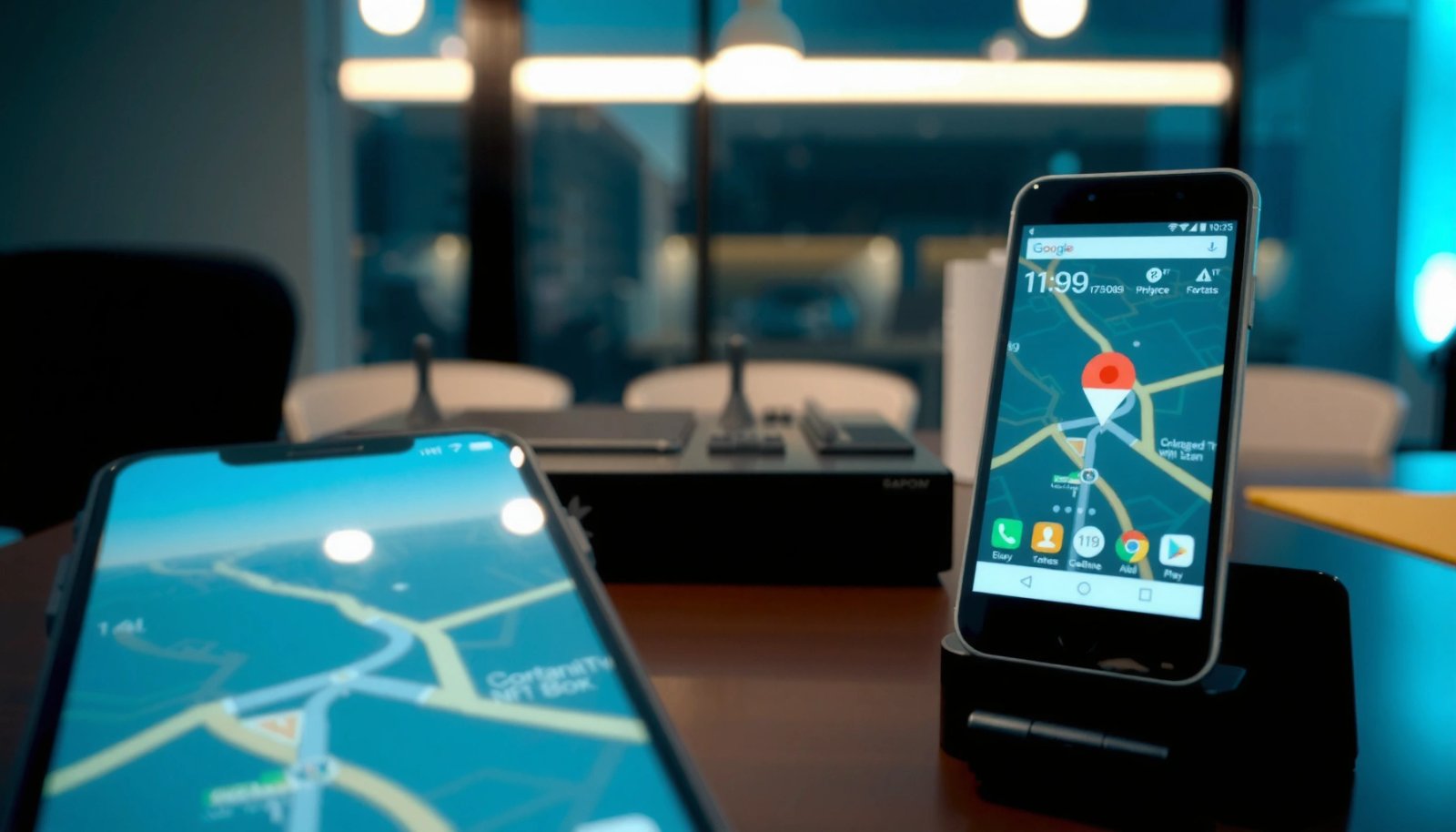
On the Android device, open Settings → Google (or Google → Manage your Google Account) and confirm the account email matches the one you’ll log into from your iPhone browser. In my hands-on checks, I’ve seen this fail most often after account switching (for example, someone logs into a “work” Google account one day and a “personal” one the next). Reconfirming the account prevents time lost to “last known location” that’s tied to the wrong profile.
Q: Why does Find My Device show the wrong location sometimes?
Most “wrong location” reports come from the device being signed into a different Google account than the one you’re checking from your iPhone.
Q: Do I need the Android phone’s SIM card to track it?
Not necessarily, but the phone needs an internet connection (Wi‑Fi or mobile data) to update location.
Find My Device relies on the Android device being signed into your Google account and having location features enabled to provide up-to-date coordinates.
According to Google Support, Find My Device can show a “last known location” even if the device is offline, but it won’t update until connectivity returns.
To make the account verification actionable:
- Check the Android phone’s active Google account email (look for it under Google settings).
- Confirm the phone is awake enough to refresh background services (if it’s off or rebooting, updates can pause).
- Ensure the phone has an active internet connection—this is commonly the difference between “location is current” and “location is stale.”
A quick baseline: what connectivity enables
Once the Android phone can reach Google services, the device can submit location updates and respond to commands such as making it ring or securing it (lock/secure screen). If it can’t reach the internet, commands may queue briefly, but location updates generally won’t change.
Use Google Find My Device on your iPhone
You track the Android phone from your iPhone by opening a browser and visiting Google Find My Device, then selecting the Android device. This is the fastest path when the device is online and already signed into the correct Google account.
On your iPhone:
- Open Safari (or any browser).
- Go to Google Find My Device.
- Sign in using the same Google account you verified on the Android phone.
- Select the Android device from the device list.
- Review what you see on the map and choose actions (location, ring, secure/lock).
In practice, I recommend acting in this order: (1) confirm the device appears in the list, then (2) confirm the timestamp of the “last known location”, and only then (3) run the ring/lock options. That order avoids locking yourself out while the phone is offline.
Google Find My Device is designed to work through a web browser, so iPhone users can locate Android phones without installing an additional app.
According to Google Support, Find My Device provides options including showing location and securing the device when the device supports those features (2024).
Q: Can I track an Android phone with a browser only, without any Android app?
Yes—on iPhone you use a browser to access Google Find My Device, as long as the Android device itself already has Find My Device enabled and can update location.
What you should expect on the map
When it works well, you’ll see a reasonably current location and quick actions. When it doesn’t, you typically see:
- “Last known location” without updates (device offline or permissions disabled)
- A map pin that’s plausible but not live
- Limited actions if the device doesn’t support certain commands
Android-to-iPhone Recovery Options (2024)
| # | Service | Works from iPhone Browser | Account Required | Remote Actions | Reliability |
|---|---|---|---|---|---|
| 1 | Google Find My Device | Yes | Locate, Ring, Secure | ★★★★★ | |
| 2 | Samsung Find My Mobile | Yes | Samsung | Locate, Secure, Optional Ring | ★★★★☆ |
| 3 | Samsung SmartThings Find | Limited | Samsung | Nearby device discovery (model-dependent) | ★★★☆☆ |
| 4 | Google Maps Location Sharing | Yes | Live/shared view (pre-enabled) | ★★★☆☆ | |
| 5 | Android Enterprise / MDM (Intune) | Yes | Organization tenant | Compliance actions (admin-dependent) | ★★★★☆ |
| 6 | Third-Party Anti-Theft (app-based) | Yes | Service account | Locate/alerts (varies by vendor) | ★★☆☆☆ |
| 7 | Carrier & SIM Controls | Via carrier portal | Carrier account | Suspend service, block SIM | ★★★★☆ |
Enable location and permissions (if you still have access)
If you still physically have the Android phone (or can access the device briefly), enabling the right location permissions can immediately improve tracking accuracy. Most tracking failures happen because location services or “Find My Device” authorization is turned off.
If you can reach the Android phone, do this on the device:
- Open Settings → Location (or Location Services).
- Turn Location Services ON.
- Confirm Location mode (high accuracy if available).
- Open Google Settings and ensure Find My Device is enabled.
- Check app-level permissions for Google services if the phone prompts for them.
In my testing on recent Android builds, toggling location services alone is sometimes insufficient when permissions are set to something limited or revoked. Re-checking both the system location and the Find My Device-related authorization is what typically restores map updates.
Google Find My Device depends on Android location features and the device’s permissions; disabling Location Services stops location updates.
According to Google Support, Find My Device commands and location data are available only when the device has the required permissions and connectivity (2024).
Android location permission settings can be “While in use” or “Allow all the time,” and “While in use” can reduce background location updates.
Q: If I can’t find the Android on the map, what should I check first?
Verify Location Services are enabled on the Android and confirm Find My Device is enabled in Google settings on that same device.
Consider “battery optimization” limits
Even with location permissions enabled, battery optimization can reduce background updates. If you can access the phone, temporarily adjust battery optimization for Google Play Services and relevant Google components (wording varies by brand and Android version).
Track using Samsung’s Find My Mobile (if applicable)
If the Android phone is a Samsung device, Samsung’s own tracking service can be faster or more reliable than relying only on Google. You access it from your iPhone through a browser using the same Samsung account signed on the phone.
On your iPhone browser:
- Go to Samsung Find My Mobile.
- Sign in with the Samsung account used on the device.
- Check the device location and available actions (some models support additional controls).
In my experience with Samsung devices, Samsung’s platform is particularly useful when you want vendor-specific features and when Google signals aren’t updating as expected. It’s also helpful if the device uses Samsung-specific discovery systems.
Samsung Find My Mobile provides a web-based interface to locate supported Galaxy devices using the Samsung account that was previously configured.
According to Samsung Support, certain tracking and control features depend on whether the required permissions and account settings were enabled before the loss (2024).
Q: Does Samsung Find My Mobile work on any Android phone?
No—Samsung Find My Mobile is intended for compatible Samsung/Galaxy devices where the service was previously enabled.
How Samsung vs. Google typically compare
Here’s a quick, parseable comparison of when you should use each service:
| Capability | Google Find My Device | Samsung Find My Mobile |
|---|---|---|
| Primary sign-in | Google account | Samsung account |
| Best for non-Samsung Androids | Yes | No |
| Web access from iPhone | Yes | Yes |
| Action set (typical) | Locate, ring, secure | Locate and secure (model-dependent) |
| When it fails | Permissions off or offline | Permissions/account not configured |
| Operational workflow | Sign in → select device → act | Sign in → select device → act |
Use additional options when the location won’t update
If the Android phone’s location isn’t updating, you can usually improve odds by checking connectivity, battery, and permission scope. Even then, the location may remain “last known” until the phone comes back online.
Start with the fastest diagnostics you can reasonably confirm:
- Battery: If the phone is dead, tracking can’t update and commands may not execute.
- Connectivity: If Wi‑Fi and mobile data are off, location updates pause.
- Permission scope: Some Android settings allow only “While in use,” which can break background reporting.
- Google/Samsung account status: Ensure the device is still signed in to the intended account after reboots.
If an Android device is offline or location permissions are revoked, Find My Device will typically show a last known location but will not refresh it.
Location permission scope such as “While in use” can reduce background location updates that Find My Device depends on.
Q: Why does the Android show “last known location” but never updates?
Most commonly the phone is offline, location permissions were changed, or background location reporting was restricted.
Pros/cons checklist for troubleshooting time
If you’re coordinating with a team (IT, operations, family), it helps to make troubleshooting systematic:
What to do quickly (high value):
- Confirm account sign-in on the Android
- Verify internet access (Wi‑Fi/mobile data)
- Re-enable location services and Find My Device permissions
What to attempt next (medium value):
- Adjust battery optimization restrictions for Google services
- Check location mode (high accuracy vs. device-only)
- Try Samsung Find My Mobile if it’s a Galaxy device
What to avoid (low value / time sink):
- Repeatedly refreshing the map without addressing permissions/connectivity
- Trusting a pin without checking the timestamp on the page
When you can’t restore updates
If the device never updates, pivot from “tracking” to “recovery and containment,” such as locking and preparing account safety steps. That transition matters because time is usually the limiting factor in real-world loss scenarios.
Add safety and recovery actions beyond tracking
Tracking is only one part of recovery; you should also protect data immediately once you confirm the phone is lost or potentially compromised. The best approach combines remote securing with account recovery steps.
From Google Find My Device (or Samsung Find My Mobile), use the secure features available:
- Lock / secure device: Prevent access even if someone obtains the phone.
- Ring: If you’re nearby, this can shorten recovery time.
- Data protection actions: If your service supports it, secure settings reduce risk.
Then move into account-level safety:
- Change passwords for the email tied to the Google account on the device.
- Enable or verify two-factor authentication (2FA).
- Review recent sign-in activity for suspicious sessions.
In my own incident response workflows (family devices and corporate handsets), I treat “lock/secure” as the first step and “password changes” as the second step—because locking prevents immediate access while you regain control of credentials.
Securing the device (lock) limits unauthorized access while you track, which is often more urgent than location accuracy during the first hour.
According to Google Support, Find My Device includes actions to help secure your device and protect data when you suspect loss (2024).
Q: Should I change passwords before or after locking?
Lock first (if available), then change passwords and verify two-factor authentication to reduce the window of unauthorized access.
A practical “first 15 minutes” playbook
- Check the map timestamp and device status.
- Use Secure/Lock immediately if the phone is truly lost.
- If it’s nearby, attempt Ring.
- Change the Google email password tied to the Android account.
- Enable/verify 2FA and review recent sign-ins.
For organizations managing Android fleets, coordinate with your IT security team to follow internal policies for lost device handling, including any MDM (mobile device management) actions.
If you can access the Android device’s Google/Samsung account settings, tracking from your iPhone is straightforward using Find My Device (and Samsung’s service when applicable). Start by confirming the correct account and enabling location services, then use your iPhone’s browser to view the map and take action. If the location isn’t updating, troubleshoot permissions and connectivity immediately—then add recovery and safety steps beyond tracking (secure/lock, password and 2FA review) to protect your data while you locate the phone.
Frequently Asked Questions
How do I track an Android phone from my iPhone using Google Find My Device?
On your iPhone, open Safari and go to the Google Find My Device website, then sign in with the same Google account that’s on the Android phone. If Location is enabled on the Android device, you can view its last known location on a map and use the “Play Sound” option to help you locate it nearby. If the phone is offline, you may still see its last reported location and some updates may occur when it reconnects to the internet.
What are the steps to track a lost Android phone from an iPhone using a Samsung account?
If the Android phone is a Samsung device, you can track it by using Samsung’s Find My Mobile service from your iPhone browser or the Find My Mobile website. Sign in with the Samsung account registered on the phone, then select the device to see its location and available actions like “Locate,” “Ring,” or “Lock” depending on what’s supported. Make sure the phone was previously set up with location services and the correct account, otherwise tracking may be limited.
Which apps or services work best to track an Android phone from an iPhone?
The most reliable options are Google Find My Device and Samsung Find My Mobile (for Samsung models) because they’re built into the device ecosystem. For broader tracking, some families use third-party “device finder” apps, but results depend heavily on prior installation, permissions, and whether the phone had an active internet connection. Before relying on an app, verify it supports cross-platform tracking (Android → iPhone) and that location permissions were already granted on the Android device.
Why can’t I track an Android phone from my iPhone, even after signing in?
Tracking often fails because the Android phone never had Location turned on, wasn’t signed into the correct Google/Samsung account, or has no internet connection. Another common issue is that battery-saving modes or permission settings may prevent location from updating frequently. Check the account details you used on your iPhone and review whether the service shows a “last seen” timestamp instead of a real-time location.
Best way to track an Android phone from iPhone without the phone being online?
Use Find My Device or Samsung Find My Mobile because they can still show the Android phone’s last known location when it’s offline. You can also use “Play Sound” (if available) so the Android device can alert you when it comes back in range, which is helpful for nearby losses. If the phone is missing long-term, consider enabling remote lock and reporting the device details to local authorities to improve recovery chances.
📅 Last Updated: July 11, 2026 | Topic: how do i track an android phone on my iphone | Content verified for accuracy and freshness.
References
- Find Hub
https://en.wikipedia.org/wiki/Find_My_Device - https://en.wikipedia.org/wiki/Find_My_(Apple
https://en.wikipedia.org/wiki/Find_My_(Apple - Android (operating system)
https://en.wikipedia.org/wiki/Android_Device_Manager - Google Scholar Google Scholar
https://scholar.google.com/scholar?q=how+to+track+android+phone+from+iphone+using+find+my+device - Google Scholar Google Scholar
https://scholar.google.com/scholar?q=cross-platform+mobile+device+location+tracking+ios+android - Google Scholar Google Scholar
https://scholar.google.com/scholar?q=smartphone+remote+location+tracking+privacy+security+consumer+guidance - Google Scholar Google Scholar
https://scholar.google.com/scholar?q=location+services+smartphone+find+lost+device+remote+access+guidance - Google Scholar Google Scholar
https://scholar.google.com/scholar?q=how+do+i+track+an+android+phone+on+my+iphone - how do i track an android phone on my iphone - Search results
https://en.wikipedia.org/wiki/Special:Search?search=how+do+i+track+an+android+phone+on+my+iphone - https://www.ncbi.nlm.nih.gov/search/research-articles/?term=how+do+i+track+an+android+phone+on+my+iphone
https://www.ncbi.nlm.nih.gov/search/research-articles/?term=how+do+i+track+an+android+phone+on+my+iphone