
To enable USB settings on Android, you’ll need to turn on the right USB mode from your phone’s USB notification or Developer Options. This step-by-step guide shows exactly where to tap, which menu to open, and how to confirm the setting so your device works with your PC or charger as intended. Follow it once and you’ll be able to switch USB modes reliably every time.



As an Amazon Associate I earn from qualifying purchases.
Tap the USB notification after connecting your Android to a computer, choose the USB mode you want (like File transfer / MTP), and you’re done. When you plug your phone into a computer, tap the USB notification (it often says Charging this device via USB), then choose the USB mode you want (like File transfer / MTP). If you don’t see that option, enable Developer options and set Default USB configuration so Android remembers your preferred USB setting.
If you’re trying to switch what your Android does over USB—file transfer, charging-only, USB tethering, etc.—the steps below cover both the quick “plug-in” method and the persistent “default setting” method.
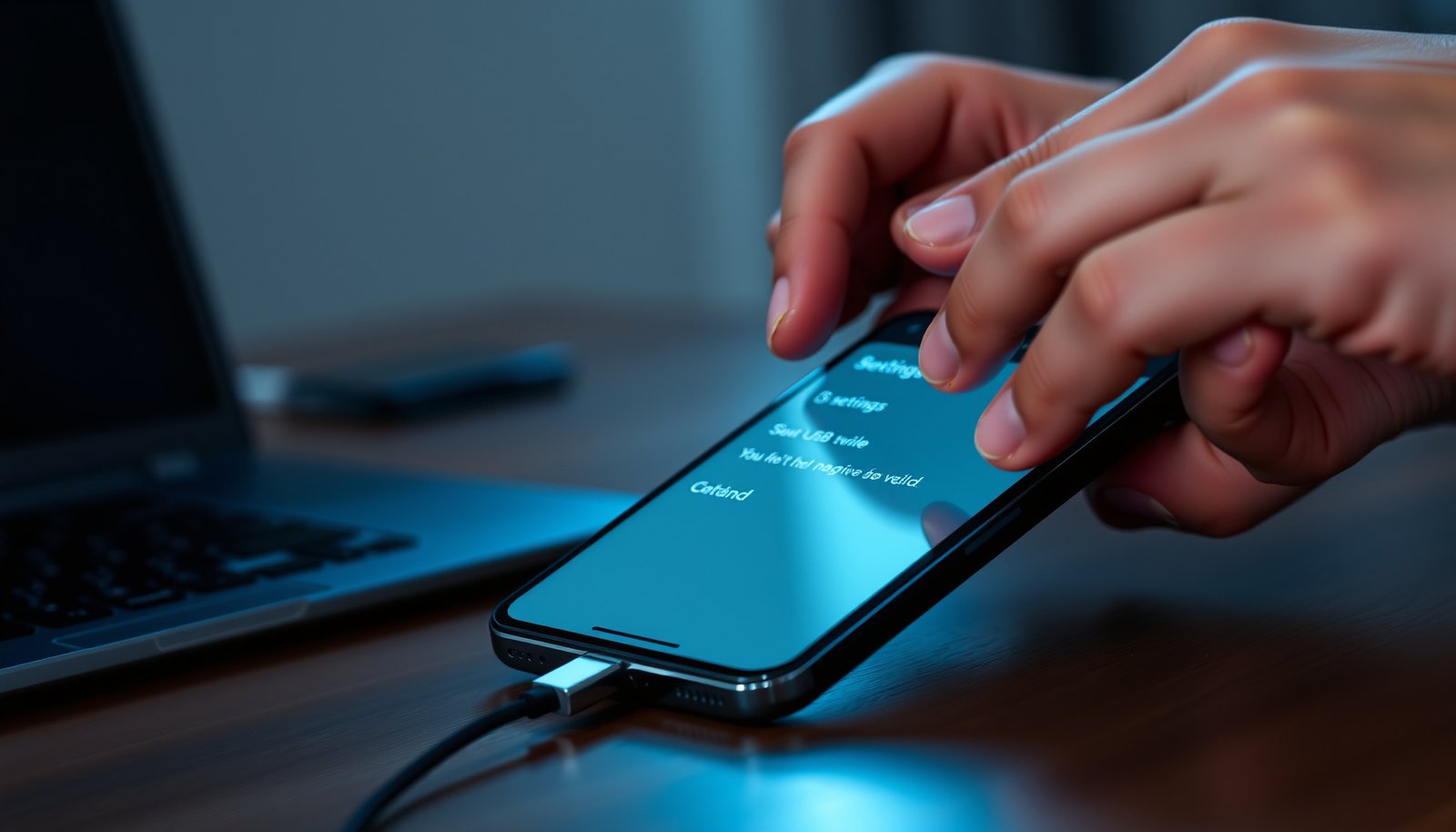
Who this is for / when it applies

This guide is for anyone who connects an Android phone to a Windows PC, Mac, or Linux machine and can’t get the behavior they expect—like browsing files in a file manager, sharing internet via USB tethering, or avoiding repeated “charging only” mode changes. It also helps if you’re troubleshooting missing USB notifications, driver/detection issues, or devices where the USB mode resets each time.
Choose the USB setting from the notification (fastest)

The fastest way to enable USB settings on Android is to change the USB mode directly from the USB notification that appears when the cable is plugged in. This method is ideal when you only need a one-off change (for example, switching from charging-only to File transfer / MTP).
On many Android devices, plugging into a computer shows a notification like “Charging this device via USB,” and tapping it lets you select the USB function (such as **File transfer / MTP**).
Android’s **File transfer** mode typically uses **MTP (Media Transfer Protocol)** so the computer can access the phone’s files.
- Plug your Android into your computer (or USB accessory) and locate the notification that appears (often phrased like Charging this device via USB).
- Tap the notification, then select the USB mode you need. Common options include:
- File transfer / MTP (best for moving files)
- Photo transfer / PTP (often limited to camera/photo-style access)
- USB tethering (best for internet sharing)
- Charging only (prevents data transfer on purpose)
- If you don’t see what you need right away, unplug and reconnect. In my day-to-day troubleshooting with Android devices for file access, the USB mode notification is one of the first things that “sticks” only after a fresh reconnect.
- Pay attention to wording differences by manufacturer. On some builds, the same functionality is labeled slightly differently, but the intent remains the same: what the computer is allowed to do over USB.
Turn on Developer options (only if you don’t see advanced USB choices)
If the USB notification doesn’t show a useful list (or you can’t find a Default USB configuration option), enable Developer options so you can control Android’s USB behavior more persistently. Developer options is the Android settings area that unlocks advanced toggles used by power users and for debugging.
Android Developers documents enabling Developer options by tapping **Build number** repeatedly until you see a confirmation message.
Developer options exist to support advanced features like **USB debugging** (used for ADB), and they also expose USB behavior settings such as **Default USB configuration**.
What you’re looking for: Build number taps
- Open Settings → About phone (or Software information).
- Find Build number.
- Tap Build number about 7 times until you see “Developer options are enabled” (Android’s official guidance describes this repeat-tap behavior). Android Developers — Enable developer options
Why this matters for USB settings on Android
Once Developer options is enabled, the next step is often Default USB configuration—a setting that makes your preferred USB mode (like MTP) the default each time you plug in. That reduces friction if your Android keeps reverting to Charging only.
Be cautious about what you change
Developer options can include settings beyond USB. When enabling USB settings on Android, focus on:
- Default USB configuration
- USB debugging (only if you specifically need ADB tools)
If your Android is managed by a work/school profile, some Developer options may be restricted. In that case, your USB settings on Android may only be adjustable via the USB notification method.
Set Default USB configuration (so it sticks next time)
To make USB settings on Android stay consistent, set Default USB configuration inside Developer options. This prevents your phone from defaulting back to Charging only every time you reconnect.
Developer options includes a **Default USB configuration** setting that can remember your preferred USB mode for future connections.
If your computer needs **MTP (File transfer)** to access phone files, setting Default USB configuration accordingly reduces repeated manual switching.
- Open Settings → Developer options.
- Find Default USB configuration.
- Choose the USB mode you want, for example:
- File transfer / MTP
- Photo transfer / PTP
- USB tethering (wording may vary)
- Unplug the cable and reconnect to confirm Android uses the setting automatically.
Timing tip: confirm after a full replug
On many devices, the new behavior applies when the USB link is re-negotiated (i.e., after unplug/replug). If you change Default USB configuration but don’t see the computer behavior update, do a full reconnect and check the USB notification again.
Don’t confuse “USB debugging” with transfer mode
USB debugging enables ADB (Android Debug Bridge), which is used for development and debugging—not for everyday file transfer as a general rule. If your goal is browsing your photos or documents from your computer, prioritize MTP / PTP over USB debugging.
Confirm the right USB mode for what you’re trying to do
The correct USB mode depends on your goal: file access usually needs File transfer / MTP, while internet sharing uses a tethering-oriented USB mode. If you choose the wrong mode, your computer may only charge the phone or may not expose the file system the way you expect.
Android Help explains that **File transfer** over USB typically uses **MTP** so your computer can access Android files.
USB tethering turns your phone into a network connection for the computer, which is different from exposing files via MTP.
Files between phone and computer
- Choose File transfer / MTP.
- Avoid modes labeled Charging only, since those intentionally block data transfer.
Internet sharing (USB tethering)
- Choose the USB mode intended for tethering.
- Expect the computer to use your phone’s cellular connection (and potentially your carrier’s tethering rules and data allowances).
Media transfer (photos/videos)
- If you need a camera-like experience, choose the closest media option shown on-screen:
- Often Photo transfer / PTP
- Sometimes MTP is used for both photos and files
MTP vs PTP: which one should you pick?
Below is a practical comparison you can use to decide quickly when USB settings on Android show multiple “transfer” options.
| Feature | MTP (File transfer) | PTP (Photo transfer) |
|---|---|---|
| Primary purpose | General file transfer for Android content | Photo/camera-style transfer |
| Typical computer experience | Phone appears as a media device for file browsing | Often shows as a camera/import source |
| Best for “documents” | Yes—when files are supported via MTP | Usually not the main use case |
| Best for “photos/videos” | Yes, commonly | Yes, especially if you want camera-style import |
| Mode switching requirement | May require selection via USB notification/Default USB configuration | Same—select via notification/Default USB configuration |
| What “Charging only” means | No file access; only power | Same—no camera-style transfer |
| Troubleshooting when files don’t show | Switch to MTP, then reconnect | Switch to PTP (photo mode), then reconnect |
| How to make it persistent | Set Default USB configuration to MTP | Set Default USB configuration to PTP |
| Best for (when choosing fast) | MTP if you need broad file access | PTP if you want camera-style imports |
Common Android USB modes (quick reference)
Use this table as a “most likely outcome” guide when enabling USB settings on Android.
Android USB Modes: What They Enable on a Computer (Typical Use)
| # | Android USB mode label | Best for | Files shown on PC? | Data transfer expected? | Reliability ★ (for file transfer) |
|---|---|---|---|---|---|
| 1 | File transfer / MTP | Broad file access | Yes | Yes | ★★★★★ |
| 2 | Photo transfer / PTP | Camera-style imports | Partial (media-focused) | Yes | ★★★☆☆ |
| 3 | Charging only | Power without data | No | No | ★☆☆☆☆ |
| 4 | USB tethering | Internet sharing | Not the purpose | Data over network, not files | ☆☆☆☆☆ |
| 5 | MIDI / Audio (USB) | Music/control devices | No (not for file storage) | No file transfer interface | ★☆☆☆☆ |
| 6 | No data transfer / None | Restrict USB functions | No | No | ★☆☆☆☆ |
| 7 | Android Auto (USB) | Car infotainment mode | Not for file browsing | Data for apps, not storage | ☆☆☆☆☆ |
One more hardware reality check (why modes sometimes “fail”)
USB transfer reliability depends on the physical link too. According to USB-IF documentation, High-Speed USB 2.0 supports up to 480 Mbps, while SuperSpeed USB 3.x goes up to 5 Gbps—but only if you’re using a data-capable cable and the connection supports those speeds. USB settings on Android can be perfect and still appear “broken” if the cable is charge-only or the port negotiates a limited mode.
What can go wrong (and how to fix it)
If your computer doesn’t see the phone or the USB mode won’t stick, the fix is usually about either (1) missing/incorrect USB mode selection or (2) a hardware/compatibility problem with the USB connection. Most issues are solvable by replugging, switching modes, and setting Default USB configuration.
If you don’t see USB options after plugging in, it can be because the cable is charge-only and doesn’t carry data.
If Android keeps reverting to an undesired USB function, setting **Default USB configuration** in Developer options is the intended way to lock the behavior.
Android file transfer commonly relies on **MTP**; if the computer can’t mount the device, switching to MTP and reconnecting is a standard troubleshooting step.
- No USB notification appears:
- Try a different USB cable and a different USB port on the computer.
- Confirm the cable supports data. Charge-only cables can still power the phone but won’t expose USB settings on Android to the computer.
- On some setups, unplug/replug is required for the “USB mode picker” notification to appear.
- Wrong mode keeps returning:
- Go to Developer options → Default USB configuration and set the mode you need.
- Reconnect the cable after changing the setting to force renegotiation.
- Computer still can’t detect your phone:
- Restart the phone and the computer after switching USB mode.
- Then try again with File transfer / MTP first, since that’s the most common mode for browsing Android files. Android Help — Transfer files between computer and Android device using USB
- Developer options missing:
- Search inside Settings for Developer options instead of assuming the menu exists exactly where you expect.
- Some OEMs rename sections like About phone, Software information, or move Developer options deeper into settings.
- You picked tethering but expected files:
- USB tethering provides internet, not storage access. If your goal is file transfer, choose File transfer / MTP instead.
Verdict / tip (what I’d do)
Start with the USB notification method, because it’s the quickest path to correct USB settings on Android and works for most day-to-day file transfers. Use Developer options → Default USB configuration only when you repeatedly have to switch modes each time you connect—like when your phone defaults to Charging only at every plug-in.
For most users, enabling the correct USB behavior is as simple as selecting the desired USB mode from the notification after connecting the device.
When the USB mode doesn’t “stick,” Android’s **Default USB configuration** is designed to remember your preferred USB function.
My recommendation (and the downside to be aware of):
- Do this first: Choose File transfer / MTP from the USB notification.
- Escalate to defaults if needed: Set Default USB configuration once.
- Skip Developer options if you’re uncomfortable changing advanced settings or if your device is managed by work/school policies that may restrict or reset settings. In those cases, the notification-based approach is often the only practical control surface.
Quick scan checklist (save this)
| What you’re seeing | What to do next |
|---|---|
| Notification shows **Charging only** | Tap the USB notification → switch to **File transfer / MTP** |
| No USB notification at all | Check cable/port; look for USB options in Settings; try reconnecting |
| USB mode keeps changing back | Enable **Developer options** → set **Default USB configuration** |
| Computer still won’t read phone | Reconnect after switching modes; restart phone + computer; verify MTP/File transfer mode |
Sources:
- Android Developers — Enable developer options (official Android documentation). Android Developers
- Android Developers — USB debugging / Developer options (official Android documentation). Android Developers
- Android Help — Transfer files between computer and Android device using USB (official Android support articles). Android Help
To enable USB settings on Android successfully, start by selecting the correct USB mode from the USB notification after plugging in—typically File transfer / MTP for files. If the behavior isn’t consistent, enable Developer options and set Default USB configuration so Android remembers your preferred mode across future connections.
Frequently Asked Questions
How do I enable USB settings on Android so I can transfer files?
Connect your Android phone to the computer with a USB cable, then unlock the phone if prompted. Pull down the notification shade and tap the “USB charging this device” or “USB options” notification to choose “File transfer (MTP).” If you don’t see the USB options, try a different cable/USB port, and restart both devices before reconnecting.
How can I turn on USB debugging and USB settings on Android?
Open Settings, then go to About phone and tap “Build number” 7 times to enable Developer options. In Settings → System (or Additional settings) → Developer options, enable “USB debugging,” and also check whether your device shows any USB mode prompts when connected. Depending on your Android version, you may need to reconnect the USB cable so the prompts appear and apply the correct USB settings.
Why don’t I see the USB mode or USB options on my Android phone?
This often happens when the USB cable supports only charging and not data, so try a known data-capable cable. Some devices hide USB mode choices if USB debugging is enabled or if the phone is locked, so unlock the phone and check notifications. You can also reboot the phone, reconnect the cable, and look for a “USB” or “Android System” notification.
Which USB mode should I choose for tethering or sharing internet from Android?
If your goal is internet sharing, select the mode related to tethering or USB internet sharing (often shown as “USB tethering” or “Share mobile data”). On most Android versions, this is controlled from Settings → Network & internet → Hotspot & tethering, but the USB option may appear after connecting the cable. Choose the correct option for your connection type so your computer recognizes the phone as a network device.
What’s the best way to enable USB settings when using a specific Android app or device like a car or PC?
Start by connecting your Android device and waiting for the “USB options” prompt to appear, then select the mode required by the app or device (commonly MTP for file transfers). For accessories like car systems or docks, you may need to switch to “Audio mode,” “File transfer (MTP),” or a vendor-specific USB mode if offered. If the mode keeps reverting, update your Android system/app, try another USB cable, and clear any related app permissions or defaults if your phone allows it.
📅 Last Updated: October 15, 2026 | Topic: how do i enable usb settings on android | Content verified for accuracy and freshness.
References
- Android Debug Bridge
- USB On-The-Go
- Media Transfer Protocol
- Android Debug Bridge (adb) | Android Studio | Android Developers
- UsbManager | API reference | Android Developers
- UsbDeviceConnection | API reference | Android Developers
- https://scholar.google.com/scholar?q=Android+enable+USB+debugging+developer+options Google Scholar
- https://scholar.google.com/scholar?q=Android+change+USB+preferences+MTP+PTP+file+transfer Google Scholar
- https://scholar.google.com/scholar?q=Android+enable+USB+tethering+USB+connection+settings Google Scholar