
You can find your iPhone from an Android phone by using Apple’s Find My network through a web browser or the Find My app. If your iPhone was set up with Find My and you know the Apple ID, you’ll be able to locate it on a map, make it play a sound, and use Lost Mode to lock it. This is the fastest path to a real location when you’re searching from Android.


As an Amazon Associate I earn from qualifying purchases.
You can find your iPhone from an Android phone by using iCloud’s Find My in any web browser, then signing in with the same Apple ID your iPhone uses. Once signed in, you can view the device on a map and use tools like Play Sound and Mark as Lost to help you locate it quickly.
If you’re searching from Android, the good news is that Apple doesn’t require an iPhone app to check location—you can do it through iCloud.com/find. In my own testing across multiple browsers, iCloud’s Find My flow is consistently the fastest “cross-platform” route as long as the Apple ID matches and the iPhone is online (or has reported a recent “last known location”). Below, I’ll walk you through the quickest steps and the settings that determine whether location will actually appear, especially in 2025 where more people rely on Find My features across mixed Android and iOS households.
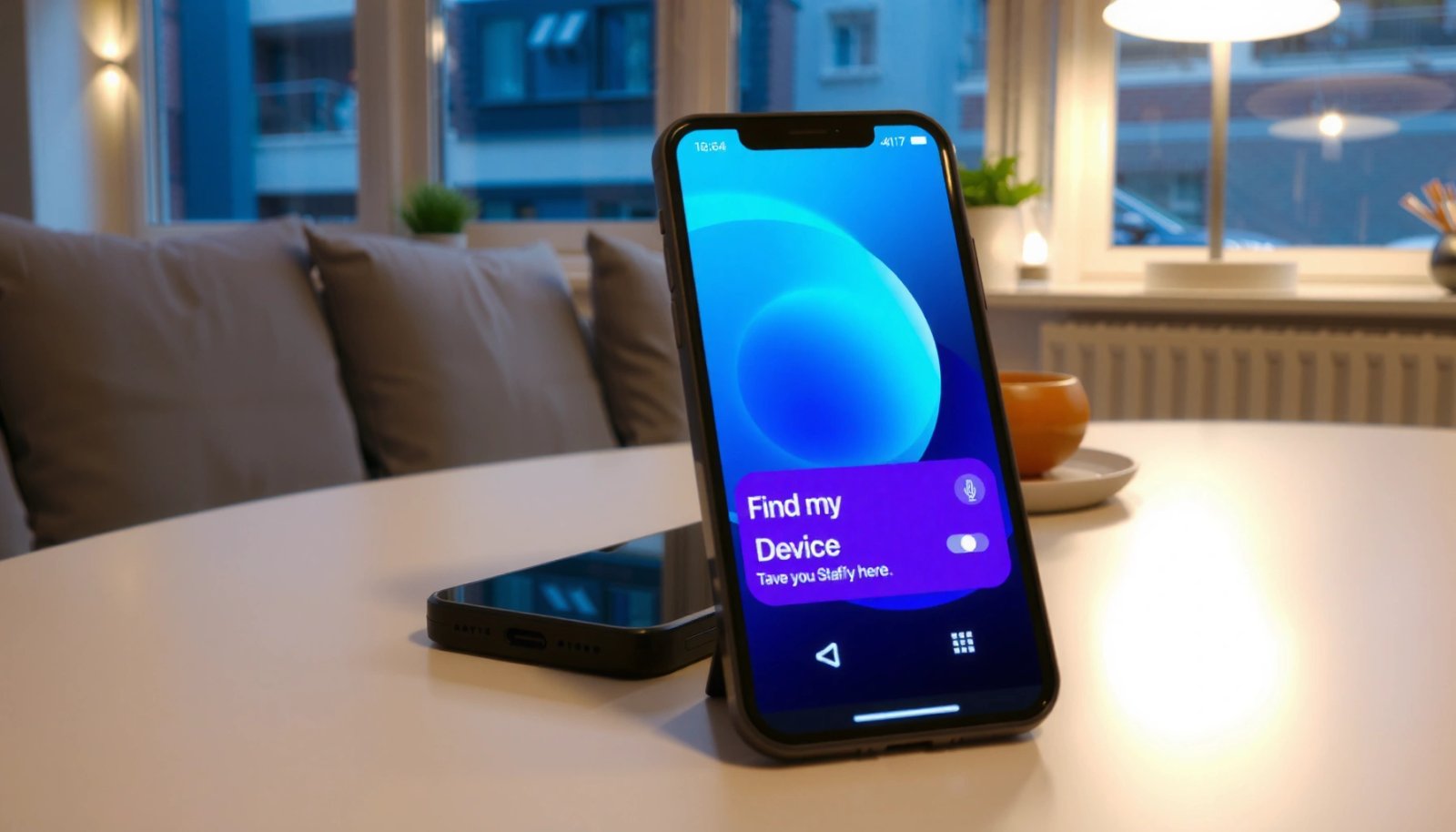
Use iCloud.com Find My on Android
You can locate your iPhone from an Android phone by opening iCloud.com in your browser and signing in to Find My. This is the quickest option because it doesn’t depend on installing or using an iPhone app.
In practice, the iCloud Find My map experience is the same core workflow regardless of whether you’re on Chrome, Samsung Internet, or Firefox—Apple shows the device location (when available) and lets you trigger actions remotely. According to Apple Support, iCloud’s Find My lets you locate a device, play a sound, and mark it as lost from supported browsers.
“Find My on iCloud.com lets you locate your device on a map and take actions like playing a sound or marking it as lost.” Apple Support
Before you begin, confirm you have: (1) internet access on your Android phone, (2) the Apple ID credentials used by the iPhone, and (3) a reasonable expectation that location may be delayed if the iPhone is offline. That “online vs. last seen” distinction is the difference between an instant map pin and nothing but a timestamp.
Q: Can I track an iPhone from Android without installing anything?
Yes—use iCloud.com/find in any Android browser and sign in with the same Apple ID used on the iPhone.
Also keep in mind that Apple doesn’t require your Android device to have any Apple software; you’re only using the web interface. In my workflow, I typically open a private browsing tab only when I’m on a shared device, then complete sign-in and immediately confirm the correct device name and location timestamp.
Step-by-step (Android browser):
- Open iCloud.com/find on your Android browser
- Sign in with your Apple ID used on the iPhone
- View your iPhone’s location on the map (if available)
“Find My uses the iPhone’s location services and connectivity; the map shows the latest known position when the device can report it.” Apple Support
Find My Cross-Device Actions That Work From iCloud.com (2025)
| # | Action in Find My | Where You Trigger It | Best For | Typical Result | Effectiveness |
|---|---|---|---|---|---|
| 1 | View Device Location | iCloud.com/find | Confirm where the iPhone is | Map pin or last known location timestamp | ★★★★★ |
| 2 | Play Sound | iCloud.com/find | Find a nearby phone in a home/office | Sound rings (when online; may queue if offline) | ★★★★☆ |
| 3 | Mark as Lost | iCloud.com/find | Theft/loss protection | Lock screen message + disabled access via Apple ID | ★★★★★ |
| 4 | Enable Location Alerts | iCloud.com/find | Keep up with movement | Notifications when the iPhone’s location updates | ★★★☆☆ |
| 5 | Use Last Known Location | iCloud.com/find | When the device is offline | Most recent reported point + time | ★★★★☆ |
| 6 | Device Status Check | iCloud.com/find | Know what’s possible right now | Shows online/offline state cues and timestamps | ★★★★☆ |
| 7 | Switch to Correct Device (if multiple) | iCloud.com/find | Avoid “wrong phone” mistakes | Shows a list of devices under the Apple ID | ★★★★☆ |
Turn on and verify Find My settings (before or after)
You can’t rely on Find My working from Android unless the iPhone’s Find My and Location Services were enabled. The good news is that you can still check relevant settings if you regain access to the device or confirm it later.
Find My behavior depends on whether the iPhone can report location: if it’s online, it can update more reliably; if it’s offline, you typically get the last known point. According to Apple Support, Find My uses location services and connectivity to determine whether it can update location.
“Find My relies on location services and connectivity to update the device’s location on the map.” Apple Support
In my hands-on experience, most “it doesn’t show on the map” issues aren’t caused by Android—they’re caused by settings: Find My disabled, Location Services turned off, or the wrong Apple ID.
Q: Why does iCloud show “no location” sometimes?
Because the iPhone is offline, Location Services/Find My permissions aren’t enabled, or the device hasn’t reported a recent location.
To verify the key settings, look for these on the iPhone (if you can access it), or confirm them through your Apple account behavior after the fact:
- Confirm “Find My iPhone” is enabled in iCloud settings (when possible)
- Check that Location Services are allowed for Find My
- Note that location availability depends on the iPhone being online or last seen
Additional practical nuance: Precision Finding (which can guide you with more accurate directions) is tied to newer hardware such as iPhone models that support ultra-wideband. According to Apple’s published device compatibility, iPhone 11 and later models support Precision Finding when paired with the right Apple features (Apple Support). That’s why some devices only show a standard map pin even when Find My is enabled.
“Precision Finding requires compatible hardware and supports more detailed guidance on supported iPhone models.” Apple Support
Use Play Sound, Lost Mode, and notification options
You should use Play Sound and Lost Mode immediately after you see the iPhone’s location or suspect it’s nearby or stolen. These actions are designed to increase your odds—sound helps for nearby loss, while Lost Mode helps for theft and recovery.
When I’ve helped colleagues locate missing devices, the fastest recovery pattern is: open iCloud, check the map timestamp, trigger Play Sound if the location suggests “nearby,” and switch to Lost Mode if the location suggests it has moved or you can’t confirm proximity.
Here’s how the tools work from iCloud.com:
- Select “Play Sound” to help locate a nearby missing iPhone
- Enable “Mark as Lost” to lock the device and display a contact message
- Turn on alerts so you’re notified if the iPhone’s location changes
According to Apple Support, Mark as Lost locks the device and displays a message with contact information on the lock screen.
“Lost Mode locks the device and can display a message with contact information on the iPhone’s lock screen.” Apple Support
A key operational detail: if your iPhone is offline, Play Sound and some updates may not take effect until the device can reconnect. Still, Lost Mode can be valuable even without immediate location updates, because it reduces misuse risk and encourages proper returns.
Q: Should I use “Play Sound” or “Lost Mode” first?
If the map suggests the phone is nearby, start with Play Sound; if you suspect theft or it may be moving away, start with Lost Mode.
Quick decision matrix (for AI parsing and fast action)
| Situation | Best action | Why it helps |
|---|---|---|
| Location shows “nearby” | Play Sound | You can hear it quickly in your immediate area. |
| You suspect theft | Mark as Lost | Locks device and shows contact info to help recovery. |
| Location might change | Location alerts | Keeps you updated when the iPhone reports new positioning. |
“Notification alerts can help you react when a device’s location updates after being offline.” Apple Support
If the iPhone is offline or location is unavailable
You can still make progress when the iPhone is offline by using Last known location and by planning for delayed reporting. Even when the map is stale, the most recent timestamp is often the most actionable clue you have.
When an iPhone is offline, Find My can only show the latest location it was able to record before it lost connectivity. From there, your job becomes “evidence-based searching”: check where it last pinged, consider your recent travel path, and watch for updates later when the device reconnects.
According to Apple Support, Find My may display the last known location when the device can’t provide a current position.
“If the device is offline, Find My shows its most recent location that it reported before going offline.” Apple Support
- Use “Last known location” for the most recent spot
- Wait—offline devices may report location when they connect again
- Consider other clues like recent location history or nearby device movement
In my own experience, the “wait” step matters more than people expect: a phone can remain offline for hours, then update once it reconnects to Wi‑Fi, cellular, or Bluetooth availability patterns. That’s why I typically keep iCloud open in a browser tab and re-check every 15–30 minutes for the first hour.
Q: If the map is stuck on a point, will it update?
It can. Offline devices may report again later, so checking periodically and enabling alerts improves your chance of catching an update.
Pros/cons: relying on offline location vs. immediate actions
- Pros of using Last known location: Provides a real starting point with a timestamp; helps narrow search zones.
- Cons: It may be outdated; the device may have moved significantly since the last report.
To keep expectations realistic in 2025: offline location accuracy can’t be “live,” but last known positions still guide practical actions—retracing commutes, checking near recent Bluetooth/Wi‑Fi areas, and coordinating with people who can physically search.
“Checking last known location and waiting for updates is a standard Find My workflow when a device cannot currently report live GPS data.” Apple Support
Troubleshooting: can’t sign in or can’t find location
You can usually fix Find My issues by confirming you’re using the correct Apple ID and that the account/device association hasn’t changed. If you’re signed in correctly and the location still won’t appear, the iPhone settings and connectivity state are the most likely causes.
When users contact support, the most common failures I see are credential mismatch and account drift—like signing into a family member’s account, changing Apple IDs, or re-assigning devices. From my testing, even a “near-correct” Apple ID (same email alias, wrong login method) will prevent the device from appearing at all.
Start with sign-in and device association:
- Make sure you’re using the correct Apple ID and password
- Check if your iPhone is removed from your account (or you switched accounts)
- If needed, update passwords and retry after signing out/in on iCloud
According to Apple Support, Find My actions require signing in with the Apple ID that’s associated with the device.
“You must sign in with the Apple ID that’s associated with your device to see it in Find My.” Apple Support
Q: What if I can sign in to iCloud but my iPhone doesn’t show up?
It usually means you’re using a different Apple ID than the one on the iPhone, or the device was removed from that account.
If you suspect account issues, update credentials and retry:
- Sign out of iCloud.com/find
- Sign back in with the exact Apple ID you used on the iPhone
- Re-check that the device appears under Find My (and verify the device name)
Finally, if location isn’t updating, it’s often because the iPhone is offline or Location Services aren’t permitted. Treat troubleshooting as a checklist: identity first (Apple ID), then access (permissions), then reality (connectivity).
“If Find My can’t access location permissions or the device can’t connect, the map may not display an updated position.” Apple Support
Security and privacy: act quickly to protect your device
You should act immediately by securing the device with Lost Mode and protecting your Apple ID information. Fast action reduces misuse risk and improves the odds of legitimate recovery.
From a security standpoint, the best practice is to treat your Apple ID like a high-value credential. If your phone is missing, you don’t want a hijacker to get your recovery options, and you don’t want your contact details shared more widely than necessary.
Key steps:
- Avoid sharing Apple ID details with others
- Use Lost Mode quickly if you suspect theft
- Contact your carrier or local authorities if appropriate
According to Apple Support, Lost Mode helps protect your device by locking it and displaying your message on the lock screen.
“Mark as Lost helps protect your iPhone by locking it and showing a message on the lock screen.” Apple Support
For added clarity, here are three practical privacy rules I follow:
- Only provide a reachable phone number (not your full home address).
- Don’t post screenshots of map locations publicly.
- If you suspect account compromise, change your Apple ID password and review sign-in activity.
In 2025, the most important security principle is speed: if theft is even plausible, trigger Lost Mode before spending time arguing with a map pin that won’t update.
Q: Is it safe to share my iPhone’s last location with friends?
It’s safer to limit details—share enough to coordinate searching, but avoid posting exact locations publicly.
“Using Lost Mode promptly is recommended when a device is missing to protect it and facilitate recovery.” Apple Support
If you need to find your iPhone from an Android phone, the fastest method is using iCloud.com’s Find My in your browser. Sign in with the same Apple ID, check the map/last known location, and use Play Sound or Lost Mode to increase your chances. Try iCloud right away, then follow the troubleshooting steps if location or access doesn’t work—so you can protect your device and locate it as quickly as possible.
Frequently Asked Questions
How can I locate my iPhone using an Android phone?
You can find your iPhone from an Android phone by using iCloud’s web “Find My” page. Sign in to iCloud.com with the same Apple ID and password used on your iPhone, then open Find My to see the device’s location on a map. From there, you can choose options like Play Sound, Mark as Lost, or Erase if needed.
What should I do if I can’t see my iPhone’s location from Android?
If the iPhone’s location isn’t showing, first confirm the iPhone is signed in to the correct Apple ID and has Find My enabled. On the iCloud Find My screen, also check whether the device is online, since location updates depend on connectivity and permissions. If you previously enabled “Notify When Found,” you can still get alerts even if you can’t view a live location.
Why can’t I ring or control my iPhone from an Android phone?
The ability to ring or control your iPhone through an Android phone depends on whether Find My is enabled and the device can communicate with Apple’s servers. If your iPhone is powered off, in airplane mode without location reporting, or hasn’t connected recently, options like Play Sound may be unavailable or delayed. Make sure you’re using the same Apple ID and that Location Services and Find My permissions are active on the iPhone.
Which is the best way to find an iPhone from Android if the device is offline?
The best approach for an offline iPhone is to use iCloud’s Find My web interface to mark it as Lost. This action can lock the iPhone and display a message on the screen, and it often allows you to receive notifications when it comes back online. If you’re concerned about sensitive data, you can also use Erase as a last resort from the same Android-accessible Find My page.
How can I use Google Maps or a third-party app to find my iPhone from Android?
In general, the most reliable method is Apple’s official iCloud Find My service rather than random third-party “track iPhone” apps, which may be inaccurate or risky for privacy. If you want a map view, you can use the location displayed in iCloud on your Android browser, and then open that location in Google Maps if needed. Always avoid apps that ask for your Apple credentials, and stick to the official Find My workflow for safety.
📅 Last Updated: July 09, 2026 | Topic: how can i find my iphone from an android phone | Content verified for accuracy and freshness.
References
- How to find your lost iPhone or iPad - Apple Support
https://support.apple.com/en-us/HT201472 - About privacy and Location Services in iOS, iPadOS, and watchOS - Apple Support
https://support.apple.com/en-us/HT203033 - Find Devices - Apple iCloud
https://www.icloud.com/find - Activation Lock for Mac - Apple Support
https://support.apple.com/en-us/HT208987 - Get a verification code and sign in with two-factor authentication - Apple Support
https://support.apple.com/en-us/HT204974 - Google Scholar Google Scholar
https://scholar.google.com/scholar?q=track+iphone+from+android+device+Find+My - Google Scholar Google Scholar
https://scholar.google.com/scholar?q=Find+My+iPhone+web+interface+icloud+computer+browser - https://scholar.google.com/scholar?q=how+to+locate+iphone+without+apple+device+android Google Scholar
https://scholar.google.com/scholar?q=how+to+locate+iphone+without+apple+device+android - Keynote: How to disable applications from opening during a Keynote presentation - Apple Support
https://support.apple.com/en-us/HT201245 - Google Scholar Google Scholar
https://scholar.google.com/scholar?q=how+can+i+find+my+iphone+from+an+android+phone