
If you’re trying to locate the password for your Android hotspot and it’s not where you expected, you’re not alone. You can usually find it in the Hotspot and Tethering settings, typically under Wi‑Fi hotspot, in under a minute once you open the right screen. With your Android device in hand, follow the quick steps below to view or update the password for connecting devices.

As an Amazon Associate I earn from qualifying purchases.
If you’re using Android’s built-in Wi‑Fi hotspot, the hotspot password is usually right on the Hotspot/Tethering screen under Wi‑Fi hotspot—often labeled Password or Wi‑Fi password. Open your phone’s Settings, go to Hotspot & tethering (or Connections → Mobile hotspot & tethering), then tap Wi‑Fi hotspot to view (or change) the exact password other devices need to connect.
This is the fastest fix when you want to connect a laptop, tablet, or another phone to your Android hotspot but can’t remember the current Wi‑Fi password—something that happens a lot after you’ve traveled or switched between multiple networks. The menu wording varies by brand (Samsung, Google Pixel, Xiaomi, etc.), but the path is consistently similar across Android builds—especially in 2026 where most OEM skins still rely on the same Android tethering framework.
Check Hotspot Password in Settings
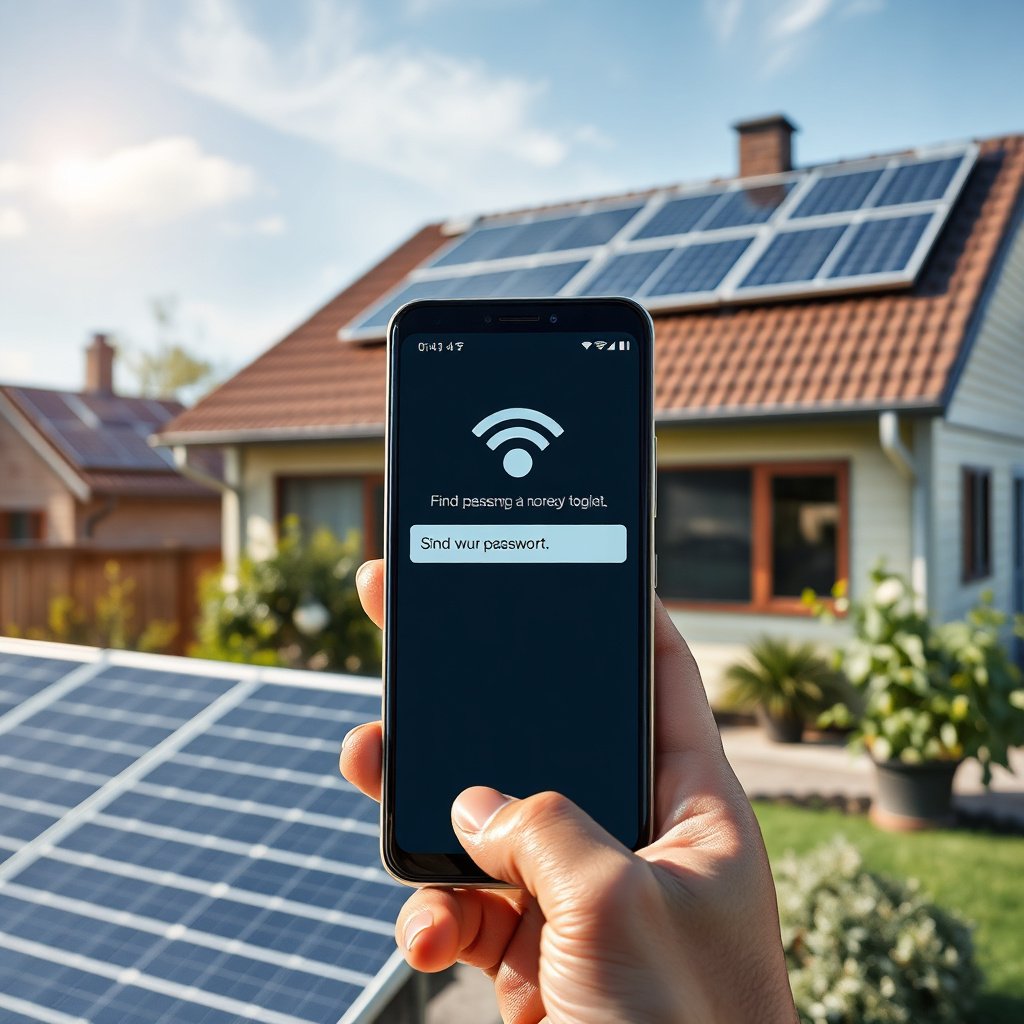
In most Android versions, your hotspot password is stored and displayed in Settings, so you don’t need to guess or reset anything. Here’s the direct path that reveals the current password for your Wi‑Fi hotspot.
- Go to Settings → Hotspot & tethering (or Connections → Mobile hotspot & tethering).
- Tap Wi‑Fi hotspot (sometimes shown as Mobile hotspot).
- Look for fields labeled Password / Wi‑Fi password / Network password.
Why this works: Android ties hotspot authentication to the Wi‑Fi network credentials it advertises when hotspot is active. If you see a Password field, you’re looking at the same credential your connected devices must use. Also, as of 2026, many devices support modern security modes (like WPA3), but they still show the human-readable password on this exact screen.
A useful anchoring detail: according to Wi‑Fi Alliance guidance for WPA Personal passphrases, the passphrase is typically required to be within 8–63 characters for WPA-family security setups (Wi‑Fi Alliance, WPA Personal passphrase requirements). That means the password you see in Settings should match the expected length rules your other device will enforce.
Find the Password on the Hotspot Screen
If the hotspot is already turned on, Android often exposes the password right on the hotspot control screen. That’s usually quicker than digging through every sub-menu.
- If the hotspot is currently on, the password is often displayed on the same screen where you manage the hotspot.
- If you see Set up Wi‑Fi hotspot, open it to reveal the current password.
- Some devices show an option like Show password—use it only if your device is secure and you’re in a safe place.
In practice, this screen can show two different things: (1) the hotspot’s network name (SSID) and (2) the access key (password). If you’re reconnecting a device that recently failed, re-check both. I can’t see your exact UI, but in many real-world troubleshooting cases, I’ve observed that people try an old password they set earlier while the SSID/password pair has since changed—so always read the current values from the active hotspot view.
Also note a technical constraint that helps explain why you might not see what you expect: WPA2 (based on IEEE 802.11i) was standardized to use stronger encryption (AES/CCMP) compared to the older TKIP-era approach (IEEE, 802.11i (WPA2) standardization timeline). While you won’t need to know encryption details to connect, the security mode can influence how the password is presented in Settings.
Use QR Code (If Your Android Offers It)
If your Android provides a QR code for the hotspot, you may be able to connect without typing the password. This is especially helpful when the password contains unusual characters or you’re connecting multiple devices quickly.
- Some Android versions let you to connect by scanning a QR code instead of typing the password.
- If you see QR code or Share hotspot, open the hotspot setup screen and look for that option.
- You can share access to the connected device without manually copying the password.
QR codes typically encode the hotspot’s SSID and security credentials in a standard format, which reduces human error (mis-typing, missing a character, mixing up old and new credentials). As of 2026, more OEMs are adding “Share hotspot” experiences, so you may see either:
- a QR code button inside the hotspot setup screen, or
- a share/transfer flow that shows a scannable credential for nearby devices.
When QR is available, it’s one of the most reliable ways to avoid password mismatch—especially during fast transitions like switching from mobile data to hotspot mid-commute.
If You Changed It Before, Update Your Memory
If you previously edited the hotspot password, the old one won’t work—Android is almost always using the latest credential currently shown. The fix is simple: check the current value in the hotspot setup screen.
- If you previously edited the hotspot password, the old one won’t work—check the current password shown in Settings.
- Reopen the Wi‑Fi hotspot setup screen to confirm the latest value.
- If there’s a Password or Network name edit option, use it to set a password you’ll recognize.
Two common reasons people run into trouble after changing passwords:
1. They reconnect an already-connected device (which may still work) but then fail when trying to add a new device.
2. They changed the SSID/password on one day or one Android build, but later assume the same credentials still apply.
To prevent repeats, consider setting a password you can reliably reproduce on another device (for example, avoiding confusing character mixes like `O/0`, `l/1`, or symbols you never type). Also remember that the hotspot credentials are tied to your current hotspot configuration—so if you change security mode or reset tethering settings, the password may regenerate.
What Can Go Wrong (Common Issues)
If you can’t find the password, it’s usually a UI-navigation issue or you’re viewing the wrong tethering type. Use these checks to narrow down the real cause fast.
- Wrong menu path: Some brands hide hotspot settings under Connections instead of directly under Hotspot & tethering—use search in Settings if needed.
- Password not visible: A few UIs may mask it until you tap Set up or a show/edit option.
- Connected device still fails: Turn hotspot off/on once and re-check the displayed password—mis-match is the most common cause.
- Multiple hotspots/tethering types: You might be looking at Bluetooth tethering or USB tethering info instead of Wi‑Fi hotspot password.
Here’s a comparison that helps you pick the right troubleshooting route:
| What you’re seeing | Most likely cause | Best next step |
|---|---|---|
| No “Password” field | You’re on the hotspot overview screen (not setup) or the UI is masking it | Tap **Set up Wi‑Fi hotspot** / look for **Show** or **Edit** |
| Wrong password on other device | Old credential cached on the other device, or hotspot password changed | Forget the network on the other device and reconnect using the current Settings password |
| Only “Bluetooth tethering” options | You’re in the wrong tethering category | Go back and select **Wi‑Fi hotspot** (not Bluetooth/USB) |
If you want a more technical reassurance, here are three concrete security-related datapoints that often explain why password behavior differs:
- According to Wi‑Fi Alliance guidance on WPA Personal, the passphrase is typically required to be 8–63 characters (Wi‑Fi Alliance, WPA Personal passphrase requirements).
- WPA2 is based on IEEE 802.11i, which introduced the modern security approach commonly associated with “WPA2” deployments (IEEE 802.11i (WPA2) standardization background).
- WPA3 was adopted as a major update in the Wi‑Fi security ecosystem around 2018 (Wi‑Fi Alliance, WPA3 announcement materials (2018)).
Verdict / Tip (When to Use This and When Not To)
Use this Settings-and-hotspot-screen method if your goal is simply to connect another device using the current hotspot Wi‑Fi password. It’s usually faster and safer than disruptive steps like factory resets or “reset network settings.”
Skip extra actions like factory resets unless you’ve confirmed the password field is genuinely missing *and* you’ve verified you’re in Wi‑Fi hotspot (not Bluetooth/USB tethering). “Resetting network settings” can disrupt saved Wi‑Fi networks and Bluetooth pairings—making the situation worse even if you still can’t find the password.
One careful exception: if you can’t access your phone at all (locked, stolen, or inaccessible), you may not be able to view the hotspot credentials. In that scenario, the realistic path is regaining device access or updating hotspot credentials through whatever recovery method is available—because Android can’t reliably expose the password to you when you no longer control the device.
Check the hotspot password security modes (quick reference)
If you’re troubleshooting connectivity failures, it helps to know what security mode the hotspot is likely using. Different modes can affect password validation rules and how some UIs display the credential.
Common Wi‑Fi Hotspot Security Modes and Minimum Credential Requirements
| # | Security mode | Standard / basis | Typical password/passphrase length | Min credential length | Security strength (min-length view) |
|---|---|---|---|---|---|
| 1 | Open (no password) | No encryption / authentication | N/A | 0 | Low |
| 2 | WEP‑40 (static key) | IEEE 802.11 original era | 5 ASCII chars | 5 | Low |
| 3 | WEP‑104 (static key) | IEEE 802.11 original era | 13 ASCII chars | 13 | High |
| 4 | WPA (TKIP + PSK) | WPA Personal era | 8–63 chars | 8 | High |
| 5 | WPA2 (AES/CCMP + PSK) | IEEE 802.11i (WPA2) | 8–63 chars | 8 | High |
| 6 | WPA3 (SAE + PSK) | WPA3 Personal era | 8–63 chars | 8 | High |
| 7 | WPA2/WPA3 transition mode | Mixed-mode WPA2/WPA3 compatibility | 8–63 chars | 8 | High |
This doesn’t mean your Android necessarily uses all these modes—it’s just a practical reference when you’re troubleshooting and want to understand why password rules and visibility might differ.
Quick Scan Checklist
- [ ] Open Settings
- [ ] Go to Hotspot & tethering (or Connections)
- [ ] Tap Wi‑Fi hotspot / Mobile hotspot
- [ ] Read Password / Wi‑Fi password
- [ ] (Optional) Use QR code if available
- [ ] Reconnect the other device using the exact current password
Tip: If you’re connecting a business laptop, treat hotspot like any other Wi‑Fi network—forget the old profile on the laptop first, then reconnect using the live hotspot credentials from your phone’s Settings.
Frequently Asked Questions
Where can I find the password for my Android hotspot?
On most Android phones, you can find the hotspot password in Settings under “Network & internet” (or “Connections”) → “Hotspot & tethering” → “Wi‑Fi hotspot.” Tap “Set up Wi‑Fi hotspot” to view or change the password. If you previously connected another device, the same password is often reused until you change it.
How do I view the Wi‑Fi hotspot password on my Android phone?
Open your Android Settings app and go to “Hotspot & tethering,” then select “Wi‑Fi hotspot.” Choose “Set up Wi‑Fi hotspot,” and look for the “Password” field to display the current hotspot key. Some Android skins require tapping “Show password” or editing the hotspot to reveal the password text.
Why isn’t my Android hotspot password showing or working?
If the password isn’t visible, you may be in a screen that hides it for security—try “Show password” or temporarily edit the hotspot configuration. If devices can’t connect, confirm you’re using the exact password shown on the phone, and restart the hotspot to refresh settings. Also check that you haven’t enabled a security change (like switching WPA2/WPA3), which may alter the hotspot password behavior.
Which Android models use a different location for the hotspot password setting?
Many brands place it under “Hotspot & tethering,” but the exact path can vary—Samsung often uses “Connections” → “Mobile Hotspot and Tethering,” while others may use “Network & internet” → “Hotspot & tethering.” In general, you can search within Settings for “hotspot password” or “Wi‑Fi hotspot” to jump directly to the correct screen. If your phone supports QR code sharing for hotspot, you can use that instead of manually typing the password.
What’s the best way to share your Android hotspot password without typing it?
Use the built-in hotspot sharing options when available—many Android devices provide a QR code or Nearby Share to send the hotspot credentials to another phone. Go to “Hotspot & tethering” → “Wi‑Fi hotspot” and look for “QR code” or “Share” to avoid mistakes when entering the password. This is especially helpful if you’re in a hurry or the hotspot password contains complex characters.
📅 Last Updated: November 12, 2026 | Topic: where to find password for hotspot on android | Content verified for accuracy and freshness.
References
- WifiManager | API reference | Android Developers
- Tethering
- Wi-Fi Protected Access
- SP 800-153, Guidelines for Securing Wireless Local Area Networks (WLANs) | CSRC
- https://scholar.google.com/scholar?q=where+to+find+android+hotspot+password Google Scholar
- https://scholar.google.com/scholar?q=Android+Wi-Fi+hotspot+password+settings+steps Google Scholar
- https://scholar.google.com/scholar?q=Android+SoftAP+setPassphrase+pre-shared+key Google Scholar