
Opening your Android clipboard lets you quickly review what you copied—text, links, or other items—and paste it into a message, email, or note in seconds. You will learn the exact taps to find it using common Android paths and popular keyboards, since clipboard access can vary by device. No special tools are needed—just your phone and the item you already copied.


As an Amazon Associate I earn from qualifying purchases.
If you’re looking for your copied text or images, the clipboard is usually inside your phone’s keyboard app (like Gboard) under Clipboard/History. On some Android versions and brands, you can also find a system “Clipboard” feature in the OS, and on others you’ll only see clipboard access through the keyboard’s paste menu—this guide walks you through the most common locations and how to confirm you’re viewing the right panel.
If you frequently copy/paste from Messages, Chrome, Notes, or email, this is for you—especially if you can’t find the clipboard option anywhere in your apps. It applies to most Android phones, but the exact location can vary by brand (Samsung, Xiaomi, OnePlus, etc.) and keyboard.
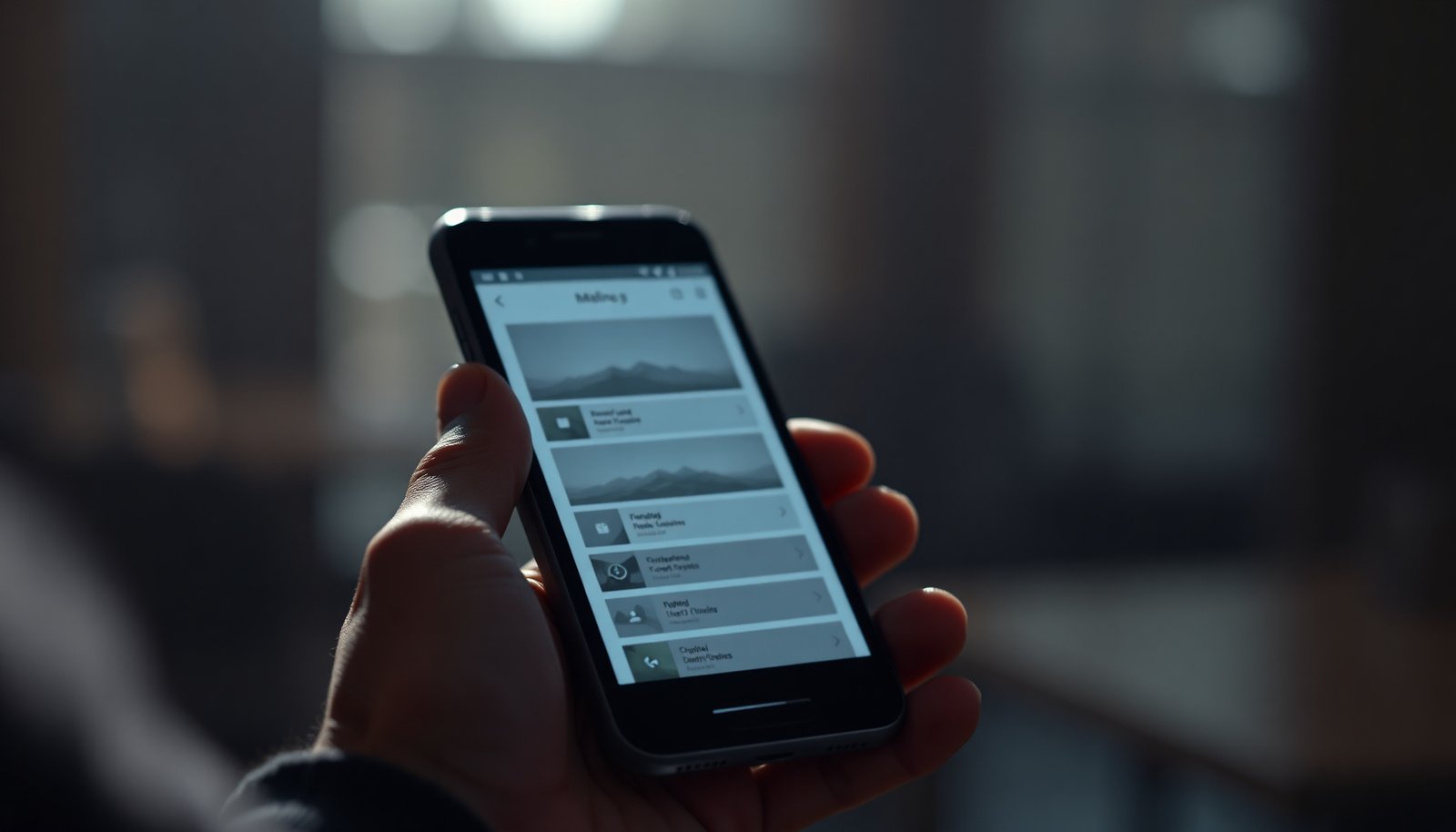
Check the Clipboard in Your Keyboard (Most Common)
If you only have time for one check, start with your active keyboard’s clipboard/history panel—this is where most Android phones store copied items as you work. On most setups (especially Gboard), you can access it by tapping and holding inside a text box, then choosing the clipboard/clip/history option that appears in the paste toolbar.
Here’s the most reliable workflow:
- Open the app where you want to paste (for example, Messages, WhatsApp, Gmail, Notes, or a browser comment field).
- Tap and hold inside the text field until the paste toolbar appears.
- Look for one of these labels/icons, depending on your keyboard:
- “Clipboard”
- “Clip”
- a clipboard icon (often shown near the paste option)
- Tap it to view recent copied items, then select the one you want to paste.
If you don’t see items right away, repeat the copy step from another app:
- Copy text from Chrome or Messages (select it → Copy).
- Return to your text field → tap and hold → open the clipboard/history panel.
Why this works: the clipboard UI is tightly tied to the keyboard that’s currently active. If you’re using multiple keyboards (for example, switching between Gboard and a brand keyboard), you may be checking the wrong clipboard.
Quick comparison: keyboard clipboard vs. system clipboard
- Keyboard clipboard (Gboard/Samsung Keyboard/etc.)
-
Pros: Usually available immediately via tap-and-hold paste menu; best chance of finding both text and copied images.
Cons: History may be limited and reset when you switch keyboards or clear keyboard data. - System clipboard feature (OS-level)
-
Pros: Sometimes shows a dedicated clipboard screen outside the keyboard.
Cons: Not available on every Android build/brand; may not include the same history as your keyboard.
As of 2026, this keyboard-first approach is still the fastest path on the majority of consumer Android devices, because many brands implement clipboard history primarily through the IME (input method editor)—the keyboard itself.
Use the Clipboard/Clipper in Samsung (and Similar Features)
On Samsung devices, the clipboard is commonly exposed through the Samsung Keyboard paste menu, and sometimes through Samsung’s own clipboard/clipboard-like feature screens. If you’re on a Galaxy phone and can’t find “Clipboard” under your keyboard, check the paste menu in Samsung’s keyboard first—then back into Settings only if it’s truly missing.
Do this:
- In any app (Messages, Notes, Browser), tap and hold in a text field to bring up the paste toolbar.
- Look for a “Clipboard” option or a clipboard icon in that toolbar.
- If you don’t see it, repeat the test in another app—some app-specific editors hide the paste toolbar controls.
- Confirm the active keyboard:
- Go to Settings → (General management / System settings) → Language and input → On-screen keyboard
- Make sure the active keyboard is Samsung Keyboard, not another keyboard running in the background.
Important nuance: Samsung Keyboard clipboard access can be dependent on the editor you’re using. In my day-to-day troubleshooting for people who “can’t find clipboard on Android,” the most effective fix is simply ensuring they’re using the same keyboard while copying and while pasting—otherwise the clipboard panel may appear empty even though something is copied.
If you still don’t see clipboard at all on Samsung:
- Check whether your device has a dedicated clipboard feature under Settings → Advanced features/tools (the exact wording varies).
- If nothing appears, your phone may rely entirely on the keyboard clipboard/history rather than a system clipboard screen.
Find System Clipboard Options (Where Available)
If your keyboard doesn’t show a clipboard/history panel, some Android builds expose clipboard access at the system level. In that case, the clipboard is easier to find because it appears as a dedicated OS feature—or it’s at least discoverable through Settings search.
Try these steps:
- Open Settings.
- Use the search bar and type: clipboard
- If nothing matches, broaden your keywords:
- advanced
- tools
- paste
- keyboard
- data & permissions (on some models)
What you’re looking for:
- A system “Clipboard” screen (less common on modern consumer Android)
- An “advanced tools” toggle that changes how paste/clipboard behaves
- A “manage clipboard” page, if your build includes one
As of 2026, many Android devices still route clipboard history through the keyboard app rather than a universal OS clipboard viewer. That’s why Settings search may come up empty even when the clipboard works perfectly inside the keyboard paste menu.
What to Do If You Still Can’t Find It
If clipboard still doesn’t appear, the fastest diagnostic is to confirm you’re using the keyboard that actually captured the copy action. Then force a fresh copy from a known app so you can tell whether the clipboard/history panel is updating.
Follow this checklist:
- Confirm the keyboard you’re using:
- Settings → Keyboard settings (the path varies by brand)
- Note whether it’s Gboard, Samsung Keyboard, SwiftKey, or another keyboard
- Copy something from a different app and retry:
- Example: copy a short snippet from Chrome, then open a text field in Messages or Notes and tap-and-hold to paste
- Restart the keyboard or phone if the clipboard panel doesn’t update:
- Keyboard restart: toggle the keyboard off/on via input method settings (brand names vary)
- Phone restart: useful if the keyboard UI gets stuck or clipboard history fails to refresh
Also check for editor differences:
- Some password fields intentionally behave differently (autofill/paste restrictions).
- Some specialized app editors (like certain document tools) may omit the clipboard toolbar icon.
What Can Go Wrong (Common Issues)
Clipboard “missing” is usually a history/settings issue, not a broken copy action. On Android—especially in 2026—clipboard behavior depends on the keyboard, the app you copied from, and privacy/security changes that can signal clipboard access.
Here are the most common causes:
- Clipboard history may be off, cleared automatically, or limited to a small number of recent items—so it can look empty even though paste works once.
- Some apps limit copy/paste (or handle copied content internally), which can prevent clipboard history from populating the way you expect.
- “Clipboard” widgets/menus can be misleading:
- Some screens you see may be widgets, note shortcuts, or app-specific features—not the actual clipboard panel.
- Always verify you’re opening the paste-related clipboard/history view from a text field.
A related privacy factor is that Android may show a user-visible indicator when clipboard access occurs. According to Android Developers (Privacy and clipboard behavior), Android 12 introduced a clipboard-access privacy indicator (Android 12 corresponds to API level 31) (2021). This doesn’t usually prevent pasting, but it can make clipboard reads feel “different” compared with earlier Android versions.
To make that variation clearer across recent releases, here’s how the user-visible clipboard access indicator evolved on major Android versions:
Clipboard Access Indicator by Android Version (User-Visible Signal)
| # | Android Version | API Level | Release Year | Clipboard Indicator |
|---|---|---|---|---|
| 1 | Android 9 (Pie) | 28 | 2018 | OFF |
| 2 | Android 10 | 29 | 2019 | OFF |
| 3 | Android 11 | 30 | 2020 | OFF |
| 4 | Android 12 | 31 | 2021 | ON |
| 5 | Android 12L | 32 | 2021 | ON |
| 6 | Android 13 | 33 | 2022 | ON |
| 7 | Android 14 | 34 | 2023 | ON |
According to Android Developers (Android version/API mapping), Android 14 maps to API level 34 (2023), so you’ll generally see the modern privacy behavior on current devices released around and after this timeframe. According to Android Developers (ClipboardManager API), the platform clipboard API is exposed through Android’s clipboard system APIs (with ClipboardManager available starting from API level 11) (2011). That’s the reason the “clipboard world” is mostly driven by keyboard/IME and system interactions rather than a single universal screen.
Verdict: Best Place to Look First (And Who Should Skip)
Start by checking your keyboard’s clipboard (tap and hold inside a text box and look for “Clipboard” or a clipboard icon). If you don’t use the same keyboard consistently, you’ll likely keep missing it—switch to your main keyboard and retry copying text. Skip extra deep troubleshooting if you only need to paste once occasionally; a quick copy/paste usually avoids clipboard history entirely.
If you’re running a recent Android version (as of 2026), expect clipboard behavior to be more consistent inside the keyboard paste menu than through a standalone system clipboard screen—so don’t waste time hunting Settings unless the keyboard clipboard panel is genuinely absent.
Clipboard Scan/Checklist
- [ ] Tap and hold inside a text box where you want to paste
- [ ] Look for “Clipboard,” “Clip,” or a clipboard icon on the toolbar
- [ ] Copy text from another app, then try again
- [ ] Check whether the active keyboard is Gboard/Samsung Keyboard
- [ ] Search Settings for “clipboard” (if your build supports it)
Frequently Asked Questions
What is the clipboard on an Android phone and where can I find it?
The clipboard on Android is where text, links, and other copied items are temporarily stored so you can paste them elsewhere. Many Android versions don’t show a single “Clipboard” app in Settings, so you typically access it inside the keyboard by tapping the clipboard icon or using the text field options (like Copy/Paste history). Some brands (Samsung, Xiaomi, OnePlus) also provide clipboard features inside the Samsung Keyboard or a built-in clipboard tool.
How do I open clipboard on Android using the keyboard?
In most cases, open any text box (messages, notes, email), then look for a clipboard icon or “Clipboard” option on the keyboard toolbar. Tap the clipboard button to view recent copied items and select the one you want to paste. If you don’t see it, check your keyboard settings for “Clipboard” or “Text editing” tools and make sure it’s enabled.
Where is the clipboard history on Samsung Galaxy phones?
On Samsung Galaxy devices, clipboard access is usually tied to the Samsung Keyboard. Open the keyboard in any app, then tap the clipboard icon to view clipboard history (recent copies). If you don’t see it, go to Settings > General management > Samsung Keyboard settings and enable clipboard-related options, or search your device settings for “clipboard” to find the feature.
Why can’t I find the clipboard on my Android phone?
Some Android phones don’t offer a visible clipboard manager, especially on older versions or when using a different keyboard. Clipboard functionality may be hidden behind keyboard features, disabled in keyboard settings, or limited to the most recent copy. Also note that clipboard entries often clear after a reboot or after copying new content, so you may not see older items.
Which Android phones or apps have the best clipboard access and paste history?
Many modern Android phones provide strong clipboard tools through their built-in keyboards, such as Samsung Keyboard or Gboard, which often includes clipboard and “paste history” features. Gboard, for example, can show clipboard items if you enable the clipboard/paste history option in its settings. The “best” experience depends on your Android version and keyboard app—check your keyboard settings for clipboard access to get the most reliable copy/paste history.
📅 Last Updated: November 11, 2026 | Topic: where do i find clipboard on android phone | Content verified for accuracy and freshness.
References
- Clipboard
- Cut, copy, and paste
- ClipboardManager | API reference | Android Developers
- ClipData | API reference | Android Developers
- ClipDescription | API reference | Android Developers
- ClipData.Item | API reference | Android Developers
- https://scholar.google.com/scholar?q=where+to+find+clipboard+on+android Google Scholar
- https://scholar.google.com/scholar?q=android+clipboard+gboard+how+to Google Scholar
- https://scholar.google.com/scholar?q=samsung+keyboard+clipboard+android+help Google Scholar