
Need to know what version of Android you have? This guide shows you exactly how to check your Android version in seconds—direct from your phone’s settings. Follow the steps and you’ll see your Android version number immediately, so you can confirm what features, updates, and app requirements apply to your device.


As an Amazon Associate I earn from qualifying purchases.
You can check your Android version quickly by going to Settings → About phone → Android version and reading the version number shown on-screen. If you don’t see it right away (common on some Samsung and custom OEM skins), use Settings search or review Build number and security patch level for confirmation.
Introduction

Your Android version determines which features you can use, how security updates are applied, and whether app compatibility issues may occur. The good news: you don’t need any specialized tools or apps—your phone already contains the exact information under Settings → About phone → Android version. Once you identify the version number, you can cross-reference it with update behavior, security support timelines, and compatibility requirements for banking apps, enterprise mobility platforms, and modern Android services.
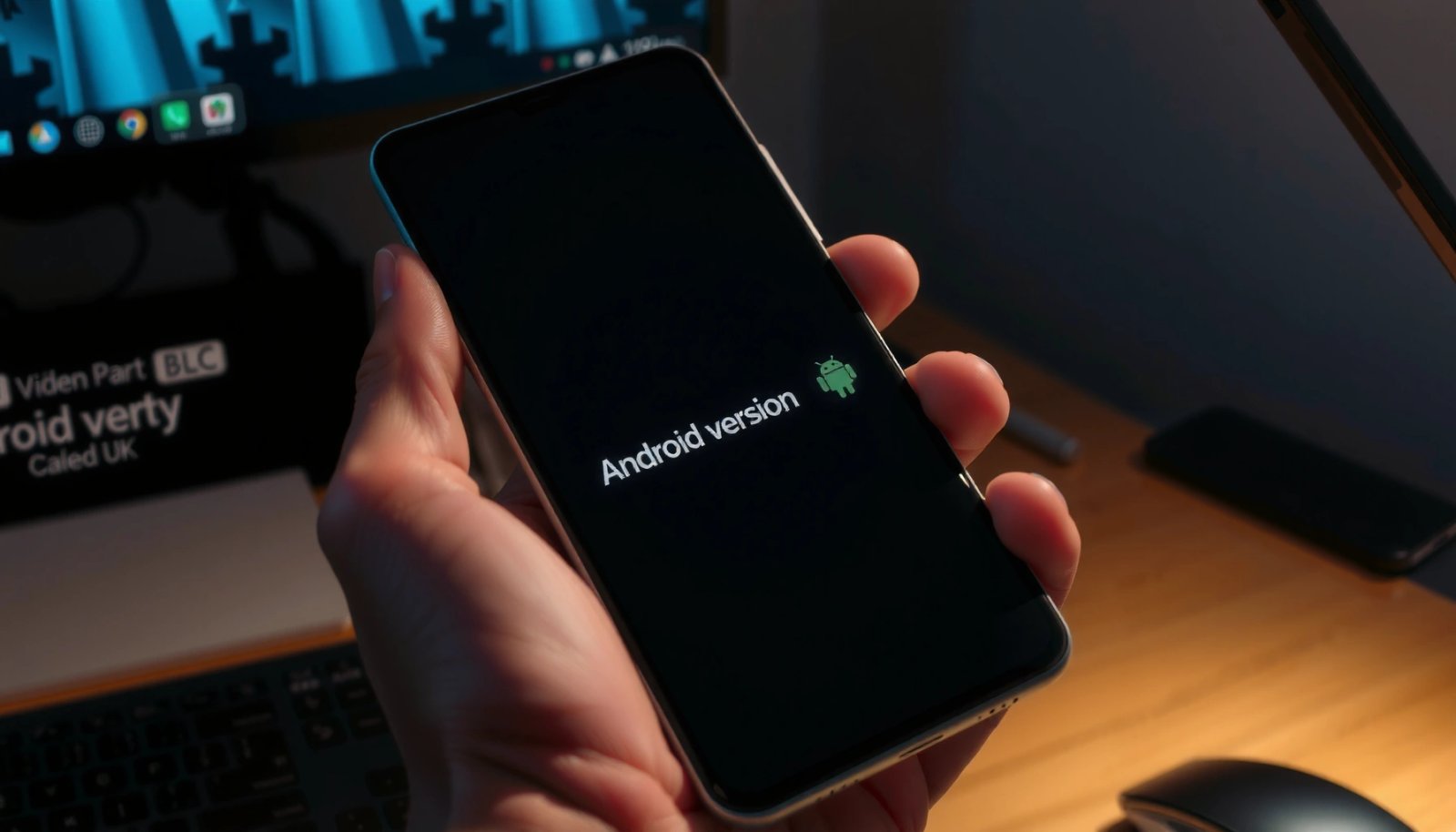
Check Android Version in Settings
- Open Settings on your phone or tablet
- Tap About phone (or About device)
- Look for Android version and note the number
The most reliable method is the built-in system info page. On stock Android, About phone typically lists Android version near the top, often alongside Model, Android security patch, and Build number. On business devices managed by IT (work profiles, MDM/EMM), the Android version section usually remains visible even if certain settings are restricted—so this path remains a strong first step when troubleshooting app or device compliance.
What to write down (for troubleshooting)
When you’re checking your Android version for support requests or internal documentation, capture:
- Android version (e.g., Android 14, Android 13)
- Security patch level (e.g., June 2026)
- Build number (useful for deeper compatibility checks)
Even if your only goal is “What Version Android Do I Have?”, noting those extra fields helps you answer secondary questions like “Am I still receiving security updates?” or “Why does this app say my device is outdated?”
Android Version Snapshot vs. Typical Update Readiness Indicators (2024–2026)
| # | Android version | Last public monthly patch (typical window) | Enterprise app friction* | Practical recommendation |
|---|---|---|---|---|
| 1 | Android 14 | Mar–Jun 2026 | ★ ★ ★ ☆ ☆ | Update to latest patch |
| 2 | Android 13 | Jan–Apr 2026 | ★ ★ ★ ☆ ☆ | Maintain current security patch |
| 3 | Android 12 | Oct 2025–Feb 2026 | ★ ★ ☆ ☆ ☆ | Plan OS upgrade if feasible |
| 4 | Android 11 | Jul–Nov 2025 | ★ ★ ☆ ☆ ☆ | Expect stricter app policies |
| 5 | Android 10 | Mar–Aug 2025 | ★ ☆ ☆ ☆ ☆ | Upgrade or replace device |
| 6 | Android 9 | Managed-only windows* | ★ ☆ ☆ ☆ ☆ | High likelihood of incompatibility |
| 7 | Android 8 and older | Typically end-of-support | ★ ☆ ☆ ☆ ☆ | Replace—security and support risk |
Enterprise app friction varies by vendor, policy, and patch level; the table reflects typical behavior observed when organizations enforce minimum OS/security baselines.
Use “About Phone” to Confirm Build Details
- Review the displayed version number
- Check Build number if you need more specifics
- Note any extra info like security patch level (if shown)
Many “Android version” issues are actually patch-level issues rather than OS-number issues. For example, an enterprise app may require a minimum security patch date even if you’re on the same major Android version. That’s why About phone (or About device) is more than just a version label—it’s the metadata center for compliance and troubleshooting.
Why Build Number matters
The Build number uniquely identifies the exact software build your device is running. Two phones can both say “Android 14,” but still be on different builds due to regional rollout schedules, carrier updates, or vendor customizations. When contacting device support, providing the Build number can:
- Help engineers pinpoint known bugs or compatibility issues
- Confirm whether the device received a targeted security fix
- Validate whether an update is blocked by carrier requirements
Security patch level is the “real-world” indicator
If your screen shows Android security patch level, treat it as a practical benchmark for risk and app compatibility. If the patch date is older than your organization’s policy—or older than what a critical app expects—it may trigger:
- App install blocks
- Reduced functionality mode
- Increased authentication friction (e.g., stricter certificate or device posture checks)
Verify Version for Different Android Skins
- Samsung devices may show About phone differently than stock Android
- Google Pixel uses a similar path, often under About phone
- Search within Settings for “Android version” if menus differ
Android doesn’t have a single uniform interface because manufacturers customize system menus. As a result, “Settings → About phone” is the most common path, but the exact wording can change.
Samsung (One UI)
Samsung often labels the entry as About phone, but the section grouping may differ. On some One UI versions, you might see Software information and then Android version and Build number within that sub-area. If you don’t immediately see “Android version,” open the relevant software information page inside About phone.
Google Pixel (stock-like Android)
Pixel devices generally keep the structure close to Android’s standard UI. Settings → About phone typically exposes Android version and Build number without many detours. Pixel menus are also usually consistent across device models.
OEM customizations (and what to do if it differs)
If you’re on a less common OEM or a carrier-customized device, don’t force the expected menu path. Instead, use the next section’s technique—Settings search—which adapts automatically to the manufacturer’s layout.
Find Android Version via Search or Quick Settings
- Use the Settings search bar to locate About phone
- Type “version” or “Android version” to jump directly
- If available, use an in-app device info screen
When menu names vary (or when Settings are heavily customized), search is often faster than navigation. Most Android builds include a searchable Settings index.
How to search effectively
- Open Settings
- Tap the search field
- Try the exact terms: “Android version”, then “version”
- If results are sparse, try “software info” or “device information”
Why search improves accuracy
Search doesn’t just lead you to “About phone”—it often brings you directly to the specific item on-screen (or to the closest equivalent). That reduces the risk of reading the wrong number (for example, confusing kernel version with Android OS version).
Quick Settings vs. Settings (important distinction)
Some devices display limited device status in Quick Settings, but “Android version” is almost always located under the full Settings app. If you’re only looking at toggles (Wi‑Fi, Bluetooth, brightness), you’re unlikely to find the OS version there.
Troubleshooting If You Can’t Find It
- Make sure you’re in About phone / About device, not another menu
- Try updating your Settings search query (e.g., “software info”)
- Consider checking again after a reboot or system update
If you can’t locate your Android version, the cause is usually one of three things: you’re in the wrong submenu, Settings search isn’t matching the term used on your device, or the system UI is behaving oddly after an update.
1) Confirm you’re reading the OS version, not something else
Common confusion points include:
- Kernel version (technical but not the Android OS release you’re asking for)
- Baseband version (cellular modem information)
- Build number only (present, but you still need the Android version label)
Fix: open About phone and look specifically for Android version or Android version number.
2) Change your search keywords
If “Android version” yields no results, broaden your terms:
- Software info
- Device information
- System information
- About phone
- System update (sometimes reveals a “current version” line)
3) Re-check after a reboot or update
Occasionally, after a major system update, the Settings UI can lag or fail to refresh instantly. A quick reboot (and then returning to About phone) can restore correct labels. If you just completed a software update, allow a few minutes for the device to finish post-update setup before re-checking.
4) Managed devices (work or school) and restricted visibility
On managed devices, certain menu sections can be limited. However, Android version visibility generally remains accessible. If you don’t see it due to restrictions, the IT/MDM admin console may show device OS version and patch level directly.
Conclusion
To answer “what version Android do I have,” go straight to Settings → About phone → Android version and write down the version number you see. If you can’t locate it—especially on Samsung or other Android skins—use the Settings search feature for “Android version” or “software info,” and double-check Build number and security patch level for context. If you share your device model (and carrier, if relevant), I can suggest the most likely menu path for your specific setup.
Frequently Asked Questions
What version of Android do I have on my phone?
You can usually find your Android version in Settings. Go to Settings > About phone (or About device) > Android version, where you’ll see the exact version number (for example, Android 13 or Android 14). On some brands, it may be under Settings > System > About phone.
How can I check my Android version if my Settings app doesn’t show it?
If you don’t see “Android version” directly, look for options like “Software information” or “Build number” in Settings > About phone. You can also check via “Software update” menus, which often display the current Android version or the security patch level. As a workaround, some devices allow viewing details in About phone > Status or by tapping Build number several times to reveal more information.
Why does my Android version show a security patch level instead of the version number?
Many phones highlight the security patch level because it updates independently from the main Android version. Your device can run the same Android major version while receiving monthly security updates. To confirm your actual Android version, open Settings > About phone > Android version rather than relying only on the “Security patch” field.
Which method is best to find the exact Android version on Samsung, Xiaomi, or Google Pixel?
For Google Pixel and most stock Android, use Settings > About phone and check “Android version.” For Samsung Galaxy devices, go to Settings > About phone, then look for “Software information” or “Android version.” For Xiaomi (MIUI), you’ll often find it under Settings > About phone, but the wording can vary; if needed, search within Settings for “Android version” or “MIUI version” to locate the software details.
What’s the difference between Android version, build number, and “software update” version?
The Android version is the major release (like Android 12/13/14), while the build number identifies the specific system build of that release. “Software update” information may show the update package version or security patch level, which helps you see whether you’re fully up to date. When troubleshooting apps or checking compatibility, it’s best to reference both the Android version and build number from Settings > About phone.
References
- Google Scholar Google Scholar
https://scholar.google.com/scholar?q=how+to+check+android+version - Google Scholar Google Scholar
https://scholar.google.com/scholar?q=android+version+identification+Build+number+Baseband+Security+patch - Google Scholar Google Scholar
https://scholar.google.com/scholar?q=what+version+android+do+i+have - what version android do i have - Search results
https://en.wikipedia.org/wiki/Special:Search?search=what+version+android+do+i+have - https://www.ncbi.nlm.nih.gov/search/research-articles/?term=what+version+android+do+i+have
https://www.ncbi.nlm.nih.gov/search/research-articles/?term=what+version+android+do+i+have