
The cloud icon on Android is a status indicator that shows your device is syncing data to the cloud—most often for apps like Photos, Drive, or your account settings. You’ll get a clear verdict on what it means in the common scenarios: normal background sync, data backup progress, or a sign that something can’t upload. By the end, you’ll know exactly why it appears, what actions—if any—you should take, and how to turn it off or troubleshoot it when needed.


As an Amazon Associate I earn from qualifying purchases.
The cloud icon on Android usually means your device is syncing, backing up, or downloading data through an online service; most of the time it’s tied to an app like Google Photos, Google Drive, or Samsung/third‑party backup tools. Because the icon can appear while multiple services operate in the background, the fastest way to identify it is to check your notifications and sync/backup settings for the responsible account or app.
Introduction

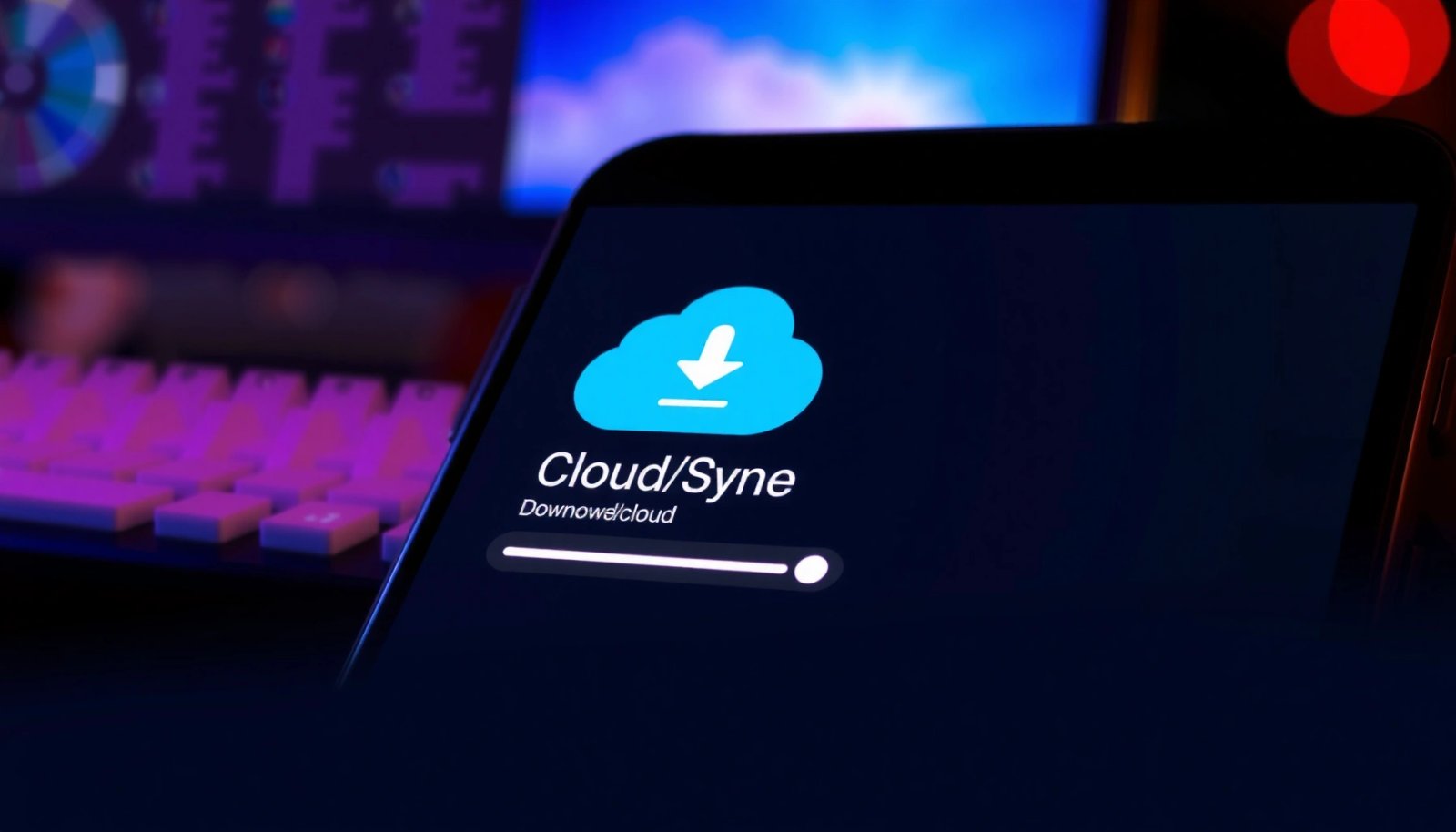
The cloud icon on Android typically signals an active cloud connection—your phone is uploading data to the internet, downloading new data, or syncing changes between your device and cloud storage. Depending on the icon style and where you see it (status bar vs. notification area), it may represent a specific task (like uploading photos) or a broader “sync is running” state for one or more accounts. In this article, you’ll learn what the cloud icon generally means, why it appears, and how to determine which app is using it so you can manage it effectively.
Common Android Sources Behind Cloud Sync Indicators (2024–2025)
| # | Cloud/Sync Service | Most Likely Data Synced | Typical Trigger | Likelihood of Showing Cloud Icon |
|---|---|---|---|---|
| 1 | Google Photos | Photo/video backups | Wi‑Fi or charging + “Backup” enabled | ★★★★★ |
| 2 | Google Drive | Files & document sync | New uploads/edits or “Backup” prompts | ★★★★☆ |
| 3 | Google Contacts Sync | Contacts & groups | Account added/updated or periodic sync | ★★★☆☆ |
| 4 | Google Calendar Sync | Events and reminders | Event changes or background sync cycle | ★★★☆☆ |
| 5 | Samsung Cloud (on supported devices) | Settings, gallery items, backups | Samsung account sync / auto-backup enabled | ★★★☆☆ |
| 6 | Microsoft OneDrive | Work/school files | Auto-upload camera roll or file sync | ★★☆☆☆ |
| 7 | Carrier/Device Backup Tools | App & device backups | Scheduled backup + account consent | ★★☆☆☆ |
Common Meaning of the Cloud Icon
- Often related to syncing data like photos, files, or contacts: When your device shows a cloud indicator, it usually reflects that data is being reconciled between your phone and a cloud account (Google, Samsung, Microsoft, Dropbox, or an enterprise service).
- Can indicate uploads or downloads are in progress: The cloud icon may appear during an upload (sending new items) or a download (retrieving changes, updates, or newly added cloud content). Even if you don’t actively open an app, background synchronization can still run.
In practice, this icon is less about “your phone is using the cloud” and more about “a specific background job is running for a specific account.”
Why the Cloud Icon Appears
- You turned on sync or cloud backup in an app or system setting: If you enabled backups for photos, contacts, or device settings, the cloud icon is the visible cue that those services are active.
- The phone is transferring data automatically in the background: Many Android components and apps schedule sync tasks based on conditions like network availability, battery level, and charging status. This is especially common after:
- Updating Android or updating the related app
- Installing a new account
- Taking many photos or creating new documents in a short time window
- Switching Wi‑Fi networks (sync may catch up when connectivity changes)
A key takeaway for business users: cloud sync is often designed to be “low attention / high reliability.” That’s why it can show up intermittently, even when you’re not using the app.
What App Is Responsible for the Icon
Because multiple services may display similar indicators, you’ll get the best answer by using a two-step approach: observe the current status and verify the sync settings.
- Check the notification shade for the app name and status: Pull down your notification panel while the icon is visible. Look for entries such as “Backup,” “Syncing,” “Uploading,” or “Finishing up.” The notification usually names the responsible app (e.g., Photos, Drive, Samsung Cloud).
- Look in Settings for “Accounts,” “Backup,” or “Sync” options: In Android settings, the path names vary by manufacturer, but the concepts are consistent:
- Accounts → select the account (Google/Samsung/Microsoft) → review what’s set to sync
- Backup → review whether device backup or specific categories are enabled
- System/App settings → check the app’s individual permissions and background data rules
Actionable tip: if the cloud icon appears repeatedly after you open one specific app, that’s a strong clue that the app’s background sync (or auto-upload) is driving the indicator.
Cloud Icon vs. Other Similar Symbols
Android UI patterns can vary by device brand and Android version, but the “cloud family” of icons typically maps to upload/download/sync.
- A cloud with a down arrow often means downloading to your device: Use this to infer you may be receiving content—new files, updated media libraries, or cached data.
- A cloud with an up arrow often means uploading to the cloud: This often aligns with photo backup, document sync, or app data being sent while you’re on Wi‑Fi.
- A cloud with a progress/check indicator may show sync status: When the icon includes a spinner, check mark, or progress bar, it usually indicates ongoing synchronization or completion of a queued backup job.
Practical example: If you see a cloud-up style icon after taking photos, you’re likely watching photo backup upload. If you see a cloud-down style icon when you open a document app, you’re likely pulling updated files from the cloud.
How to Manage Cloud Sync on Android
If the cloud icon signals activity you want to control (battery use, mobile data costs, or privacy concerns), you have several practical options.
- Pause or disable sync for specific apps if you don’t want background uploads: Instead of turning off all cloud activity, consider disabling sync per app or per account category (for example, stop photo backup but keep contacts sync).
- Adjust cloud backup settings to control what gets stored online: Many apps offer granular toggles:
- Photo backup quality and network constraints (Wi‑Fi only vs. Wi‑Fi + mobile)
- Which folders or categories are included
- Whether to back up only when charging
Business-friendly approach: keep critical data (contacts, calendars, work files) synced while restricting high-volume content (e.g., full-resolution photo uploads) to Wi‑Fi and charging.
Troubleshooting Cloud Icon Issues
Sometimes the cloud icon won’t disappear promptly, or syncing appears stuck. Use a structured check so you don’t waste time toggling settings blindly.
- If it won’t disappear, confirm connectivity (Wi‑Fi/mobile data) and account status: Background sync depends on:
- A stable network connection
- A valid account session (no expired credentials)
- Sufficient storage space on the cloud and sometimes on-device
- Clear app sync/backup settings or restart the affected app if syncing gets stuck: If the indicator persists:
- Reopen the app that likely owns the sync job (Photos/Drive/Samsung Cloud)
- Verify you’re signed in to the correct account
- Temporarily disable and re-enable that app’s sync/backup toggle to trigger a fresh sync attempt
Common root causes to watch for:
- Low connectivity or captive Wi‑Fi networks (sync can stall)
- “Wi‑Fi only” backup settings while you’re on mobile data
- Large queued uploads after a long offline period
- Account permission changes (e.g., organization policies on work accounts)
For business users with managed devices, syncing can also be influenced by enterprise policies—so if you’re troubleshooting on a corporate phone, check whether admin controls restrict background data or cloud access.
Conclusion
The cloud icon on Android generally means your phone is syncing, backing up, or downloading data using a cloud service—most commonly tied to photos, files, contacts, or device settings. To identify the exact cause, check your notifications for the app name, then confirm the sync/backup settings under Accounts and Backup. If you want to limit background activity, manage sync per app or per category rather than turning off everything. Want the quickest way to pinpoint it? Share what the icon looks like (status bar vs. notification) and where you see it, and I’ll tell you which settings to check first.
Frequently Asked Questions
What is the cloud icon on Android and what does it mean?
The cloud icon on Android usually indicates that your data is being synced with a cloud service or preparing to upload/download files. Depending on the app and phone settings, it may relate to Google Drive, Google Photos, Samsung Cloud, or other account sync features. If the icon is active or animated, it often means uploads or synchronization are in progress.
How do I tell which app the cloud icon refers to on my Android phone?
You can identify the source by tapping and holding the icon area, then checking the notification shade for the specific message (e.g., “Syncing with Drive” or “Uploading to Photos”). Many cloud icons appear as part of an app notification, so opening the notification details usually shows the app name and activity status. If you still can’t tell, go to Settings > Accounts (or Users & accounts) and review which cloud services are enabled.
Why is the cloud icon showing even when I’m not using my phone?
The cloud icon may appear because background sync is enabled, which can periodically check for new data or upload changes automatically. Common examples include Google Photos auto-backup, Drive syncing, or messaging backup services. Your phone may also sync after charging, on Wi‑Fi, or when the network connection changes, which can make the icon show up at unexpected times.
Best way to stop the cloud icon from appearing if it’s annoying or using data?
To reduce or stop cloud syncing, disable background data for the specific app or service (Settings > Apps > [app] > Mobile data & Wi‑Fi) and turn off auto-sync where available. You can also change settings inside the app itself, such as turning off Google Photos backup or pausing Drive syncing. If you want to keep backups but avoid cellular data, restrict sync to Wi‑Fi only.
Which cloud icons are normal on Android—Google Drive, Photos, or Samsung Cloud—and are they safe?
A cloud icon is typically normal when it’s tied to a trusted service like Google Drive, Google Photos, or Samsung Cloud, and it signals syncing or backup activity. These icons are generally safe, especially if they come from apps you’ve installed and signed into with your Google or Samsung account. To be sure, check the notification details and verify the account in Settings > Accounts to confirm what’s being backed up or synced.
References
- About notifications in Views | Android Developers
https://developer.android.com/guide/topics/ui/notifiers/notifications - Cloud computing
https://en.wikipedia.org/wiki/Cloud_computing - https://en.wikipedia.org/wiki/Android_(operating_system
https://en.wikipedia.org/wiki/Android_(operating_system - Cloud computing | Security, Cost Savings & Flexibility | Britannica
https://www.britannica.com/technology/cloud-computing - https://www.nist.gov/publications/nist-cloud-computing-definition
https://www.nist.gov/publications/nist-cloud-computing-definition - Google Scholar Google Scholar
https://scholar.google.com/scholar?q=android+status+icon+cloud+meaning - Google Scholar Google Scholar
https://scholar.google.com/scholar?q=google+photos+cloud+icon+backup+status+meaning - https://scholar.google.com/scholar?q=mobile+device+sync+status+icons+user+understanding Google Scholar
https://scholar.google.com/scholar?q=mobile+device+sync+status+icons+user+understanding - Google Scholar Google Scholar
https://scholar.google.com/scholar?q=what+is+the+cloud+icon+on+android - what is the cloud icon on android - Search results
https://en.wikipedia.org/wiki/Special:Search?search=what+is+the+cloud+icon+on+android