
Glance App on Android is a lock-screen and glanceable feed feature designed to surface quick updates with minimal effort—useful if you want at-a-glass look at news, weather, and notifications. This guide tells you exactly what Glance does, which features matter, how to set it up and use it safely, and what privacy tradeoffs to watch for before you enable it. You’ll leave knowing whether Glance fits your needs or you should opt for a more control-first alternative.
![PEHAEL for iPhone 17e/16e/14/13/13 Pro Privacy Screen Protector | 3 Pack, Installation kits, Anti-Spy Private, Anti-Scratch, 9H Tempered Glass, Case Friendly, [6.1 inch]](https://m.media-amazon.com/images/I/41zI43YJMYL._SL500_.jpg)


As an Amazon Associate I earn from qualifying purchases.
The Glance app on Android is a launcher-style, content-forward app that displays personalized cards and shortcuts on your home screen. If you’ve noticed it on your device, you can typically manage it by reviewing permissions, controlling notifications, and disabling it (when your phone allows).
Introduction
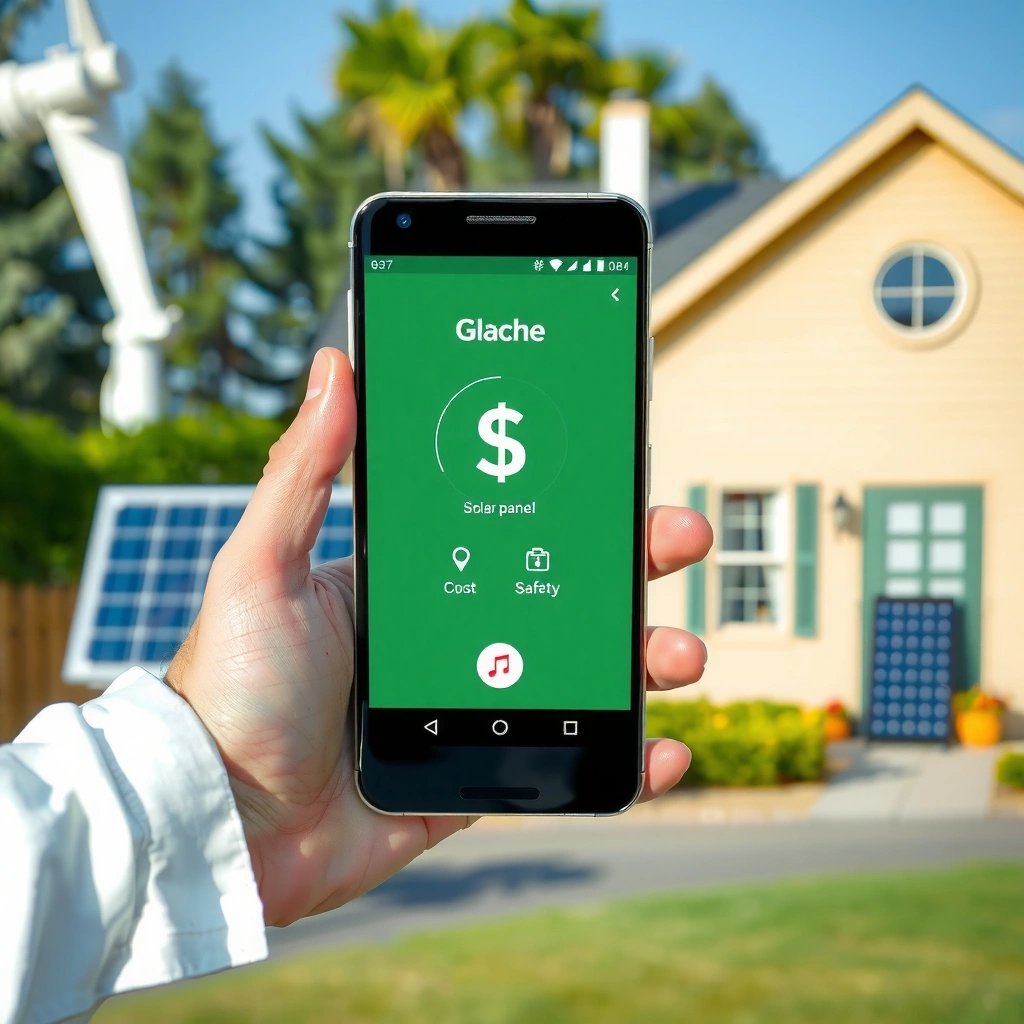
The Glance app on Android is best described as a launcher and shortcut-style experience that places curated updates directly on your home screen. Instead of simply launching apps, it can function as a “content layer,” showing things like recommendations, news-style tiles, offers, and quick entry points to services—depending on your device, region, and configuration. In this guide, you’ll learn what Glance is, why it might appear on your phone, what it does behind the scenes, and the practical steps to manage it safely.
What Is Glance App on Android?
- A launcher-style app that delivers content directly on your home screen
- Often installed as a system/partner app depending on the device or region
- Focuses on quick access to news, offers, and recommendations
Glance isn’t a typical single-purpose utility app. Many Android users encounter it because it comes preinstalled by manufacturers or distributed through partner agreements tied to device configurations. On some phones, it behaves like an overlay integrated into the home screen experience; on others, it appears as a normal app you can launch or control from settings.
From a user perspective, the “value” proposition is convenience: fewer taps to reach common services, and a steady stream of bite-sized content without opening separate apps. From a device perspective, that convenience comes with trade-offs—especially around notifications, background activity, and personalization inputs.
What Does Glance App Do?
- Displays cards or content streams for personalized browsing
- Provides quick shortcuts to apps and services
- Can use device data to tailor what you see
When Glance is active, it typically shows a feed or card-style layout on (or alongside) your home screen. Those cards may include topics you’re likely to engage with—such as trending content categories, shopping deals, local events, or news summaries—based on signals available to the app.
Beyond passive content, Glance commonly includes interactive elements:
- Quick shortcuts that lead you to specific apps, settings, or partner services.
- Contextual tiles that may change depending on time of day, usage patterns, or location-derived context (if location permissions are granted).
- Notifications that surface selected content at intervals—useful if you want updates, but intrusive if you prefer minimal background activity.
It’s important to distinguish between what you see (home screen cards and tiles) and how it adapts (personalization and data usage). Personalization can be beneficial—showing relevant suggestions—but it also increases your need to review privacy-related settings.
Is Glance App Safe?
- Generally considered safe, but permissions and data usage matter
- Review what permissions it requests (such as notification or usage access)
- Check privacy settings to limit tracking or personalization
In most cases, Glance is not inherently malicious. However, “safe” in Android terms usually means: the app behaves as expected, doesn’t violate OS security boundaries, and uses permissions responsibly. Because Glance is content- and recommendation-driven, it may request permissions that enable personalization and delivery of updates.
Here are the practical checks that matter:
- Do you see unnecessary notifications? If yes, reduce or disable them.
- Does it request sensitive permissions? For example, location, contacts, or “usage access” (varies by device). If you don’t want personalization, deny the permission when possible.
- Is it running continuously? Look for background activity indicators and battery impact.
If your goal is risk reduction, the best approach isn’t panic—it’s permission hygiene. Even if an app is legitimate, limiting access to only what’s needed is a stronger safeguard for your privacy and your phone’s performance.
Typical Permission Signals Used by Home-Screen Content Apps (Glance-like Behavior) — 2024
| # | Permission or Setting | What It Usually Enables | Risk Level | Recommendation |
|---|---|---|---|---|
| 1 | Notifications | Card updates, offers, reminders | Medium | Turn off or limit |
| 2 | Usage Access | Improves relevance by learning apps you open | High | Disable if not needed |
| 3 | Location (Approx.) | Local recommendations, region-based deals | Medium | Use “While in use” or deny |
| 4 | Location (Precise) | More granular local targeting | High | Prefer “Approx.” or deny |
| 5 | Contacts | Typically not required for home content; may enable social features | High | Deny unless absolutely needed |
| 6 | Background data / Mobile data | Loads feeds, images, and updates silently | Medium | Restrict background data |
| 7 | System/Device integrations (varies) | May integrate with launcher or “recommendation” services | Low–Medium | Keep only if useful |
How to Use or Disable Glance App
- You can turn off notifications to reduce interruptions
- Disable or uninstall it if your device allows it
- Use your Android launcher settings to control what appears on the screen
Whether you keep Glance active or remove it, start with the controls that preserve convenience without sacrificing control.
If you want to keep it (but reduce disruption)
- Disable notifications: Go to *Settings → Apps → Glance → Notifications* (or *App notifications*). Turn off categories or switch off all notifications.
- Limit background activity: Many Android versions let you restrict background data under *Data usage* or *Mobile data & Wi‑Fi*.
- Hide content where possible: If your launcher supports it, disable the home-screen feed component rather than removing the app entirely.
If you want it gone
- Disable first: On many manufacturer builds, uninstall may be blocked, but Disable can stop it from running.
- Uninstall if allowed: Some devices treat Glance as a normal app and allow removal.
- Launcher reassignment: If Glance is tied to home screen behavior, check *Settings → Apps → Default apps → Home app* and confirm your preferred launcher.
Because Glance is sometimes preinstalled, the “best” option depends on the device OEM. Some phones restrict disabling system partner components, but most provide at least partial notification and permission control.
Permissions and Data: What to Check
- Look at permissions in Settings > Apps > Glance (or similar name)
- Identify whether it uses location, contacts, or usage data (if requested)
- Adjust permissions to only what’s necessary
To take a data-driven approach, audit permissions in a consistent order:
- Notifications
- If you don’t want promotional tiles or updates, disable notifications or reduce categories.
- Location
- Choose Approximate instead of Precise where possible, or deny if you want maximum privacy.
- Usage access / app activity access
- This is commonly tied to personalization. If you don’t need tailored recommendations, deny it.
- Contacts and sensitive permissions
- For a content launcher, contacts are rarely necessary. If it requests them, consider denying.
- Background data
- Restricting background activity can reduce both battery drain and data usage.
Actionable tip: after changing permissions, observe behavior for 24–48 hours. Many “home feed” experiences will update less frequently, and battery impact should improve if background access was a factor.
Troubleshooting Common Issues
- If battery drains or ads increase, review background activity and notifications
- If it won’t disable, it may be preinstalled—use “Disable” instead
- Clear cache/data or update the app when available
Glance-related issues typically fall into three categories: performance, content volume, and control/disable limitations.
Battery drain or overheating
- Check Battery statistics to confirm whether Glance is using significant power.
- Reduce background data, restrict network usage, and turn off notifications.
- If available, enable battery optimization for the app.
Ads feel more frequent
- Turn off notifications first—many “ads” arrive through push updates.
- Review any in-app personalization toggles (if present).
- Disable usage-access-type permissions to reduce targeted recommendations.
“Can’t disable” problem
- If the app is preinstalled, Android may prevent uninstall but still allow Disable.
- If “Disable” is also blocked, you can still typically reduce impact using permissions and notification controls.
App still behaves unexpectedly
- Clear cache (safer than clearing data) under the app’s storage settings.
- Update the app if updates exist—sometimes issues come from older builds with bugs.
Conclusion
The Glance app on Android is a content-focused launcher experience that can show personalized cards and shortcuts directly on your home screen. To use it safely, review permissions (especially notifications and usage-related access), control background activity, and disable it if you don’t want it running—starting with the least disruptive steps. With a permission-and-notification audit, you can keep the convenience you like while minimizing privacy and performance trade-offs.
Frequently Asked Questions
What is the Glance app on Android?
The Glance app is a free Android app that delivers content like news, updates, and recommended information directly on your phone through a “glanceable” experience. Many users encounter it as a preinstalled or partner app that aims to make discovery easier without needing to open a browser or separate apps. Depending on your device and region, Glance may be bundled with the launcher or home-screen experience.
How does the Glance app work on Android?
Glance typically uses a lightweight home-screen or feed-style interface to show short content cards and updates. It may refresh information based on your interests and device settings, and it can show items when you swipe, view, or interact with its surface. Some features may rely on internet access and permissions for personalization to display relevant content.
Why is the Glance app draining my battery or using data?
Battery and data use can increase if Glance is allowed to run frequently, fetch content often, or if background activity isn’t restricted. If your Android battery stats show high usage under “Glance” or related services, you can reduce impact by limiting background data, turning off background refresh, or disabling notifications you don’t need. Keeping the app updated and reviewing permissions can also help manage performance and data usage.
Which permissions does the Glance app request, and are they necessary?
Glance may request permissions such as internet access for loading content, notifications for updates, and sometimes device-related permissions depending on the version and manufacturer customizations. Not every permission is always required for the core experience, so it’s worth checking the permission list in Settings > Apps > Glance (or the app listed by your phone) and disabling anything you don’t want. If you’re concerned about privacy, review what’s enabled and adjust it accordingly.
What’s the best way to disable or uninstall Glance on Android?
If Glance is removable, you can uninstall it from Settings > Apps > Glance, which stops it from running and using resources. If it’s a system app that can’t be fully uninstalled, you can disable it (if the option exists), turn off notifications, restrict background data, and disable any associated launcher or home-screen integrations. On some Android devices, the safest approach is to disable background activity first to confirm battery/data savings before taking further steps.
References
- https://scholar.google.com/scholar?q=glance+android+app+lockscreen Google Scholar
https://scholar.google.com/scholar?q=glance+android+app+lockscreen - Google Scholar Google Scholar
https://scholar.google.com/scholar?q=Glance+Technologies+privacy+study - Google Scholar Google Scholar
https://scholar.google.com/scholar?q=Android+lockscreen+advertising+app+data+collection - Lock screen
https://en.wikipedia.org/wiki/Lock_screen - https://en.wikipedia.org/wiki/Android_(operating_system
https://en.wikipedia.org/wiki/Android_(operating_system - https://en.wikipedia.org/wiki/Notification_(computing
https://en.wikipedia.org/wiki/Notification_(computing - About notifications in Views | Android Developers
https://developer.android.com/guide/topics/ui/notifiers/notifications - Create a notification | Jetpack Compose | Android Developers
https://developer.android.com/training/notify-user/build-notification - Mobile advertising
https://en.wikipedia.org/wiki/Mobile_advertising - Google Scholar Google Scholar
https://scholar.google.com/scholar?q=what+is+glance+app+on+android