
If you need to view hidden photos on Android, the fastest, most reliable route is checking the right gallery settings or the “Hidden”/“Recently hidden” folder your phone uses. This guide walks you through the exact taps to uncover those pictures safely—without guesswork or third‑party apps. You’ll also learn what to do when your hidden photos aren’t showing up, so you can access them in minutes.


As an Amazon Associate I earn from qualifying purchases.
You can usually view hidden photos on Android by checking your Gallery/Photos app’s Hidden/Utilities area and then verifying Secure Folder and Trash/Recently deleted. If those don’t show the images, use a file manager to reveal hidden files (including items affected by things like “.nomedia”).
Understanding how Android “hides” photos matters because different brands and apps implement privacy differently. Some phones use an in-app Hidden album, others store images inside a secure/protected container, and still others temporarily move items to Trash. Meanwhile, some “invisible” media issues are actually caused by system/metadata behavior (like a `.nomedia` file) rather than a true privacy feature. Below are the most reliable methods—ordered from fastest to most thorough.
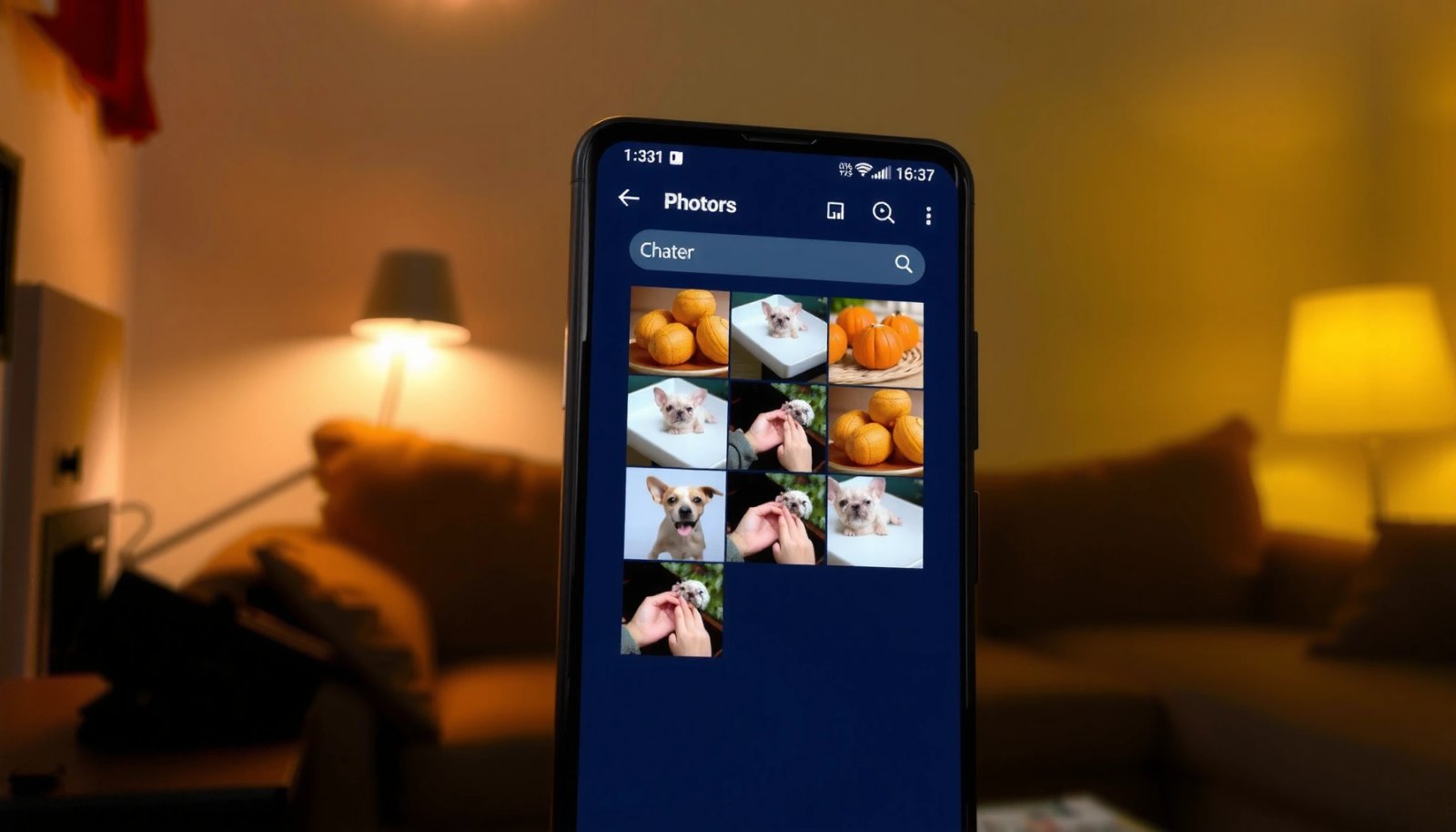
Check the Hidden Folder in Gallery/Photos

On many Android devices, “hidden photos” are not truly deleted—they’re moved to an in-app hidden area inside the Gallery or Photos app. This is the first place you should look because it’s the most straightforward recovery path.
- Open the Gallery or Google Photos app on your Android device
- Look for a “Hidden” or “Utilities” folder/section
- Tap the photos to view or restore them
What to look for (common labels):
- Hidden (in Google Photos and many OEM galleries)
- Utilities (some Samsung/brand interfaces group hidden items here)
- Locked folder (often tied to privacy features)
Best practices while checking:
- Use the app’s search inside the Gallery/Photos experience (if available) to locate thumbnails faster.
- If you see Restore or Move to gallery, choose that rather than re-hiding—restoring returns images to the normal Albums view.
- If your Hidden section is empty, don’t assume the photos are gone; proceed to Secure Folder and Trash.
View Hidden Photos in the Secure Folder
If your phone uses a dedicated privacy container (commonly called Secure Folder on Samsung or similar features on other brands), hidden items may not appear in the regular Gallery at all. They’re stored in a protected environment, so you have to open that environment first.
- If you use Samsung Secure Folder (or a similar feature), open it first
- Use your PIN, pattern, or fingerprint to access the folder
- Navigate to Photos/Images inside Secure Folder to find hidden files
Why this happens:
- Secure folders are designed to prevent even Gallery indexing outside the container.
- Some devices also support “private” or “locked” albums that behave like secure storage.
Actionable tips:
- Search within Secure Folder for the photo thumbnails (if the app supports it).
- Check both Photos and Download-style subfolders inside the secure container.
- If you recently moved images into Secure Folder but forgot the login method, ensure your secure authentication still works (fingerprint/PIN) before doing any other troubleshooting.
Use File Manager to Reveal Hidden Files
Sometimes photos appear to be “hidden” because the media scanner is blocked or the gallery doesn’t index certain files. In these cases, a hidden file manager view can reveal what’s actually present on storage.
- Open a trusted file manager app (or your built-in Files app)
- Enable “Show hidden files” in settings
- Go to common photo folders (e.g., DCIM, Pictures) to locate hidden items
What “hidden files” can mean in practice:
- A file or folder name starts with a dot, like `.nomedia` (this often prevents gallery apps from showing media in a folder).
- Media exists in a directory that the Photos app normally ignores (or currently failed to scan).
Where to check first:
- DCIM/ (commonly stores camera photos and screenshots recorded with camera-related flows)
- Pictures/ (commonly used by apps and some camera modes)
- Screenshots/ (often created automatically by the system)
If you find `.nomedia`:
- Do not delete it blindly. Removing `.nomedia` can cause a large number of files to re-index into Gallery—sometimes that’s what you want, sometimes it’s not.
- If your goal is only to restore specific photos, consider moving those photos to a new folder without `.nomedia` rather than removing system behavior everywhere.
Check if Photos Are in Trash or Recently Deleted
Even when you think you “hid” photos, some actions actually move them to a trash/bin with a countdown period. Gallery or Photos apps frequently label this as Trash or Recently deleted.
- Open Gallery/Photos and find “Trash” or “Recently deleted”
- Restore photos you still have access to
- Note that permanently deleted photos may not be recoverable
Key differences:
- Trash/Recently deleted = reversible within a retention window
- Permanently deleted = often unrecoverable through normal app actions
Retention windows to be aware of (common behavior):
- Google Photos: “Trash” / “Recently deleted” is typically retained for up to 60 days before permanent deletion.
- Many Samsung Galaxy gallery experiences: “Trash” is often around 30 days (can vary by model/region/storage policy).
Actionable recovery steps:
- Restore the photos as soon as you find them—don’t wait for the retention window to expire.
- If you have a Google account sync enabled, confirm whether the photos are appearing across devices after restoring.
Verify App Permissions and Storage Access
Sometimes hidden photos are “there,” but your Gallery/Photos app isn’t allowed to access storage properly—especially after updates, permission changes, or device upgrades. Re-checking permissions often resolves the issue without any file manipulation.
- Go to Android Settings → Apps → Photos/Gallery → Permissions
- Ensure Storage (or Files and media) permission is enabled
- Restart the app after updating permissions, then re-check hidden folders
What to check in Permissions:
- Files and media (Android’s modern grouping)
- Photos access (some systems provide more granular choices like “Allow only while using the app”)
- Allow options for media indexing
Why restarting matters:
- Some Gallery/Photos apps only re-index after permission changes or a fresh start.
- After you enable access, fully close the app (remove from Recents) and reopen it to trigger a scan.
Bonus check:
- If you recently installed a new Android version or migrated devices, confirm that the Photos/Gallery app permissions were not reset during setup.
📊 DATA
Where “Hidden” Photos Typically Live on Android (What to Check First)
| # | Hidden/Invisible Mechanism | Typical App/Feature Label | What Actually Happens | Where to Recover |
|---|---|---|---|---|
| 1 | In-app Hidden album | Hidden / Utilities | Moved to an in-app hidden collection (not deleted) | Gallery/Photos → Hidden |
| 2 | Secure container storage | Secure Folder / Private folder | Photos are stored inside a protected app space | Secure Folder → Photos/Images |
| 3 | System “recently deleted” | Trash / Recently deleted | Photos are recoverable until the retention window ends | Gallery/Photos → Trash/Recently deleted |
| 4 | Gallery indexing blocked by .nomedia | Media appears missing | Android media scanner skips indexing in affected folder | File Manager → Show hidden files |
| 5 | App-specific private folders | App “vault” / “lock” | Photos stored under the owning app’s protected area | That app → Vault/Locked media |
| 6 | Permission-limited access | Gallery shows partial library | App can’t read all media locations | Settings → App permissions → Files/media |
| 7 | Cloud “hidden” vs local hidden | Hidden album (account-based) | Your account’s hidden state can differ by device | Google Photos → Hidden (logged-in account) |
Conclusion
To view hidden photos on Android, start with the Gallery/Photos Hidden area, then check Secure Folder, Trash/Recently deleted, and finally use a file manager with hidden files enabled to diagnose indexing blockers like `.nomedia`. Follow these steps in order for the highest success rate with the least risk. If you tell me your phone brand (Samsung, Xiaomi, Pixel, etc.), I can suggest the most likely exact menu paths and labels you’ll see on your device.
Frequently Asked Questions
How can I view hidden photos on Android using Google Photos?
Open the Google Photos app and sign in to the same Google account where the photos were hidden. Tap Library, then select Utilities, and look for the Hidden folder (or Archive/Trash depending on your device). If you don’t see Hidden, check whether the photos were archived instead of hidden, since archiving moves items to Archive rather than the Hidden folder.
How do I reveal photos hidden in the Gallery app on Android?
Many Android Gallery apps include a “Hide/Hidden” album or a feature within Albums where hidden items are stored. Open Gallery, go to Albums (or Menu/Settings), then search for a “Hidden” or “Private” folder. If you previously hid photos using a vault or secure folder, you may need to unlock it with your PIN, pattern, or biometric login.
Why can’t I find my hidden photos even after I search on my Android?
Hidden photos may be stored in a different location than you expect—such as Google Photos Hidden, a device “Private” vault, or the SD card/media folder. Also, search results won’t always show items inside Hidden/Private areas. Check both Google Photos and the phone’s Gallery/Files app, and confirm that you’re searching in the correct account and storage (internal vs. SD card).
Which method is best to view hidden photos without losing privacy on Android?
The safest option is using the built-in Hidden folder in Google Photos or the device’s Secure Folder/Private vault if available. These keep hidden photos separated from your normal Gallery view while still letting you access them with a lock screen credential. Avoid third-party “photo lock” apps unless you trust them, because some can complicate access or create duplication when moving files.
What should I do if I hid photos using a “Secure Folder” or “Private” feature and can’t open them?
Open your device’s Secure Folder (Samsung) or the “Private”/vault feature in your Gallery, then authenticate with your PIN/pattern/biometric to view the hidden photos. If you changed your lock method or uninstalled an associated app, access might be blocked or photos could be moved. Also check Settings for storage permissions and ensure the app managing the vault has the correct file access enabled.
References
- Google Scholar Google Scholar
https://scholar.google.com/scholar?q=hidden+photos+Android+Gallery - Google Scholar Google Scholar
https://scholar.google.com/scholar?q=Android+hidden+media+.nomedia+MediaScanner - Google Scholar Google Scholar
https://scholar.google.com/scholar?q=secure+gallery+private+folder+Android+photobased+privacy - Google Scholar Google Scholar
https://scholar.google.com/scholar?q=how+to+view+hidden+photos+on+android - how to view hidden photos on android - Search results
https://en.wikipedia.org/wiki/Special:Search?search=how+to+view+hidden+photos+on+android - https://www.ncbi.nlm.nih.gov/search/research-articles/?term=how+to+view+hidden+photos+on+android
https://www.ncbi.nlm.nih.gov/search/research-articles/?term=how+to+view+hidden+photos+on+android