
Want to update Messenger on Android and get the latest features fast? Follow these step-by-step instructions to update the Messenger app from the Google Play Store with zero guesswork. You’ll know exactly where to tap and what to check so the update actually installs.


As an Amazon Associate I earn from qualifying purchases.
Updating Messenger on Android is usually as simple as opening the Google Play Store and tapping Update for Messenger. If you don’t see an update button, fix it by confirming your Google account, checking connectivity/storage, or enabling auto-update—then verify the new version is installed and working correctly.
Introduction
To update Messenger on Android, open the Google Play Store and tap Update next to Messenger if it’s available. If you don’t see an update, check your internet connection and verify you’re using the latest app version.
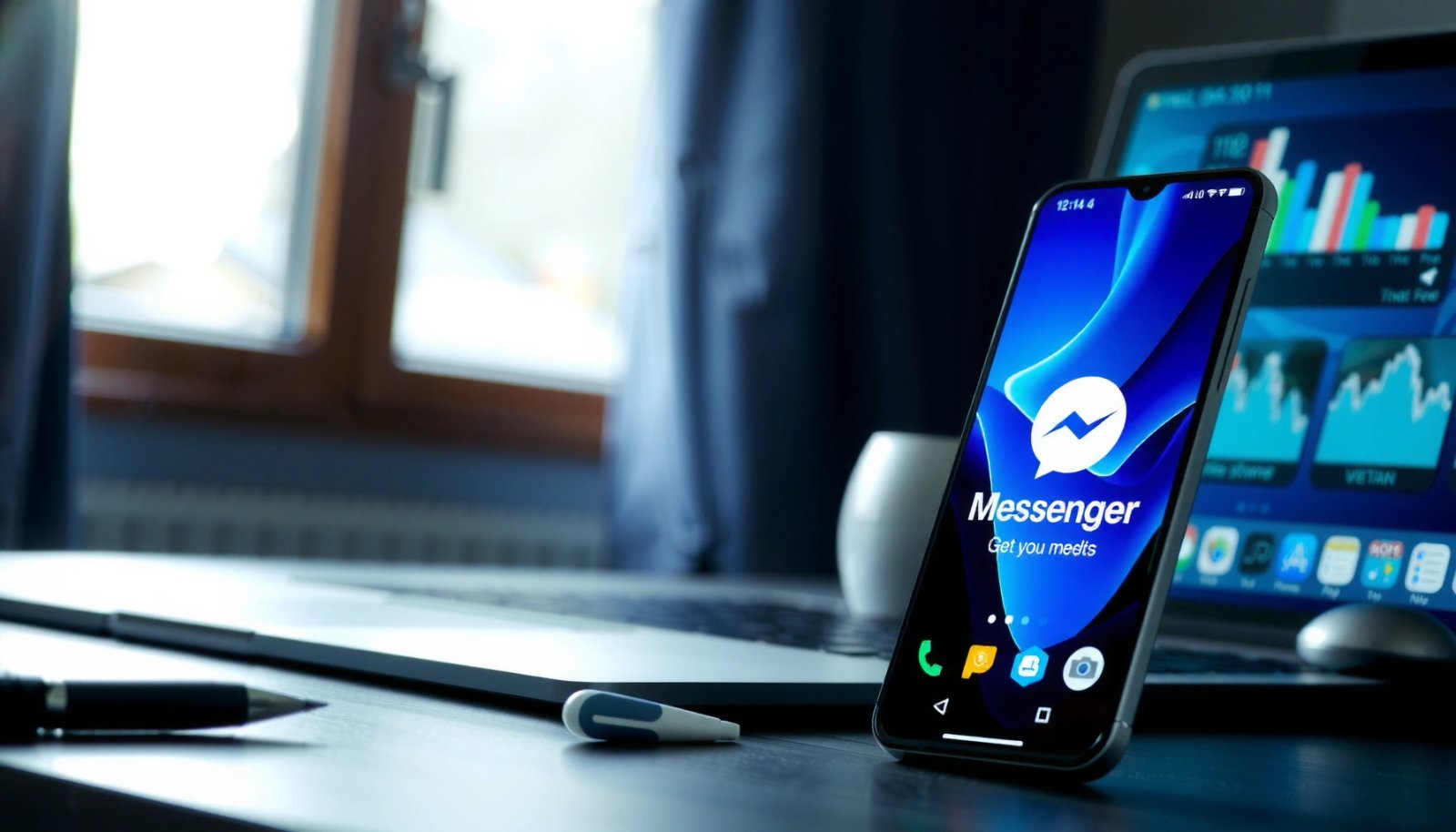
For business users and frequent communicators, staying current on Messenger isn’t just about getting new features—it’s also how you benefit from security patches, performance improvements, and fixes for message reliability, notifications, and media handling. The steps below walk you through the standard update flow, manual workarounds, and practical troubleshooting so you can complete the process without wasting time.
Check for Messenger Updates in Google Play Store
This is the fastest and most reliable method because the Play Store manages downloads, verifies app signatures, and applies updates in a consistent way across devices.
- Open the Google Play Store app on your Android device
- Search for Messenger and look for an Update button
- Tap Update and wait for the download to finish
What to watch for during the update:
- App size vs. storage: If your device is low on storage, Play Store may pause or fail the download. Free up space if you notice repeated stalls.
- Download behavior: Updates typically start automatically once you tap Update. If it doesn’t, tap the progress indicator or refresh the app page.
- Wi‑Fi vs. mobile data: If you use mobile data and don’t want surprises, make sure Play Store settings allow updates on the network you intend to use (covered later under auto-update).
Update Messenger Manually (If No Update Appears)
If Messenger doesn’t show an Update button, it can mean several things: you may already be on the latest version, the Play Store is delayed in refreshing availability, your account/device settings are misaligned, or a pending background update is stuck.
- Refresh the Play Store page or restart the Play Store
- Confirm you’re signed into the correct Google account
- Re-check Messenger after syncing and downloading any pending updates
Practical manual steps that work in real scenarios:
- Refresh the Messenger page
- In Play Store, search Messenger, open the listing, then pull down to refresh (or leave the listing and re-open it).
- Restart Play Store
- Force-stop the Play Store app (Android: Settings > Apps > Google Play Store > Force stop) and re-open it.
- Check the correct Google account
- Play Store updates are tied to the account that originally installed (or currently manages) the app.
- Go to the Play Store profile icon and confirm the account matches the one on your device.
- Look for pending updates
- In Play Store, open Profile icon > Manage apps & device > Updates available and install any queued updates. Sometimes Messenger’s update is released in a batch and becomes visible right after other updates finish.
Why this matters: even if Messenger is “not updateable,” the app may still receive incremental changes through server-side feature flags. However, version-level improvements (including security fixes) require the Play Store update.
Messenger Update Readiness Signals (Android)
| # | Update Readiness Signal | What It Indicates | Typical User Action | Expected Impact |
|---|---|---|---|---|
| 1 | Update button appears on Messenger listing | Version is available for your device/account | Tap **Update** and keep screen on | High success |
| 2 | Messenger shows no Update button | You may already be current or Play Store not refreshed | Refresh page / restart Play Store | Unclear outcome |
| 3 | Google account mismatch | Play Store can’t reconcile your app entitlement | Switch to correct account in Play Store | Often blocks update |
| 4 | Low storage warning | Download completes but install fails or pauses | Free space, then retry update | High risk of failure |
| 5 | Stuck download progress | Connectivity instability or Play Store state issue | Switch to Wi‑Fi or retry after reboot | Likely stall |
| 6 | Play Store cache cleared | Resets corrupted download metadata | Retry update after reboot | Improves odds |
| 7 | Update completes and Messenger opens normally | Version installation verified | Test messages, calls, notifications | Confirmed success |
Turn On Auto-Update for Messenger
Manual updates are fine occasionally, but auto-update reduces operational friction—especially for teams that rely on Messenger for customer support, internal coordination, or rapid follow-ups.
- Go to Play Store > Profile icon > Settings
- Tap Network preferences > Auto-update apps
- Select Over Wi‑Fi only or Any network, then ensure Messenger is included
Recommended configuration for reliability:
- Choose Over Wi‑Fi only for consistent downloads and to avoid data overages.
- If you travel often and need immediate changes, Any network can be acceptable—just monitor your data plan.
How to ensure Messenger is actually covered:
- Some devices allow auto-updates broadly, but confirm Messenger is included under the app’s update controls.
- If your Play Store is set correctly but Messenger still doesn’t update, the account/device may be experiencing propagation delays or an app compatibility constraint.
Fix Common Update Issues on Android
Updates sometimes fail due to cache corruption, network instability, insufficient storage, or device compatibility restrictions. The goal is to diagnose quickly and apply the smallest fix that resolves the issue.
- Clear Play Store cache if updates stall (Settings > Apps > Play Store)
- Check storage space and ensure you’re connected to Wi‑Fi or stable data
- Verify Android OS compatibility and restart your phone
Issue → Fix checklist (fast troubleshooting):
- Update stuck at “Downloading”
- Toggle airplane mode on/off.
- Switch networks (e.g., from mobile data to Wi‑Fi).
- Restart the phone if it continues to stall.
- Update fails with a generic error
- Clear Google Play Store cache and retry.
- If needed, clear cache for Google Play services as well (avoid clearing app data unless you’re comfortable re-authenticating).
- “Insufficient storage” or silent pauses
- Free storage by removing large unused items, clearing downloads, or offloading media.
- Retry the update after reaching a reasonable free-space buffer.
- Update doesn’t appear
- Confirm you’re using the correct Google account.
- Ensure Android and Play Store are up to date (some versions improve compatibility and app delivery).
Compatibility note: Messenger updates may require a minimum Android version. If you’re on a very old OS, Play Store may stop offering updates. In that case, the sustainable solution is upgrading the device OS if possible (or using a compatible device).
Confirm the Update Completed Successfully
Once you’ve triggered an update, confirmation prevents the most common “it updated but nothing changed” confusion. Always verify the new build is installed, then validate core Messenger behavior.
- Reopen Messenger and ensure it loads without errors
- Check the app version in Messenger > App info (Android Settings)
- Test key features like messages, calls, or notifications
Verification steps that hold up in day-to-day work:
- Launch Messenger
- It should open quickly, sync conversations, and not show repeated prompts or crashes.
- Confirm version
- On Android, go to Settings > Apps > Messenger > App info
- Look for Version (or similarly named fields) and record it if you manage multiple devices.
- Test key workflows
- Send a short message to yourself or a colleague.
- Check whether notifications arrive reliably.
- If your role depends on communication speed, test call/video availability as well.
Why this matters for teams: notification and message delivery behavior is often the first thing that changes after updates. Verifying early prevents missed customer messages later.
Conclusion
Updating Messenger on Android is usually as simple as tapping Update in the Google Play Store. If you don’t see an update, enable auto-updates or troubleshoot cache, storage, and connectivity—then confirm the new version is installed and works as expected by testing messages and notifications. Keeping Messenger current helps maintain security, stability, and performance for reliable day-to-day communication.
Frequently Asked Questions
How to update Messenger on Android using the Google Play Store?
Open the Google Play Store app on your Android phone and search for “Facebook” or “Messenger.” If an update is available, tap Update for Messenger (or update the Facebook app if Messenger isn’t separate). After updating, open Messenger to confirm the latest version is installed and check Settings for any new features.
Why can’t I update Messenger on my Android phone?
Common reasons include a weak internet connection, insufficient storage, or an outdated Google Play Store version. You should also check whether your device is compatible with the latest Messenger build and confirm you’re signed into the same Google account on the Play Store. If the problem persists, clear Play Store cache (and Google Play services cache), then try the update again.
What’s the best way to update Messenger Android when the Update button is missing?
If the Update button doesn’t appear, you may already have the latest Messenger version, or updates may be rolling out gradually in your region. Try restarting your phone, then revisit Google Play Store and search “Messenger” directly to verify the app page. You can also update the Facebook app via Play Store since Messenger features can be distributed through Facebook/Meta updates.
Which APK is safe to update Messenger on Android, and how do I do it safely?
The safest option is updating through the Google Play Store, because official releases include security checks and proper version handling. If you choose to use an APK, only download from a trusted source and verify it matches the official Messenger package for Android. Before installing, enable app installation permission only for the updater source, scan the file with a security tool, and avoid unknown or modified APKs.
How to update Messenger Android if you’re stuck on an old version?
First, check whether updates are available by updating Google Play Store and Google Play services, then try updating Messenger again from the app page. If you’re still stuck, uninstalling updates for Messenger (or clearing its cache) and then reopening it may trigger the correct version flow. As a last resort, reinstall Messenger from Google Play Store to ensure you get the latest Messenger Android version.
References
- Facebook Messenger
https://en.wikipedia.org/wiki/Facebook_Messenger - https://scholar.google.com/scholar?q=how+to+update+Messenger+Android Google Scholar
https://scholar.google.com/scholar?q=how+to+update+Messenger+Android - Google Scholar Google Scholar
https://scholar.google.com/scholar?q=Facebook+Messenger+update+Android+Google+Play - Google Scholar Google Scholar
https://scholar.google.com/scholar?q=update+apps+on+Android+Google+Play+automatic+updates - Google Scholar Google Scholar
https://scholar.google.com/scholar?q=troubleshooting+Messenger+app+update+Android - https://scholar.google.com/scholar?q=how+to+check+for+app+updates+Android Google Scholar
https://scholar.google.com/scholar?q=how+to+check+for+app+updates+Android - Google Scholar Google Scholar
https://scholar.google.com/scholar?q=Google+Play+Store+update+apps+Android+help - Google Scholar Google Scholar
https://scholar.google.com/scholar?q=Android+app+update+process+Google+Play+install+update - Google Scholar Google Scholar
https://scholar.google.com/scholar?q=Android+system+update+vs+app+update+Google+Play - Google Scholar Google Scholar
https://scholar.google.com/scholar?q=Facebook+Messenger+app+version+Android+update+procedure