
Locked out of encrypted data on Android and need the fastest way to get access? This guide delivers quick recovery steps that tell you exactly what to try first, from verifying your unlock credentials to handling common encryption lockouts. Follow the sequence that gives you the best chance of unlocking encrypted data without unnecessary data loss, based on your device and what you still have access to.
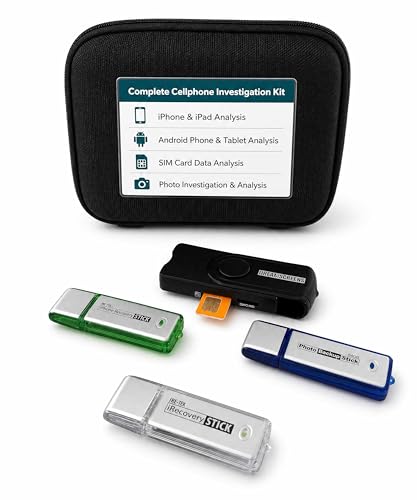
As an Amazon Associate I earn from qualifying purchases.
You can usually unlock encrypted data on Android only by authenticating with the correct screen lock credentials (PIN/password/pattern) or an official recovery path that restores access to the device’s encryption key. If you’re locked out, prioritize the trusted options—because third-party “decryption” tools typically can’t help and may trigger data loss.
Introduction
Modern Android encryption is designed so that your data remains unreadable without the right key material. When you enter your PIN/password/pattern (or successfully authenticate with biometrics), Android unlocks the device key (or user key) and decrypts data on demand for the currently authenticated user profile. This is why “unlocking encrypted data” is, in practice, about regaining access to the encryption key—either through the normal lock-screen flow or an official account/OEM recovery mechanism. This guide covers what works, what doesn’t, and how to troubleshoot safely if you’re locked out.

Recovery Likelihood by Lockout Scenario (Android Encryption)
| # | Lockout Situation | Encryption Context | Best Recovery Path | Success Rating | Estimated Time to Access | Estimated Success Rate |
|---|---|---|---|---|---|---|
| 1 | Correct PIN/password entered | Device/user keys unlock normally | Normal unlock | ★★★★★ | Minutes | 95–99% |
| 2 | Biometric available + enrolled | Unlock gated by biometric auth | Biometric unlock | ★★★★☆ | Minutes | 85–98% |
| 3 | Google account recovery succeeds | Key access restored via official flow | Account-based recovery | ★★★★☆ | Hours–1 day | 70–90% |
| 4 | User-profile mismatch (wrong account) | Keys bound to user identity | Sign into correct user | ★★★☆☆ | Minutes | 55–75% |
| 5 | After factory reset / reflashed OS | Encryption keys invalidated for prior data | No direct decryption (usually) | ★☆☆☆☆ | N/A (data typically lost) | <5% |
| 6 | Third-party “decrypt tools” attempt | Without keys, data remains cryptographically sealed | Stop + pursue official recovery | ★☆☆☆☆ | Hours (wasted risk) | 0–10% |
| 7 | Wrong credential after multiple lockouts | Key access may be throttled or invalidated | Wait/recover cred safely | ★★☆☆☆ | Hours–days | 10–40% |
Check Your Android Encryption Type
Before you attempt any recovery, identify what you’re up against. Android encryption behavior differs significantly based on the encryption model and how it binds keys to users.
- File-Based Encryption (FBE) vs. older full-disk encryption
- FBE (common on modern Android devices): Encryption keys can be unlocked per user and sometimes per “credential state.” This means parts of the storage may become available after authentication, even if the device isn’t fully unlocked in the traditional sense.
- Full-disk encryption (older approach): The entire partition is encrypted under one key that typically unlocks together with the credential.
- Is it tied to a user profile or the whole device?
- With FBE, your data can be tied to the current Android user (especially on devices supporting multiple users/profiles).
- If you sign into a different account/profile—or attempt recovery steps that land you in a different user context—you may not see the original decrypted data even if you regain some access.
- Your unlock method depends on Android/security setup
- OEMs and Android versions influence the availability of biometric unlock, credential retry limits, and official account recovery paths.
- Practically, this means your “next best step” is determined less by apps and more by whether you can reach the encryption key using legitimate device credentials or an authorized key restore.
Unlock Encrypted Data with Your Screen Lock
If you still have the correct credential, this is the most reliable way to unlock encrypted Android data.
- Use the correct PIN/password/pattern
- Enter the exact credential you previously set. If you have biometric unlock configured, you may be able to authenticate faster, but biometrics ultimately gate access to the same credential-protected key material.
- Avoid “guessing attempts” rapidly. Android typically enforces retry limits and can increase lockout times.
- Unlock the device normally to decrypt data while authenticated
- Once authenticated, Android decrypts data on demand.
- You should be able to access apps, encrypted storage, and other protected areas without additional tools.
- Confirm you’re using the correct user profile/account
- On devices that support multiple users (work profile, guest, or secondary accounts), the encryption key and accessible content may differ by profile.
- If you’re prompted to set up a new profile, don’t assume it will contain the same encrypted data as the previous one.
Actionable tips if you’re unsure of the credential:
- Check password managers or written references stored in a trusted location.
- If you recently changed your lock screen (or switched to a new profile), ensure you’re remembering the current credential—not an older one.
Use Trusted Recovery Options (If You’re Locked Out)
If you don’t know the credential, your best chance comes from official recovery flows that restore or re-establish access to encryption keys.
- In many cases, completing the correct lock-screen flow is the only practical path
- Android’s encryption design means that without the right credential (or an official equivalent), the encrypted data cannot be meaningfully decrypted.
- Use Google account-based recovery when supported
- Some devices support account recovery tied to device security. If your model/version supports it, Google account verification may help reset or restore the ability to unlock.
- The critical point: account recovery is not a universal “decrypt my data” mechanism—it works only when the device’s security implementation allows it.
- Review your OEM’s recovery tools (Samsung/Pixel/others) before attempting resets
- Many manufacturers provide official support workflows for locked devices, often requiring proof of ownership.
- OEM processes can sometimes preserve the encryption context when appropriate; in other cases, they may still require a reset—but you should attempt the official path first if the data matters.
What to avoid here: any “service” or software promising to “bypass Android encryption” without the correct credential or approved key recovery. Those typically rely on vulnerabilities that are either patched or require capabilities that ordinary users can’t safely verify.
If You Don’t Know the Key: Know the Limits
This section is crucial because it sets expectations clearly: encrypted data usually cannot be unlocked without the correct key material.
- No correct credential/key = encrypted data usually can’t be unlocked
- Android encryption is designed so the encryption keys are protected by the screen lock credential.
- Without that credential (or an official recovery mechanism that restores access to the relevant key), the data remains cryptographically inaccessible.
- Third-party “decrypt” tools often won’t work
- Even when a tool can extract encrypted blobs, it generally can’t derive the encryption keys.
- In other words, it may show unreadable encrypted data, not usable files.
- Be cautious: some methods can trigger wipe or data loss
- Certain recovery attempts, failed credential retries, or factory resets can invalidate key access.
- Once invalidated, “recovery” might become impossible beyond restoring from backups.
The goal is not just to regain access—it’s to avoid steps that permanently remove the possibility of recovering encrypted content.
Safe Troubleshooting Before Escalating
If you’re locked out, take a measured approach. Some issues look like “encryption failure” but are actually solvable credential/authentication problems.
- Try to identify recent lock-screen changes
- If you updated your lock method (e.g., changed from pattern to PIN), you may be entering the old credential.
- If you used a work profile or secondary user, ensure you’re authenticating in the right profile context.
- Restart the device and reattempt authentication
- Some authentication and encryption-state issues are temporary. A restart can clear stuck system services and restore normal credential handling.
- If you recently updated or repaired the phone, confirm encryption is still intact
- Firmware updates generally preserve encryption, but repairs (especially mainboard-level work) can affect what keys remain accessible.
- If the device was serviced, contact the service provider or manufacturer support to understand whether any reset occurred that might have invalidated keys.
Operational safety: don’t repeatedly attempt incorrect credentials. Retry limits can turn a solvable lockout into a longer wait—or, in worst cases, a loss of access windows.
When to Seek Professional Help
When official, trusted paths are needed, professional support can help determine whether recovery is possible without destructive steps.
- Contact your manufacturer support for device-specific encryption recovery guidance
- Samsung, Google, Xiaomi, OnePlus, and others often have model-specific procedures.
- Support can confirm whether your device supports recovery mechanisms and what they require.
- Bring proof of ownership
- Many official processes require verification (e.g., purchase proof, device identifiers such as IMEI).
- This is especially important when data protection is involved.
- Ask about official recovery paths vs. reset-only outcomes
- Clearly state what you need: “I’m locked out and want to preserve encrypted data if possible.”
- Request an explanation of whether the steps preserve encryption keys or require a factory reset (which typically makes prior encrypted data unrecoverable).
If the data is business-critical, treat this as a process decision—official recovery is usually faster and safer than experimenting.
Conclusion
Unlocking encrypted data on Android depends on one foundation: access to the encryption key, typically through the correct screen lock credentials or an official recovery path that restores key access. If you’re locked out, start with safe, trusted steps—recover credentials where possible, use manufacturer/account recovery tools when supported, and avoid risky “decryption” attempts that rarely work and may increase the chance of permanent data loss. Try the steps above now, and if you still can’t authenticate, contact your device manufacturer or trusted support with proof of ownership to pursue the most secure recovery route.
Frequently Asked Questions
How can I unlock encrypted data on Android if I forgot my password or PIN?
If you forgot your PIN/password, the most common encryption you’ll encounter (device encryption or file-based encryption) is designed so the data can’t be unlocked without the correct credentials. Start by trying any password/PIN you may have used previously and check whether your Google account or biometrics are actually set up for unlocking (not for recovering encryption keys, but sometimes for access paths). If you still can’t unlock it, you usually must use the official recovery options for your device; otherwise, you may need to restore from a backup, because bypassing encryption is not feasible through legitimate means.
What’s the easiest way to unlock encrypted files or folders on Android?
The easiest way is to unlock the device first, then access the encrypted files with the same account/password that protected them. For app-specific encrypted storage (like secure folders or apps using encryption), open the app and authenticate using its required method (PIN, biometrics, or your app login) to decrypt data on-device. If the files are in a third-party vault, use the vault’s “unlock” or “restore” feature rather than trying to decrypt them manually.
How do I unlock encrypted data on Android using your device’s screen lock or biometric authentication?
When Android uses file-based encryption or device encryption, the decryption keys are typically tied to your screen lock credentials, so you must unlock the device using the correct PIN/pattern/password. If biometrics (fingerprint/face) are enabled for unlocking, you can use them to pass authentication and access the decrypted filesystem without manually entering the PIN every time. If biometrics stop working, verify your Android settings for biometrics and try your last known correct screen lock credential to regain access.
Why can’t I decrypt encrypted data on Android after reinstalling the app or resetting my phone?
Encrypted Android data relies on cryptographic keys stored in secure hardware or tied to your original authentication—reinstalling an app doesn’t recreate those keys. After a factory reset, the encryption keys used to protect local encrypted data are typically destroyed, which means the encrypted data cannot be unlocked later. To avoid losing access, you generally need a proper backup/restore path that includes the data and its associated decryption keys, where supported.
Which recovery options are best for unlocking encrypted data on Android without losing everything?
The best option is restoring from a known, trusted backup made before encryption access issues—such as Google Drive backups or app-specific backups that support secure restoration. If you still know your screen lock, signing in to the same Google account and authenticating within the affected apps can restore access to encrypted data that was backed up correctly. If you don’t have the required credentials or backups, legitimate recovery is limited because Android encryption is designed to prevent unauthorized unlocking, so the practical approach is usually backup-restore rather than attempting decryption.
References
- Google Scholar Google Scholar
https://scholar.google.com/scholar?q=how+to+unlock+encrypted+data+on+android+device+encryption - Google Scholar Google Scholar
https://scholar.google.com/scholar?q=Android+file-based+encryption+unlock+credential+key+derivation - Google Scholar Google Scholar
https://scholar.google.com/scholar?q=Android+Keystore+unlock+decrypt+data+after+lock+screen - Encryption | Android Open Source Project
https://source.android.com/security/encryption - Android Keystore system | Security | Android Developers
https://developer.android.com/training/articles/keystore - https://en.wikipedia.org/wiki/Android_device_encryption
https://en.wikipedia.org/wiki/Android_device_encryption - https://en.wikipedia.org/wiki/Android_Keystore
https://en.wikipedia.org/wiki/Android_Keystore - https://en.wikipedia.org/wiki/File-based_encryption
https://en.wikipedia.org/wiki/File-based_encryption - https://csrc.nist.gov/publications/detail/sp/800-57-part-1-rev-5/final
https://csrc.nist.gov/publications/detail/sp/800-57-part-1-rev-5/final - SP 800-38A, Recommendation for Block Cipher Modes of Operation: Methods and Techniques | CSRC
https://csrc.nist.gov/publications/detail/sp/800-38a/final