
Want to turn off parental controls on Android and regain full access? This guide gives you the fastest, most reliable method to disable the restriction—whether it’s set through Google Family Link or a device-level parental control app. Follow the steps exactly and you’ll be back to normal settings in minutes, without guesswork or looping menus.


As an Amazon Associate I earn from qualifying purchases.
To turn off parental controls on Android, you typically need to open the specific control app (most commonly Google Family Link), enter the supervising PIN/password, and then disable the restrictions (or remove supervision). This guide walks you through the exact process for the most common parental control systems so you can verify the changes actually took effect.
Introduction

Parental controls on Android are implemented through different layers—some are managed by Google Family Link, others by your mobile carrier or a third-party parental control app, and some are enforced through Android features like Digital Wellbeing. Because each system uses its own permissions and PINs, the “right” way to turn off parental controls depends on what you installed and who set it up. Follow the sections below to identify your control type, disable it correctly, and confirm the restrictions are truly gone.
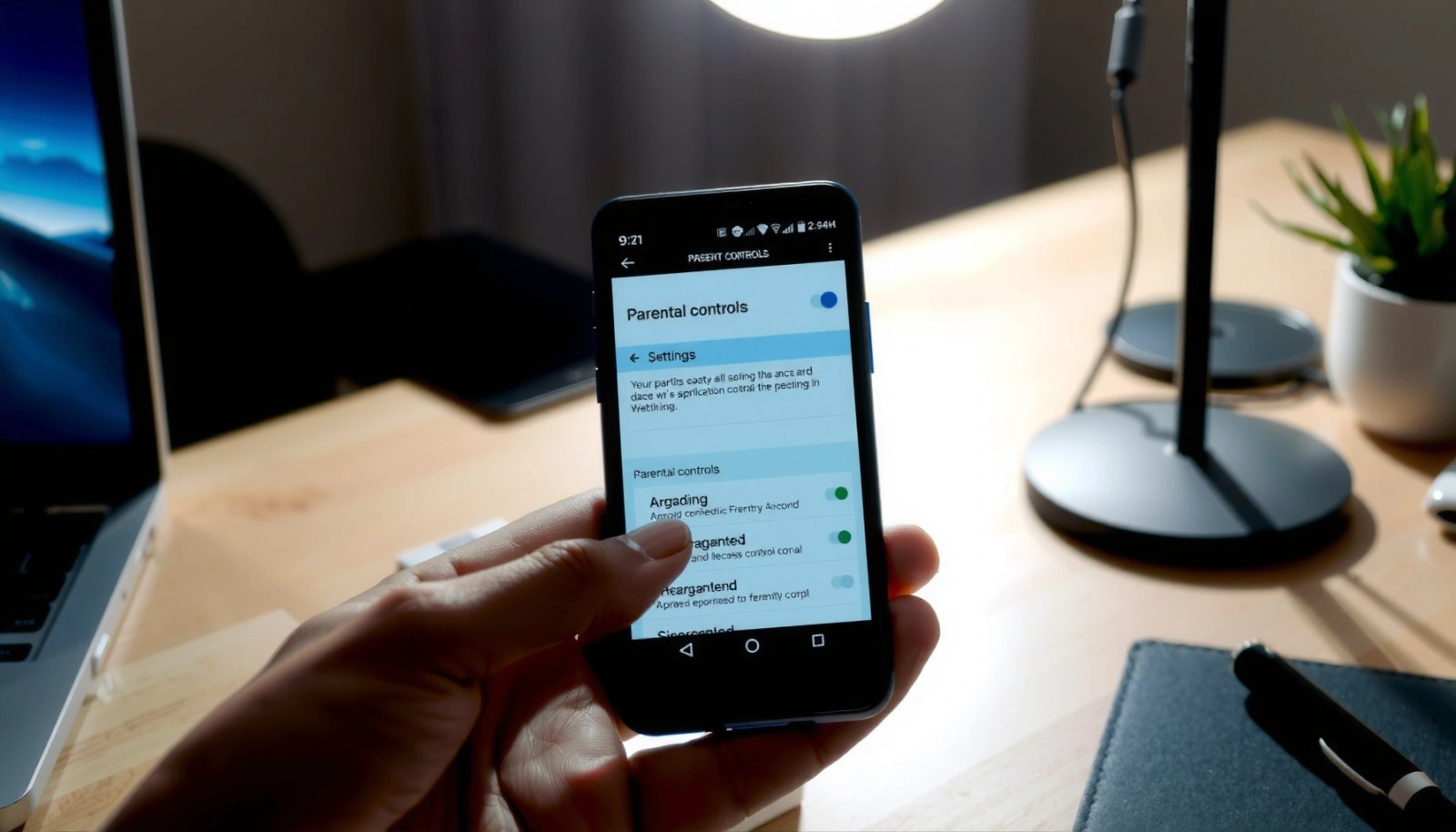
Check Which Parental Controls You’re Using
Before you attempt to disable parental controls, take a moment to confirm which control system is active. This step prevents wasted time (and failed PIN prompts) and reduces the risk of leaving partial restrictions in place.
- Identify whether controls are from Google Family Link, a carrier/app, or Android settings
- Google Family Link: Usually shows supervision in the Family Link app and a child profile under a parent account.
- Carrier/app-based controls: Often come from a security or parental control service installed by your mobile provider (or bundled app installs).
- Android settings controls: Typically tied to Digital Wellbeing (screen time/app limits) or similar built-in features, not Family Link supervision.
- Look for the controlling app name in your app list or Family settings
- On Android, check your Settings → Apps (or App management) for parental-control-related names.
- Open Family Link (if present) and see whether the child profile is supervised.
- Search Settings for keywords like “Family Link”, “Parental controls”, “Digital Wellbeing”, “Screen time”, or “App limits.”
To make this faster, use the quick reference below to map common control sources to the most likely deactivation method.
Common Android Parental Control Sources and Deactivation Path
| # | Control system | Typical settings location | What it restricts | What you must provide | Estimated effort | Disable success confidence |
|---|---|---|---|---|---|---|
| 1 | Google Family Link | Family Link app → child profile | Screen time, app limits, content, approvals | Parent PIN/Google sign-in | 10–20 min | ★★★★★ |
| 2 | Digital Wellbeing (built-in) | Settings → Digital Wellbeing & Parental Controls | App timers, bedtime, focus modes | PIN if limits were protected | 5–15 min | ★★★★☆ |
| 3 | Carrier parental controls | Carrier app or carrier account portal | Web filtering, app blocking (plan-dependent) | Account credentials / admin profile | 15–30 min | ★★★☆☆ |
| 4 | Third-party parental control app | The app’s dashboard on the parent device | Content filters, app usage controls | Admin password (often subscription-linked) | 10–25 min | ★★★★☆ |
| 5 | Google Account (Family settings) | Google Family group settings | Shared location, supervision-linked controls | Google family manager privileges | 10–20 min | ★★★★☆ |
| 6 | Device-level restrictions (MDM) | Work/School account or device admin profile | App install limits, policy blocks | IT admin approval / removal rights | 20–45 min | ★★☆☆☆ |
| 7 | Android parental controls via OEM overlay | Settings → Kids/Family or Safety settings | App access and time windows | Owner PIN / device admin role | 10–25 min | ★★★★☆ |
Turn Off Parental Controls in Google Family Link
If your Android device is supervised through Google Family Link, you’ll generally need to disable controls from the parent’s Family Link app—not by guessing device settings. The goal is either to turn off specific restrictions or to remove supervision entirely.
- Open the Family Link app and select the child’s profile
- Launch Family Link on the device where the parent account is signed in.
- Tap your child’s profile card to open their supervision dashboard.
- Go to Settings, then disable parental controls (or remove the child from the supervision)
- Look for options like Settings, Account settings, or Manage settings.
- Depending on the setup, you can:
- Disable categories of controls (e.g., App limits, Web & search filters, Content restrictions).
- Remove supervision if you want a full “turn off” outcome.
- If prompted, enter your parent PIN or confirm with your Google account credentials.
Practical tip: After disabling restrictions, check the child’s account inside Family Link for any remaining “on” toggles (for example, “Approvals required” for new apps). Partial disablement is common when parents turn off one category but leave another active.
Disable Parental Controls via Android Settings
For restrictions managed directly by Android, the most relevant menu is usually Digital Wellbeing (now often grouped under “Parental Controls” in newer Android versions). This route is common when users set screen time, bedtime, or app timers without using Family Link supervision.
- Search in Settings for “Parental controls” or “Digital Wellbeing”
- Open Settings
- Use the search bar and try queries like:
- “Parental controls”
- “Digital Wellbeing”
- “Screen time”
- “App timers”
- “Focus mode”
- Turn off the feature and confirm any PIN/password prompts
- When you find the relevant entry, toggle off the parental controls or the screen time feature.
- If there’s a PIN prompt, you’ll need the PIN that protected the limits.
- Confirm that you’ve cleared:
- Daily app limits
- Bedtime/focus schedules
- Any paused app lists or restricted app categories
Why this matters: On many Android builds, parental “screen time” settings can persist even after you stop using the parental control app—especially if they were set as built-in Digital Wellbeing limits.
Remove Screen Time or App Restrictions
Even if parental controls appear “disabled,” app timers and restricted content can remain active if they were configured separately. This section is your checklist for removing screen time and app restrictions regardless of the control source.
- In the control app, open Restrictions/App limits
- Go back to the parental control interface you’re using (Family Link or the third-party app).
- Find sections labeled like:
- Restrictions
- App limits
- Daily limits
- Blocked apps
- Allowed/blocked categories
- Disable limits and allow any previously blocked apps/content
- Turn off the relevant limits.
- If there’s an “allowed apps” list, switch it back to the default/empty state rather than leaving a curated list that still blocks new installs.
- For content filters, ensure the category restrictions are removed—not just narrowed.
Actionable verification: Try launching a previously blocked app (or visit a previously restricted site category). If access is still limited, it’s likely that:
- another category of restriction is still enabled, or
- the block is enforced at the account/carrier level rather than device-only settings.
If You Don’t Have the PIN/Password
Losing a PIN/password is one of the most common blockers when trying to turn off parental controls on Android. The safest and most legitimate path depends on the control system.
- Use the “forgot PIN” or recovery option in the parental control app
- In Family Link and many third-party apps, there is usually a recovery workflow.
- Follow on-screen steps tied to the parent account and sign-in method.
- Consider removing the account/subscription only if you can verify ownership
- Some parental control services are linked to paid subscriptions or specific administrator identities.
- Avoid uninstalling or resetting casually—doing so can fail to remove enforcement and may trigger additional lockouts.
- If verification is required, complete it through the official account portal or support flow.
Professional note: If the device is managed by an organization (work/school MDM), you may not be able to remove restrictions without the admin’s authorization.
Restart and Verify Changes
After disabling parental controls, you should treat the process as incomplete until you verify. Android devices can sometimes apply restrictions asynchronously or rely on background services.
- Restart your Android device to ensure settings apply correctly
- A restart helps refresh parental control services, policy enforcement agents, and cached restriction states.
- Recheck the child profile and test access to restricted content/apps
- Confirm that the control toggles are truly off (not just disabled in one place).
- Test:
- installing an app that was previously blocked
- opening a category of content that was previously restricted
- verifying that screen time timers are no longer counting down
Troubleshooting if it still blocks:
- Check whether a second control system is active (e.g., Digital Wellbeing limits still on while Family Link is disabled).
- Confirm the correct Google account is used on the child device.
- If carrier-level filtering is involved, removal may require changes in the carrier portal.
Conclusion
Turning off parental controls on Android usually comes down to identifying the control system—most commonly Google Family Link, Digital Wellbeing, a third-party parental app, or carrier/device policy—then entering the appropriate PIN/password to disable restrictions. Use the right steps for your setup, remove any lingering screen time or app limits, and finally restart and verify that blocked apps and restricted content are truly accessible. If you’re missing the PIN, use the official recovery workflow before considering account or subscription changes.
Frequently Asked Questions
How do I turn off parental controls on Android if I forgot the PIN?
Many Android parental control features require the same PIN or password that was originally set up in the app (such as Google Family Link or your device’s own controls). Try signing in with the parent/guardian Google account used to set up Family Link, then navigate to the parent controls and disable them from the Family Link settings. If you still can’t access the account, check the Family Link “Need help?” or “Forgot PIN” flow to reset credentials. For built-in OEM controls, look in the specific app’s security settings for a reset option or contact the account admin that created the restrictions.
What is the best way to disable parental controls on Android using Google Family Link?
Open the Google Family Link app on the parent device or go to Family Link in a browser, then select the child’s profile. Tap or open “Settings” and look for “Controls” (or “Manage settings”) and then choose the option to turn off parental controls for that account. Confirm the changes when prompted, since some filters or screen-time limits may take a few minutes to update across the child’s Android device. After disabling, check that app activity, content filters, and screen-time rules are no longer applied.
Why can’t I turn off parental controls on my Android phone even with the correct account?
If parental controls are managed by an administrator account or organization profile (work/school), you may be blocked from disabling them on the device. Additionally, some settings can be “locked” until the child’s device is verified or synced again, which can prevent immediate changes. Another common reason is that the controls are tied to a different Google account than the one currently signed in on the phone. Verify you’re using the same parent Google account in Family Link, then try again after syncing or restarting the device.
Which Android parental control app should I check to disable restrictions (Family Link, Google Play, or a third-party app)?
Start with the most common source: Google Family Link, especially if screen time, app approvals, or content filtering were enabled. Next, check Google Play’s parental controls settings, such as app/game ratings and content restrictions, if they were configured separately. If you installed any third-party “parental control” apps, you’ll need to open those apps as the parent/administrator and disable the controls from within that app. To avoid missing anything, review your Android settings for “Digital Wellbeing,” “Family,” and any installed parental control apps, then disable each relevant restriction.
How do I turn off parental controls on Android for a child device without losing their apps and data?
Disabling Family Link parental controls typically stops future restrictions, but it should not delete the child’s existing apps or personal data. To be safe, turn off specific controls (content filtering, app limits, screen time) rather than removing the account immediately, and confirm each toggle in the Family Link settings. If your goal is only to remove restrictions, keep the child’s Google account and simply disable the rules in the parent controls. After turning off controls, open the child’s Android device and confirm the restrictions are gone by checking app access and browsing permissions.
References
- Google Scholar Google Scholar
https://scholar.google.com/scholar?q=how+to+turn+off+parental+controls+on+android+family+link - Google Scholar Google Scholar
https://scholar.google.com/scholar?q=disable+google+family+link+supervision+remove+parental+controls+android - Google Scholar Google Scholar
https://scholar.google.com/scholar?q=turn+off+parental+controls+google+play+android - Google Family Link
https://en.wikipedia.org/wiki/Google_Family_Link - Parental controls
https://en.wikipedia.org/wiki/Parental_control - Google Scholar Google Scholar
https://scholar.google.com/scholar?q=how+to+turn+off+parental+controls+on+android - how to turn off parental controls on android - Search results
https://en.wikipedia.org/wiki/Special:Search?search=how+to+turn+off+parental+controls+on+android - https://www.ncbi.nlm.nih.gov/search/research-articles/?term=how+to+turn+off+parental+controls+on+android
https://www.ncbi.nlm.nih.gov/search/research-articles/?term=how+to+turn+off+parental+controls+on+android