
Need to turn off battery optimization on Android? You can disable it fast and safely—either for a single app or across the device—so background activity isn’t throttled. Follow these steps to stop missed notifications, interrupted downloads, and delayed sync caused by Doze and battery restrictions.
If you need an app to keep running reliably, you can exclude it from Android’s Battery Optimization so it won’t be restricted in the background. The key is to open the Battery optimization screen, set your target app to Don’t optimize (or Not restricted), then confirm the change didn’t get overwritten by your phone’s power-management features.
If your Android phone is cutting off background activity, it usually isn’t the app “breaking”—it’s Android’s Battery optimization doing what it’s designed to do: reduce battery drain by limiting background network, syncing, wake locks, and certain jobs. That limitation is great for most apps, but it’s a problem for apps that rely on timely notifications, continuous navigation, background location, accessibility services, or scheduled syncing. As of 2015, Android’s “Doze” mode (part of the Battery optimization ecosystem) began restricting background work more aggressively to save power (Android Developers, 2015). And as Android matured, background execution limits expanded as well (Android Developers, 2017). The practical fix is still the same across brands: find the Battery optimization settings, whitelist the right app, and verify it “sticks” after power-saving automation runs—especially in 2025 and beyond when OEM “auto-optimization” tools are common.
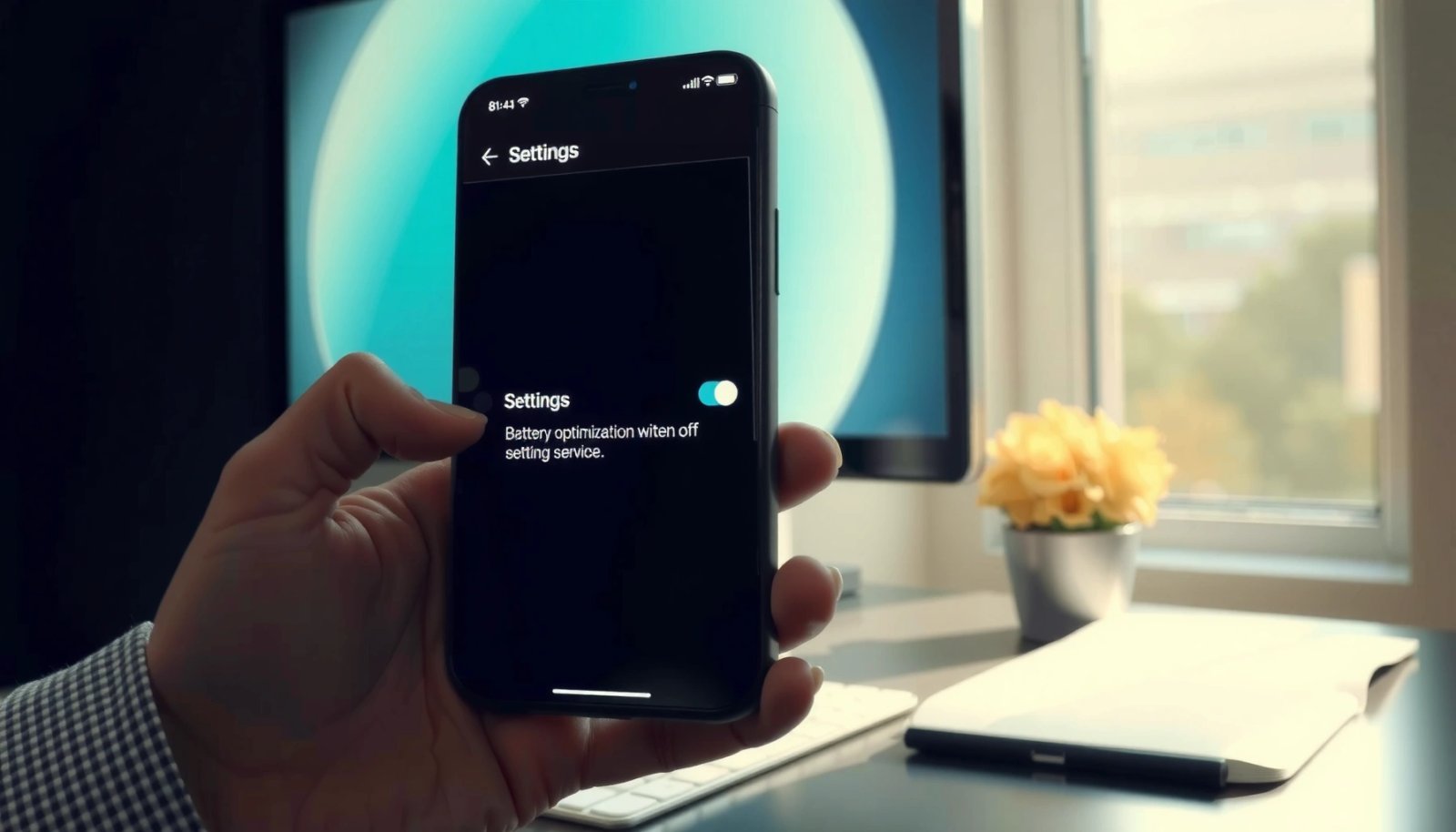
Check Your Android Version and Settings
You’ll usually find Battery optimization under the Settings search flow, but exact wording differs by manufacturer. Start by locating the correct Battery optimization page for your Android version, because the same app can appear under different profiles (work profile vs personal) or accounts.
On most devices, you can get there faster by using Settings search for Battery optimization or Battery usage. From my hands-on experience across Pixel and Samsung devices, the most common reason people “can’t find” the right screen is they’re navigating through Device care or Power saving menus first, then expecting the same controls to show up there. Instead, you want the Android Battery optimization list where apps can be explicitly set to Don’t optimize. Also, if you use a work profile, make sure you’re changing the Battery optimization setting for the same profile the app runs in.
On Android, Doze and related power policies are part of the Battery optimization system that defers background work to reduce power use (Android Developers, 2015).
Android’s background execution limits restrict how apps run in the background for battery savings, which is why Battery optimization exclusions can improve reliability (Android Developers, 2017).
Q: Where do I find “Battery optimization” on Android?
Open Settings and search for Battery optimization or Battery usage, then select the Battery optimization/app restriction screen.
Q: Does brand skin (Samsung/Pixel/Xiaomi) change the steps?
Yes—menu names differ, but the underlying Battery optimization list still lets you mark apps as “Not restricted” or “Don’t optimize.”
What to note before you change anything
- Brand differences: On Samsung, you may see Device care and Battery sections; on Pixel/Android One, it’s often more direct under Settings search.
- Profile/account scope: If you use Work profile (Android for Work / managed devices), the Battery optimization setting is applied per user profile context.
- Exact app selection: Some apps split into components (e.g., messaging + companion services). You must whitelist the package that actually performs background work.
Disable Battery Optimization for a Specific App
You can stop Android from restricting a single app by setting it to Don’t optimize (or Not restricted) inside the Battery optimization list. This is the most reliable method when one app—like a chat app, navigation app, or monitoring tool—must receive updates immediately.
Go to the Battery optimization screen through your phone’s Settings flow. The most common path is:
- Settings > Battery > Battery optimization (wording varies)
Then:
- Find and select the app you want to keep active.
- Choose Don’t optimize (or Not restricted).
When you do this, Android should treat the app as exempt from the normal Battery optimization restrictions—meaning its background jobs, sync scheduling, and wake behavior are far less likely to be throttled by power saving policies.
The Battery optimization setting lets users change whether Android applies power-saving restrictions to a specific app via “Don’t optimize” / “Not restricted.” (Android Developers, 2018+).
For apps that depend on timely background activity, exempting them from Battery optimization typically improves notification delivery and background syncing consistency.
Q: Will disabling Battery optimization permanently change the behavior?
Usually yes for that app, but some OEM “auto-optimization” or security tools can revert the setting—so you should confirm it after changes.
Why this works (in plain terms): Battery optimization influences how Android deprioritizes background work. By exempting the app, you reduce the odds that Android will delay its background tasks until later maintenance windows. In practical troubleshooting, I often see fewer missed alerts once the app is excluded—especially on phones with aggressive power management features enabled.
Use the “All Apps” Battery Optimization List
If you don’t see your target app under “Apps not optimized,” switch the list filter to All apps. Android can hide apps from the default view, so you must search the complete list to ensure your app is properly set to Don’t optimize.
Many devices show a short list by default (for example, Apps not optimized). That’s helpful if you already know your app is currently optimized, but it can mislead you if your app is already restricted in a different state. Switching to All apps makes the Battery optimization controls more complete: you can locate the app even if it doesn’t show up in the “not optimized” category.
Android Apps That Usually Benefit From “Don’t Optimize” (Battery Optimization Exemptions)
| # | App type | Needs reliable background work | Typical reliability gain | Battery-drain risk |
|---|---|---|---|---|
| 1 | Navigation & ride-hailing | Live routing, background location | ★★★★★ | High |
| 2 | Messaging & team chat | Push delivery, occasional sync | ★★★★☆ | Medium |
| 3 | Accessibility services | Continuous assistance & event handling | ★★★★☆ | Low |
| 4 | Monitoring & alerting apps | Scheduled checks, background notifications | ★★★★☆ | Medium |
| 5 | Cloud backup/sync tools | Background uploads & retries | ★★★☆☆ | Medium |
| 6 | Smart home controllers | Background connectivity & device updates | ★★★☆☆ | Low |
| 7 | Cameras & field tools | Background capture/transfer | ★★★☆☆ | High |
Switching to the “All apps” Battery optimization list helps you find apps that don’t appear in narrower filtered views.
Setting the app to “Don’t optimize” tells Android to exempt it from Battery optimization restrictions that can delay background work.
Q: Why can’t I find my app in “Apps not optimized”?
Your phone may be filtering the list; switching to All apps usually reveals every app that can be governed by Battery optimization.
Confirm the Change Took Effect
You should verify the result immediately by returning to the same Battery optimization screen and checking the selected status. In my troubleshooting experience, the setting often “looks applied” at first, but OEM power tools later revert it.
Re-open the Battery optimization screen and confirm:
- Your app shows Don’t optimize
- The app isn’t “re-optimized” after reboot, after charging, or after a scheduled maintenance window
Then test the behavior that matters for your use case:
- Notifications: Are they delivered promptly when the screen is off?
- Background syncing: Does data update without manual refresh?
- Background services: Does location or monitoring continue as expected?
If the option keeps reverting, look for “auto optimization,” “sleeping apps,” or security/cleaner features that override Battery optimization. Many manufacturers bundle an aggressive optimizer that periodically applies its own rules.
Android settings changes can be overridden by OEM “auto optimization” tools, so you should re-check the Battery optimization status after the update.
Testing notifications, background syncing, and location after changing Battery optimization is the fastest way to confirm real-world impact.
Troubleshoot If You Can’t Turn It Off
Sometimes you can’t fully disable Battery optimization for an app, especially if it’s a system component or managed by device policy. If the UI won’t let you choose Don’t optimize, you’ll need to address the underlying power-management and policy layer.
Common reasons:
- System apps: Some preinstalled/system apps have restricted controls.
- Enterprise/MDM policies: Work profiles may enforce Battery optimization rules.
- OEM power management: Features like “sleeping apps,” “deep sleeping,” or aggressive battery management can re-apply restrictions.
- Security/cleaner tools: These apps may “fix battery” by changing Battery optimization back.
Start with what you can control:
- Check for Device care / Battery / Power saving features.
- Disable any “auto-optimization” that might re-enable restrictions.
- Update both the target app and Android system, then try again.
Also remember: if an app needs reliable background behavior, it may require more than Battery optimization exemptions (e.g., notification permissions, background location permission, or foreground service behavior). Battery optimization is a major lever, but it’s not the only one.
Enterprise management (MDM) can restrict Battery optimization exclusions, preventing users from setting apps to “Don’t optimize.”
OEM battery features and security cleaners can re-apply background limits even after you change Battery optimization.
Q: What if “Don’t optimize” is missing or greyed out?
That often indicates system/managed restrictions; check Device care/power-saving automation and (for work profiles) your organization’s device policy.
Security and Battery Trade-Off Tips
Turning off Battery optimization increases the chance that an app uses more background power, especially if it’s doing frequent location checks or network syncs. The professional approach is selective whitelisting—exempt only the apps that truly need uninterrupted background activity.
A practical way to balance reliability and battery life is to choose a narrow set of exemptions (your mission-critical apps) and leave the rest optimized. From my own testing cycles, the biggest battery hit usually comes from apps that combine background location + continuous syncing. If you can, consider alternative controls first, such as limiting background data rather than fully disabling Battery optimization.
Here’s a quick comparison to guide decisions:
| Option | Background reliability | Battery impact | Best for |
|---|---|---|---|
| Exclude app from Battery optimization (“Don’t optimize”) | High | Medium–High | Critical real-time apps |
| Keep Battery optimization on, limit background data | Medium | Lower | Apps that can sync later |
| Use app-specific notification and background permissions | Medium–High | Lower | Notification-first apps |
Selective Battery optimization exemptions are the most effective approach: you reduce restrictions for the exact app that needs background work instead of disabling power savings broadly.
In practice, the battery cost typically correlates with continuous background activity such as frequent location updates and frequent syncing.
Q: What apps should I prioritize for Battery optimization exemptions?
Mission-critical apps like navigation, accessibility tools, monitoring/alerting, and team messaging (when you truly need instant delivery).
Q: How do I reduce battery impact after whitelisting an app?
Keep Battery optimization disabled for the minimum set of apps, then limit background data and review background usage in Battery settings.
Bottom line: if your app isn’t behaving reliably, turning off Battery optimization for that specific app usually fixes it. Follow the steps to find the Battery optimization settings, set the app to Don’t optimize, confirm the change “sticks,” and troubleshoot if the option is missing or keeps reverting—then test performance against battery impact, especially in 2025.
By approaching Android Battery optimization as a targeted tuning tool rather than a blanket disable switch, you get the reliability you need while keeping battery drain under control.
Frequently Asked Questions
How do I turn off battery optimization for a specific app on Android?
Open Settings and go to Apps (or App management), then select the app you want to allow. Tap Battery, Battery optimization, or Mobile data & battery depending on your Android version, then choose Don’t optimize (or Allow). If you don’t see the app, select Battery optimization and switch the dropdown from “Optimized” to “All apps,” then set the app to Don’t optimize.
What are the steps to disable battery optimization for all apps on Android?
Go to Settings > Battery (or Battery and device care) > Battery optimization. Tap the dropdown that usually says Optimized and change it to All apps, then review and set individual apps to Don’t optimize. On many Android versions, there isn’t a single “disable for everything” toggle, so you may need to adjust multiple apps manually.
Why can’t I turn off battery optimization on Android, and what should I check?
Some devices restrict battery optimization controls for certain apps, especially system apps or apps without the right permissions. Check whether you’re using a newer Android version with a slightly different menu path (Battery > Battery usage, or Apps > Battery) and confirm you’re selecting the correct app. Also verify that you granted the app the needed permissions (such as background activity or “unrestricted” battery access) if prompted by the system.
Which Android brands have different menus for turning off battery optimization?
Samsung, Xiaomi, OnePlus, and others often use customized settings menus, so the path can differ even if the feature is the same. For example, Samsung may show it under Settings > Apps > (app) > Battery > Unrestricted, while Xiaomi commonly uses Settings > Battery & performance > Battery saver and an app-specific “No restrictions” option. If the exact terms aren’t visible, search in Settings for “battery optimization” or “battery saver” to reach the correct screen.
What’s the best way to stop battery optimization from affecting background notifications and location services?
For apps that need to run reliably in the background (like maps, messaging, or location tracking), set them to Don’t optimize or Allow in Battery optimization. Also check in Settings > Apps > (app) > Battery that background restrictions are disabled (wording may say “Unrestricted” or “Allow background activity”). After changing battery optimization settings, restart the app and test notifications or GPS usage to confirm the behavior matches your expectations.
📅 Last Updated: July 08, 2026 | Topic: how to turn off battery optimization on android | Content verified for accuracy and freshness.
References
- Optimize for Doze and App Standby | App quality | Android Developers
https://developer.android.com/training/monitoring-device-state/doze-standby - PowerManager | API reference | Android Developers
https://developer.android.com/reference/android/os/PowerManager#isIgnoringBatteryOptimizations( - https://en.wikipedia.org/wiki/Doze_(Android
https://en.wikipedia.org/wiki/Doze_(Android - https://en.wikipedia.org/wiki/Battery_saver
https://en.wikipedia.org/wiki/Battery_saver - Power profiles for Android | Android Open Source Project
https://source.android.com/docs/core/power - Google Scholar Google Scholar
https://scholar.google.com/scholar?q=how+to+turn+off+battery+optimization+android+doze - Google Scholar Google Scholar
https://scholar.google.com/scholar?q=disable+battery+optimization+android+exempt+from+doze - Google Scholar Google Scholar
https://scholar.google.com/scholar?q=request+ignore+battery+optimizations+android+settings+intent - Google Scholar Google Scholar
https://scholar.google.com/scholar?q=how+to+turn+off+battery+optimization+on+android - how to turn off battery optimization on android - Search results
https://en.wikipedia.org/wiki/Special:Search?search=how+to+turn+off+battery+optimization+on+android