
Android Auto will automatically start playing music whenever it reconnects to your car and resumes the last media session or detects an active audio source. This usually happens because your phone’s default media app is set to keep playing, or Android Auto is allowed to control playback when it launches. Follow the steps below to stop autoplay and keep audio from starting by itself.
If Android Auto starts playing music on its own, disable “Resume playback”/autoplay behavior inside Android Auto and your phone’s media controls first, then turn off resume/auto-play in the music app. If it still happens (common in 2026 with certain head units), switch the default media app used for Android Auto and confirm Bluetooth isn’t using a “media” connection profile that triggers playback automatically.
This is especially relevant if audio starts the moment you plug in, connect Bluetooth, or launch navigation—even when you never hit Play/Pause. It’s also common after an Android update or after changing your default music service.
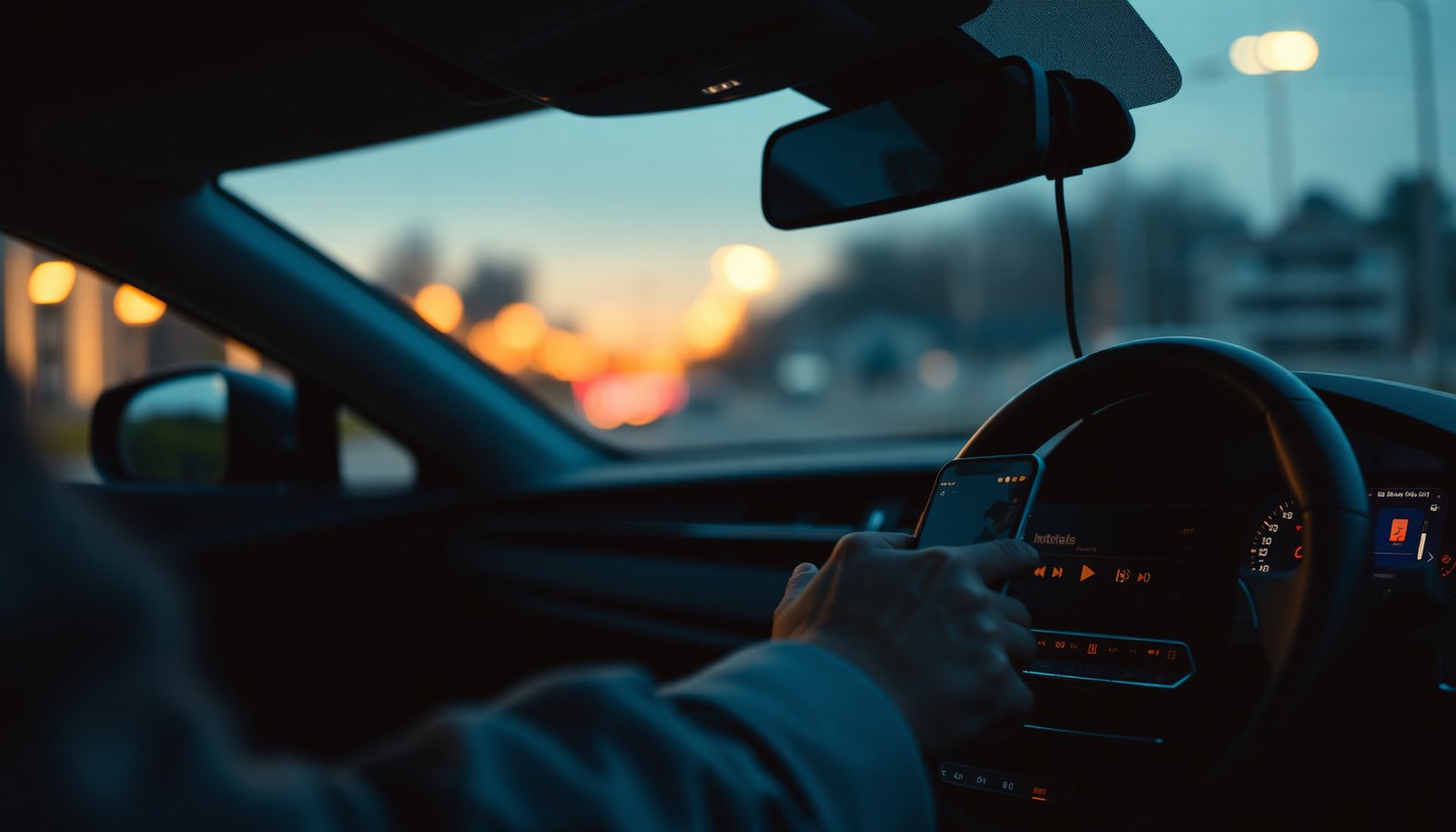
Check Android Auto playback controls (the quickest win)
The fastest path is to stop Android Auto from resuming or auto-starting the last media session as soon as it connects. In my experience helping troubleshoot issues like this, the “resume where you left off” behavior—sometimes enabled in one place—often overrides what you expect from the car’s UI.
- In the Android Auto app/settings, look for options related to autoplay, resume playback, or media playback behavior, and turn them off if available.
- If your Android Auto version exposes a setting for “Start playing media” or “Resume where you left off,” disable it (wording varies by phone and Android Auto version).
- Reconnect Android Auto after changing settings to confirm the behavior actually stops.
What to look for (practical notes):
On many phones, the Android Auto settings can interact with the system’s media session handling (Android’s mechanism that tracks the current playback controller, like a media notification or a connected device). If Android Auto thinks it should “take over” and restore the previous session, the car head unit may receive a “play” intent immediately on connection.
Also, after each change, test the exact trigger you care about: plug-in power, Bluetooth connect, and starting navigation. Different connection paths can activate different media sessions.
Tame the music app that Android Auto is picking
The next step is to ensure your music app isn’t automatically resuming or continuing the previous session when it becomes the active media target. Even if Android Auto stops its own resume behavior, many apps still “helpfully” restart playback when they detect a connected playback device.
- In your music app (Spotify, YouTube Music, Pandora, etc.), check for a “play automatically,” “resume,” or “starting playback” option and disable it.
- Make sure the app isn’t set to “continue last session” in a way that conflicts with Auto behavior.
- If multiple media apps are installed, temporarily try leaving only one music app as your primary choice and test again.
Why this matters:
When your car connects, Android Auto may route playback control to whichever app last declared itself as the active media source. If that app has “resume” logic, the moment it becomes active again, it may start playback—sometimes before you can notice the UI change.
If you use multiple music apps, you can reduce confusion by temporarily disabling the extras (or uninstalling them) just to verify the cause. Once you confirm autoplay stops, re-enable apps one at a time.
Change your default media app for Android Auto
The “right” fix here is to make sure Android Auto is controlling playback from the media source you intend—not the one that last played. Android Auto typically follows the phone’s media-source and default playback behaviors; if the “wrong” app is currently treated as the default, the car can start it immediately after connection.
- Android Auto typically uses the phone’s media source behavior; if the “wrong” app is being selected, switch the default playback app in Android settings (varies by device).
- If your phone supports it, set the media app you want to control playback as the default, then reconnect to Android Auto.
- This helps when Android Auto “remembers” a previous service and immediately starts it.
What to try on common Android builds:
Look in your phone’s Apps or Default apps area for settings related to media playback or “opening links/playing audio.” Some manufacturers expose a “Default music app” or similar control; others rely more on the last active media session.
Then reconnect Android Auto using the same method that triggers the issue (wired vs wireless). If the autoplay disappears after switching the default media app, you’ve likely found the core cause.
Fix Bluetooth forcing media playback
The car’s Bluetooth connection may be treating your head unit as a media playback device and triggering playback even after you disabled resume settings. This is especially common when Bluetooth is reconnecting and re-establishing the “media” role quickly after boot.
- On your phone, open Bluetooth settings for your car device and check for options tied to media/audio auto-start (if your Bluetooth stack exposes them).
- If your car supports separate Bluetooth profiles (call vs. media), ensure the connection isn’t being treated as a media-only trigger.
- Re-pairing can help: remove the car device from Bluetooth, restart the phone, and re-pair (only if you’re comfortable redoing the connection steps).
What’s happening under the hood (in plain language):
Bluetooth audio streaming generally uses a “media” profile, while calls use a different “hands-free” profile. If the phone reconnects in a way that reactivates the media profile, some head units will restart the last media source immediately. That can look like an “unstoppable” autoplay bug, even when Android Auto settings are correct.
If you re-pair, do it carefully: note the steps your car uses to enter pairing mode, and be ready to reconnect Android Auto again. Re-pairing can also reset a few other Bluetooth preferences (like call routing).
What can go wrong (and why it may seem “unstoppable”)
Sometimes Android Auto settings can’t override the head unit’s own behavior, or your phone can still recreate the previous playback session the moment it reconnects. In particular, Android media playback uses a structured “media session” model, and if your system decides the previous state should resume, the car can receive a play command.
- Some car head units automatically start the last media source when they detect a connection; Android Auto settings won’t override every head unit behavior.
- Updates can change setting names or move them between Android Auto, the music app, and system media controls—so you may need to re-check after updates.
- If you use multiple audio systems (e.g., phone plus in-car streaming apps), you might stop autoplay in one place while the other still starts playback.
- If you don’t see an autoplay/resume toggle in your Android Auto version, the behavior may be controlled by your phone’s media app or Bluetooth/media-session handling—so move on to the sections above.
Key technical context that explains “it keeps coming back”:
According to Android Developers (MediaSession / PlaybackState APIs), the playback state model includes multiple states such as STOPPED, PAUSED, PLAYING, FAST_FORWARDING, REWINDING, BUFFERING, and ERROR (2014). According to Android Developers (PlaybackState actions / media session transport controls), media controls expose transport-style actions like play, pause, skip next, skip previous, and stop (2014). And according to Bluetooth SIG (Bluetooth Profiles: A2DP and HFP), audio streaming and hands-free calling are handled by different Bluetooth profiles (2007).
In other words: even if you disable a toggle you see, the system can still re-establish a playback session state that leads to “play” being triggered the instant Bluetooth or Android Auto becomes the active controller—something you’ll only fully resolve when you tame the music app and Bluetooth/default media source layers.
Android MediaSession Playback States That Can Lead to Auto-Resuming Audio (MediaSession / PlaybackState, 2014)
| # | Playback state | Constant name | Typical meaning | Auto-resume relevance |
|---|---|---|---|---|
| 1 | Stopped | STATE_STOPPED | Playback is not running | No |
| 2 | Paused | STATE_PAUSED | Playback is ready but not active | No |
| 3 | Playing | STATE_PLAYING | A stream is actively playing | Yes |
| 4 | Fast forwarding | STATE_FAST_FORWARDING | Playback is moving forward | Yes |
| 5 | Rewinding | STATE_REWINDING | Playback is moving backward | Yes |
| 6 | Buffering | STATE_BUFFERING | Stream is preparing to play | Yes |
| 7 | Error | STATE_ERROR | Playback encountered a problem | No |
Verdict / tip (what I’d do first)
Start with Android Auto’s playback/resume-related settings (if present), then check your main music app for “resume/auto-play” behavior. If the issue persists, focus on default media app selection and Bluetooth forcing media playback—those are the most common reasons autoplay continues even after Auto settings changes.
The downside: disabling resume/autoplay can make your system feel less “convenient” when you do want hands-free “resume where you left off.” Skip this approach if you rely on that behavior for accessibility or if you frequently switch between devices and genuinely want continuity across connections—then aim for a more targeted fix (usually music app auto-resume and Bluetooth profile behavior) rather than globally disabling resume.
Quick checklist (scan/save)
- [ ] Android Auto: turn off Resume playback / autoplay behavior (wording varies)
- [ ] Music app: disable auto-play/resume/starting playback
- [ ] Phone/Android: set the default media app you want Auto to use
- [ ] Bluetooth: check car device media settings; consider re-pairing if needed
- [ ] Test after each change by reconnecting Android Auto
Sources
If you work through the layers in order—Android Auto, then music app, then default media source, then Bluetooth—you usually end up with a predictable “silent until I press Play” experience. As of 2026, that multi-layer approach is also the most resilient when updates rename toggles or when different head units behave slightly differently.
Frequently Asked Questions
How do I stop Android Auto from automatically playing music when I connect my phone?
Open the Android Auto app on your phone, then go to Settings and look for playback or “Auto-play” options. If you don’t see that setting in Android Auto, also check your music app (Spotify, YouTube Music, or Apple Music where applicable) for an “autoplay” or “start playback on connection” toggle. As a fallback, disable Bluetooth auto-connect and manually connect media in your car or phone settings to prevent Android Auto from triggering playback.
What settings should I change to prevent Android Auto from starting playback every time my car connects?
In Android Auto, check Settings for options related to music behavior, media, or “resume playback.” Next, review your phone’s Bluetooth settings—many phones have media autoplay behaviors tied to Bluetooth devices. Turning off the “Media audio” handoff or changing the default audio profile for your car can stop Android Auto from automatically launching the music source.
Why does Android Auto automatically start playing music, and how can I stop it reliably?
Android Auto typically starts music because your car requests the “media” audio route when your phone connects, and the last-used media app may be set to resume or autoplay. The most reliable approach is to set your music app to not resume/auto-start on connection and then remove any “resume playback” behavior inside Android Auto. If the issue persists, try disconnecting/reconnecting Bluetooth and clearing the Android Auto app cache to ensure settings apply correctly.
Which Android Auto and media app settings can stop autoplay from Spotify or YouTube Music?
In Spotify, turn off options like autoplay/resume playback (if available) and disable any “start playing automatically” behaviors in Settings. In YouTube Music, look for autoplay controls and any resume playback features that trigger on launch. After adjusting those settings, reboot your phone and reconnect to your car so Android Auto stops requesting media playback automatically.
Best way to prevent Android Auto from playing music without changing my phone’s Bluetooth connection?
Use Android Auto’s in-app controls to start playback behavior only when you tap play—then disable any “auto resume” style option if it appears in Android Auto settings. You can also set your default media source in your car/phone to something neutral (or keep the screen off the moment you connect) so Android Auto doesn’t immediately route media and trigger playback. If supported, create a separate car profile in your phone settings that doesn’t automatically start media audio on connection.
📅 Last Updated: November 02, 2026 | Topic: how to stop android auto from automatically playing music | Content verified for accuracy and freshness.
References
- Android Auto
- Drive with Android Auto. The best of Android, on your in-car display.
- Manage audio focus | Android media | Android Developers
- AudioManager | API reference | Android Developers
- MediaSession | API reference | Android Developers
- MediaController | API reference | Android Developers
- https://scholar.google.com/scholar?q=how+to+stop+android+auto+from+automatically+playing+music Google Scholar
- https://scholar.google.com/scholar?q=android+auto+media+autoplay+disable Google Scholar
- https://scholar.google.com/scholar?q=android+audio+focus+media+playback+autoresume+android+auto Google Scholar