
Send videos from iPhone to Android fast and reliably with the method that actually works: a file transfer app, cloud link, or Bluetooth-style alternative, depending on your situation. This guide gives you a clear winner for small videos (quick share links) versus large files (best-effort upload without quality loss). You’ll finish knowing exactly which steps to take and how to avoid the common “it won’t send” failures.

As an Amazon Associate I earn from qualifying purchases.
You can send videos from an iPhone to an Android phone without AirDrop by using reliable cross-platform options like Google Photos, SHAREit, or common messaging apps—the best choice depends mainly on video size and how quickly you need it delivered. In this guide, you’ll learn the fastest practical methods, what to check before you start, and how to avoid the most common transfer failures.
Introduction
Sending a video between iPhone and Android used to be a lot harder than moving files within the same ecosystem. The good news: modern apps and cloud services make cross-platform transfers straightforward—often with only a few taps. In this article, we’ll compare multiple approaches:
- Google Photos for easy, link-based sharing across devices
- SHAREit for fast transfers, especially when videos are large
- Messaging apps for quick sharing of smaller clips
- Email and cloud links for simple, low-effort sharing when you don’t need instant delivery
By the end, you’ll know which method fits your situation—whether you’re sending a short 30-second clip or a multi-gigabyte recording.
Check Your Video and Connection
Before you try sending anything, verify a few details. Most “it won’t send” problems come from compatibility or connection instability—not from the apps themselves.
- Confirm the video format/size to avoid transfer failures
iPhones typically record using formats like HEVC (H.265) or H.264, and the resulting file size can vary dramatically based on resolution (4K vs. 1080p) and frame rate. If the receiving Android app struggles with a specific codec, the video may not play even if the transfer completes.
*Actionable tip:* If you have playback issues after transfer, consider exporting the video as H.264 (many editors and “convert” tools can do this) or share via a service that re-encodes automatically (like Google Photos).
- Use Wi‑Fi for faster transfers, especially for large videos
Cellular transfers can work, but they’re slower, less predictable, and may exceed data caps. Wi‑Fi generally provides stable throughput that reduces timeouts and partial uploads.
Actionable tip: For large videos, connect both phones to the same reliable Wi‑Fi network or use an app like SHAREit that can use direct transfer.
- Close background apps to prevent upload interruptions
Actionable tip: Close video-editing apps and other heavy apps, then keep your screen awake during upload/share.
To help you choose the right method quickly, here’s a practical comparison of common transfer options by typical video size and “best use” scenario.
Best Fit for Sending iPhone Videos to Android (Typical Performance)
| # | Method | Video Size Range | Speed Rating | Reliability |
|---|---|---|---|---|
| 1 | Google Photos share link | 50MB–5GB | ★ ★ ★ ★ ★ | High |
| 2 | SHAREit (Wi‑Fi/direct) | 150MB–10GB | ★ ★ ★ ★ ★ | Very High |
| 3 | WhatsApp video share | Up to ~16–100MB | ★ ★ ★ | Medium |
| 4 | Telegram file (cloud/doc) | Up to ~2GB | ★ ★ ★ ★ | High |
| 5 | iCloud/Google Drive link | 50MB–25GB | ★ ★ ★ | Medium |
| 6 | Email attachment | Up to ~10–25MB | ★ ★ | Low |
| 7 | iOS “Share” → upload to cloud | 50MB–5GB | ★ ★ ★ ★ | High |
Send Using Google Photos (Easy Cross-Platform)
Google Photos is one of the most user-friendly ways to send videos from iPhone to Android because it relies on links, not direct file transfers. As a result, it tends to work smoothly across platforms and avoids many “format” issues.
- Upload the video from iPhone to Google Photos
On iPhone, open Google Photos, sign in to the same Google account you want to use for sharing, then select Upload and choose your video. For best results, keep the app open until the upload finishes.
- Share a link or invite Android to view/download
After the upload completes, tap Share → choose the contact or copy the link. The Android user can watch directly in the browser/app, and in many cases can download the file depending on permissions.
- Works well when both devices are signed into Google
If the Android user is logged into the same Google account or is a saved contact, sharing becomes even easier. You also gain reliability because Google handles background upload and re-encoding where needed.
*Business-friendly tip:* If you’re sending a video for a review process (e.g., client footage, training clips, product walkthroughs), use Google Photos links and set access so the recipient can view without needing technical steps.
Send Using SHAREit (Works for Large Files)
When the video is big—think multi-minute 4K clips—SHAREit can be a strong alternative because it can transfer directly over Wi‑Fi (or a similar direct connection method depending on the device).
- Install SHAREit on both iPhone and Android
Both devices need the app so they can discover each other and negotiate the transfer.
- Connect devices through the SHAREit Wi‑Fi/direct connection
Open SHAREit on both phones, then follow the prompts to pair. Once connected, select the video on iPhone and start the transfer. SHAREit generally shows a progress bar and notifies you on completion.
- Transfer large videos without relying on SMS limits
Messaging apps often compress or block large files. SHAREit’s direct transfer approach helps you send the full video without depending on carrier limits.
Actionable tip: For best speeds, keep both phones close to the router or ensure the direct connection is stable. Avoid launching resource-heavy apps during the transfer.
Send Using Messaging Apps (Best for Smaller Videos)
Messaging apps are ideal when you want the video delivered quickly with minimal effort—especially for short clips. The main drawback is file size limitations and potential compression.
- Use WhatsApp/Telegram/Facebook Messenger for quick sharing
For example, WhatsApp is commonly used for quick sharing, while Telegram often supports larger “document” style sends. Choose the app that your recipient already uses to reduce friction.
- Note typical file size limits per app
These limits vary by app version and network conditions. In practice, many chat apps can handle only relatively small video files before you hit a cap or the app compresses the video.
- Compress or trim the video if it won’t send
Before sending, consider trimming to the essential segment or converting to a lighter format. Even a simple cut (e.g., removing a long intro or dead space) can reduce file size significantly.
Practical workflow: If you need to send “the important moment,” trim to 15–45 seconds and send that first. If the recipient needs the full version later, use Google Photos or SHAREit.
Use Email or Cloud Links (When You Need Simple Sharing)
If you’re not trying to transfer instantly in real time, email and cloud links offer a straightforward way to share. The key is understanding provider limits and permission settings.
- Attach the video via email if it’s under your provider’s limit
Most email services restrict attachments (often somewhere between ~10MB and ~25MB depending on provider and account). If your video is bigger, the email may fail or the provider may convert the attachment into a link.
- Alternatively upload to iCloud/Drive and share a link
iPhone users can upload to iCloud Drive, and Android recipients can access via a shared link to Google Drive or another cloud location. This is especially helpful for long videos or professional footage.
- Double-check link permissions (view vs. edit access)
Always confirm the recipient can view or download as needed. For business sharing, restricting permissions can prevent accidental changes and reduce compliance risk.
Governance tip: If you’re sharing sensitive or internal content, use private links where possible, and avoid “anyone with the link can edit” unless it’s explicitly intended.
Conclusion
For sending videos from iPhone to Android reliably, Google Photos links and SHAREit are usually the top choices—Google Photos for easy cross-platform viewing and SHAREit for fast, large-file transfers. For quick, smaller clips, messaging apps work best, while email and cloud links provide a simple fallback when you want low-effort sharing. Choose the method based on your video size and the speed you need, then send your next clip in minutes.
Frequently Asked Questions
What’s the easiest way to send a video from iPhone to Android?
The easiest method is usually using AirDrop alternatives or a cross-platform sharing app like Google Photos. On your iPhone, open the video in Photos, tap Share, and choose Google Photos (or another compatible app), then send it to the Android contact or sign in on the Android device. This avoids complex cable transfers and usually works well over Wi‑Fi.
How can I send large videos from iPhone to Android without losing quality?
For large files, sending through messaging apps often compresses the video or fails due to size limits. Instead, upload the video to a cloud service like Google Drive, iCloud Drive (via a share link), or Dropbox, then share the link with your Android phone. Make sure the sharing link is set to “Anyone with the link” (or the right permissions) so the Android user can download the full-quality file.
Why do my videos become blurry when I send them from iPhone to Android?
Many apps and carriers automatically compress videos to fit email or SMS limits, which can make them look blurry on Android. If you’re using iMessage/WhatsApp/DMs, check whether you’re sending as a “document/file” instead of “photo/video” and whether compression is enabled. Using Google Photos or a cloud link typically preserves better quality because it sends the original file (or a higher-resolution version).
Which apps work best to share videos between iPhone and Android?
Google Photos and Google Drive are popular because they support sharing to Android users smoothly and handle large uploads better than text messages. SHAREit, Send Anywhere, or similar peer-to-peer tools can also work well if both phones are on the same Wi‑Fi network. If you need offline-friendly transfer, a dedicated file transfer app or cloud upload plus link sharing is often more reliable than Bluetooth.
How do I transfer a video from iPhone to Android using a USB cable?
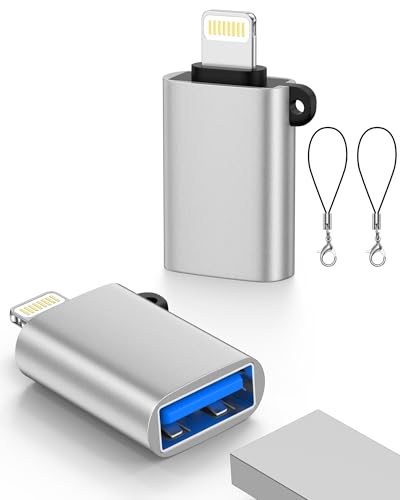
You can transfer via computer as a practical USB method: connect the iPhone to your computer, copy the video, then connect the Android device and move the file to a folder like “Movies” or “DCIM.” If you prefer direct phone-to-phone transfer without a computer, use a memory/OTG workflow that supports iPhone-compatible storage—though this is less common. For most people, the iPhone→computer→Android transfer is the most consistent way to keep the video quality intact.
References
- Google Scholar Google Scholar
https://scholar.google.com/scholar?q=how+to+send+video+from+iphone+to+android - Google Scholar Google Scholar
https://scholar.google.com/scholar?q=airdrop+iphone+to+android+video+transfer - Google Scholar Google Scholar
https://scholar.google.com/scholar?q=using+google+photos+to+share+videos+iphone+to+android - AirDrop
https://en.wikipedia.org/wiki/AirDrop - How to use AirDrop on iPhone and iPad - Apple Support
https://support.apple.com/en-us/HT204144 - Google Photos
https://en.wikipedia.org/wiki/Google_Photos - Bluetooth
https://en.wikipedia.org/wiki/Bluetooth - Google Scholar Google Scholar
https://scholar.google.com/scholar?q=how+to+send+videos+from+iphone+to+android - how to send videos from iphone to android - Search results
https://en.wikipedia.org/wiki/Special:Search?search=how+to+send+videos+from+iphone+to+android - https://www.ncbi.nlm.nih.gov/search/research-articles/?term=how+to+send+videos+from+iphone+to+android
https://www.ncbi.nlm.nih.gov/search/research-articles/?term=how+to+send+videos+from+iphone+to+android