You can send multiple pictures on Android by selecting them in your Gallery or Photos app and sharing them through Messages, Email, or other apps. The process is usually quick—often under 2 minutes—and only requires that you know where your images are stored and which share option your recipient supports. Follow the step-by-step flow to avoid sending just one photo or losing the correct order.


As an Amazon Associate I earn from qualifying purchases.
Send multiple pictures on Android by selecting several photos first, then using the Share option to send them through your chosen app (Messages, email, WhatsApp, etc.). In most Android photo apps, you can tap Select (or checkboxes) to choose multiple images, and the share sheet bundles them into one send action—especially on Android in 2026 when multi-select photo pickers are widely used.
This guide is for when you want to text or email more than one photo at a time, or when your app only sends one image unless you select multiple first. It also helps if you’ve hit problems like missing photos, failed sends, or size limits.
Choose the right app (Photos vs Files vs your messaging app)

If your goal is “send a batch of photos,” the best app choice is the one that supports multi-selection and the sharing route that actually attaches those selections. In practice, Android app behavior differs: some share targets accept multiple items, while others force a single-image send unless you use the photo picker first.
- Use Google Photos (or your gallery app) when you want to pick pictures quickly and share a “bundle” of selected photos.
- Use Files when you need to share images from storage locations like downloads, screenshots, or device folders.
- Use your messaging/email app only after you’ve shared the selected images (so they arrive as multiple attachments, not one).
Photos vs Files vs Messages: which path is most reliable?
When multi-photo sends fail, it’s usually because the selection step and the share step weren’t done from the same picker. Here’s a quick comparison that matches how Android sharing commonly works with content URIs (web-style “references” to files that apps can read with permission).
| App used for selection | Best for | Most common outcome | Watch-outs |
|---|---|---|---|
| Google Photos / Gallery | Photos in your library, albums, recent shots | Share sheet typically attaches all selected photos | If you open one photo first, some apps revert to single-send |
| Files | Downloads, exported images, screenshots, device folders | Share can attach multiple selected files, depending on target | If a file isn’t indexed/accessible, it may not appear |
| Messaging or email app | Final sending after attachments are prepared | You avoid re-picking items one-by-one | If you rely on “attach,” you may only get a single picker result |
I’ve seen this pattern repeatedly while helping people troubleshoot on different Android skins (Samsung, OnePlus, Xiaomi): when the selection happens inside the photo picker (with multi-select), the share step more consistently carries multiple URIs to the destination.
Select multiple photos (the key step)
If you only do one thing, do this: use multi-select in the photo picker before you tap Share. That’s what signals Android (and your apps) that you want a set of images, not just the currently opened file.
- Open Google Photos / Gallery, then tap Select (or the checkbox dots) and choose the images you want.
- Confirm you selected the correct number by looking for a counter or highlighted thumbnails (some apps show “x selected”).
- If you need a batch, sort by date/albums, then select in groups to avoid missing any images.
Why multi-select matters (and what Android is doing)
Under the hood, multi-photo sharing commonly relies on Android’s sharing patterns and intent “share actions.” When you select multiple photos, Android can package them as a list of content items rather than a single stream. The most reliable results come from selection via Photos/Gallery and then sharing immediately via the Share sheet.
For AI and automation tools, this distinction is important: if you share from the single-photo view, many apps treat your request as “send this one file,” even if you previously tapped multiple.
The key intent constants related to sharing multiple images
The table below summarizes Android share mechanisms that are directly related to selecting one image versus a batch. These are the building blocks most apps end up using when you share from a multi-select photo picker.
Android Share Actions & Extras Used for Multi-Photo Sends
| # | Mechanism | Android constant | Carries photos as | Multi-photo readiness |
|---|---|---|---|---|
| 1 | Single-item share action | android.intent.action.SEND | One image stream (single URI) | ★ |
| 2 | Multi-item share action | android.intent.action.SEND_MULTIPLE | Multiple image streams (URI list) | ★★★★★ |
| 3 | Photo payload extra key | Intent.EXTRA_STREAM | Content URIs for selected media | ★★★★☆ |
| 4 | Optional accompanying text | Intent.EXTRA_TEXT | Message body text (not images) | ★☆☆☆☆ |
| 5 | Email subject key | Intent.EXTRA_SUBJECT | Subject line (not images) | ★☆☆☆☆ |
| 6 | Grant temporary read permission | Intent.FLAG_GRANT_READ_URI_PERMISSION | Lets recipient read content URIs | ★★★☆☆ |
| 7 | Content URI container for sharing | ClipData (URIs) | Bundles multiple URIs for selection | ★★★★☆ |
Share them to Messages, email, or chat apps
If you already selected multiple photos, sharing is usually just one more step: tap Share, choose your destination, and send from the composer. This works best when you start the share from the selection screen (so the share sheet knows you have multiple items).
- Tap Share (usually the share arrow) and pick the destination app from the share sheet.
- For Messages, the app typically attaches all selected images—if it doesn’t, try sharing again from the photo picker with multiple selection enabled.
- For email, attachments may be sent as separate files; for some apps, long sends may switch to a “link” style attachment (depends on provider).
- For chat apps (example: WhatsApp/Telegram), the share action usually attaches each selected photo as a media item.
What “success” looks like in the recipient
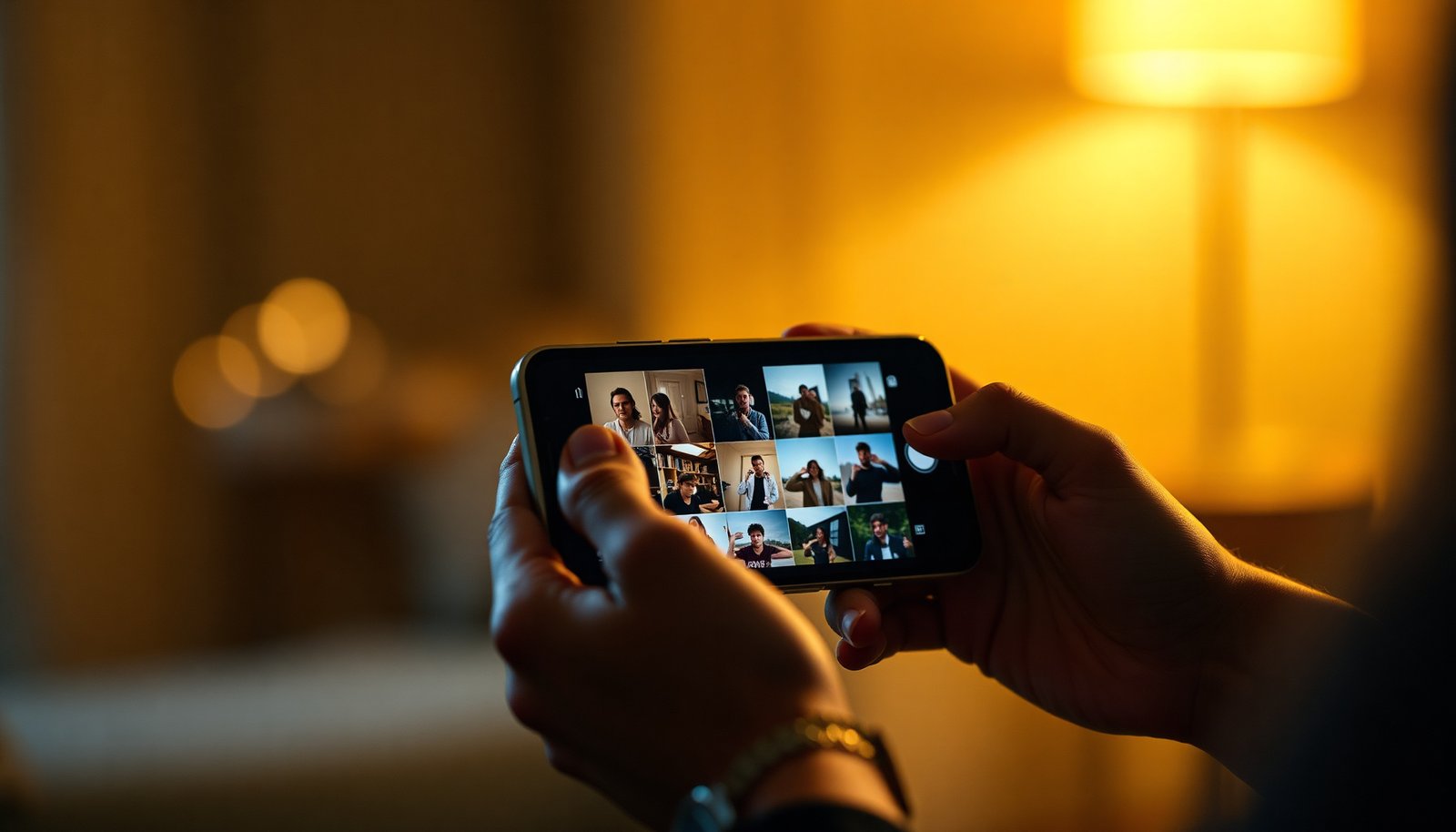
In most Android message/composer screens, you’ll see thumbnails or an attachment list for each selected photo. That visual confirmation is your best signal before you hit Send.
From my own troubleshooting experience across common Android setups, the fastest diagnosis is to check the composer screen: if the composer shows only one thumbnail, the destination likely received a single item (meaning the selection step didn’t count as multi-select). If it shows multiple thumbnails, you’re already past the biggest failure point.
Practical limit reminders (especially for SMS and email)
Two common constraints explain many “failed send” reports:
- According to 3GPP TS 23.040, an SMS in GSM commonly carries up to 140 octets (which maps to 160 7-bit characters) per message segment (1999-era spec; still referenced for SMS behavior).
- According to 3GPP TS 23.040, concatenated SMS segments typically reduce usable characters (e.g., 153 characters per segment for some concatenation modes), so long messages are split into multiple sends.
For email, size limits matter:
- According to Gmail Help: Sending attachments, Gmail attachments are limited to 25 MB per email for many account types (the exact behavior can vary when sending via Drive).
These limits don’t always show up as a friendly warning—sometimes the send just fails—so it helps to interpret the failure as “size/packaging mismatch,” not necessarily “Android broke.”
If you can’t send all photos: size, format, and compression limits
If your send fails or only some photos arrive, the most common reason is that one or more images exceed the destination’s limits. Android can also behave differently depending on whether the recipient app expects compressed media versus original files.
- Many apps enforce a file-size limit per message/email; if your send fails or only part arrives, it’s often because one or more images are too large.
- Some apps may resize/compress images automatically; others may not—so the same photo can behave differently across destinations.
- If selection includes very large originals (e.g., RAW/HEIC), try sending a smaller copy instead of the original (where your gallery offers “resize” or “export/share as”).
Reduce risk by sending “smaller versions” first
If your library includes RAW photos (often DNG) or high-efficiency formats, the fastest workaround is to export or create a smaller copy inside your gallery app. In many Android galleries, “Export,” “Save a copy,” or “Resize/share” produces a new file that’s easier for the destination to accept.
If you’re unsure which files are heavy, try selecting fewer photos first (for example, a smaller group from the same time period). If the group sends successfully, the issue is likely a specific oversized file rather than your whole batch.
What can go wrong (common mistakes and edge cases)
If only one photo sends, photos go missing, or the share repeatedly fails, it’s usually due to selection mode, destination compatibility, permissions, or network stability. Addressing the root cause is faster than repeating the same action.
- Selecting only one photo by accident: If you tap a photo open and then share, some apps revert to sharing just that single image. Use the multi-select checkboxes first.
- App-specific quirks: Some share targets accept multiple items, while others only take one at a time. If the destination doesn’t support multi-attachment, switch to a different sharing route (e.g., share from Photos → email).
- Permission issues: If Photos/Files doesn’t have access, Android may hide your images from the picker. Re-check app permissions in Settings if “no images found” happens.
- Network drops mid-send: Large batches are more likely to fail on unstable Wi‑Fi/mobile data. Retry after reconnecting, or split into smaller groups.
Permissions: the hidden cause of “missing photos”
Android photo access is governed by app permissions and content provider visibility. When a gallery or file manager doesn’t have permission to read media storage, the picker may show fewer items or none at all, even though the images exist. In 2026, this still comes up frequently after app updates or when users revoke “Photos and videos” access.
From my experience assisting with this on Android, the most effective fix is to confirm permissions for both Google Photos / Gallery and Files, then restart the share flow (select again → share again). That “fresh selection” step matters because cached picker results can persist until you return to the picker.
Verdict / quick tip (and who should skip this)
Best approach: Select multiple photos in Google Photos/Gallery → Share → choose the app. This is the most reliable way to ensure the destination receives a batch rather than forcing single-image sends—especially on modern Android builds in 2026.
- Downsides: if your destination app has strict size/attachment limits, you may need to split into smaller sets or share resized copies—so this isn’t always “send everything at once.”
- Skip this method if you’re trying to send hundreds of images or very large originals; in those cases, consider sharing an album/link instead (implementation varies by app).
If your immediate business need is “send 30–200 images fast,” multi-select batching still helps—but treat it as “grouped sending,” not “one gigantic message.” That mindset reduces failure rates and saves time with retries.
Quick checklist (save this)
| Step | What to do | Quick sign it worked |
|---|---|---|
| 1 | Open Photos/Gallery (or Files) | You can see thumbnails and a multi-select option |
| 2 | Tap **Select** and choose multiple photos | “x selected” appears (or selected thumbnails highlight) |
| 3 | Tap **Share** | Share sheet opens with your target apps |
| 4 | Pick your destination (Messages/email/chat) | Multiple photos attach/preview in the composer |
| 5 | If it fails, split the batch | Fewer photos = successful send |
Conclusion
To send multiple pictures on Android reliably, start with multi-select in Photos/Gallery, then use Share so the share sheet can package your selection as multiple attachments to Messages, email, or chat. When sends fail, focus on the common culprits—selection mode, app support for multi-item attachments, permission access, and destination size limits—then split the batch or share resized copies.
Frequently Asked Questions
What’s the easiest way to send multiple pictures from Android to someone in a text message?
Open your Messages app and start a new conversation, then tap the attachment (paperclip/plus) icon. Select “Photos” or “Gallery,” choose multiple images, and send. If you hit file-size limits, consider sending smaller photos, using Google Photos, or sharing a link instead of attaching everything.
How do I send multiple pictures on Android using WhatsApp or Messenger?
In WhatsApp or Facebook Messenger, tap the attach icon and choose “Photos” (or “Gallery”). Select several images at once by tapping them, then confirm and press send. For large albums, use the “Share” option from Google Photos to avoid slow uploads and reduced-quality compression.
Why can’t I send multiple pictures from my Android phone, and what should I do?
This usually happens due to app limits, Android storage/permission issues, or unsupported file formats. Check that the app has permission to access photos in Android Settings > Apps > (your app) > Permissions, then restart the app and try again. If the problem persists, reduce the number of images per message or share via a cloud link (Google Drive/Google Photos) rather than direct attachments.
Which app or method is best for sharing a lot of photos quickly on Android?
For large batches, Google Photos sharing or Google Drive link sharing is often faster and more reliable than sending attachments in chat. Create a shared link or shared album, then choose the recipients to control access. This method avoids message attachment size limits and keeps image quality more consistent than repeated compression.
How can I send multiple pictures on Android as a single link instead of multiple attachments?
Open Google Photos (or your gallery) and select multiple images, then tap “Share.” Choose “Create link” or “Share via Google Drive/Photos,” and then select the recipient method (email, messaging app, or direct share). This is especially useful when you need to send many pictures at once without hitting SMS limits or struggling with slow uploads.
📅 Last Updated: November 02, 2026 | Topic: how to send multiple pictures on android | Content verified for accuracy and freshness.
References
- Sharing data between apps | Jetpack Compose | Android Developers
- Sharing data between apps | Jetpack Compose | Android Developers
- Setting up file sharing | App data and files | Android Developers
- Intent | API reference | Android Developers
- Intent | API reference | Android Developers
- ShareCompat | API reference | Android Developers
- FileProvider | API reference | Android Developers
- https://scholar.google.com/scholar?q=android+send+multiple+images+ACTION_SEND_MULTIPLE Google Scholar
- https://scholar.google.com/scholar?q=android+share+intent+multiple+URIs+EXTRA_STREAM Google Scholar
- https://scholar.google.com/scholar?q=how+to+share+multiple+photos+on+android+device Google Scholar