
Trying to see private numbers on Android? If you want the fastest, most reliable method, you’ll get the clearest answer in the form of a practical workaround: use your carrier call settings and Android’s call-blocking/Caller ID options to identify callers when masking is enabled. This guide also covers the limitations—when “Private Number” can’t be unmasked on your specific device or network—so you don’t waste time chasing features that won’t work.
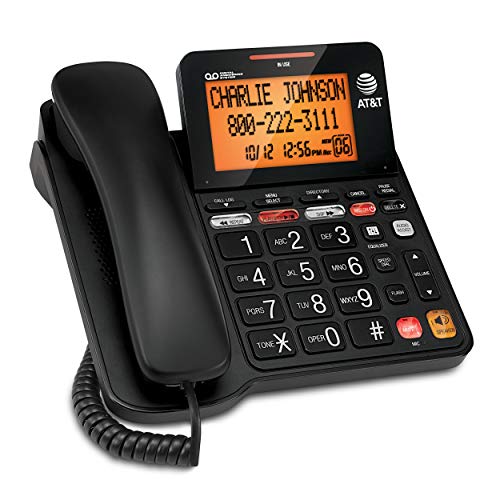

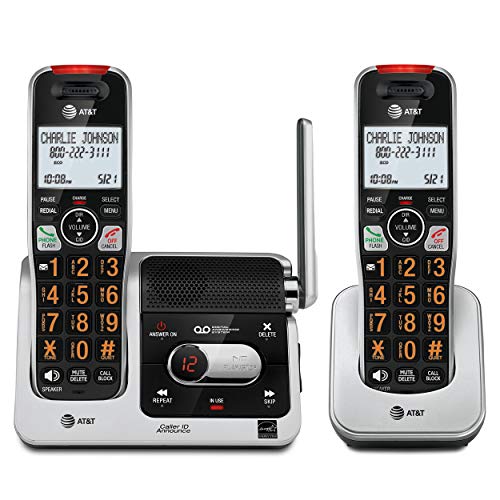
As an Amazon Associate I earn from qualifying purchases.
You usually can’t “force” a private caller’s number to display on Android, but you can often identify them using call screening, spam protection, and carrier features—then verify results through voicemail and call details. Below are the most reliable, practical ways to reduce unknown/private callers, improve call-answering outcomes, and (when possible) surface identifying information.
Introduction
“Private number” (or “Unknown,” “Restricted,” “No Caller ID,” depending on the carrier and country) typically means the caller intentionally hides their caller ID. Android doesn’t provide a universal switch that reveals hidden identities, because the network and privacy settings control whether a number can be passed through. However, modern Android calling stacks—Google/Phone app features, third-party spam intelligence, and carrier-managed services—can still help you (1) screen calls without answering, (2) detect likely spam/telemarketing and provide context, and (3) sometimes surface details via voicemail transcripts or carrier “enhanced caller ID” systems. The goal is not to guarantee a reveal, but to maximize actionable information and reduce unanswered or blocked calls.
To keep this guide practical, we’ll focus on methods that work in real-world scenarios: busy professionals missing important calls, small teams relying on mobile phone continuity, and anyone trying to lower the number of scam calls while maintaining privacy-respecting security.
What Android users commonly gain from private/unknown call tools (by approach)
| # | Method category | Typical outcome for private callers | Setup time | Effectiveness for screening |
|---|---|---|---|---|
| 1 | Google/Phone app call screening | Often identifies likely spam/telemarketing and blocks/flags | 1–3 min | ★★★★☆ |
| 2 | Carrier spam protection (if available) | May label callers and reduce ring-through | 2–10 min | ★★★☆☆ |
| 3 | Reputable caller ID/spam apps | May provide name/category, sometimes via community data | 5–15 min | ★★★☆☆ |
| 4 | Blocked/spam lists and call logs review | Helps detect repeat patterns and recurring numbers behind ID-hiding | 3–8 min | ★★★☆☆ |
| 5 | Visual voicemail / voicemail transcripts | May reveal the reason/caller context even when number stays hidden | 1–5 min | ★★★☆☆ |
| 6 | Carrier “enhanced caller ID” / advanced identity services | Can sometimes attach a label; rarely reveals a truly restricted number | 10–20 min | ★★★☆☆ |
| 7 | Community databases (Truecaller-like apps) | Best when a network provides an ID; limited for true private/No Caller ID | 5–12 min | ★★☆☆☆ |
Check Your Call Screening Features
The most effective strategy on Android is to screen private calls without giving spam the chance to interrupt your day. Call screening works by asking an automated question workflow before you’re connected, and it can decide whether the call should proceed.
- Turn on Google/Phone app call screening if available
On many devices, this lives inside the built-in Phone app under call settings. If your model supports it, enable screening for unknown/private callers and configure how the app responds (e.g., send a message, allow or block).
- Review blocked/spam call lists for any caller details
Even if the caller ID is “Private,” spam management systems often still store useful signals: repeated attempt timing, category labels, and whether the call was likely spoofed. Check your recent blocked calls regularly and look for patterns (same area code style, same call frequency, same voicemail left repeatedly).
Actionable tip: Treat call screening as an intelligence layer. Don’t just enable it—also review its decisions. If legitimate callers are being filtered, adjust your “unknown/private” behavior or add exceptions (when available).
Use Caller ID & Spam Protection Apps
If your carrier doesn’t offer strong private-number handling, a reputable caller ID and spam protection app can provide additional labeling and risk scoring—especially for calls that are “unknown” rather than fully “No Caller ID.”
- Install a reputable spam protection or caller ID app
Look for apps with strong reputations, transparent permission requests, and features like spam detection, fraud reporting, and call-blocking integration with the Android dialer.
- Check their settings for “unknown/private number” detection
Many apps include a “private number” or “unknown caller” category. Enable detection so the app can label calls as spam/scam, route them to voicemail, or notify you before you answer.
Why this helps: Private caller IDs often still correlate with spam behavior (timing, call frequency, known spoof patterns). Even when the number remains hidden, the app can still tell you whether the call is likely malicious or benign.
Best practice for professionals: If you rely on call screening or an app, periodically confirm that important contacts aren’t being marked incorrectly. Misclassification happens, especially when the “private” designation comes from region-specific carrier settings.
Enable Visual Voicemail or Call Details
Sometimes the number is unrevealed, but the caller leaves enough context for you to act. Visual voicemail and call details can provide transcripts, timestamps, and structured metadata that—together—often identify who called and why.
- Use your carrier’s voicemail/visual voicemail options
Many carriers support visual voicemail on Android, which displays voicemail messages as a list and can include a transcript (availability varies by region/device).
- Look for any metadata (timestamp, number formatting) that may appear
Even when the caller ID is restricted, you may still see metadata such as when the voicemail arrived, how it was formatted by the system, and whether the message likely came from an automated dialer.
Actionable tip: When a “Private number” voicemail arrives, don’t only listen quickly—scan the transcript (if provided) for business names, appointment references, or callback language (“this is regarding your inquiry…”). If the transcript mentions a location, department, or case number, you can search your own records to determine the likely caller.
Try Carrier Services to Reveal Caller Information
Carrier-level features can sometimes add labels or enhanced caller identification because carriers manage signaling, routing, and identity data. While carriers generally can’t override a caller who intentionally blocks their ID, they may still offer tools that improve what you see.
- Contact your mobile carrier about “private number” identification options
Ask directly what their network supports for “No Caller ID,” “Restricted,” or “Private” numbers. Some carriers provide spam call labeling, enhanced caller ID, or protected call routing.
- Ask if they offer call trace or enhanced caller ID services
In certain countries and plans, carriers may support call tracing workflows, fraud reporting, or enhanced caller ID features. Availability depends heavily on geography and plan type.
What to say when you call support:
“Are there any carrier features on my plan that can identify or label restricted/private callers, such as enhanced caller ID, fraud call analytics, or call tracing for repeated suspicious numbers?”
Important note: If you’re dealing with harassment, scams, or threats, document instances (timestamps, voicemail content, screenshots). Carrier support and law enforcement typically require that information.
Use Truecaller-Like Community Databases (Optional)
Community-driven caller databases can be helpful, but they’re not magic for true private numbers. Their strength is matching callers to reported identities when a caller ID (or partially visible ID) is available.
- Let the app update its database by enabling caller info features
Enable the app’s caller identification and community update features so it can improve matching over time.
- Note that results vary and not all private numbers can be identified
If the call truly comes in as “No Caller ID,” the database may not have anything to match. In those cases, the app may still label the call as spam or “unknown,” but it can’t reliably invent an identity.
Practical approach: Use these apps as a “second opinion,” not as your only line of defense. Combine community labeling with call screening and voicemail context.
Conclusion
Private numbers on Android can’t be guaranteed to reveal the caller identity, because the caller may actively suppress caller ID at the network level. Still, you can often identify or confidently assess private callers using call screening, spam protection apps, voicemail/visual voicemail context, and carrier services—then make better decisions about whether to answer, ignore, or report.
If you want more specific steps, tell me your phone model and Android version (and your carrier, if you’re comfortable). I can then point you to the exact menus for call screening, spam settings, and visual voicemail options.
Frequently Asked Questions
How can I see a private number on Android when someone calls me?
Android won’t reveal a private or blocked caller ID to ordinary apps in most cases due to carrier and privacy restrictions. If the number is marked as “Private,” “Blocked,” or “Unknown,” you typically can’t force the caller ID to display. Instead, check your call history, enable spam protection, and use your carrier’s call blocking or call reveal services if available.
What are the best ways to identify a “Blocked/Private” caller on Android?
Start by checking whether your phone supports “Caller ID & spam” features in Google Phone, which can sometimes label scam callers even when the number is hidden. You can also save voicemails and listen for identifying details, and use reverse lookup only if the call logs show any partial number or later unblocked contact. If you’re being harassed, consider enabling call screening (where supported) and contact your mobile carrier for official options.
Why does my Android show “Private number” instead of the caller’s number?
“Private number” usually means the caller intentionally blocked their caller ID, or the carrier routed the call without revealing it to your device. Many telecom systems are designed so Android devices cannot override that restriction. This is why apps that claim to “unmask” private callers often can’t work reliably and may be scams.
How do I prevent private-number calls and screen them on Android?
Use your phone’s built-in spam and call screening tools, such as Google’s “Caller ID & spam” in the Phone app. You can also block unknown calls, enable “Filter” options for spam/unknown callers, and set up Do Not Disturb to reduce interruptions while still checking missed calls. For persistent issues, ask your carrier about options like call tracing, blocking, or premium anti-spam services.
Which Android apps can help reveal or report private numbers?
Be cautious: most apps claiming to “see private numbers” can’t bypass caller ID blocking and may request permissions for questionable purposes. The safer approach is using reputable telecom and caller ID services included with your phone/carrier or integrated through Google Phone features. If you need help, contact your carrier or local authorities—especially for harassment—since they can access logs and tracing tools that consumer apps can’t access.
References
- Google Scholar Google Scholar
https://scholar.google.com/scholar?q=android+private+number+caller+id+withheld+unknown+caller - Google Scholar Google Scholar
https://scholar.google.com/scholar?q=caller+id+blocking+how+to+unblock+withheld+numbers - Google Scholar Google Scholar
https://scholar.google.com/scholar?q=caller+id+spoofing+private+number+prevention+robocalls - Caller ID
https://en.wikipedia.org/wiki/Caller_ID - Caller ID
https://en.wikipedia.org/wiki/Caller_ID_blocking - Caller ID spoofing
https://en.wikipedia.org/wiki/Caller_ID_spoofing - Automatic number identification
https://en.wikipedia.org/wiki/Automatic_number_identification - https://en.wikipedia.org/wiki/Anonymous_call
https://en.wikipedia.org/wiki/Anonymous_call - Page Not Found | Federal Communications Commission
https://www.fcc.gov/consumers/guides/caller-id - https://consumer.ftc.gov/articles/robocalls-unwanted-calls
https://consumer.ftc.gov/articles/robocalls-unwanted-calls