
If you’ve lost pictures on Android, the fastest path to getting them back is to immediately check Google Photos and your device’s Trash/Bin, then recover from a recent cloud or synced backup. If that fails, the next best move is to stop using the phone and run a reputable photo recovery tool while the files are still recoverable. This quick, step-by-step recovery checklist answers how to retrieve lost pictures on Android with the highest chance of success.

![Wondershare Dr.Fone for Android [Download] [Download]](https://m.media-amazon.com/images/I/81ujqQ4-J4L._SL500_.png)
As an Amazon Associate I earn from qualifying purchases.
You can often recover lost photos on Android by checking Google Photos → Trash/Recently deleted and your device/gallery Deleted items first. If they’re gone there, restoring from Google Drive or other cloud backups (or running careful recovery software) gives you the best remaining chance—especially if you act quickly to avoid overwriting files.
Check Google Photos for Recently Deleted
If the photos disappeared after deletion (or after an app/OS sync issue that marked them for deletion), your fastest path is usually Google Photos. Android users often underestimate how “forgiving” the recovery window can be, because they assume deletion is permanent. In practice, Google Photos keeps many deleted items in a recoverable state for a fixed retention period.
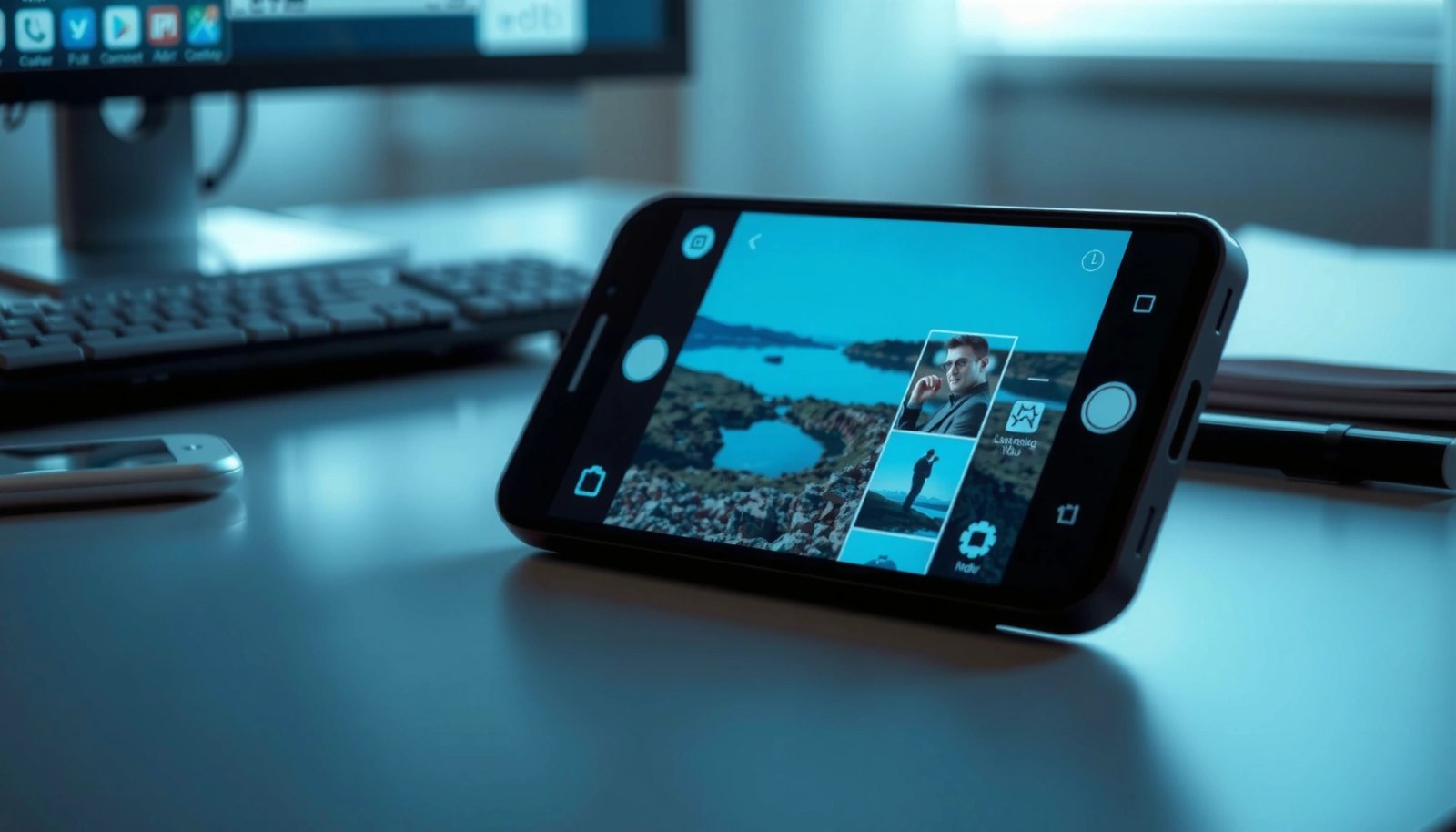
Steps to retrieve photos:
- Open Google Photos
- Tap Library → Trash / Recently deleted
- Look for the missing images (you can sort by date or use internal search)
- Tap Select → choose the photos → Restore
What to pay attention to
- Retention window matters: Google Photos keeps deleted photos in Trash for a limited time, so recovery becomes time-sensitive.
- Restoring vs. downloading: “Restore” typically brings the photos back into your library view and gallery sync; if you need an extra copy, you can also save/export afterward.
- Search is your friend: If you remember the approximate date, use search terms like:
- “beach”
- a contact name from shared photos
- or simply narrow by timeline (e.g., “March 12”)
Operational best practice: Avoid deleting other files or installing apps while you recover. Even if you’re restoring from Google Photos, reducing activity helps if you later need local recovery.
Check Device Gallery and File Trash
Sometimes photos don’t “truly disappear”—they get moved to a device-level trash/recycle bin or hidden inside an unexpected folder. Android manufacturers frequently add their own photo managers, and many of them implement a Trash/Deleted items area.
What to check on-device:
- Open your Gallery (or Photos) app
- Look for Trash, Deleted items, or Recently deleted
- Restore any images you find there
Also check file-level deletion and hidden locations
- If you use Files by Google, check for its deleted items/trash area (if available on your Android version)
- Confirm the photos weren’t moved to:
- another album (e.g., “Screenshots”, “Downloads”, “WhatsApp Images”)
- a secure folder (common on Samsung devices)
- or a different storage location (internal storage vs. SD card)
Why this step is important
- Many “lost photo” events are actually library visibility issues:
- the photo is still present, but the Gallery index changed
- the photo ended up in a different app’s media directory
- or the image is stored under an app folder (e.g., messaging apps)
Actionable tip: If your Gallery supports it, try:
- sorting by date,
- switching albums/locations,
- and using “search in Gallery” (some versions index more than others).
Restore from Google Drive or Other Backups
When the photos are missing from both Google Photos Trash and your device Trash, the next best move is to treat this as a backup-retrieval problem. In many Android setups, Google Photos syncs automatically to cloud storage, and that cloud version may still be available even if local copies were removed.
Start with Google Drive
- Open Google Drive
- Search for relevant media or open synced folders (often tied to Google Photos backup)
- If you use Google Photos backup, your restored photos may appear once the sync re-downloads
Verify backup settings
- Go to Settings on your Android device
- Find Google settings (or Accounts), then Backup
- Confirm that backup/sync is enabled and that the account used is the same one as your Photos library
If you use additional ecosystem backups, check those too
- Samsung Cloud (if applicable): check Gallery/Samsung’s recycle bin and cloud restore options
- Other OEM services (varies by device): some manufacturers provide a dedicated photo restore workflow even when the default Google options are empty
Important nuance for businesses and power users:
Confirm the account identity. A surprising number of “lost photo” incidents happen because:
- a new Google account was added,
- the Photos app is using a different signed-in profile,
- or the device backup was enabled for one account but not the one containing the original photos.
Quick reference: where deleted photos are typically recoverable
Recovery Options for Android Photo Loss (Common Retention & Use-Cases)
| # | Recovery Location | Deleted Retention Window | Typical Recovery Speed | Recovery Confidence |
|---|---|---|---|---|
| 1 | Google Photos Trash / Recently deleted | Up to 60 days | 1–5 minutes | ★★★★☆ (High) |
| 2 | Google Drive (Trash/Deleted files) | Up to 30 days | 5–15 minutes | ★★★☆☆ (Medium-High) |
| 3 | Device Gallery Trash / Recently deleted | Often 15–30 days (varies) | 2–10 minutes | ★★★☆☆ (Medium) |
| 4 | Files by Google (Trash/Deleted items if supported) | Often 30 days (varies by version) | 3–12 minutes | ★★★☆☆ (Medium) |
| 5 | Samsung Gallery / Secure Folder restore (if used) | Depends on Secure Folder settings | 5–20 minutes | ★★★☆☆ (Medium) |
| 6 | Cloud backups beyond Google (OEM/app-specific) | Service-specific retention | 10–30 minutes | ★★☆☆☆ (Lower-Medium) |
| 7 | Android local recovery (recovery software) | Until overwritten | 20–90 minutes | ★☆☆☆☆ (Low) |
Use Android Recovery Tools Carefully
If your photos are neither in Trash nor backed up to cloud storage, your next option is Android data recovery software. This is where caution matters most, because the act of “trying things” can reduce your chances.
Before you start
- Stop using the phone as much as possible. Continuing to write new data increases the likelihood that deleted file blocks are overwritten.
- If the phone is on a battery and you can keep it stable, avoid:
- taking new photos,
- downloading apps/media,
- streaming large files,
- and syncing work that writes to storage.
How to choose recovery software
- Prefer reputable tools with clear instructions and preview capability.
- Look for software that supports:
- internal storage scanning,
- and (if relevant) SD card recovery.
How to run the recovery
- Follow on-screen prompts carefully—especially steps related to device detection mode.
- Use the tool’s preview feature (when available) to confirm recoverability before exporting.
- Export recovered photos to a computer or SD card if possible. Don’t save recovered files back onto the same storage you’re trying to recover from.
Business-friendly caution:
Recovery tools vary in quality. Some can report “found files” that won’t open or only partially recover. Treat any “recovery success” as probabilistic, and always verify by previewing the actual image content.
Recover from SD Card (If Your Photos Were Stored There)
If your missing pictures were stored on an SD card, recovery changes from “restore from trash” to “retrieve before overwrite.” SD cards tend to behave like other removable media: once space is reused, recovery becomes much harder.
Recovery protocol
- Remove the SD card from the phone immediately
- Avoid writing new data to the card (no “format to fix issues” unless you fully understand the impact)
- Use a card reader connected to a computer
- Run recovery software that supports your SD card model/type (some tools perform better with certain file systems)
After recovery
- Copy recovered files to device storage or—better—directly to a computer/secure drive
- Verify photos by opening them locally before you delete any additional copies
- Reformatting the SD card to “solve” missing images often reduces recoverability.
- Attempting recovery on the phone while the card remains in use increases overwrite risk.
- Using unverified recovery tools can produce corrupted files; always preview.
Prevent Future Picture Loss
Once you recover your photos, the goal is to ensure you never have to repeat this process under time pressure. For individuals and business teams alike, the best strategy is layered redundancy: local + cloud + periodic exports.
Practical safeguards
- Enable Google Photos backup and confirm syncing is ON
- Turn on automatic backups for any cloud photo services you rely on
- If you use an SD card workflow:
- periodically export photos to a safe location (computer, NAS, or cloud drive),
- and avoid leaving critical media only on one device path
Operational habit that pays off
- Consider a lightweight monthly routine:
- open Google Photos,
- confirm backup status,
- and export any “high-value” collections (weddings, product shoots, training documentation) to a secondary location.
If your photos matter for work:
Adopt an additional business-grade safeguard such as a managed cloud storage solution or a company NAS with automated sync. This reduces downtime and protects against accidental deletion by any team member.
Conclusion
To retrieve lost pictures on Android, start with the fastest, highest-confidence options: Google Photos → Trash/Recently deleted and your device’s Gallery/File Trash. If those are empty, restore from Google Drive and other backups, then—only if needed—use carefully configured recovery tools, ideally exporting results to a computer. Finally, reduce repeat incidents by enabling Google Photos backup and maintaining a simple layered backup workflow so your photos remain recoverable even after accidental deletions.
Frequently Asked Questions
How can I retrieve lost pictures on Android if I accidentally deleted them?
If you deleted photos recently, check Google Photos first—tap Library, then Trash/Bin to see items you can restore. You can also check your device’s Gallery/Albums trash (if available) and any cloud backups like Samsung Cloud or OneDrive. If the photos aren’t there, stop using the phone’s storage to avoid overwriting data, then consider using a reputable Android data recovery tool.
What should I do to recover photos from a broken or lost Android phone?
Start by signing in to the same Google account used on your Android device, then check Google Photos online (photos.google.com) for automatically synced pictures. If the phone is broken but the SIM/Google account is still accessible, a new device signed into that account may restore the cloud library. For photos stored only on the device, recovery may require professional help or a forensic-style data recovery service, especially if the internal storage is damaged.
Why aren’t my photos showing up after I reinstall WhatsApp or reset my Android?
WhatsApp photos are often stored in specific app folders and may not automatically reappear after reinstalling unless you restore from Google Drive backup. Check WhatsApp settings for Chat backups and restore options during setup, then verify the “Media visibility” permissions for Android gallery access. After a factory reset, only media backed up to Google Photos, SD card, or cloud services can usually be recovered.
Which recovery method is best for retrieving lost pictures from an SD card on Android?
If the photos were on an SD card, the best approach is to remove the card and connect it to a computer using a card reader, then use an SD card recovery tool to scan for deleted images. Avoid writing new data to the card before recovery, since that can overwrite lost picture files. If you used the card with Google Photos or another backup app, you may also restore images directly from the cloud without needing recovery software.
What’s the fastest way to find missing camera photos after a sync problem on Android?
First, open Google Photos and refresh Sync, then check if the photos are filtered out (for example, from an incorrect account or device folder). Verify Settings in the Google Photos app to confirm Backup is turned on for “Device folders” where camera photos are stored. If the issue began after changing accounts or turning off backup, look in Google Photos on the web and in the Android file manager for your DCIM/Camera folder.
References
- Google Scholar Google Scholar
https://scholar.google.com/scholar?q=retrieve+deleted+photos+android - Google Scholar Google Scholar
https://scholar.google.com/scholar?q=android+photo+recovery+google+photos+trash+recover - Google Scholar Google Scholar
https://scholar.google.com/scholar?q=deleted+image+recovery+techniques+mobile+devices+android - Data recovery
https://en.wikipedia.org/wiki/Data_recovery - Google Photos
https://en.wikipedia.org/wiki/Google_Photos - https://en.wikipedia.org/wiki/Trash_(computing
https://en.wikipedia.org/wiki/Trash_(computing - Cloud storage
https://en.wikipedia.org/wiki/Cloud_storage - Backup
https://en.wikipedia.org/wiki/Backup - Google Scholar Google Scholar
https://scholar.google.com/scholar?q=how+to+retrieve+lost+pictures+on+android - how to retrieve lost pictures on android - Search results
https://en.wikipedia.org/wiki/Special:Search?search=how+to+retrieve+lost+pictures+on+android