
Want to retrieve deleted pics from your Android phone? If you act fast, your best shot is restoring them from Google Photos Trash or your phone’s built-in Gallery/backup options. When that fails, you’ll need to use Android recovery tools and scan the storage before new data overwrites the originals. Follow these steps and you’ll know exactly where to look—starting with the highest-success recovery path.


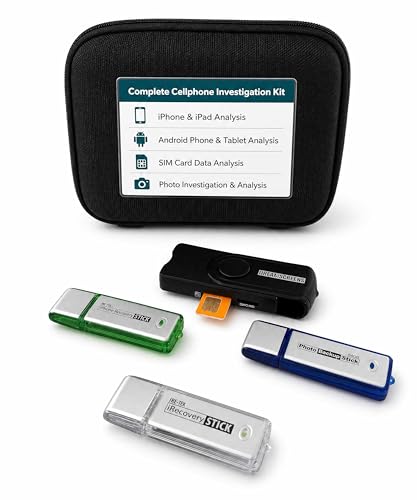
As an Amazon Associate I earn from qualifying purchases.
You can often retrieve deleted pics from an Android phone by first checking Google Photos Trash (and any “Recently deleted” area in your Gallery), then verifying whether the images were backed up to cloud services like Google Photos/Drive or OneDrive. If they aren’t there, your best next step is to stop using the phone immediately and recover photos with a reliable Android data recovery tool—especially if the pictures were stored on an SD card.
Introduction
Losing photos on Android is stressful, but “deleted” doesn’t always mean “gone.” Most Android devices and apps keep a short recovery window (e.g., Google Photos Trash), while others store photos temporarily on internal storage or removable SD cards. That means you can sometimes restore images quickly with built-in recovery paths, without paying for anything. This guide walks you through the fastest, highest-success options in order—starting with Google Photos and cloud backups—then moving to SD card recovery and finally to Android data recovery tools when no backup exists.
Check Google Photos Trash (and Gallery)
Before you try anything complicated, confirm whether the photos were deleted from within Google Photos or from your device storage in a way that still allows recovery. The key is to check the “Trash/Bin” areas first, because they’re often the easiest and safest restoration paths.
- Open Google Photos and look for the Trash/Bin folder
- In the Google Photos app, tap your profile icon or Library tab, then find Trash.
- If you see your missing images, restoring them is typically instant and doesn’t require any third-party tools.
- Restore images within the retention window
- Google Photos generally keeps deleted items in Trash for a period (commonly up to 60 days, depending on policy and account status).
- If your photos were removed recently, you can restore them without risking overwriting.
- Also check your phone’s Gallery/Albums “Recently deleted” (if available)
- Some Android brands provide a native “Recently deleted” area within the Gallery app (for example, Samsung Gallery has a Recycle Bin/Trash).
- Even if you used Google Photos as your primary library, your phone may still have local copies or device-side trash.
Data view: Recovery options vs. typical usability (Android)
Common Android Deleted-Photo Recovery Paths (What to Check First)
| # | Recovery path | Best timing | Effort | Typical outcome | Likelihood |
|---|---|---|---|---|---|
| 1 | Google Photos → Trash | 0–60 days | Low | Instant restore | ★ 4.8 |
| 2 | Phone Gallery → Recently deleted/Recycle Bin | 0–30 days | Low | Restore local copies | ★ 4.2 |
| 3 | Google Photos sync (cloud availability) | Varies by sync | Medium | Recover from cloud | ★ 4.0 |
| 4 | Cloud storage (Google Drive/OneDrive) | If auto-uploaded | Medium | Download restored files | ★ 3.7 |
| 5 | SD card recovery (deleted photos on card) | Fast action needed | High | Recovery depends on overwrite | ★ 3.5 |
| 6 | Android internal storage recovery tool | Best within days | High | May restore partially/fully | ★ 2.8 |
| 7 | Manufacturer/agent recovery service | After failed self-recovery | Very high | Costs + variable success | ★ 2.2 |
Verify Cloud Backups (Google Drive/OneDrive)
If your photos were synced, cloud recovery can be safer and more complete than device-side recovery—because cloud copies typically survive even after local deletion.
- Confirm whether your photos were synced to Google Photos automatically
- In Google Photos, check Settings → Backup (wording may vary).
- If backup was enabled, your images likely exist in your Google account even if you removed them from the phone.
- Check Google Drive for any photo backups you enabled
- Some users also back up media through Drive or export workflows.
- Search in Google Drive for your image names (if you remember them) or browse folders related to photos/camera uploads.
- Look for OneDrive or other cloud apps you may have used
- OneDrive often uploads camera photos if the Windows/Mobile app settings were configured.
- If you used Dropbox/Box or a third-party “gallery backup” app, check those as well—sometimes images are stored under Camera Uploads.
Practical tip: If your photos were deleted after you enabled backups, they may still be present in the cloud unless you also cleared them from the cloud trash. Be sure to check the cloud app’s “deleted items” area too.
Recover from SD Card (if photos were stored there)
If your device used an SD card (or you moved photos to it), the odds of recovery can improve—especially if you act quickly and avoid overwriting.
- If images were on an SD card, stop using it to avoid overwriting
- Every new photo, app cache, or system update can write data that overwrites deleted files.
- Connect the SD card to a computer using a reader
- Use a reliable USB card reader rather than repeatedly re-inserting the card into the phone.
- If possible, read the card on a stable PC and avoid risky “format” operations.
- Use a reputable recovery tool to scan for deleted images
- Choose a tool that supports SD card and can preview recoverable photos before saving.
- Save recovered images to your computer’s internal drive (not back to the SD card).
What to watch for: Some recovery tools show many file fragments. Prioritize complete images with correct thumbnails, and double-check file integrity after recovery.
Use Android Data Recovery Tools (when backups aren’t available)
When Google Photos Trash, Gallery bin, and cloud backups don’t contain your images, the next step is Android data recovery. This is where strategy matters: the goal is to recover what’s still retrievable without damaging remaining data.
- Choose software designed for Android photo recovery
- Look for tools that explicitly support your phone model/Android version and offer “scan + preview” workflows.
- Ensure the tool can recover from both internal storage and (if applicable) external SD cards.
- Follow step-by-step instructions to scan and preview recoverable files
- A typical workflow is: connect device → allow required permissions/driver installation → scan → preview → select → export.
- Preview is critical: it reduces wasted time and helps you identify files that are actually intact.
- Save recovered photos to another drive/PC, not the phone
- This prevents overwriting partially recoverable data.
- Keep the restored files in a dedicated folder, then verify playback and resolution.
Business-friendly best practice: Treat the phone like an evidence device during recovery. Work from a computer, minimize device activity, and keep recovered files organized with timestamps so you can quickly confirm what you regained.
Prevent Overwriting and Improve Recovery Chances
Recovery success is strongly affected by what happens after deletion. Even if you plan to use a tool, you should take precautions immediately.
- Avoid installing apps or saving new photos/videos during recovery attempts
- Downloading apps and capturing images writes new data that can overwrite photo sectors.
- Keep your device charged and stable during scanning
- Power loss can interrupt the recovery process and complicate repeat attempts.
- Act as quickly as possible for the best results
- The sooner you start checks (Trash, backups, SD card scan), the less likely the original data is to be overwritten.
Extra safeguards to consider (after you recover):
- Re-enable backups in Google Photos and/or your cloud service.
- Turn on “backup over Wi‑Fi” or “backup while charging” depending on your preference.
- Confirm that the camera folder and SD card are both included in backup settings.
Conclusion
Start with Google Photos Trash and any available “Recently deleted” options in your Gallery, then verify whether your photos were preserved through cloud backups such as Google Photos and Drive or OneDrive. If the images were on an SD card, stop using the device and recover them using a trusted recovery tool connected to your computer. If backups and local bins don’t work, use an Android data recovery tool to scan, preview, and export recovered photos to a different drive/PC. By following the quickest options first and avoiding overwriting, you’ll significantly improve your chances of retrieving deleted pics from your Android phone.
Frequently Asked Questions
How can I retrieve deleted photos from my Android phone without a backup?
First check your Gallery/Photos app’s Trash or Recently Deleted folder, because many Android devices keep deleted pics for days before permanent removal. If they’re not there, connect your phone to a computer and stop using it to avoid overwriting data. You can then try a reputable Android photo recovery tool that scans internal storage and SD cards for deleted images.
What should I do immediately after deleting pictures to improve recovery chances?
As soon as you realize photos are gone, stop taking new photos or installing updates, since new data can overwrite the deleted files. Charge your phone and keep it connected via USB if you plan to use a recovery app on a computer. If the photos were on an SD card, remove the card carefully and run recovery to minimize further writes.
Which Android recovery apps are best for finding deleted pics from internal storage?
Look for Android data recovery tools that specifically support photo recovery (JPEG/PNG/HEIC) and can scan both internal memory and SD cards. Popular options often include Dr.Fone, DiskDigger, and similar recovery utilities, but performance varies by device model and Android version. Before choosing, check that the tool offers a preview of recoverable images and supports your storage type, then avoid repeated full scans that may increase writes.
Why can’t I recover deleted photos from Android even after using a recovery tool?
Photos may be permanently deleted if they were removed from the Trash/Recently Deleted area or if your device uses secure deletion practices. Also, recovery becomes harder when the storage has been heavily used since deletion, which can overwrite the image data. If the pictures were encrypted (common with some secure folders) or deleted from an SD card that was reformatted, recovery may be limited or impossible.
What’s the best way to recover deleted Android photos from Google Photos or cloud backup?
If you used Google Photos, check Trash/Recently Deleted in the app first—items are usually recoverable for a limited time. Next, sign in to the same Google account on your phone and confirm Backup is enabled so future deletions can be restored. If the photos were synced to the cloud, restoring from Google Photos is often more reliable than Android photo recovery from device storage.
References
- Data recovery
https://en.wikipedia.org/wiki/Data_recovery - Flash memory
https://en.wikipedia.org/wiki/Flash_memory - Digital forensics
https://en.wikipedia.org/wiki/Digital_forensics - https://www.nist.gov/publications/special-publication-800-88-rev-1-guidelines-media-sanitization
https://www.nist.gov/publications/special-publication-800-88-rev-1-guidelines-media-sanitization - Google Scholar Google Scholar
https://scholar.google.com/scholar?q=Android+deleted+photos+recovery - https://scholar.google.com/scholar?q=remnant+data+flash+memory+deleted+files+recovery Google Scholar
https://scholar.google.com/scholar?q=remnant+data+flash+memory+deleted+files+recovery - https://scholar.google.com/scholar?q=smartphone+forensics+recover+deleted+media+Android Google Scholar
https://scholar.google.com/scholar?q=smartphone+forensics+recover+deleted+media+Android - Google Scholar Google Scholar
https://scholar.google.com/scholar?q=how+to+retrieve+deleted+pics+from+android+phone - how to retrieve deleted pics from android phone - Search results
https://en.wikipedia.org/wiki/Special:Search?search=how+to+retrieve+deleted+pics+from+android+phone - https://www.ncbi.nlm.nih.gov/search/research-articles/?term=how+to+retrieve+deleted+pics+from+android+phone
https://www.ncbi.nlm.nih.gov/search/research-articles/?term=how+to+retrieve+deleted+pics+from+android+phone