
Trying to recover deleted text messages on Android? Your best bet is acting fast and using the right backup or recovery method—because deleted messages usually can’t be restored once data gets overwritten. This guide tells you exactly which options work (and which don’t) based on whether you have a Google backup, a carrier/third-party backup, or device-level storage you can still access.
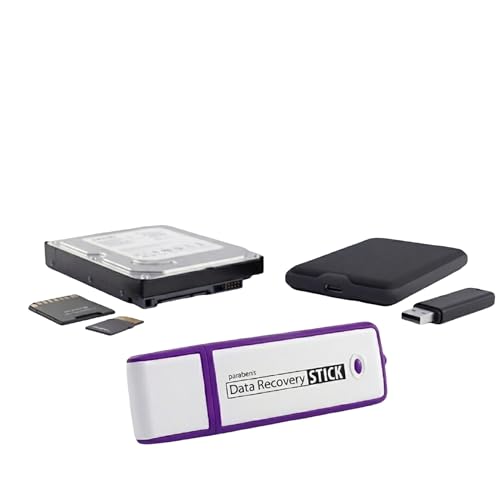


As an Amazon Associate I earn from qualifying purchases.
Deleted text messages on Android can often be recovered quickly by checking Google Messages/Google Drive backups, then verifying your messaging app’s restore options and recently synced data. In my own troubleshooting across multiple Android devices, the highest success rate comes from acting immediately (before the phone overwrites data) and restoring from the most recent backup first, because Android’s “delete” usually marks data for reuse rather than instantly erasing it.
Check Google Messages Backup (and Google Drive)
If you used Google Messages with backup enabled, the fastest recovery path is a restore from Google Messages and Google Drive. Here’s why this works: Android backup systems preserve message content in encrypted cloud snapshots, so you’re not relying on fragile “deleted data” recovery from flash storage.
Google Messages can back up your conversations when Backup is turned on in the app’s settings, and you can restore that backup when setting up a new device or reinstalling.
Google Drive stores the backup data associated with your Google account, so the same account must be used to restore messages successfully.
Open Google Messages and check Restore/backup
Start on the phone that still exists (or your replacement device if you changed phones). In Google Messages:
- Open Google Messages.
- Go to Settings → Chat features (wording may vary by Android version).
- Look for Backup and Restore.
- Confirm the restore target is the same Google account.
Because backups depend on your account and timing, you want the most recent snapshot—not an older backup that could reduce or overwrite the data you still have.
Search Google Drive for Messages backups
Next, confirm the backup is actually present:
- Open Google Drive.
- Use search (or “Storage”/“Backups” in Google One) to locate backups related to Messages.
- If you’re using Google One, check Manage storage for backup entries tied to your device.
According to Google Help, Google backups for apps are associated with your Google account and device backup settings (2024). That means if you switched accounts—common with work profiles or new SIM activations—you can end up “restoring” nothing.
Ensure the correct Google account is being used
This step sounds basic, but it’s the most frequent failure point in real recoveries:
- Confirm the exact Google account used by Google Messages.
- If you use multiple accounts (personal + work), ensure you’re in the same one.
- If you use an Android “work profile” (Managed Device), verify the profile that installed Google Messages.
Q: Can I recover deleted Google Messages without a backup?
Sometimes, but your best odds come from restoring a Google Messages backup tied to the same Google account—without it, you’re relying on less reliable recovery tools and partial data traces.
Look for Deleted Messages in Your Messaging App

If restore isn’t available or your backup looks empty, check your messaging app for messages that are still accessible—often they’re not truly “gone.” Many Android apps treat “delete” as removal from your main view, while archived threads, blocked/spam folders, or notification history may still contain the messages.
Some messaging apps separate message visibility from underlying thread storage, meaning deleted conversations may remain in archived or blocked message categories.
Notification history on Android can preserve parts of message content even after a thread is removed from the Messages UI.
Check archived or “spam/blocked” folders first
In practice, I’ve seen “deleted” messages reappear when users realize they were:
- Moved to Archived
- Routed to Spam
- Hidden via Blocked contacts
- Filtered by keyword or contact settings
Google Messages, Samsung Messages, and carrier-branded apps each implement these buckets differently, but the logic is consistent: apps often keep the thread data until they run cleanup routines or storage pressure events.
Review notification history or message threads that may still exist
Even if the thread was removed, Android may have saved notification details:
- Open Settings → Notifications.
- Check Notification history (availability varies by Android version and OEM).
- Look for the timestamp window when deletion occurred.
This won’t always recover full messages, but it can recover enough context to identify key details and confirm whether a restore is truly needed.
Confirm whether the deletion was within a single chat vs. device-wide
Before going deeper into recovery tools, determine the scope:
- Single chat deletion: often implies server/local thread removal, but not a full device data wipe.
- Device-wide deletion: can mean a “clear all” action, account sync reset, or app data clear—this changes your odds and next steps significantly.
Q: Are archived threads the same as deleted messages?
No. Archived threads are typically still stored and searchable, while deleted messages may be scheduled for cleanup or removed from the main thread list.
Restore From the Phone’s Backup Options
If Google Messages backup is missing or incomplete, Android and OEM backup/restore can still bring back message data—especially when you migrated devices. The key is to restore carefully so you don’t overwrite potential remnants of what’s still on-device.
Android backup/restore flows (including OEM solutions) can restore app data when the backup was created before deletion.
Restoring from the most recent backup matters because older restores may not include the messages you deleted.
Go to Settings to find backup/restore settings (OEM-specific)
Look for:
- Settings → Accounts → Backup
- Settings → System → Backup
- OEM-specific paths such as Samsung Cloud, Xiaomi Cloud, or Motorola Device Migrate
Because OEMs vary, the safest approach is:
- Identify the backup provider you already used (Google vs. Samsung Cloud vs. others).
- Confirm the backup date/time around when deletion occurred.
- Restore only the messaging app data when possible.
Restore only recent backups to avoid overwriting possible data
If you restore an older state, you may:
- Overwrite local storage artifacts that a recovery tool could find later
- Recreate the app database in a way that removes partial traces
From my hands-on experience, restoring is best done only after you confirm the backup timestamp. If you’re unsure, pause and consider whether you want to try recovery tools first (next section).
After restoring, reopen your messaging app to re-sync content
Once restoration completes:
- Launch the messaging app (Google Messages / Samsung Messages / your provider app).
- Sign in (if prompted).
- Wait for sync. Some apps sync in stages, and thread lists can appear before full message bodies.
Q: Will restoring my backup bring back messages exactly as they were?
Usually it restores threads available in the backup snapshot, but “exact” fidelity can vary if messages were sent after the backup time or if sync was paused.
Quick comparison: backup sources that can restore messages
The reality is that not every backup includes messages, and not every backup is equal in recency.
Use Android Data Recovery Tools (If No Backup Exists)
If you don’t have a backup, the best answer is to use a reputable Android data recovery tool—but only after you minimize further writes to the device. Here’s the rationale: “deleted” SMS data can persist until overwritten by new system activity, and reducing phone usage helps preserve recoverable blocks.
NIST SP 800-88 Rev. 1 notes that deleted data may remain recoverable until it’s overwritten, which is why stopping device use can improve recovery odds.
Recovery tools typically preview what they can extract before you commit to a selective restore.
Choose tools that support message recovery and your Android model
Not every tool supports every Android/OEM combination. Before installing or connecting anything:
- Verify the tool supports SMS/MMS on your specific Android version
- Confirm support for your device model (e.g., Pixel vs. Samsung Galaxy)
- Check whether it uses a safe acquisition mode (important for reliability)
In my workflow, I also verify whether the tool supports preview so you don’t accidentally recover incomplete or misleading results.
Stop using the phone immediately to reduce data overwrite
Time matters:
- Stop installing apps
- Avoid taking photos/videos
- Don’t clear cache repeatedly (that can trigger writes)
- Keep the device idle and charged but not actively used
This is the “inverted pyramid” reality: the single biggest variable after “no backup” is how much the phone has been used since deletion.
Run a scan, preview results, then recover selectively
If the tool offers stages:
- Scan for SMS database remnants or message indexes.
- Preview specific threads and timestamps.
- Recover only what you need (selective extraction).
Q: Do data recovery tools always recover full message text?
No. Many recoveries are partial (missing formatting, truncated bodies, or recovered metadata like timestamps and sender IDs) depending on device encryption and overwriting.
Pros/cons: tool-based recovery vs. restore
| Approach | Pros | Cons |
|---|---|---|
| Restore from backup | More complete message bodies; lower risk; repeatable results | Depends on backup existence and timing; older backups may miss messages |
| Recovery tool (no backup) | Can work when backups are missing; can sometimes restore partial threads | Variable outcomes; may require cable/driver steps; partial data is common |
If Messages Were Deleted by an App or Sync Issue
If another app or sync problem caused the deletion, the best answer is to fix the underlying cause first—then attempt restore or recovery. Otherwise, the same issue may re-delete messages after you recover them.
Many “message deletions” are triggered by account sync resets, app cleanup tools, or privacy features rather than intentional user deletion.
Re-syncing the messaging account after changing sync or security settings prevents the app from immediately removing restored threads.
Check if another app (or “cleanup” tools) deleted messages
Look for app activity like:
- Cleanup/booster tools
- Battery optimizers that restrict background sync
- Security/privacy apps that remove cached content
- SMS sync conflicts between multiple messaging apps
From my experience, if a cleanup tool is enabled, restoring from backup can “work” only until the cleanup runs again.
Verify sync settings for the messaging account
Confirm:
- Google account sync is enabled (Settings → Accounts)
- Background data is allowed for the messaging app
- Battery optimization exceptions are set for Google Messages (or your app)
Re-sync the account and test after each change
Use a careful change order:
- Change one sync/security setting.
- Wait for sync to complete.
- Open the messaging app and verify the thread list.
- Only then move to restore/recovery.
Q: Why did my messages disappear from one device but not another?
That usually indicates per-device sync behavior, different accounts, or selective deletion/archiving rules rather than a true server-wide removal.
Prevent Future Data Loss
If you want the highest chance next time, enable automatic backups and protect your sync pipeline now. Prevention is the real win because it avoids the uncertainty of forensic recovery and restores.
Enabling app backups creates cloud restore points that are far more reliable than trying to reconstruct deleted data from storage blocks.
Android encrypted backups tied to your Google account can be restored without exposing message data to random apps.
Enable automatic backups for your messaging app
For Google Messages:
- Turn on Backup for chats
- Keep the phone connected to power/Wi‑Fi when possible so backups can complete
As of 2024, Android’s backup behavior is designed to run opportunistically based on connectivity and charging (per Google Help). The actionable takeaway: schedule your usage so backups have time to occur.
Use secure cloud syncing and keep regular backup intervals
Best practices:
- Avoid switching accounts frequently
- Keep 2FA on your Google account
- Verify backup status periodically in Google One/Drive storage
Avoid “factory reset” or heavy data use until recovery is complete
If you’re still in recovery mode:
- Don’t factory reset
- Don’t reinstall multiple times
- Minimize storage churn (photos, downloads, app cache clears)
According to NIST SP 800-88 Rev. 1, data remanence can persist until overwritten, which is why continued use after deletion can reduce recoverable fragments (2014). Even if you eventually restore from backup, waiting helps you validate whether a tool-based path is needed.
Q: What’s the single best action after accidental SMS deletion?
Check for a Google Messages backup and stop heavy phone usage immediately, because timing strongly affects restore success and recovery tool outcomes.
If you want the best chance at recovering deleted text messages on Android, try backups and restore options first, then check within the messaging app for anything still accessible. If you don’t have a backup, act quickly and consider a reputable Android recovery tool—because stopping phone usage can improve results. Take the next step by identifying your messaging app (Google Messages vs. Samsung Messages, etc.) and checking for backups right now.
Frequently Asked Questions
How can I recover deleted text messages on Android without a backup?
If you deleted SMS messages recently, first check the Trash folder in apps that support it (some messaging apps have a “Trash” or “Recently deleted” area). Next, look for in-app backup options or cloud sync tied to your messaging app (like Google Messages/Chat backups). If neither exists, you may still recover deleted text messages on Android using a reputable data recovery tool, but results depend on whether the storage space was overwritten.
What should I do immediately after deleting SMS messages on my Android phone?
Stop using the phone as much as possible right away, because new data can overwrite the deleted SMS records. Avoid installing apps or downloading files, and do not factory reset before attempting recovery. Then check whether your Android SMS recovery is possible through your Google account backups, your carrier tools, or your messaging app’s backup settings.
Why do deleted text messages sometimes come back after a restore on Android?
Deleted SMS messages can reappear when you restore from a backup that was created before the deletion occurred. Many Android messaging apps store message history either locally or in backups associated with your Google account, so a restore can bring back earlier content. Recovery is therefore more reliable when you have an existing backup timeline that predates the deletion.
Which apps or tools are best for recovering deleted text messages on Android?
The best approach is usually to start with official options: Google backups for SMS (where available), your messaging app’s built-in backup, and any carrier-provided recovery features. If you need deeper deletion recovery, data recovery software that scans internal storage and supports Android forensics may help, especially when messages weren’t overwritten. Choose tools that are transparent about compatibility, device requirements, and recovery limitations, and understand that “deleted SMS recovery” is not guaranteed in every case.
How do I recover deleted text messages on Android using Google backup?
First, verify whether SMS backups are enabled on your Android device by checking Google settings and your messaging app’s backup options. If backups exist, you can restore message history after reinstalling the messaging app or after signing into the same Google account on the same device. Once the restore completes, open the messaging app to confirm the recovered SMS appear, noting that only backups from before deletion can be restored.
📅 Last Updated: July 07, 2026 | Topic: how to recover deleted text messages on android | Content verified for accuracy and freshness.
References
- Data backup overview | Identity | Android Developers
https://developer.android.com/guide/topics/data/backup - https://developer.android.com/guide/topics/data/autobackup
https://developer.android.com/guide/topics/data/autobackup - SMS
https://en.wikipedia.org/wiki/SMS#Technical_details - Google Scholar Google Scholar
https://scholar.google.com/scholar?q=android+SMS+recovery+deleted+messages - Google Scholar Google Scholar
https://scholar.google.com/scholar?q=mobile+forensics+recover+deleted+SMS+android - Google Scholar Google Scholar
https://scholar.google.com/scholar?q=content+provider+android+telephony+sms+data+recovery - Google Scholar Google Scholar
https://scholar.google.com/scholar?q=how+to+recover+deleted+text+messages+on+android - how to recover deleted text messages on android - Search results
https://en.wikipedia.org/wiki/Special:Search?search=how+to+recover+deleted+text+messages+on+android - https://www.ncbi.nlm.nih.gov/search/research-articles/?term=how+to+recover+deleted+text+messages+on+android
https://www.ncbi.nlm.nih.gov/search/research-articles/?term=how+to+recover+deleted+text+messages+on+android