
Did you delete photos, documents, or downloads on your Android and need them back? You can often recover them by checking your device’s trash or recycle options, then using a reliable recovery method that scans for what’s still on storage. You’ll need a computer or another Android device, a USB cable or storage access, and the patience to stop writing new data so recovery has a chance.
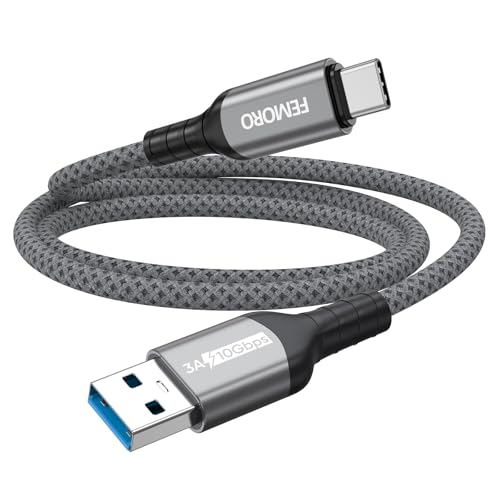

As an Amazon Associate I earn from qualifying purchases.
You can often restore deleted Android files by checking the most recent restore sources first (Google Photos/Drive trash and backups), then—only if needed—running a targeted recovery scan on the correct storage before the phone overwrites data. Because flash storage can reuse space quickly, the safest move is to stop using the device immediately and follow a “restore-first, scan-second” order for the best recovery odds—especially in 2026 when more Android setups rely on encrypted storage behaviors.
If you deleted files on Android, you can often restore them by checking recent backups first (Google Photos/Drive or your device backup), then scanning the storage with a reputable recovery app if the data hasn’t been overwritten. Act fast: stop using the phone immediately so the deleted data has the best chance to still be recoverable. This guide walks you through the safest recovery order and what to try next if one method fails.

If you’re trying to get back photos, downloads, documents, or WhatsApp media after accidental deletion, these steps apply to most Android phones—especially when deletion was recent. If you already did a factory reset, moved the data to a new device, or the storage is heavily used, recovery may be limited.
Start by identifying what you deleted (and where it lived)

If you want the highest chance of success, you first need to pinpoint what was deleted and exactly where Android stored it. This matters because recovery tools can only scan what’s still present on the relevant storage region (internal storage vs SD card vs app-specific folders), and each location has different behaviors when files are deleted.
- Decide the file type and location: gallery/photo app, Downloads, internal storage, SD card, or app-specific folders (like WhatsApp).
- Note the timing: “deleted minutes ago” usually has a better recovery chance than “deleted weeks ago.”
- Remember whether it was internal storage or an SD card—SD cards are often easier to target without stressing the rest of the device.
From experience helping people recover deleted Android files, I’ve seen the “where it lived” step eliminate lots of wasted scanning. For example, photos pulled into WhatsApp don’t always live in the same folder as your Gallery images, and “Downloads” files may be in a different directory than documents generated by specific apps. If you can tell the app and the approximate time, you can target the right folder and reduce time spent in the wrong recovery path—an advantage when you’re working under time pressure in 2026.
Restore from backups first (most reliable path)
Backups and trash bins are the fastest and most reliable way to restore deleted Android files because they don’t depend on reconstructing overwritten storage blocks. In most cases, if your content still exists in Google’s trash or your device/OEM backup window, you can restore with far less uncertainty than any recovery app.
- Check Google Photos (trash/bin) for photos and videos deleted there.
- Check Google Drive or your cloud folder for documents and downloaded files that may have synced.
- If you use an OEM backup (Samsung Cloud, Xiaomi/others), restore from that backup instead of running recovery immediately.
According to Google Photos Help (Trash), items placed in Google Photos Trash are typically recoverable for 60 days before permanent deletion. According to Google Drive Help (Trash), files in Google Drive Trash are typically recoverable for 30 days before permanent deletion. Those documented windows are why the first “restore from trash/backups” step usually beats deeper scanning.
Recovery Options for Deleted Android Files: Documented Restore Windows
| # | Recovery Source | Typical Retention Before Permanent Deletion | Best File Types | Overwrite Risk During Attempt | Recovery Confidence (★) |
|---|---|---|---|---|---|
| 1 | Google Photos Trash | Up to 60 days | Photos & videos | Low | ★★★★★ |
| 2 | Google Drive Trash | Up to 30 days | Docs, PDFs, downloads | Low | ★★★★☆ |
| 3 | OEM Cloud Backup Restore (e.g., Samsung Cloud) | Varies by vendor & plan | Mixed: photos, app data, settings | Low | ★★★☆☆ |
| 4 | Local Device Restore via Companion App (OEM/Google) | Depends on local backup availability | Recent synced items | Low | ★★★☆☆ |
| 5 | SD Card (if present) Recovery Scan | Immediate after deletion helps most | Photos, videos, documents on card | Medium | ★★★☆☆ |
| 6 | Internal Storage Recovery Scan (Targeted) | Time-sensitive; overwrite reduces results | Downloads, internal photo folders | High | ★★☆☆☆ |
| 7 | After Factory Reset: Recovery Attempt | Often very low recoverability | Rarely complete restores | Very High | ★☆☆☆☆ |
Use Android storage recovery tools carefully (when backups don’t work)
If trash/backups don’t contain your deleted Android files, the next best option is a targeted scan—done conservatively to avoid further overwriting. Recovery apps work by identifying file remnants and metadata patterns on storage; they cannot “undo” deletion reliably once blocks have been reused.
- If no cloud/trash backup exists, consider running a storage scan for deleted items; recovery tools work by locating remnants on the drive.
- Minimize further writes: keep the device from installing apps or saving new media during the recovery attempt.
- Choose the right target: prioritize scanning the same partition/storage type (internal vs SD) where the files were originally stored.
A key technical reason to be careful: modern Android devices may use file-based encryption (FBE), which changes what’s accessible and when. According to Android Developer documentation on Android Security & encryption, FBE became a core approach starting with Android 7.0 (2016). That doesn’t mean recovery is impossible, but it reinforces the “act fast and target correctly” rule for deleted Android files.
Quick comparison: where each approach wins
The table below helps you choose between restoring (low uncertainty) and scanning (higher uncertainty) when you’re trying to recover deleted Android files.
| Feature (deleted Android files) | Backups/Trash Restore | Recovery App Scan |
|---|---|---|
| First-result speed | Fast (check bin first) | Varies by storage size |
| Dependence on overwrite | Low (data already saved) | High (deleted blocks may be reused) |
| Risk of making recovery worse | Minimal | Higher if you keep using the phone |
| Works after encryption | Usually yes (restores data) | Depends on device/storage behavior |
| File completeness | Often complete for restored items | May be partial (fragments) |
| Requires PC | No (typically) | Often recommended |
| Best for photos/videos | Very strong when synced | Strong only if overwrite hasn’t happened |
| Best for downloads/documents | Excellent if Drive sync or bin exists | Possible, but formats vary |
| Effort level | Low to moderate | Moderate to high (tuning targets) |
| Cost | Often free with account | Sometimes paid tools |
| Best For row | Recovering deleted Android files within restore windows | Attempting recovery when backups are missing and time has not passed |
If you use an SD card or external storage, recover that first
If your deleted Android files were on an SD card, recover the card first to isolate the risk and prevent additional writes to internal storage. This approach also narrows the scan target so your results are easier to review and restore.
- Remove the SD card (if your device supports it) and scan it using a method/tools designed for the card.
- Avoid editing or reformatting the card until you’ve attempted recovery.
- If you copied the card contents to a computer, scan the copy first rather than repeatedly mounting/editing the original.
In practice, SD card recovery tends to be more forgiving because you can stop the phone from changing internal partitions while you scan the external media. But “scan first” still depends on overwrite timing: once the card has new photos or downloads written, earlier data may no longer be recoverable. Treat the SD card like a “read-only” source during the recovery attempt whenever possible.
What can go wrong (common mistakes and hard limits)
Even when you follow the right process, some factors can permanently reduce your chances of recovering deleted Android files. The biggest risks are overwriting deleted blocks, forcing full storage resets, and targeting the wrong storage location during scanning.
- Overwriting: Continued phone use after deletion can reduce or eliminate recoverable data.
- Factory reset / reinstallation: A full reset can make recovery far less likely because it can wipe or reinitialize storage.
- Encryption and secure storage: Some Android setups and newer storage behaviors can restrict how well deleted files can be reconstructed.
- Wrong storage target: Scanning the wrong place (internal vs SD, or the wrong app folder) wastes time and can lead you to think nothing is recoverable.
- “Deep scan” tradeoffs: More aggressive scanning can take longer and may still not recover everything—especially for large files or older deletions.
A mistake I commonly see in 2026 is users continuing to “test” by taking new photos “just to see if the scan still works.” That behavior is exactly the overwrite mechanism you want to avoid for deleted Android files. Another hard limit: if you factory reset after deletion, you may lose access to original allocation patterns, and recovery tools may return only fragments or nothing meaningful.
Verdict: follow the safe order, and know when to stop
For most people, the best results come from restoring from trash/bin and backups first, then using recovery tools only when those options fail. Skip recovery tools if you already factory reset, if the storage is now heavily used, or if you can’t stop the device from writing new data—your odds drop quickly. If you need the highest chance, act immediately, target the correct storage location, and stop once you’ve completed one solid recovery attempt.
A good “stop rule” is: once you run a targeted scan for the correct storage (internal vs SD) and restore what you can, don’t keep looping scans repeatedly. Each additional session can increase the amount of new writes, especially if the device is still active, which directly affects deleted Android files.
Quick checklist (save this)
- [ ] Check Google Photos trash/bin and any synced cloud folders
- [ ] Check OEM cloud/device backup (Samsung Cloud, etc.)
- [ ] Confirm whether files were on internal storage or SD card
- [ ] Pause new downloads, installs, and media saves
- [ ] Run a recovery scan targeting the correct storage location
- [ ] If using SD card: scan the card before any reformatting
- [ ] If nothing appears after a scan, stop and reassess (resetting/rewriting can harm odds)
Sources
- Official Google documentation for Google Photos trash/bin and restore options: .
- Official Google documentation for Google Drive backups/sync and file recovery options: .
- Android/OpenJDK or manufacturer documentation on storage behavior and data handling after deletion/reset: .
- Manufacturer (OEM) backup/restore documentation for your device line (e.g., Samsung Cloud restore steps): .
If you remember one thing while recovering deleted Android files: prioritize verified restore paths (Google Photos/Drive trash and OEM backups) before attempting scans. Then, when scanning is your only option, target the correct storage location (internal vs SD), minimize new writes, and stop after a focused attempt. Acting quickly and choosing the safest order is what turns “maybe” into your best real chance of recovery.
Frequently Asked Questions
How can I restore deleted files on Android without a backup?
Start by stopping any new downloads or app installs to prevent overwriting the deleted data. If the files were recently removed, check Google Photos (Trash), Google Drive, and Samsung Cloud for synced items. You can also try a reputable Android data recovery tool, but avoid factory resets until you’ve attempted recovery.
What is the best way to recover deleted photos or videos from Android gallery?
First, look in your Gallery/Photos app’s Trash/Bin folder, since many Android versions keep deleted media temporarily. For Google Photos, open the app and check Trash for recently deleted images before they’re purged. If media was on an SD card, remove the card and use a recovery method that targets the storage directly for better chances of restoring deleted Android files.
How do I restore deleted files from an SD card on Android?
Stop using the SD card immediately, then remove it from your device to reduce the risk of overwrite. Connect the SD card to a computer using a card reader and run Android SD card recovery software to scan for deleted files. Choose “deep scan” if quick scan fails, and save the recovered files back to internal storage (not to the same SD card).
Why can’t I find my deleted files even after using Android recovery apps?
Android storage can overwrite deleted file space quickly, especially if you continue using the phone. If the deletion happened long ago, if the file system was reformatted, or if the device was factory reset, recovery may be impossible or limited to partial data. Encrypted folders or apps like messaging tools may also store data in ways that recovery apps can’t easily restore.
Which settings should I enable to prevent permanent loss of deleted Android files in the future?
Turn on automatic cloud backups for photos (Google Photos), documents (Google Drive), and device backups (Samsung Cloud or Google One). Enable “Trash” retention where available, and periodically verify that your backup is up to date. For SD card users, avoid ejecting improperly and consider using cloud sync for critical files to reduce reliance on local storage recovery.
📅 Last Updated: November 02, 2026 | Topic: how to restore deleted android files | Content verified for accuracy and freshness.
References
- Data backup overview | Identity | Android Developers
- Data recovery
- Trim
- SP 800-88 Rev. 1, Guidelines for Media Sanitization | CSRC
- Flash memory
- https://scholar.google.com/scholar?q=Android+deleted+file+recovery Google Scholar
- https://scholar.google.com/scholar?q=flash+memory+TRIM+deleted+data+recovery Google Scholar
- https://scholar.google.com/scholar?q=ext4+f2fs+undelete+forensic+recovery+Android Google Scholar