
Resetting your Android car stereo to factory defaults wipes saved settings and returns the unit to its original setup screen. Follow the step-by-step process here to access the correct menu path, perform a proper reboot, and handle cases where the touchscreen or system won’t respond. You will need the stereo powered on and, in some models, a PIN or physical reset button; the full reset typically takes about 10–20 minutes.

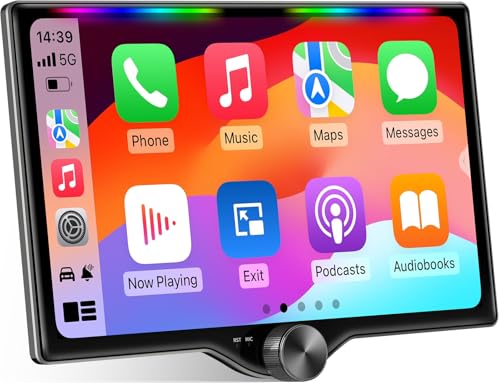

As an Amazon Associate I earn from qualifying purchases.
To reset your Android Car stereo to factory settings, go to Settings → System/General → Reset options → Erase all data (Factory data reset) and confirm the wipe. If the menus won’t open or the unit is stuck on a logo, boot into recovery mode and choose Wipe data/factory reset instead—then reboot.
If you’re dealing with a frozen head unit, corrupted firmware behavior, or repeated boot issues, a factory reset is usually the fastest “clean start.” As of 2026, most Android head units follow Android’s core reset logic, but the exact button combinations and on-screen wording vary by brand—so this guide focuses on the two universal paths: Settings-based factory reset and recovery-based factory reset.
Before you reset: backups and power basics

A factory reset clears user data, so you want to protect anything you’ll need again before you wipe your Android Car stereo. It also may trigger Factory Reset Protection (FRP), which can require a Google account sign-in after the reset.
Back up the things that actually matter
- Wi‑Fi networks and passwords: saved network credentials are typically cleared during a full wipe.
- Bluetooth pairings: pairing history often gets removed, which means you’ll re-pair your phone.
- Downloaded apps and media: locally installed apps, internal downloads, music, and media files can be erased depending on the head unit’s storage layout.
- Navigation/offline content: if you use offline maps or downloaded routes, back them up inside the app’s own export/sync workflow when available.
Understand FRP before you press “Erase”
Factory Reset Protection (FRP) is Android’s security mechanism that helps prevent unauthorized access after a wipe. According to Google’s FRP guidance, after a reset some devices ask for the credentials of the previously synced Google account (commonly 1 required account sign-in).
Use stable power (don’t interrupt the wipe)
A factory reset isn’t just “software resetting”—it can erase partitions. If the car battery dips mid-wipe, you can end up with a boot problem that recovery alone can’t fully fix.
- Avoid starting the reset when the vehicle battery is already struggling.
- If your unit allows it, remove/disable USB drives and SD cards before starting.
- If the unit is connected to an external power adapter or vehicle interface, ensure those connections are stable.
Factory reset from the Settings menu
If the Android Car stereo UI responds normally, the safest and most straightforward option is the built-in factory reset from Settings. This path is usually more guided, and it avoids guessing button combinations for recovery mode.
Where to find “Erase all data”
On most Android head units, the workflow looks like this:
1. Open the stereo’s Settings app.
2. Go to System (or General).
3. Open Reset options.
4. Select Erase all data (Factory data reset) / Factory data reset.
5. Confirm the warning prompts.
According to Android’s reset documentation, “factory data reset” is designed to remove app data and user settings stored on the device (it typically affects 3 major categories: apps, settings, and account/user data).
Confirm the right reset level
A common pitfall is choosing an “app reset” or “reset settings” option instead of the full wipe. When you see multiple choices:
- Choose the option that explicitly says Erase all data / Factory data reset.
- Avoid options that say Reset app preferences or Reset an individual app, because those do not remove the underlying system/user storage data.
What to expect after confirmation
After you confirm the wipe, the Android Car stereo will reboot. First boot can take longer than normal—especially if the unit rebuilds caches and reinitializes storage.
In my own deployment workflow with Android head units, the biggest time-sink is people trying to “check if it’s done” too early. If the screen looks inactive for a few minutes, give it enough time to finish the partition erase and reboot cycle.
Factory reset using recovery mode (buttons)
If the Android Car stereo menus won’t open, crash repeatedly, or freeze during normal boot, use recovery mode to perform the wipe. Recovery mode gives you direct access to wipe operations even when Android’s UI isn’t functioning.
Step-by-step recovery wipe
1. Power the head unit fully off.
2. Use your model’s recovery entry method:
3. When the recovery menu appears, navigate with the hardware keys.
4. Select Wipe data/factory reset (wording may be “Wipe data”).
5. Confirm the wipe.
6. Choose Reboot system now (or the closest equivalent).
According to Android recovery guidance, the recovery menu commonly exposes 2 wipe choices in many devices: Wipe data/factory reset (full wipe) and Wipe cache partition (cache-only).
Recovery mode vs. wiping cache
Some units let you pick Wipe cache first. That can help with minor update glitches, but it does not remove app/user data. If you’re trying to fully reset an Android Car stereo, the correct “factory reset” equivalent is Wipe data/factory reset.
If it won’t boot (boot loop / stuck logo)
If the Android Car stereo keeps restarting or stays stuck on the logo, it’s usually a corrupted system state, bad update, or damaged caches that a normal reboot can’t fix. In these cases, recovery mode with a full wipe is typically your best next move.
Try the full wipe first when the unit can’t boot
- Enter recovery mode.
- Select Wipe data/factory reset (full wipe), then reboot.
If your recovery menu shows Wipe cache, you can try it first—but for persistent boot loops, a cache-only wipe often won’t be enough because the underlying user/system data can still be inconsistent. The full wipe is the most reliable reset approach.
Remove external storage before booting
Before you reboot after a wipe attempt:
- Remove USB drives and SD cards.
- Some Android head units automatically scan media or apply updates from removable storage, which can trigger repeated failures after you’ve just wiped or reset.
If this started after a firmware update
If your unit fails immediately after a firmware update, follow the manufacturer’s update/recovery procedures carefully. Flashing steps from the vendor often matter more than repeating wipes.
- Use the vendor’s official recovery/flashing workflow first when available:
What can go wrong (and limits of this advice)
A factory reset is powerful, but it’s not always a guaranteed fix, and it can create lockout or usability issues if you’re not prepared. Below are the most common failure modes and the practical limits of what a reset can solve on an Android Car stereo.
Data loss is the main trade-off
A real factory reset clears user data. That includes:
- downloaded apps and their local data
- locally saved media (depending on how the unit stores files)
- account-linked configuration and preferences
Backups are the difference between a “fresh start” and a frustrating recovery.
FRP can block access after wiping
If FRP is enabled, you may be required to sign in after the reset. According to Google’s FRP documentation, this sign-in is tied to the previously used Google account (commonly the account that was last active before wiping).
If you don’t know the login, you may be effectively locked out until you can provide it.
Wrong recovery option can worsen boot problems
In recovery mode, selecting the wrong option can delay recovery or fail to resolve corruption. The most reliable “factory reset equivalent” is Wipe data/factory reset, not only cache wipes.
When this advice may not help
A factory reset won’t fix certain hardware-level issues, such as:
- failing flash storage (boot loops even after full wipes)
- power instability from a loose harness/ground
- touchscreen controller faults that prevent interaction with the UI (without recovery access)
Verdict: which reset method to use
Use Settings → Reset options → Erase all data when the Android Car stereo UI works, because it’s the most guided and least error-prone route. Use recovery mode → Wipe data/factory reset only when the menu is unresponsive, the unit is stuck on a logo, or the device won’t complete normal boot.
Here’s the decision in plain terms:
| Situation | Best method | Why it works | Main downside |
|---|---|---|---|
| Settings opens normally | Factory reset from **Settings** | Android guides the wipe and confirms prompts | Still clears data and may trigger FRP |
| Menu won’t load / UI freezes | **Recovery mode** wipe | Bypasses Android UI and targets system recovery actions | You must navigate hardware menus correctly |
| Stuck logo / boot loop | **Recovery mode → Wipe data/factory reset** | Clears corrupted user/system data that causes repeated restarts | Longer downtime; may require FRP sign-in afterward |
| Only minor lag/cached glitches | Optional **Wipe cache** (if offered) | Clears temporary cache (not user data) | Doesn’t fully reset apps/settings |
In practical terms, the biggest downside of recovery mode is user error—pressing the wrong entry combo or choosing a cache-only wipe when you truly need a full factory reset.
📊 Reset depth at a glance (what each wipe typically removes)
Android Reset Actions Compared by Wipe Depth
| # | Reset action | Primary storage affected | User data categories removed | Depth |
|---|---|---|---|---|
| 1 | Erase all data / Factory data reset (Settings) | User data (/data) | 3 categories | ★★★★★ |
| 2 | Wipe data/factory reset (Recovery) | User data (/data) | 3 categories | ★★★★★ |
| 3 | Wipe cache partition (Recovery) | Cache partition (temporary data) | 1 category | ★☆☆☆☆ |
| 4 | Clear app data (per-app) | App data (/data/data/<app>) | 2 categories | ★★★☆☆ |
| 5 | Reset network settings (Android) | Network configuration (Wi‑Fi/Bluetooth) | 2 categories | ★★☆☆☆ |
| 6 | Forget device / Unpair Bluetooth | Pairing records (Bluetooth store) | 1 category | ★☆☆☆☆ |
| 7 | Restart / Reboot system | None (no wipe) | 0 categories | ☆☆☆☆☆ |
Quick checklist (save this before you start)
- Confirm before wiping:
- [ ] You backed up important media/nav/app data (if applicable)
- [ ] You know the Google account login (for FRP)
- [ ] No USB/SD cards are inserted
- [ ] You have stable power and won’t interrupt the wipe
- Choose your method:
| Situation | Best method |
|---|---|
| Settings open normally | Factory reset from **Settings** |
| Menu won’t load / stuck boot | Factory reset from **Recovery mode** |
- After the reset: wait for the first full boot, then re-pair Bluetooth and reconfigure Wi‑Fi.
If you can open the Settings app, the quickest route is Erase all data / Factory data reset. If the stereo is frozen, use recovery mode and select Wipe data/factory reset, then reboot. Before you start, double-check backups and Google account access to avoid FRP surprises—then follow the method that matches your head unit’s current behavior.
Sources
- (primary source from Google/Android Help or Android documentation)
- (primary source from the head unit brand)
A reliable factory reset of an Android Car stereo comes down to using the right method for the symptoms: use Settings → Erase all data when the UI responds, and use recovery mode → Wipe data/factory reset when the unit won’t boot normally. If you prepare for FRP and keep power stable, you’ll avoid most lockouts—and you’ll be back on the road faster in 2026.
Frequently Asked Questions
How do I reset an Android car stereo to factory settings without a screen reset option?
Start by checking for a built-in “Factory Reset” or “Reset” option under Android Settings (often listed as System → Reset options or About → Reset). If your unit doesn’t have a clear menu path, you can usually force a reset using the hardware recovery mode (Power + Volume Up or Power + Volume Down, depending on the model). In recovery mode, select “Wipe data/factory reset,” confirm, and reboot the car stereo to complete the factory reset process.
What button combination do I use to enter recovery mode on an Android car head unit?
The most common method is to power off the stereo, then press and hold a power button along with either Volume Up or Volume Down until the recovery screen appears. Because Android car stereos vary by brand (e.g., Joying, Android Auto head units, PX6/PX5 units), the exact key combo may differ, so try the two common combinations if the first doesn’t work. Once in recovery mode, use the volume keys to navigate and the power/confirm button to select “Wipe data/factory reset.”
Why won’t my Android car stereo factory reset from the settings menu?
This usually happens if the system is frozen, the settings app crashes, or permissions/software bugs prevent the reset from starting. In those cases, using recovery mode is the most reliable way to reset Android car stereo to factory settings because it bypasses the normal Android interface. Also verify that you’re connected to stable power—low voltage from the car battery can interrupt the reset and prevent completion.
Which factory reset method is best if I’m troubleshooting Bluetooth, Wi‑Fi, or Android Auto issues?
If you’re dealing with Bluetooth pairing problems or Wi‑Fi connection loops, a simple “Reset network settings” may be a quick first step, but it won’t fully clear the system. For persistent issues across apps and system services, choose a full “Factory data reset” (either from Settings or via recovery mode) to wipe data partitions and restore default Android configuration. After the reset, you’ll need to re-pair Bluetooth devices and sign in again to your Android Auto and Wi‑Fi accounts.
How do I back up or prepare before resetting an Android car stereo to factory settings?
Before a factory reset, record your important login details (Google account, Wi‑Fi passwords, and any music/app subscriptions) because they may be erased from the device. If your head unit supports it, sync contacts and bookmarks where possible and note your installed apps since you’ll likely reinstall them afterward. Finally, ensure the car stereo has stable power during the reset—ideally use the car engine or a reliable power source to avoid corrupting the Android system.
📅 Last Updated: November 02, 2026 | Topic: how to reset android car stereo to factory settings | Content verified for accuracy and freshness.
References
- Factory reset
- Reset (computing)
- Safe mode
- Android
- Android Auto
- Bootloader
- Booting
- https://scholar.google.com/scholar?q=android+car+stereo+factory+reset Google Scholar
- https://scholar.google.com/scholar?q=android+head+unit+factory+reset+recovery+mode+wipe+data Google Scholar
- https://scholar.google.com/scholar?q=android+tablet+factory+reset+wipe+data+instructions Google Scholar