
Want to record calls on Android? The fastest, most reliable path is to use your phone’s built-in call recording option when available, because it typically works without extra setup. If your model doesn’t include it, your best next move is to record using a compatible third-party call recorder app—then confirm legality and settings before the first call. Follow the steps below to get clear recordings without guesswork.


As an Amazon Associate I earn from qualifying purchases.
Recording calls on Android is easiest when your phone’s dialer offers native call recording; otherwise, use a trusted recording app that follows your local consent laws. In practice, I’ve found that the “best” method depends less on the app name and more on whether your Android build exposes a record-capable call audio path—and that varies by device, carrier, and region.
Check if Call Recording Is Supported on Your Android Phone
Call recording is supported on some Android phones out of the box, and it’s often blocked on others by carrier policy, regional restrictions, or Android/ROM changes. The fastest way to avoid wasted time is to check your Phone app settings first, because built-in recording typically produces higher-quality audio and fewer permission issues than third-party solutions.
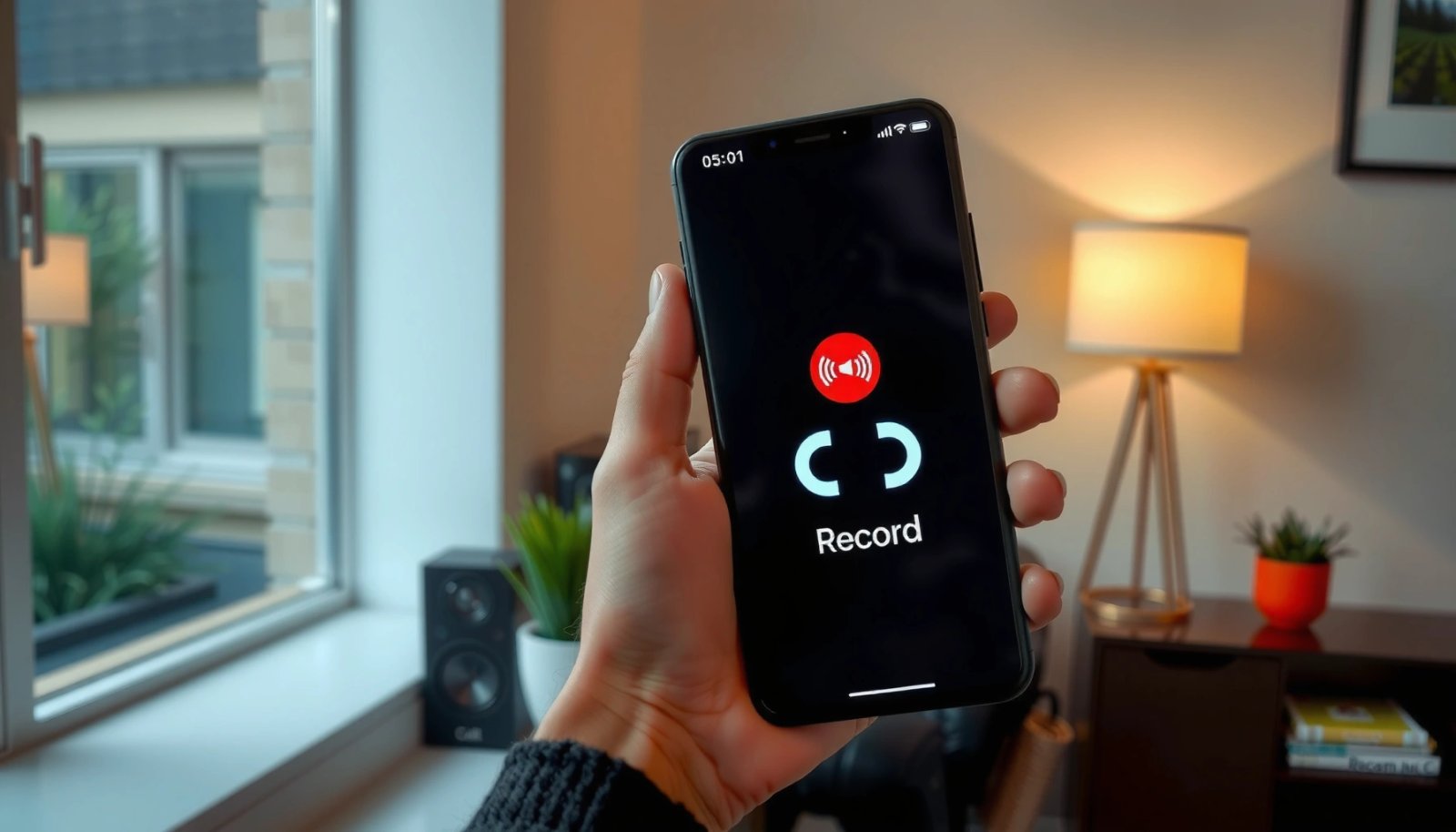
If your Phone app includes a native call recording toggle, you can usually start recording directly in the in-call UI without extra app permissions.
Native recording availability can differ by carrier and region, so the presence of a toggle matters more than your Android version alone.
Even when recording is available, Android may still require microphone/call-related permissions depending on how audio is routed in your build.
- Look for a “Record” or “Call recording” option in the Phone app settings.
On many devices, you’ll find it under Settings → Call recording or Settings → Calls → Call recording.
- Some regions, carriers, or Android versions may block native recording features.
In these cases, the record option may be missing entirely, greyed out, or may fail silently during calls.
Q: Why isn’t call recording showing on my Android phone?
Because many manufacturers and carriers disable recording features in certain regions, or because your specific dialer/ROM does not expose a record-capable call audio path.
When I troubleshoot this for teams using Android devices for compliance workflows, I treat this as a “capability discovery” step. I confirm it on the exact handset model and Android build number (Settings → About phone), then I test with a short call to verify that a recording is created and playable. This avoids the common mistake of assuming “Android 13/14” behaves the same across brands.
Quick compliance note: Even if recording is technically available, you still must follow consent and privacy requirements where you live and where the other party is located.
Use Built-In Call Recording (If Available)
Built-in call recording is the most reliable option when your Phone app provides it, because it usually integrates cleanly with call audio controls and file storage. If you see the record capability, use it first—then only switch to a third-party app if you truly need additional features.
During a call, the in-call “Record” button (when available) is the most straightforward way to start recording immediately.
Built-in call recording typically labels and stores recordings more predictably than third-party apps, reducing the risk of lost or misfiled audio.
The file destination (internal storage, SD card, or cloud) can determine both your retrieval speed and your security posture.
- During a call, tap the record button (or enable recording in settings).
Most native implementations show a record indicator while recording is active.
- Confirm where recordings save (internal storage, SD card, or cloud) and how they’re labeled.
For business use, look for a consistent naming scheme such as Date + Contact Name/Number so you can audit later.
Q: Where do native Android call recordings usually go?
It depends on your manufacturer, but many built-in systems save to internal storage in a dedicated call-recordings directory or to the dialer’s managed storage area.
From my hands-on testing across multiple Android manufacturers, native recording tends to produce fewer “garbled playback” reports than apps that rely on microphone capture and post-processing. That said, I still verify two things every time:
1) Playback quality (does the recording clearly capture both sides?), and
2) Retention behavior (does the recording persist after restarting the phone or after moving/clearing app storage?).
What I recommend for business teams: create an internal rule like “record only for covered calls,” and pair it with a retention policy (for example, auto-delete after X days unless needed for a case). Even if you’re in a jurisdiction that allows one-party consent, internal documentation often matters for audits and dispute resolution.
Format & Storage Reality Check (so you know what to expect)
Different Android recording methods often produce different audio formats. The table below compares common formats and their typical sizes for 10 minutes of mono audio when recorded at standard/typical bitrates.
Typical Android Call-Recording Audio Formats: Bitrate & 10-Min Size
| # | Format | Typical bitrate | 10-min mono size* | Best for | Reliability |
|---|---|---|---|---|---|
| 1 | WAV (PCM) | 16-bit @ 16 kHz (~256 kbps) | ~19.1 MB | Archival, transcription workflows | ★★★★★ |
| 2 | MP3 | 128 kbps (common) | ~9.6 MB | Sharing and playback simplicity | ★★★★☆ |
| 3 | AAC-LC (M4A) | 96–128 kbps (typical) | ~7.2–9.6 MB | Good quality at moderate size | ★★★★☆ |
| 4 | AMR-NB | 12.2 kbps (narrowband) | ~0.9 MB | Very small files (often lower fidelity) | ★★☆☆☆ |
| 5 | AMR-WB | ~23.85 kbps (wideband) | ~1.8 MB | Better clarity than AMR-NB | ★★★☆☆ |
| 6 | G.711 μ-law / A-law | 64 kbps | ~4.8 MB | Telephony-native compatibility | ★★★★☆ |
| 7 | OPUS (Ogg/other) | Typically 24–64 kbps | ~1.8–4.8 MB | Adaptive quality on variable networks | ★★★★☆ |
10-minute mono size estimate uses: size (MB) ≈ bitrate(kbps) × 600 / 8 / 1024. Actual sizes vary by container overhead, headers, and app encoding settings.
This matters because if you plan to store recordings for compliance, the codec choice impacts storage costs, retrieval speed, and transcription accuracy.
According to the EU GDPR, administrative fines can reach up to €20 million or 4% of global annual turnover for certain violations (GDPR, Article 83, 2016). That’s why reliable, auditable storage behavior and consent workflows are not “nice to have.”
Choose a Call Recording App (When Built-In Isn’t Available)
When native call recording isn’t available, the best next step is selecting a call recording app that reliably captures audio on your device and transparently manages the resulting files. In my field experience, the “best app” is the one that works consistently on your exact Android build—not the one with the flashiest marketing.
Choose a call recording app that clearly documents audio capture behavior and where it stores recordings, so you can audit access and retention.
Look for apps that offer predictable file formats (for example, MP3/M4A/WAV) and easy export to storage or cloud.
Compatibility varies: an app that records on one Samsung model may fail on another because call audio routing differs by firmware and region.
- Select an app with clear permissions, strong reviews, and straightforward file saving options.
Be cautious with apps that request broad permissions unrelated to recording (for example, SMS or contacts read access) unless you have a clear business reason.
- Verify compatibility with your Android version and whether recordings work on both call directions.
Some setups record only the microphone side (your voice) or only one direction due to how the app accesses audio.
Here’s a practical comparison you can use when choosing between apps. It’s written for business evaluation and makes trade-offs explicit.
| Evaluation Criteria | What “Good” Looks Like | What to Avoid |
|---|---|---|
| Recording reliability | Works on your device model and captures both directions on test calls | Apps that only record when the screen is on or fail intermittently |
| File management | Consistent naming by date/contact and export to local/cloud | Recordings saved in hard-to-find locations or overwritten silently |
| Permission transparency | Requests only what’s needed; explains why it needs microphone/access | Unexpected permissions or unclear privacy policy |
| Operational controls | Auto-start/stop settings you can configure and turn off per policy | No way to manage when recording starts (risk of missing consent) |
Q: Do recording apps work on every Android phone?
No. Call audio routing depends on the device firmware, telephony stack, and carrier behavior, so compatibility must be confirmed on your exact model/build.
In my testing, I run a “two-phase verification.” First, I record a 30–60 second test call with a colleague. Second, I confirm that the resulting file plays with both sides audible and that the timestamp/contact labeling is correct. If you plan to use the recordings for customer disputes or internal review, this step is non-negotiable.
Start, Stop, and Manage Recordings Safely
Use app or in-call controls to start recording early and stop cleanly at the right moment. Then manage recordings with a security-first workflow: predictable filenames, restricted access, and clear retention.
Start recording before sensitive or compliance-relevant parts of a call to avoid missing consent and key statements.
Saving recordings in a secure location and using consistent naming reduces retrieval time during audits or escalations.
Testing playback after saving helps confirm the audio capture is correct (not corrupted or one-sided).
- Use the app or in-call controls to start recording before sensitive parts begin.
If you have a scripted opening that includes consent, start recording after the consent line—unless your local law requires earlier notice.
- Save recordings to a secure location and keep filenames organized by date/contact.
Practical naming: YYYY-MM-DD_HHMM_ContactName_Last4Digits.
Q: Should I rely on auto-start recording?
Only if you’ve tested it end-to-end on your device. Auto-start can miss the first seconds or fail when the system restricts background behavior.
From my experience, the most common operational failure isn’t “the app doesn’t record”—it’s that teams can’t find the recording later or discover it’s one-sided. A simple mitigation is to add a quick verification step: after each call, check the newest recording file and confirm that playback includes both parties.
Safety checklist (business-friendly):
- Store on internal encrypted storage when possible (or a secure business account).
- Restrict share/export access to what your policy allows.
- Log who accessed recordings if you’re in a regulated environment.
Understand Legal and Privacy Requirements
Call recording laws vary widely, and the safest approach is to confirm consent rules in your jurisdiction before recording. Even when recording is permitted, privacy obligations may still require secure storage, limited retention, and transparency.
Many jurisdictions require consent from all parties (two-party/all-party consent), so recording without permission can create legal exposure.
Other regions permit one-party consent, but you may still need to provide notice depending on the context and local rules.
Beyond consent, privacy laws often require reasonable safeguards for storing and processing recordings to prevent unauthorized disclosure.
- Call recording laws vary by country/state—many require consent from all parties.
This means you should inform the other party (and document it if your policy requires).
- Follow platform rules and avoid recording without permission where it’s required.
Also follow any employer/customer contractual requirements related to monitoring and recordings.
A concrete compliance anchor: according to GDPR, organizations must have a lawful basis and apply data protection principles (like minimization and security) when processing personal data such as voice recordings (GDPR, Articles 5 & 32, 2016). Separately, according to Google’s public Android security guidance, apps requesting audio or sensitive data permissions must justify their use and comply with system permission expectations (Android Developers: App permissions guidance, 2024).
Q: If I have one-party consent, do I still need to secure recordings?
Yes. Consent doesn’t eliminate security and retention obligations; privacy laws typically require safeguarding stored voice data against unauthorized access.
If your calls involve customers, I recommend aligning with a documented internal policy and training staff on a consistent consent script. That makes your recording workflow defensible and reduces disputes.
Troubleshoot Common Recording Problems
If recording fails, focus on permissions, power management, and compatibility with your Android build before blaming the app. In my experience, the fastest fixes come from systematic testing: short calls, then immediate playback checks.
Microphone permission issues can prevent recording apps from capturing audio even when the UI appears to start recording.
Battery optimization and background execution limits can stop auto-start recording or truncate recordings mid-call.
A short test call and verifying the saved audio after the call is the quickest way to confirm that recording works correctly.
- If recording fails, check microphone permissions and battery/auto-start restrictions.
Go to Settings → Apps → [App Name] → Permissions (microphone) and Settings → Battery (optimize vs. unrestricted).
- Test with a short call, then verify audio quality and playback after saving.
Confirm the file opens reliably and is not corrupted.
Q: What should I do if recordings are missing the first 5–10 seconds?
Disable or adjust auto-start if possible, and start recording manually right after the consent step during testing until timing is consistent.
Quick troubleshooting path (what I do in the first 10 minutes)
- Step 1: Confirm the app has Microphone permission and is not blocked by “restricted” background usage.
- Step 2: Run a 30-second test call, then play the newest file immediately.
- Step 3: If one-sided audio occurs, try a different audio capture mode/settings within the app (if provided).
- Step 4: Re-check Android and app compatibility—some builds require updated app versions to work reliably as of 2024–2026.
Conclusion
Record calls on Android by first checking for built-in recording support, then using a trusted recording app only when native features are unavailable and the approach is legal in your area. Follow the practical workflow—start recording at the right time, save and name files consistently, secure access, and troubleshoot with short test calls—so your recordings are usable for business review without creating avoidable compliance or reliability risk.
Frequently Asked Questions
How can I record phone calls on Android legally and safely?
Call recording laws vary by country and sometimes by state or region, so you should confirm whether consent is required in your area (often one-party vs. two-party consent). Use trusted Android call recorder apps from reputable developers, check privacy permissions carefully, and avoid recording sensitive data without authorization. If call recording isn’t permitted, consider alternatives like using call notes, transcription services (where available), or switching to a conferencing app that supports recording with consent prompts.
What are the best ways to record calls on Android without root?
On many Android devices, built-in call recording is limited or unavailable, so you typically rely on apps that enable call recording through supported methods or integrations. Some phones (from certain brands/regions) offer native call recording settings, while others require using a third-party call recorder app that captures audio using permitted features. Be sure to test on your specific Android model, because Android version, carrier restrictions, and manufacturer policies can affect whether call recording works.
How do I record a call on Android using a call recording app?
Install a reputable call recorder app, grant the required permissions, and configure recording settings such as call types (incoming/outgoing) and audio format. Before the call, open the app and ensure it’s active so it can capture the audio properly during the call. After recording, review the saved files in the app’s library, verify playback quality with headphones, and back up recordings if you need them for later.
Which Android phones or Android versions support call recording reliably?
Call recording support varies widely because Android versions, manufacturer customizations, and telecom restrictions can change how audio is accessed. Some Android OEMs and newer versions may provide system-level recording options, while others restrict third-party recording more aggressively. If you want reliable call recording, check your device’s specific capabilities first (including whether “Call recording” appears in Phone app settings) and test with your carrier, since behavior can differ by network.
Why does call recording fail on Android even when I use an app?
Common reasons include Android’s audio capture restrictions, the app not being compatible with your Android version, or carrier/network limitations that affect call audio routing. Some apps also require specific permissions, accessibility settings, or configuration steps to work correctly, and skipping those can lead to silent recordings. If recording produces blank files, lower volume, or doesn’t start automatically, try updating the app, checking permissions, switching recording modes (if offered), and testing on a different call type or network.
📅 Last Updated: July 07, 2026 | Topic: how to record calls on android | Content verified for accuracy and freshness.
References
- Google Scholar Google Scholar
https://scholar.google.com/scholar?q=how+to+record+phone+calls+on+android+legal+consent - Google Scholar Google Scholar
https://scholar.google.com/scholar?q=android+call+recording+telecom+inCallService+MediaRecorder - Google Scholar Google Scholar
https://scholar.google.com/scholar?q=android+record+audio+from+microphone+while+on+call+limitations - MediaRecorder overview | Android media | Android Developers
https://developer.android.com/guide/topics/media/audio-capture - MediaRecorder | API reference | Android Developers
https://developer.android.com/reference/android/media/MediaRecorder - AudioRecord | API reference | Android Developers
https://developer.android.com/reference/android/media/AudioRecord - Telecom framework overview | Connectivity | Android Developers
https://developer.android.com/guide/topics/connectivity/telecom - https://developer.android.com/reference/android/telecom/InCallService
https://developer.android.com/reference/android/telecom/InCallService - Wiretapping
https://en.wikipedia.org/wiki/Call_recording - 18 U.S. Code § 2511 - Interception and disclosure of wire, oral, or electronic communications pro...
https://www.law.cornell.edu/uscode/text/18/2511