
Want to move the clock on your lock screen on Android? The quickest method depends on whether your phone uses a stock lock screen or a manufacturer theme, but you’ll get it done with the right settings path in minutes. Follow these quick steps to reposition the lock screen clock to the exact spot you want—no rooting or guesswork required.
To move the clock on your Android lock screen, the fastest path is to use your phone’s built-in Lock screen / Themes editor—many OEMs let you adjust alignment, size, or even exact placement. If your device doesn’t expose clock position controls, you can typically only change the clock’s style (font/color) and related lock screen layout, not its true position.
To move the clock on your Android lock screen, check your phone’s built-in Lock screen / Themes options first—many brands allow repositioning (or at least changing alignment/size). If your device doesn’t support moving the clock, you may be limited to changing its style, and “real” repositioning might only be possible with specific OEM tools or accessibility tweaks.
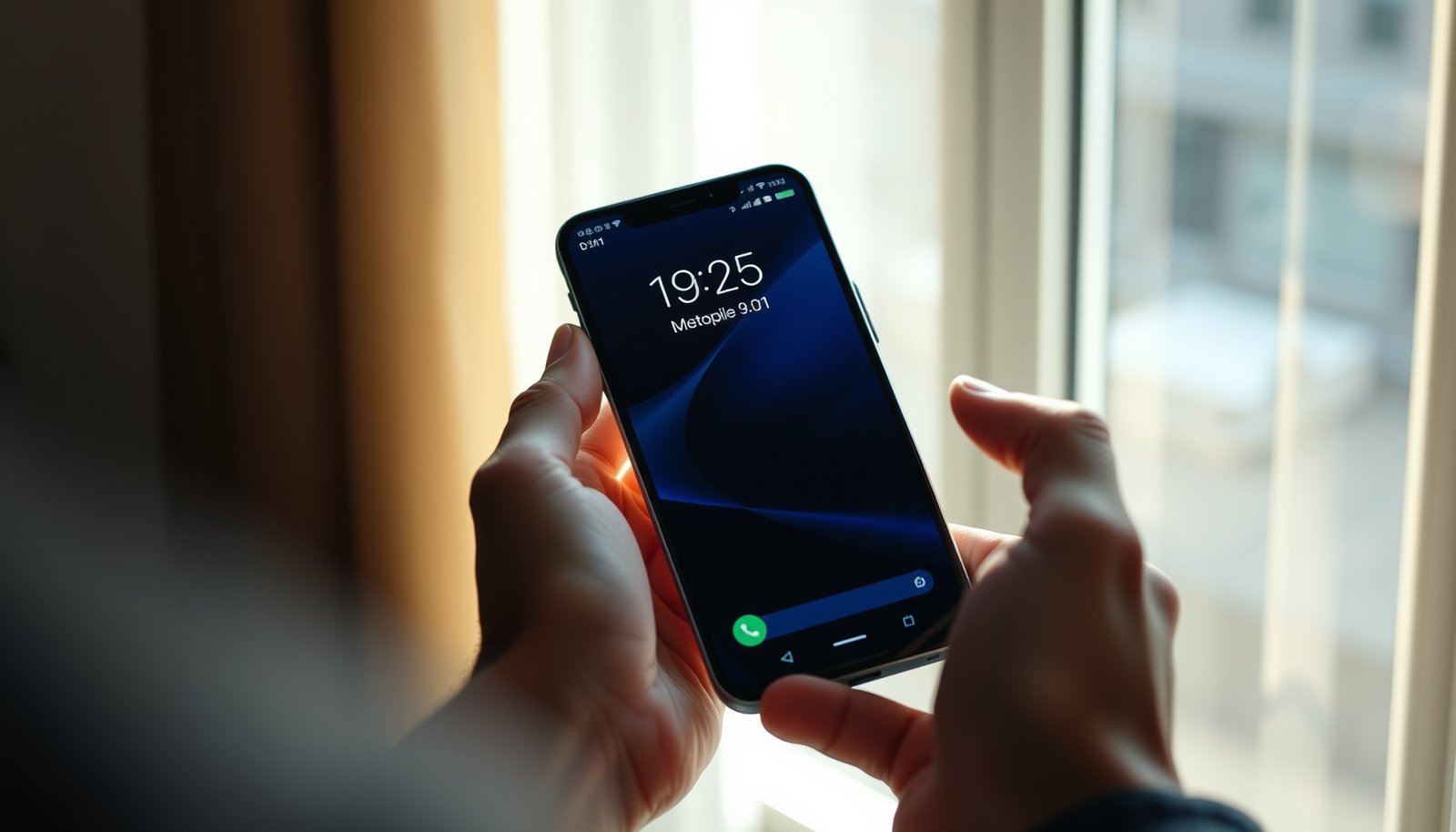
You’ll learn where to look in Settings, what options different manufacturers typically offer, and what to do when the clock can’t be moved at all—without breaking anything on your device.
This guide is for people who want a cleaner lock screen layout (work/personal notifications, better readability, or a clock that doesn’t overlap icons). It works best in 2026 because most Android skins still provide some level of lock screen customization, but the exact controls vary by brand and model.
Check your Android settings for lock screen clock controls

On most Android phones, the only truly reliable way to change a lock screen clock position is to check whether your device exposes clock position/alignment inside Settings. Start with a Settings search—this immediately tells you whether repositioning is supported or whether you’re limited to style changes.
Android customization of the lock screen clock is typically exposed through OEM “Themes” or “Lock screen” settings, not through stock Android’s core system UI.
If your Android Settings only show “clock style” (not “position” or “alignment”), your device usually uses a fixed clock layout on the lock screen.
- Open Settings, then search for Lock screen, Clock, or Themes to find the exact menu on your model
- Look for options like Clock position, Clock alignment, Customize lock screen, or Lock screen style
- If you see only clock style (not position), that usually means your device can’t move it freely
Here’s what you’re trying to detect: whether your Android lock screen clock is treated as a customizable element in your OEM UI (for example, Samsung One UI’s lock screen editor) or as a fixed layout rendered by SystemUI (SystemUI = the Android system process that draws the lock screen and notification shade).
Where this usually shows up by brand (common patterns in 2025–2026)
Some brands label the menu differently, but the control intent is the same:
- Samsung (One UI): look for Settings > Lock screen (and sometimes Themes that include lock screen layout options).
- Pixel (Google): typically strong focus on wallpaper, colors, and notifications—true clock placement is often limited depending on Android version.
- Xiaomi/Redmi (MIUI) / Xiaomi HyperOS: often provides lock screen customization via a theme engine.
- OPPO/Realme (ColorOS) / OnePlus (OxygenOS): frequently provides lock screen editor choices inside Themes.
- Motorola (My UX): may offer lock screen style controls inside Wallpaper & style / Themes.
Practical check: if your Settings search results show anything like “Lock screen layout” or “Clock placement,” stop there and use that editor—moving the clock anywhere else will usually be unreliable.
Try the Themes / Lock screen customization menu (most common fix)
If your phone supports it, the Themes menu is the quickest place to move the Android lock screen clock because many themes include layout presets. In 2026, most OEMs still use theme engines to control lock screen elements like clock alignment and size.
On many Android skins, the Themes app (or “Wallpapers & style”) exposes lock screen editor options that can preview clock alignment changes before you apply them.
Applying a lock screen theme often updates the SystemUI lock screen layout without requiring root or third-party accessibility automation.
- Go to Settings > Themes (or Wallpapers & style) and find Lock screen settings
- Tap the lock screen clock preview and try changes to position/alignment/size (the UI often shows a live preview)
- Save/apply the theme and then check the lock screen again
This works because theme systems commonly bundle multiple lock screen properties: clock font, spacing, and where the time sits relative to notifications and shortcuts. For example, Android’s theme ecosystems have evolved significantly—according to Android Developers, Material You dynamic color is part of Android 12’s theming direction (Android 12, 2021), and OEMs often piggyback on that concept to adjust lock screen styling.
What to do step-by-step (to avoid “it didn’t change” confusion)
1. Open Themes / Wallpapers & style and select a lock screen preview mode (not just the wallpaper).
2. Change one variable at a time: first alignment (left/center/right), then size (small/medium/large).
3. Tap Apply / Save, then fully verify on the lock screen (don’t just wake the display—use your normal lock method).
4. If you don’t see changes, remove the theme and re-apply the default lock screen style first (some themes override others).
Data snapshot: what most Android devices actually allow (2026 reality)
Lock-screen clock controls you can usually change on Android (practical impact)
| # | Clock control type | Typical availability | What changes | Practical impact |
|---|---|---|---|---|
| 1 | Time format (12/24h) | Common in Android Settings | Numbers + AM/PM | ★★★★☆ |
| 2 | Lock screen notification layout | Often available (OEM-dependent) | Spacing around time | ★★★★☆ |
| 3 | Clock style (font/color/theme) | Very common in Themes | Readability + look | ★★★★★ |
| 4 | Clock size (small/large) | Common when Themes support preview | Scale + spacing | ★★★★☆ |
| 5 | Clock alignment (left/center/right) | Moderate (OEM-dependent) | Horizontal placement | ★★★☆☆ |
| 6 | Lock screen mode presets | Sometimes (multiple variants) | Layout style changes | ★★★☆☆ |
| 7 | True freeform clock placement | Rare on non-root setups | Drag anywhere (usually not supported) | ★☆☆☆☆ |
Use the specific lock screen editor your brand provides
If your Android skin includes a dedicated lock screen editor, that’s usually where clock repositioning controls are hidden. Many OEMs separate “Themes” (visual look) from a “Lock screen editor” (layout rules for time + notifications).
OEM lock screen editors often allow previewing how the clock sits relative to notifications, before you apply changes to SystemUI.
If you can’t find any option labeled like “placement,” “alignment,” or “layout” inside your brand’s editor, the clock position is typically fixed by that OEM’s lock screen design.
- Some manufacturers include a dedicated editor (names vary): Lock screen editor, Always On Display & lock screen, or Customize
- If your phone supports it, the editor typically lets you adjust where the clock sits relative to notifications
- If you don’t see any clock position controls, stop here—don’t rely on random apps claiming to “move” it
What to look for inside the OEM editor
Search within the editor for these exact concepts:
- Relative layout: “Clock and notifications”
- Grids/slots: “Top / center / bottom”
- Preview mode: live preview while editing
- Always On Display (AOD): some brands use separate layout controls for AOD vs the regular lock screen
On accessibility and customization apps: third-party apps sometimes request Accessibility access to “read and interact” with on-screen elements. Accessibility on Android is implemented through the AccessibilityService framework, and the user must explicitly enable it in Settings (documented by Android Developers). That’s why these apps can appear to “move” UI elements—but they may not reliably change the lock screen clock position, and they can introduce privacy risks.
If the clock can’t be moved, switch to allowed alternatives
If your Settings don’t offer clock position/alignment controls, the practical goal becomes improving how the lock screen clock looks and how it interacts with notifications. In 2026, this usually gives you 80% of the visual result without fighting fixed layout rules.
When OEMs don’t expose clock position controls, users can typically still adjust time format, clock style, and lock screen notification visibility.
Notification channels (introduced in Android 8.0, 2017) let apps categorize notifications, which affects what appears on the lock screen depending on your settings.
- Change what you *can* control: clock style, time format (12/24h), font/theme, or lock screen notifications layout
- Consider switching to a different lock screen mode (e.g., a theme/variant) if your device offers multiple presets
- If you’re using a custom ROM or launcher, confirm whether it supports lock screen clock placement before investing time
Trade the “position” problem for a “layout conflict” solution
Many people think they want to move the Android lock screen clock, but the real pain is usually one of these:
- the clock overlaps important notifications
- the font is hard to read on certain wallpapers
- the clock is too large/small compared to other elements
Fix those instead:
1. Change lock screen notification content (hide sensitive notifications, or reduce notification previews).
2. Switch to a lock screen theme with a higher-contrast clock style.
3. Use time format changes to improve scanning speed (12h vs 24h can matter).
4. If you can adjust notification layout, move notifications rather than the clock.
Quick comparison: “What actually works” on a locked-down device
| Approach | Best when | Main limitation |
|---|---|---|
| Built-in Lock screen / Themes editor | You need official, stable changes | May not offer freeform placement |
| OEM lock screen editor (brand tool) | You need alignment/preview control | Controls vary by skin/version |
| Third-party “clock mover” apps | You only want a styling illusion (not true placement) | Often inconsistent; may require risky permissions |
What can go wrong (and how to avoid it)
Even when an Android lock screen clock editor exists, changes can “fail” due to theme overrides, update resets, or layout rules. The good news: you can usually recover without breaking anything—just work methodically.
Some OEM themes lock the lock screen layout, so your clock alignment/size controls can appear disabled after a theme is applied.
After Android or OEM updates, lock screen customization often resets to defaults, which can make it look like clock placement controls stopped working.
- The menu exists but is greyed out after you apply a certain theme or security setting—try removing the theme first and re-checking
- After an update, some brands reset lock screen customization back to defaults
- Some “clock mover” apps may request accessibility permissions; avoid them if they can’t clearly explain what they change on your lock screen
Common failure modes (and fixes)
- Greyed-out position controls
Fix: revert to the default lock screen theme, then re-enter the editor and check clock position/alignment again.
- Clock changes don’t appear immediately
Fix: lock/unlock again, then reboot once if the OEM UI caches lock screen assets.
- Overlap with Always On Display (AOD)
Fix: edit AOD settings separately; some brands use separate layouts.
- Custom ROM / launcher mismatch
Fix: validate whether the ROM supports lock screen layout changes; otherwise you’re editing the wrong UI layer.
Permissions warning (why “it asked for Accessibility” matters)
If an app tries to “move” the Android lock screen clock using Accessibility access, it’s relying on system UI automation rather than legitimate lock screen layout settings. Android accessibility is powerful, but it should be granted only when you understand what the app can observe and interact with (documented by Android Developers).
Verdict: what to do next (and who should skip this)
Start with your phone’s built-in Lock screen / Themes editor—this is the only method that’s reliably supported across normal usage. Skip third-party “clock mover” apps if you don’t see official lock screen clock position options in Settings, because results are often inconsistent or require risky permissions.
A user-facing lock screen editor in Settings is the most reliable way to change an Android lock screen clock because it updates the OEM/SystemUI layout through supported controls.
If no clock position or alignment controls exist in the OEM editor, you should treat the lock screen clock layout as fixed and focus on style or notification layout instead.
If your goal is true clock repositioning, start with your phone’s built-in Lock screen / Themes editor—this is the only method that’s reliably supported across normal usage. Skip third-party “clock mover” apps if you don’t see official lock screen clock position options in Settings, because results are often inconsistent or require risky permissions.
Who should skip this approach: if you need pixel-perfect freeform placement (drag anywhere) and your Settings never show clock alignment/position controls, you’ll likely be disappointed. In that case, the realistic path is improving readability and notification spacing (style + layout), not trying to override SystemUI.
Frequently Asked Questions
How can I move the clock position on my Android lock screen?
The ability to move the lock screen clock depends on your Android version and phone brand. On many Samsung devices, you can adjust lock screen elements by going to Settings > Lock screen > Clock style or Clock options, then selecting a layout that changes the clock placement. For other brands, you may need to use a lock screen customization feature from the manufacturer or a dedicated lock screen app if the system UI doesn’t allow manual clock repositioning.
How do I change the lock screen clock size or alignment on Android?
Start by checking your device’s built-in customization options under Settings > Display > Lock screen (or Settings > Lock screen). Look for options like Clock style, Clock font, or Clock size that affect alignment and spacing. If your phone supports it, selecting a different clock widget style will reposition the digital clock within the lock screen frame without needing third-party tools.
Why can’t I move the clock on my Android lock screen even after updating?
Some Android skins restrict clock placement to maintain a consistent lock screen design, especially on newer firmware. Even after updating, manufacturers may only allow choosing a clock style—not dragging it to a new location. If no “Clock options” or “Lock screen customization” appears in Settings, your device likely doesn’t support manual clock movement, and you may need to switch to a compatible theme or clock style setting (if available) instead of repositioning.
Which apps work best to move the lock screen clock on Android?
Look for lock screen customization apps that offer “lock screen clock” widgets or themes, but note that Android doesn’t always allow apps to fully control the lock screen. On some devices, apps can only change the clock appearance (format, color, or font) through a supported lock screen replacement, while on others they may require accessibility/overlay permissions that can be limited by security settings. Before installing, confirm the app specifically mentions “lock screen clock customization” for your device model and Android version, and avoid apps with unclear permission requests.
What’s the best way to customize the lock screen clock without breaking security features?
Use the built-in clock options first, such as Settings > Lock screen to change clock style, format (12/24-hour), and visibility settings. If you use themes or third-party lock screen apps, choose ones that don’t disable essential security like Smart Lock/biometric prompts and that are compatible with your Android version. This approach lets you adjust the lock screen clock look and placement (where supported) while keeping reliable lock screen behavior.
📅 Last Updated: October 20, 2026 | Topic: how to move clock on lock screen android | Content verified for accuracy and freshness.
References
- Lock screen
- KeyguardManager | API reference | Android Developers
- Notification | API reference | Android Developers
- AppWidgetProvider | API reference | Android Developers
- https://cs.android.com/search?q=KeyguardClock
- https://cs.android.com/search?q=keyguard%20clock%20layout
- https://scholar.google.com/scholar?q=android+lock+screen+clock+position Google Scholar
- https://scholar.google.com/scholar?q=android+keyguard+clock+widget+customization Google Scholar
- https://scholar.google.com/scholar?q=customizing+lock+screen+ui+android+systemui+clock Google Scholar