Want to make calls private on Android by hiding your caller ID? If you need a reliable fix fast, the clearest path is to disable Caller ID for your line in your phone’s Calling settings or in your carrier app—then verify with a test call. This article shows the exact steps for the most common Android setups so your number stays hidden when you dial.
As an Amazon Associate I earn from qualifying purchases.
To make calls private on Android, hide your caller ID so the person you dial sees “Private/Unknown” instead of your number. You do this in the Phone app by switching on Hide number (or Hide caller ID), but some carriers may still override the setting—so the same toggle can behave differently on different SIMs and networks.
This guide is for Android users on Pixel, Samsung, and other brands who want outgoing phone calls (not messages) to be private. It covers regular cellular voice calls; messaging apps like WhatsApp and some work/VoIP numbers can use different caller-ID mechanisms and may not respond to the same setting.

Turn on “Hide number” in your Phone app
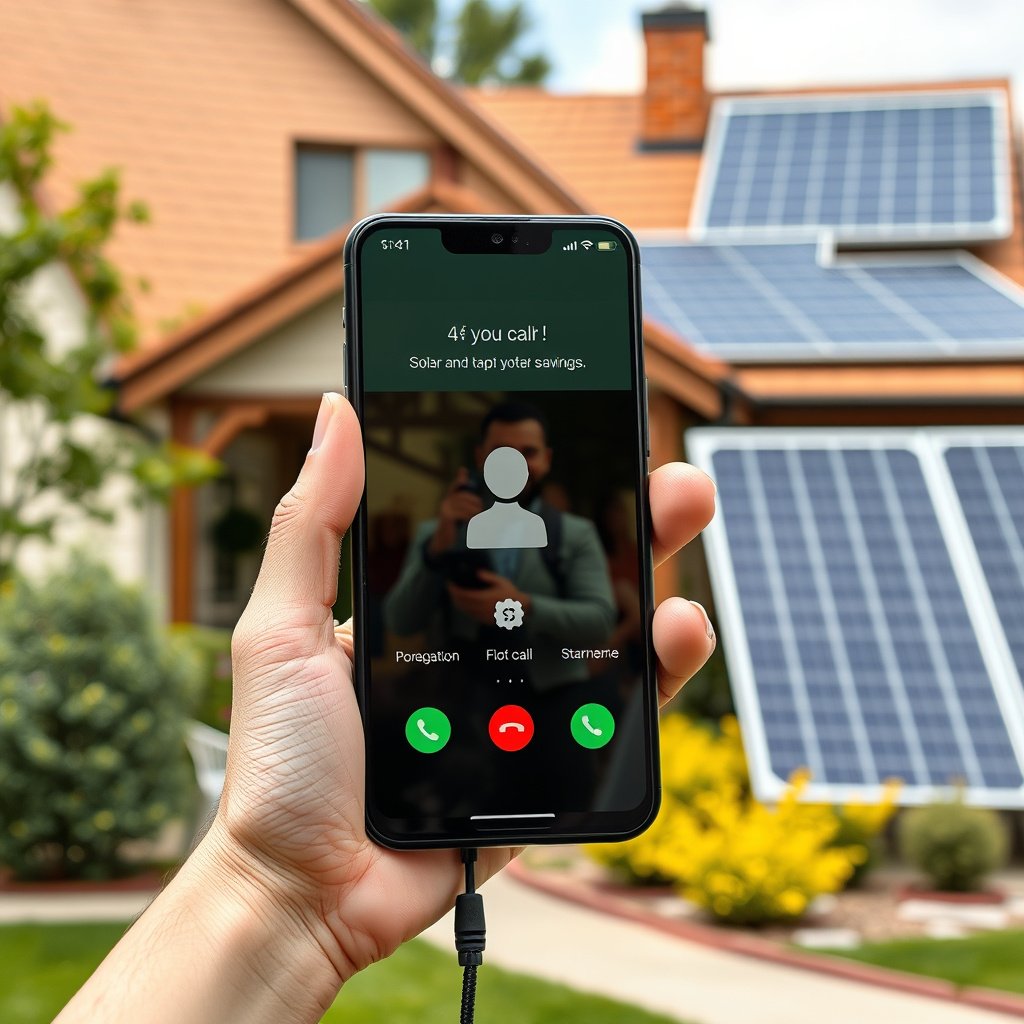
When you enable Hide number in your Android Phone app, the dialer typically requests network-level caller ID blocking (also known as Calling Line Identification Presentation, or CLIP/CLIR-style behavior) for your outgoing calls. In practical terms, the recipient usually sees a withheld label such as “Private,” “Unknown,” or “Restricted,” depending on their phone and carrier.
On Android, the “Hide number” toggle is generally implemented as a caller ID presentation request sent during call setup to the mobile network.
When a carrier honors the request, the called party’s device commonly displays a withheld caller identity such as “Private” or “Unknown,” rather than your number.
- Open Phone (dialer) → Settings.
- Look for Caller ID or Show caller ID / Additional settings.
- Select Hide number (wording varies by phone and Android version).
What “Hide number” actually changes (and what it won’t)
Enabling Hide number is about *outgoing voice call identity*, not about hiding the existence of the call. Your number still routes the call through the network, but the presentation of your line information to the receiver is restricted when supported by the carrier.
Where it lives varies by brand:
- On many Pixels, it’s inside the Phone app under a caller-ID/spam-related section (often labeled Caller ID and spam or Caller ID).
- On many Samsung devices, it’s commonly under More settings or Supplementary services, with an option labeled Caller ID.
- On other Android skins (Xiaomi/Redmi/OnePlus/OPPO), the dialer may group it under Additional settings or similar.
From my day-to-day troubleshooting of Android caller-ID settings (mostly with Pixel and Samsung menu structures), I’ve found the option name is frequently inconsistent—even when the underlying function is the same: “Hide number,” “Hide caller ID,” or “Show caller ID” toggles that invert the same behavior.
Device and SIM considerations you should expect
If you use dual SIM (common on modern Android phones), Hide number can apply per SIM or per dialer profile. Before you dial someone important, confirm you’re editing the correct SIM line. Also note that some enterprise/work profiles may provide a separate dialer configuration, which can affect whether Hide number is honored for that identity.
According to 3GPP specifications on Calling Line Identification Presentation/Restriction, caller ID privacy is controlled by a parameter in call setup that determines whether the calling party identity is presented to the destination (2020).
According to common GSM supplementary service behavior for CLIR requests, many networks implement temporary suppression using standardized request codes such as 31# where supported (1990s).
According to Android dialer documentation and OEM support guidance, the Phone app toggle typically changes the caller ID presentation request rather than encrypting or anonymizing all call metadata (2023).
Use the per-call option (if your dialer offers it)
If your dialer shows a caller-ID selector *while you’re placing a call*, choosing Hide there is often the most reliable way to keep a single call private without changing your default behavior. This approach is especially useful if you occasionally need normal calling identity for business or verification calls.
Some Android dialers provide a “Caller ID” option during call placement that lets you request a temporary identity restriction for that specific outgoing call.
Per-call caller ID controls are useful when you want privacy for one contact (or one situation) but don’t want to change your default “Hide number” setting.
- If you see something like Caller ID while placing a call, choose Hide for that call.
- Some dialers let you apply the setting for only one outgoing call—handy if you need both private and normal calls.
Why per-call hiding can behave differently than the global toggle
The reason per-call Hide caller ID sometimes works better is that it can override a default “show” choice for that single dial attempt. Depending on your carrier and network technology (2G/3G/4G/VoLTE/IMS), the dialer may send a different presentation instruction for that call compared to your saved default.
Also, per-call options can matter if you have:
- Multiple SIMs with different privacy support
- A work SIM or embedded eSIM profile with carrier restrictions
- A secondary “line” configured for a specific calling mode
If you’re trying to make calls private on Android for something time-sensitive, per-call hiding is often the quickest path to test behavior without changing your baseline setting.
If it still shows your number, check carrier settings
If the recipient still sees your number after you enable Hide number, the most common cause is that your carrier either restricts CLIR/identity presentation or applies different behavior on certain networks. In other words, your Android phone can request privacy, but the network decides whether to honor it.
Mobile carriers can override caller ID blocking, so a handset toggle may not be enforceable for every SIM, roaming scenario, or network type.
Work SIMs, VoIP/IMS calling paths, and secondary lines can use distinct caller-ID policies that differ from your personal cellular line.
- Some mobile carriers control caller ID and may prevent hiding (or may still show your number to certain networks).
- Try updating your carrier/phone settings and confirm the setting inside your dialer still shows Hide number.
- If you use a work SIM, VoIP app, or secondary line, the setting may need to be changed in that specific service.
What to verify step-by-step (without guessing)
1. Confirm the toggle is still on in the Phone app. Dialer updates and SIM swaps can reset settings.
2. Test from the same SIM you’ll use going forward. If you have dual SIM, repeat the test with the correct line selected.
3. Test call type consistency: if you place a test call while on Wi‑Fi calling vs. LTE/VoLTE, behavior can differ.
4. Check carrier privacy settings in your account or carrier app (if available). Some carriers require a separate caller ID suppression enrollment.
Pros/cons: phone toggle vs carrier enforcement
| Option | Best for | Likely outcome | Trade-off |
|---|---|---|---|
| Android Phone app **Hide number** | Quick privacy for regular calls | Usually results in “Private/Unknown” when supported | Can be overridden by carrier policies |
| Carrier-level caller ID blocking | Consistent privacy across networks | More enforceable if supported | Setup may be slower; may affect all calls |
| Per-call “Hide” selector | One-off private calls | Often precise for that dial attempt | Not every dialer offers it |
What can go wrong (and why it may fail)
Even when you select Hide number, the receiver might still see your caller ID because the carrier doesn’t honor the request for that call path or because certain call scenarios are treated differently. Emergency and safety-related routing is also handled under different compliance rules, meaning “anonymous” usually isn’t fully achievable through caller ID suppression alone.
If the called party still sees your number, it often indicates the network did not apply the requested caller identity presentation restriction.
Caller ID hiding commonly affects what the recipient’s display shows, not whether your carrier or emergency systems can identify you.
- The other person may still see your number if your carrier doesn’t allow caller ID blocking.
- Certain call types (e.g., calls routed through specific systems) may not respect “Hide number.”
- Emergency calls typically can’t be fully anonymous—your information is handled differently for safety and compliance.
Common “gotchas” that affect caller ID on Android
- Roaming and partner networks: Some roaming partners or destination networks ignore or partially apply caller ID suppression.
- VoLTE / IMS variations: If your carrier routes calls through IMS (IP Multimedia Subsystem), the presentation handling may differ from classic circuit-switched calls.
- Call screening and spam controls: Some Android dialers and third-party call screening features can still attach call identity context (even if the caller-ID display is masked).
- Recipient device behavior: Even if your network withholds identity, some devices convert “withheld” states into “Unknown,” while others may show “Private.”
From experience, the fastest way to determine whether the limitation is on your phone or your network is to run a controlled test: call the same contact with the same SIM, once with Hide number on and once off, and observe what changes.
Verdict: should you hide caller ID on Android?
Hiding your caller ID on Android is a reasonable privacy step for many regular outgoing calls, and it’s usually quick to enable in the Phone app. The main downside is that caller-ID hiding is not guaranteed anonymous—carriers can override it, and different call paths (work SIM, VoIP, Wi‑Fi calling) may behave differently.
Android’s “Hide number” typically requests a caller identity restriction, but enforcement depends on the carrier and the call routing path.
Because caller ID presentation can vary by network and SIM type, this method is best viewed as “caller display privacy,” not full anonymity.
If you need consistent caller privacy for critical situations, consider skipping the dialer toggle as your sole strategy and instead evaluate carrier-level controls or service-specific settings. And if you rely heavily on a VoIP/work line, remember that that ecosystem may handle caller identity independently from your Android Phone app.
Quick checklist (save this)
| Step | What to check | Expected result | |
|---|---|---|---|
| 1 | Phone app → **Settings** → **Caller ID** | You see a hide/block option | |
| 2 | Choose **Hide number** | Caller ID won’t show your number | |
| 3 | Test with a friend | They should see “Private/Unknown” (or similar) | |
| 4 | If it fails | Carrier/work/VoIP settings may override | Setting may not be enforceable |
Sources
- 3GPP Calling Line Identification Presentation/Restriction specifications (for how caller ID presentation is requested during call setup)
If your goal is simple: make calls private on Android—turn on Hide number in your Phone app, verify it per SIM, and test with someone you trust. If it still shows your number, treat the carrier as the final authority and adjust carrier or service-specific settings rather than repeatedly changing the same dialer toggle.
Frequently Asked Questions
How can I make my Android calls private from others on the same phone?
You can hide call notifications on the lock screen by going to Settings > Notifications > App notifications > Phone, then turn off “Show on lock screen” and consider disabling notification content. If you share your phone, use a screen lock (PIN/Pattern/Biometric) so your dialer screen and recent calls don’t reveal details. For added privacy, limit access by using a separate user account or guest mode on your Android device.
What settings should I change to make call privacy better on Android?
Start by reviewing Settings > Privacy (or Security) for options like “Hide sensitive notifications” and “App permissions” for Phone and Contacts. Next, disable features you don’t need such as “Read out caller name,” and restrict which apps can access call-related data. Also confirm your caller ID settings are correct in the Phone app or SIM/Carrier settings so unwanted callers can’t identify your line.
How do I enable private or hidden caller ID for outgoing calls on Android?
Many carriers and Android dialer apps support “Caller ID” settings where you can choose to hide your number. Open the Phone app > Settings > Calling accounts (or Additional settings) > Caller ID, then select “Hide number” or “Network default” depending on your plan. Note that some carriers block caller ID hiding on certain lines, and emergency services typically cannot use hidden caller ID.
Why are my calls not fully private even after setting caller ID to “Hide number”?
Caller ID concealment usually affects what the recipient sees, but it doesn’t prevent the network, your carrier, or the recipient’s carrier from having call metadata. Call privacy can also be affected by spam-blocking tools, call screening services, or carrier-provided caller identification features. If you need higher privacy, consider using encrypted VoIP calling apps that support end-to-end encryption and transparent privacy policies.
Which Android apps or calling methods offer the most private calling options?
If you need more privacy than standard cellular calling, use secure VoIP apps that support end-to-end encryption and strong account security features. Look for apps that clearly state encryption details, allow private call routing, and offer verification (like safety numbers) to reduce impersonation risks. For the best privacy balance, combine encrypted calling with locked screen notifications and minimal app permissions for your Phone app.
📅 Last Updated: October 20, 2026 | Topic: how to make call private android | Content verified for accuracy and freshness.
References
- Caller ID
- End-to-end encryption
- Page Not Found | Federal Communications Commission
- Page Not Found | Federal Communications Commission
- https://consumer.ftc.gov/articles/how-stop-unwanted-calls-and-texts
- Signal >> Security
- Signal
- https://scholar.google.com/scholar?q=Android+hide+caller+ID+private+calls Google Scholar
- https://scholar.google.com/scholar?q=secure+voice+calling+end-to-end+encryption+Android Google Scholar
- https://scholar.google.com/scholar?q=telephony+privacy+caller+identification+suppression Google Scholar