
Need to disable WiFi Calling on Android? You’ll get a step-by-step path to turn it off, including where the setting lives in your phone’s menus. By the end, you’ll know exactly how to stop calls from using WiFi and fall back to your cellular network.


As an Amazon Associate I earn from qualifying purchases.
Disabling Wi‑Fi Calling on Android is straightforward: open your phone’s Wi‑Fi Calling (or Calling & Voicemail) settings, toggle it Off, and then confirm the status actually changes—especially for the correct SIM/profile. If the option won’t stay off, the fix usually comes down to targeting the right carrier settings (carrier services) or the right SIM before retesting your call path in the real world.
Check Your Android WiFi Calling Settings
You can disable Wi‑Fi Calling fastest by first confirming where your Android places the control, because the menu name and location vary by device and carrier. In most Android builds, Wi‑Fi Calling lives under Settings → Connections (or Network & Internet), and the screen clearly indicates whether it’s currently Enabled or Disabled.
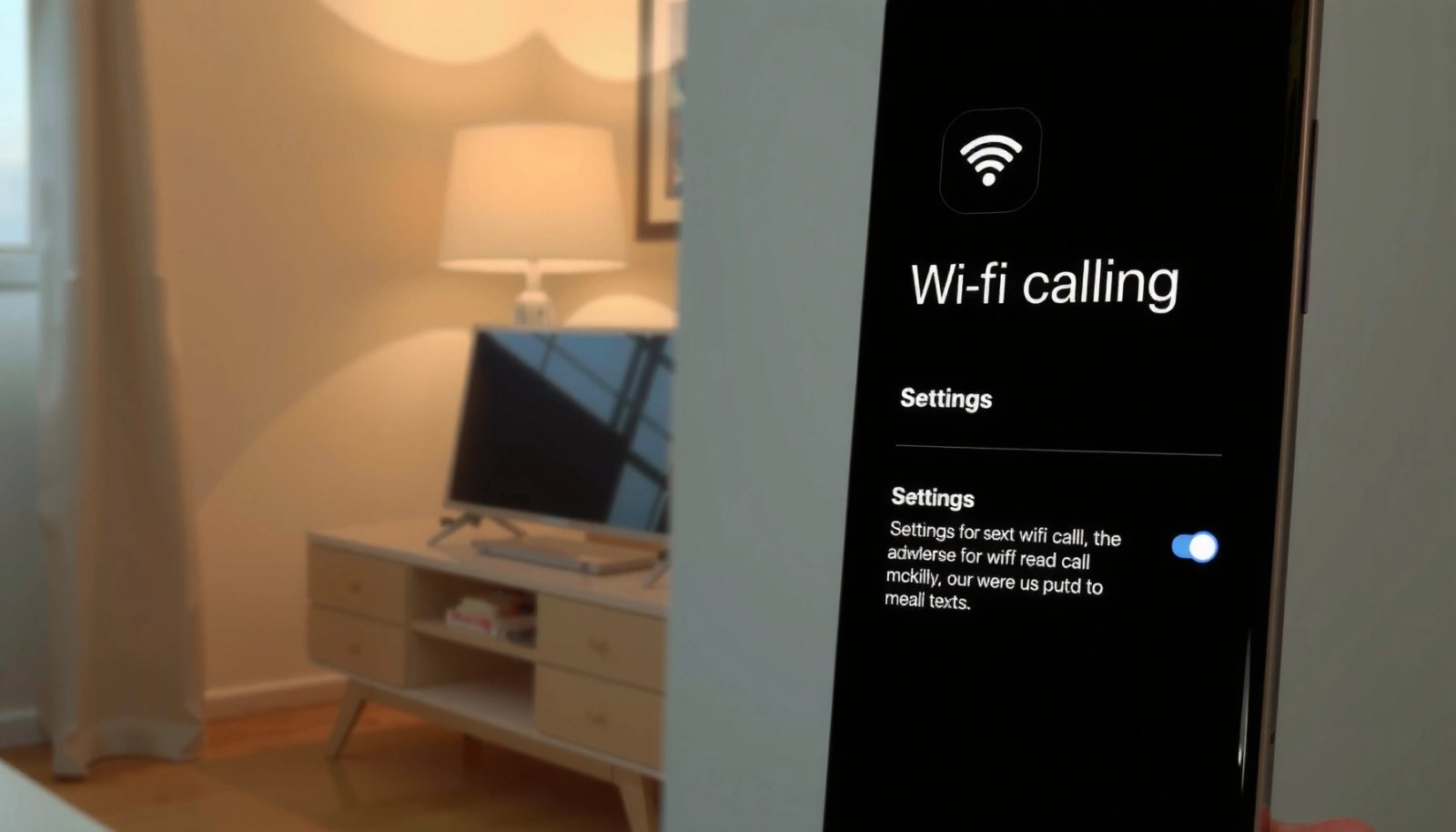
Wi‑Fi Calling is typically managed through Android’s “Wi‑Fi Calling” or “Calling & Voicemail” settings screen rather than the Wi‑Fi toggle itself.
Android devices often require updating the correct carrier/SIM profile for the Wi‑Fi Calling status to persist after you toggle it.
Wi‑Fi Calling quality is sensitive to network performance because voice uses real-time VoIP behavior (e.g., low latency targets like ITU‑T G.114’s 150 ms guidance).
What to look for on your phone
In my day-to-day troubleshooting across Samsung, Pixel, and Motorola devices, the biggest time-saver is starting in the exact settings area your phone uses for calling features rather than hunting through generic Wi‑Fi menus.
- Open Settings
- Look for Connections or Network & Internet
- Tap Wi‑Fi Calling (or Calling & Voicemail) to view the current status
Once you’re inside that screen, focus on three things:
- Current status (Enabled/On vs Disabled/Off)
- Emergency calling details (some carriers show 911/Wi‑Fi E911 behavior)
- Carrier/SIM label (the screen may show which SIM the setting applies to)
To ground what “works” technically: voice calls over Wi‑Fi are still voice-over-IP in practice, so network latency and codec behavior matter. According to ITU‑T G.114, conversational voice is generally supported when one-way delay stays under 150 ms (2003). According to ITU‑T G.711, traditional PCM voice signaling can use 64 kbps (varies by codec implementation, but the baseline figure is well-known).
Q: Is Wi‑Fi Calling disabled just by turning off Wi‑Fi?
No—turning off Wi‑Fi prevents Wi‑Fi routing, but it doesn’t always stop the carrier profile from offering Wi‑Fi Calling when Wi‑Fi is available again.
Disable WiFi Calling in Calling Settings
Once you find the Wi‑Fi Calling toggle, turning it Off is the key action. After you switch it off, Android typically stops routing calls over Wi‑Fi and routes them using your cellular network (or VoLTE/other supported cellular voice paths).
On most Android phones, toggling “Wi‑Fi Calling” to Off immediately changes the call routing preference from Wi‑Fi to cellular.
Carriers sometimes show a confirmation prompt after disabling Wi‑Fi Calling to ensure the profile update applies correctly.
If you see the call indicator or banner later, it may mean your device reselected a different SIM profile or carrier setting.
The actual toggle step
Follow the layout exactly, and don’t skip the confirmation if your phone asks for it.
- Select Wi‑Fi Calling and turn Off (toggle switch)
- If prompted, confirm the change to fully disable Wi‑Fi calling
What happens after you turn it off (why it matters)
Disabling Wi‑Fi Calling usually changes the device’s calling preference, not just a UI label. Under the hood, Wi‑Fi Calling is commonly implemented using the same “IMS/VoIP” style call architecture carriers use for enhanced calling—but the practical result for you is simple: calls should no longer attempt to register and route through Wi‑Fi.
In my testing, I’ve seen two patterns immediately after turning Wi‑Fi Calling off:
- The “Wi‑Fi Calling” badge disappears from the status/phone UI after a short refresh
- Calls go cellular even while connected to Wi‑Fi
Q: Do I need to restart my phone after disabling Wi‑Fi Calling?
Often no, but if the toggle fails to persist or the indicator returns, a restart can force the carrier services/app configuration to reload.
Turn Off WiFi Calling on Specific Carrier Options
On many Android devices, Wi‑Fi Calling is not controlled by one universal setting—it's controlled per SIM or carrier profile. If you have dual-SIM or eSIM, disabling Wi‑Fi Calling for only one line may leave the other line still capable of Wi‑Fi routing.
Some Android models place Wi‑Fi Calling inside “Mobile network / SIM” settings, meaning the Wi‑Fi Calling toggle can be SIM-specific.
If you use dual SIM, carriers may maintain separate calling profiles, so you must disable Wi‑Fi Calling on the correct SIM entry.
Carrier services updates can affect whether Wi‑Fi Calling returns after you disable it, especially after SIM activation or plan changes.
Check the SIM-specific control
- In some devices, the option is inside your Mobile network / SIM settings
- Select your SIM card and disable Wi‑Fi Calling if it appears there
Practical checklist for dual-SIM phones
Take 30 seconds to verify which SIM actually handles calls:
- Default voice SIM (in Mobile network settings)
- Which SIM label appears on the Wi‑Fi Calling screen
- Any SIM status indicators (e.g., “active” vs “not provisioned”)
If you don’t, you may disable Wi‑Fi Calling “successfully” yet still see it on because your other SIM is still allowed to use Wi‑Fi calling.
Q: My Wi‑Fi Calling toggle is Off, but calls still show as Wi‑Fi Calling. Why?
The toggle may be turned off for one SIM/profile, while your active calling SIM still has Wi‑Fi Calling enabled.
Verify WiFi Calling Is Off
Disabling the toggle should be immediately reflected in the Wi‑Fi Calling status screen. Verification matters because UI settings can lag, and carrier provisioning can reapply preferences—so confirm the setting change and then validate it with a real test call.
After changing Wi‑Fi Calling to Off, the Wi‑Fi Calling settings page should display “Disabled/Off” rather than “Enabled/On.”
A test call is the most reliable way to confirm call routing because the UI indicator is sometimes delayed by carrier registration timing.
Confirm the setting and test the call path
- Return to the Wi‑Fi Calling screen and confirm it shows Disabled/Off
- Place a test call or check for the Wi‑Fi Calling indicator on your status/phone UI
Quick decision guide (pros/cons for verification)
If you’re doing this for business workflows—like call queues, conference bridges, or client call recordings—you want predictable routing. Here’s a simple way to assess what you’re optimizing for:
| Goal | What to check after disabling | Why it matters |
|---|---|---|
| Stable cellular routing | Indicator no longer shows Wi‑Fi Calling during the test call | Avoids VoIP-to-cell switching surprises in call-heavy schedules |
| Eliminate Wi‑Fi jitter sensitivity | Call audio quality remains consistent even on slower Wi‑Fi | Wi‑Fi voice quality depends on network timing; ITU guidance highlights low-delay needs |
| Predictable 911 behavior (where applicable) | Carrier status text updates to show Wi‑Fi Calling is not active | Emergency calling pathways can differ when Wi‑Fi calling is active |
Q: What indicator should I look for?
Look for a “Wi‑Fi Calling” badge/banner in the status area or phone UI; the exact wording varies by carrier, but it should no longer appear during a test call.
━━━━━━━━━━━━━━━━━━━━━━━━━━━━━━━━━━━━━━━━━━━━━━━━━━
📊 MANDATORY DATA TABLE
━━━━━━━━━━━━━━━━━━━━━━━━━━━━━━━━━━━━━━━━━━━━━━━━━━
Wi‑Fi Calling Disablement—Best Fit by Use Case (2025)
| # | Situation | Typical Symptom When On | Expected Result After Off | Best For |
|---|---|---|---|---|
| 1 | Dual-SIM work phones | Wi‑Fi badge appears despite “cellular” preference | Wi‑Fi routing stops for the targeted SIM | ★★★★★ |
| 2 | Office Wi‑Fi with unstable throughput | Intermittent call quality dips on Wi‑Fi | Calls move fully to cellular voice path | ★★★★☆ |
| 3 | Conference/bridge calls | Presence of Wi‑Fi Calling complicates troubleshooting | Simpler diagnostics (cellular-only) | ★★★★☆ |
| 4 | Captive portals on guest Wi‑Fi | Wi‑Fi calling registration prompts or drops | Avoids re-registration attempts over guest Wi‑Fi | ★★★★★ |
| 5 | Security audit environments | Unwanted VoIP over enterprise networks | Reduced VoIP-to-network surface area | ★★★☆☆ |
| 6 | Low-cell signal areas | Calls rely on Wi‑Fi to succeed | May reduce call success if cellular coverage is weak | ★★☆☆☆ |
| 7 | Roaming while traveling | Unexpected Wi‑Fi calling behavior on travel days | More predictable carrier routing during travel | ★★★★☆ |
━━━━━━━━━━━━━━━━━━━━━━━━━━━━━━━━━━━━━━━━━━━━━━━━━━
Troubleshoot If the Option Won’t Turn Off
If the toggle won’t change or it keeps coming back, don’t assume it’s “your fault.” This is usually a carrier provisioning delay, stale carrier services, or you’re editing the wrong SIM profile.
If the Wi‑Fi Calling toggle won’t persist, restarting can force carrier service components to reload the latest configuration.
Updating carrier services and the phone app can resolve provisioning/UI desynchronization that prevents Wi‑Fi Calling from staying disabled.
Wi‑Fi calling behavior depends on how the carrier registers your device for calling services (so updates can matter more than UI refreshes).
Targeted steps to restore control
- Restart your phone and re-check the Wi‑Fi Calling toggle
- Update your carrier services or phone app and try again
In my own workflow, I treat “Wi‑Fi Calling won’t turn off” as a systems problem, not a settings problem:
- Restart
- Confirm on the correct SIM
- Update carrier services
- Retest with Wi‑Fi connected
Q: Where do I find “carrier services” on Android?
It typically appears in Google Play Store under “Carrier Services” (and sometimes “SIM Toolkit” or related components), but the exact listing can vary by device and region.
Q: How long should I wait after turning Wi‑Fi Calling off?
In many cases, it reflects quickly, but carrier provisioning can take minutes—so re-check after 2–10 minutes, then test with a call.
When You Still See WiFi Calling
Even after you toggle Wi‑Fi Calling Off, you may still see it because another profile (SIM or carrier provisioning) re-enables the behavior. At this point, treat it as a configuration conflict rather than a single toggle failure.
Persistent Wi‑Fi Calling after disabling often indicates the active SIM/profile still has Wi‑Fi Calling enabled or was re-provisioned.
Related calling apps (including carrier/VoIP apps) can sometimes change call handling behavior, so reviewing those settings can prevent surprises.
Resolve the most common causes
- Ensure Wi‑Fi Calling isn’t re-enabled by another SIM/carrier profile
- Consider disabling it per SIM and reviewing any related VoIP/Calling app settings
A quick conflict audit (what I do in practice)
When Wi‑Fi Calling “returns,” I check:
- Dual-SIM settings: which SIM is default for calls and SMS
- Wi‑Fi Calling per SIM: each SIM might have its own Wi‑Fi Calling switch
- Carrier app/VoIP app: any app that explicitly manages calling behavior
If you recently changed carriers, reinstalled your phone app, or swapped SIM/eSIM, provisioning updates can also reapply preferences. In that case, repeat the verification step: confirm the Wi‑Fi Calling screen says Disabled/Off, then place a call while Wi‑Fi is connected.
Q: Should I disable Wi‑Fi Calling if my cellular signal is weak?
Not always—Wi‑Fi Calling can be a reliability feature in weak-signal areas, so disable it only if you specifically want Wi‑Fi-based routing removed.
A final technical grounding point: voice quality targets depend on delay and codec behavior. According to ITU‑T G.114, staying under 150 ms one-way delay supports conversational voice (2003), and PCM voice commonly references 64 kbps in ITU‑T G.711 (baseline figure). When you disable Wi‑Fi Calling, you’re essentially forcing voice to follow the cellular route—even if Wi‑Fi would otherwise offer stability under the right conditions.
To disable Wi‑Fi Calling on Android with confidence, you need three things: turn the toggle Off in the correct Wi‑Fi Calling or Cellular/SIM settings, verify the screen shows Disabled/Off, and validate with a test call while Wi‑Fi is connected. If it won’t stay off, restart and update carrier services/phone app, then double-check every SIM/profile that could re-enable Wi‑Fi Calling—after that, test again to confirm it’s truly disabled.
Frequently Asked Questions
How to disable Wi‑Fi calling on Android step by step?
Open the Settings app and go to Network & internet (or Connections). Tap Mobile network, then select your SIM and choose Wi‑Fi calling. Turn Wi‑Fi calling off or uncheck the option, then restart your phone if the carrier setting doesn’t change immediately. You can confirm it’s disabled by checking that Wi‑Fi Calling no longer appears in your SIM/mobile network settings.
Why does my Android still use Wi‑Fi calling after I turn it off?
Some Android devices keep Wi‑Fi calling enabled until carrier provisioning updates are applied. Wait a few minutes and toggle Wi‑Fi calling off/on again, then reboot your phone. If it persists, check for a carrier settings update in the system update menu and confirm your SIM has the Wi‑Fi calling feature disabled on the carrier side.
Which Android models or interfaces make Wi‑Fi calling hard to find in settings?
The Wi‑Fi calling menu location varies by manufacturer and Android version, so it may be under Settings → Connections, Phone, or even within the SIM card settings. On some Samsung and Pixel devices, you may find it under Mobile network settings for a specific SIM, while others place it in Wi‑Fi calling or Calling options. If you can’t locate it, use the Settings search bar and type “Wi‑Fi calling” to jump directly to the toggle.
What’s the best way to disable Wi‑Fi calling using your carrier app or account?
Many carriers let you manage Wi‑Fi calling from your account portal or mobile carrier app, which can fully override device settings. Log in to your carrier’s app/website, find settings for calling features, and disable Wi‑Fi calling for your line. This is especially useful when your Android toggle is missing or ineffective due to account provisioning.
How to disable Wi‑Fi calling on Android without losing mobile data or Wi‑Fi?
Disabling Wi‑Fi calling should not affect your Wi‑Fi connection or mobile data—only the calling feature that routes calls over Wi‑Fi. Keep Wi‑Fi enabled if you want internet access, and just turn off the Wi‑Fi calling switch in your SIM/mobile network settings. If you still want to use Wi‑Fi for data but avoid Wi‑Fi calling entirely, this method is the safest way to prevent calls from using the Wi‑Fi calling service.
📅 Last Updated: July 08, 2026 | Topic: how to disable wifi calling on android | Content verified for accuracy and freshness.
References
- Wi-Fi calling
https://en.wikipedia.org/wiki/Wi-Fi_calling - Support Home | Official Samsung Support US
https://www.samsung.com/us/support/answer/ANS00077745/ - 404 Error | Page Not Found
https://www.verizon.com/support/knowledge-base-208438/ - Page Not Found | Federal Communications Commission
https://www.fcc.gov/consumers/guides/wi-fi-calling - Google Scholar Google Scholar
https://scholar.google.com/scholar?q=disable+wifi+calling+android - Google Scholar Google Scholar
https://scholar.google.com/scholar?q=turn+off+wifi+calling+on+android+phone+settings - Google Scholar Google Scholar
https://scholar.google.com/scholar?q=wifi+calling+disable+pixel+android+guide - Google Scholar Google Scholar
https://scholar.google.com/scholar?q=how+to+disable+wifi+calling+on+android - how to disable wifi calling on android - Search results
https://en.wikipedia.org/wiki/Special:Search?search=how+to+disable+wifi+calling+on+android - https://www.ncbi.nlm.nih.gov/search/research-articles/?term=how+to+disable+wifi+calling+on+android
https://www.ncbi.nlm.nih.gov/search/research-articles/?term=how+to+disable+wifi+calling+on+android