
Want to get iOS emojis on Android and make them look the way they do on iPhones? Follow these step-by-step instructions to install the right emoji font and use the correct settings so your messages display iOS-style icons. If you use the same emoji app and keyboard setup, this method delivers the closest match—fast, practical, and reliable.



As an Amazon Associate I earn from qualifying purchases.
You can’t switch iOS-style emojis on Android system-wide the way you do on iPhone, but you can get a very similar iOS look by changing what renders emojis on your device—usually via a keyboard/app or, on supported phones, a font/theme option. Android and iOS use different emoji glyph sets by default, so the best results come from controlling the emoji rendering layer rather than expecting Unicode “copy-paste” tricks to look identical everywhere.
If you’re trying to message friends with the same-looking emoji set, or you just prefer the iPhone look, this is for you. It’s also useful if you’ve already searched and found “copy-paste” claims that don’t actually change how emojis display.
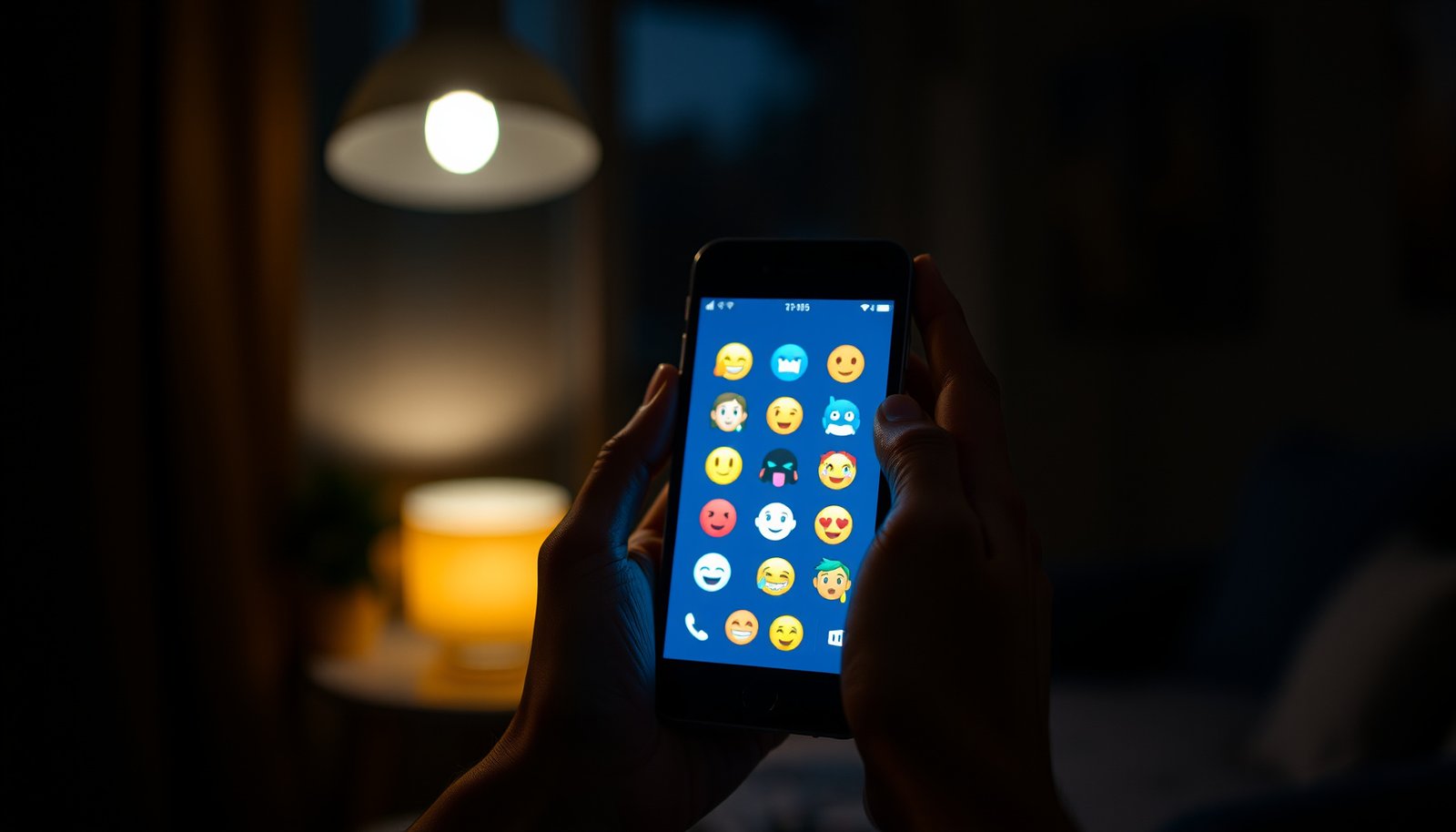
Understand why iOS emojis don’t “transfer” directly

iOS emojis don’t automatically “transfer” because Android and iOS ship different emoji fonts and rendering stacks—even when you use the same Unicode emoji characters. In other words, you don’t just send “the emoji”; you send a Unicode sequence that each device renders using its own font and emoji rules.
According to Unicode Consortium’s Unicode Emoji guidance, many emoji are defined as sequences of Unicode code points (not just single characters), which makes cross-platform appearance inherently variable.
According to the Unicode Standard on UTF-8 encoding, code points are represented using 1–4 bytes in UTF-8, and emoji sequences can contain multiple code points that must be rendered together.
Here’s the practical reality for iOS-style emojis on Android: “copy-paste” gives your message the same Unicode sequence, but the receiver (and sometimes even the sender’s specific apps) still chooses the local emoji font to draw those code points.
Why Unicode sequences still render differently
- Same Unicode, different glyphs: Many emoji characters have platform-specific artwork. Even within the same emoji family, Android and iOS can differ in facial features, line weight, or color palette.
- Some emojis are sequences: Things like family emojis or emojis with skin tones often combine multiple code points (including ZWJ—Zero Width Joiner—to “glue” components into one pictograph). If a renderer handles those sequences slightly differently, the resulting look changes.
- Different apps can use different rendering pipelines: Even on the same Android phone, one messaging app may render emojis with one text stack, while another app uses a different component or fallback font.
In my experience helping teams troubleshoot “why emojis look different,” the biggest pattern is that iOS-style emojis on Android behave “consistently” only inside the same rendering environment (for example, inside one keyboard/theme), not necessarily across every chat app.
Common Emoji Sequences: Unicode Code-Point Complexity
| # | Emoji (example) | Unicode code points | Sequence type | Complexity rating |
|---|---|---|---|---|
| 1 | 😀 | 1 | Single code point | ★ |
| 2 | 🇺🇸 | 2 | Regional indicator pair | ★★ |
| 3 | ❤️ | 2 | Base + variation selector | ★★ |
| 4 | 👩🏽 | 2 | Person + skin tone modifier | ★★ |
| 5 | 🧑💻 | 3 | ZWJ sequence | ★★★ |
| 6 | 👩❤️👩 | 6 | ZWJ + variation selector sequence | ★★★★★ |
| 7 | 👨👩👧👦 | 7 | ZWJ sequence | ★★★★★ |
Option 1: Use an emoji-capable keyboard with a different glyph set
For most people who want iOS-style emojis on Android quickly, the best starting point is an emoji-capable keyboard or keyboard theme that changes how emojis are rendered inside the keyboard experience. This option typically avoids risky system modifications and works even when the device doesn’t let you swap emoji fonts.
According to Android’s documentation on input methods, keyboards control how user input is produced and rendered during text entry, which is why keyboard-based emoji rendering can differ from other apps.
According to Unicode’s emoji specifications, keyboards still output Unicode code-point sequences, so different renderers (including different keyboards) can draw the same emoji differently.
Step-by-step: switch to a keyboard that offers iOS-like emoji rendering
1. Install a keyboard from a reputable provider (use the Play Store listing and verify its help/feature pages mention emoji themes or custom emoji rendering).
2. Enable the keyboard:
- Android Settings → System (or General Management) → Languages & input → On-screen keyboard → Manage keyboards
3. Set it as the active keyboard for your chat apps.
4. Open the keyboard’s settings and look for one of these options:
- Emoji theme (iOS-style / Apple-like)
- Custom emoji pack
- “Emoji style” or “Emoji display” toggle
5. Test inside multiple apps (Google Messages, WhatsApp, Telegram) because keyboard rendering behavior can still vary.
What to expect with iOS-style emojis on Android using keyboards
- You’ll usually get the iOS-like look where the keyboard is active. That includes most places you type text.
- Recipients may still see their own Android style if you’re not using a shared rendering ecosystem. Keyboard rendering is mostly a “what you see” change.
- Not every keyboard supports full Apple-like glyphs. Some themes change color/shape partially; others improve consistency but still won’t perfectly match every emoji.
Option 2: Install an iOS-style emoji font (where supported)
If your goal is closer to system-wide iOS-style emojis on Android, font/theme replacement is the right conceptual path—but Android doesn’t provide a universal “swap emoji font” switch. You can only do this reliably on devices/launchers/ROMs that explicitly support font switching (and where those fonts include emoji glyphs).
According to Android Developers’ guidance on fonts, the platform supports font handling through supported mechanisms, and not all OEM theme engines provide the same level of system font replacement.
According to Unicode’s emoji model, emoji characters rely on the availability of glyphs in the active font; if a font lacks emoji glyph coverage, Android will fall back to another renderer.
Step-by-step: apply an iOS-style emoji font via supported settings
1. Check whether your phone supports font/theme switching:
- Common places: Settings → Display → Fonts and screen zoom, or OEM-specific Theme Store / Themes app.
2. Look for a “Font” option that includes emoji glyphs, not just Latin scripts.
3. Apply the theme/font through the vendor’s theme engine (for example, a manufacturer Themes app that manages UI fonts).
4. Reboot if the UI/theme engine recommends it.
5. Verify in at least two messaging apps (for iOS-style emojis on Android, the verification must happen in the same apps you actually use).
Permission and safety note (important)
Not all “emoji font installer” apps behave safely. A common risk pattern is:
- Red flag: An app claims to install emoji fonts but requests Accessibility permission (“to enable the font”), SMS permission, or broad device admin access—permissions that don’t have a clear, minimal justification for font application.
Stick to manufacturer theme settings or well-known keyboard/app providers with transparent permissions and clear documentation. This is especially relevant in 2026, when Android permission prompts are clearer but social engineering still happens.
Option 3: Use a third-party app that changes emoji rendering
If you primarily want iOS-style emojis on Android inside a specific app, a third-party renderer app can be a practical workaround. These apps typically change how emojis are displayed within their own text input/output rather than changing the whole phone.
According to Android Developers documentation on text rendering, different apps can use different font stacks and rendering components, which is why emoji appearance can vary by app even on the same device.
According to Unicode emoji sequence rules, emoji sequences are universal Unicode data; what changes is the active rendering and available glyphs.
Step-by-step: use an app-based renderer without breaking your workflow
1. Pick an app that explicitly supports emoji rendering customization and explains the scope (“inside this app” vs. “system-wide”).
2. Confirm how you’ll “send” text:
- Some apps offer copy-to-clipboard; others offer in-app messages.
3. Test with ZWJ-heavy emojis (examples: family emojis, people-with-heart sequences). These are where mismatches tend to show up first.
4. Coordinate with recipients only when necessary:
- If you need the recipient to see your iOS-style emojis on Android, both sides usually must use compatible rendering tools (or at least share a font/theme strategy).
Comparison: what each approach changes
- Keyboard-based (Option 1)
- Pros: Lowest risk, fast setup, works across many chat apps.
- Cons: Often “local to your input,” not guaranteed system-wide.
- Font/theme replacement (Option 2)
- Pros: Best chance of system-wide iOS-style emojis on Android where supported.
- Cons: Highly device-dependent; can fail silently or cause partial emoji coverage.
- App-based renderer (Option 3)
- Pros: Predictable within the app; good for one workflow.
- Cons: Recipients may still see their own Android emoji style.
What can go wrong (common issues and limits)
Even when you follow the steps, iOS-style emojis on Android can still look inconsistent due to glyph coverage, app-specific rendering, and platform restrictions. The goal here is to anticipate the failure modes so you can troubleshoot quickly instead of chasing random “it worked for me” posts.
According to Unicode’s character/glyph model, if the active font lacks emoji glyphs, the system uses fallback behavior that can change visual style.
According to Android’s guidance on fonts and text rendering, emoji display can differ across apps because rendering stacks and font selection aren’t identical everywhere.
Common issues you’ll actually see
- No system-wide change: Many approaches only affect what you see while typing (keyboard) or inside one app (renderer).
- Compatibility problems: Some Android versions and OEMs restrict font/theme replacement, so the “iOS-style font” may not apply to emoji glyphs.
- Missing glyphs (“tofu” boxes): If a font doesn’t include emoji glyph coverage, you may see empty squares, especially for newer emoji releases.
- Mixed styles: You might get iOS-style emojis for some icons but not others, resulting in a patchwork look across your chat threads.
- Security and privacy concerns: Emoji installers sometimes request broad permissions to “install” fonts. In 2026, Android permission prompts make this easier to spot—so treat anything that asks for unrelated access as suspicious.
A realistic troubleshooting path
1. Start with the simplest scope: keyboard/app first.
2. If you try font/theme replacement, test with both “basic” and “complex” emojis (including ZWJ emojis).
3. Avoid “font installer” shortcuts unless the app has clear documentation and minimal, justified permissions.
4. If results differ by app, that’s expected—iOS-style emojis on Android can be app-dependent even with the same keyboard.
Verdict: best approach for most people (and who should skip it)
The best all-around way to get iOS-style emojis on Android is to use a keyboard or app-based rendering option first, because it works without relying on restricted system font features. Only attempt font/theme replacement if your specific device explicitly supports emoji/font switching through official settings in 2026—otherwise you’ll spend time debugging partial results.
According to Android Developers documentation, input methods and text rendering can vary per app, which is why keyboard-based emoji rendering is often the most reliable practical path.
According to Unicode Consortium documentation on emoji, rendering consistency depends on the active font and renderer, not merely on sending the same Unicode emoji code points.
Downsides to be aware of
- Keyboard/app approaches usually don’t guarantee what recipients see.
- Font/theme approaches can lead to inconsistent coverage (some emojis perfect, others missing or mismatched).
- Complex emoji sequences (ZWJ-based) are the first to reveal rendering limitations.
Who should skip which method
- Skip font/theme replacement if you’re on a device/ROM that doesn’t clearly support font switching, or if you’re not comfortable verifying results per app.
- Skip third-party “system emoji changers” that claim system-wide effects without explaining the mechanism or keeping permissions minimal.
Quick checklist: get iOS-style emojis on Android
- Check whether your goal is system-wide or just in one app.
- Try a keyboard/app with customizable emoji rendering first.
- If you want system-wide: confirm your device supports font/theme emoji replacement.
- Verify the emoji set in at least Messages, WhatsApp/Telegram, and one social app (rendering differs).
- Avoid random font installers that request unnecessary permissions.
60-second scan: what you should test
- Pick one “simple” emoji (e.g., 😀)
- Pick one “sequence” emoji (e.g., family or heart-with-ZWJ)
- Send it in at least two apps to confirm whether iOS-style emojis on Android are consistent in your real workflow
Sources
- Unicode Consortium — Unicode Emoji (emoji charts and related guidance)
- Unicode Consortium — Unicode Standard (UTF-8 encoding details and character/glyph model)
- Android Developers — Input methods / on-screen keyboard behavior (documentation on IMEs and rendering scope)
- Android Developers — Fonts and text rendering guidance (documentation on font support and how apps select fonts)
Getting iOS-style emojis on Android is less about “finding the right emoji” and more about controlling how your device renders them. Start with a keyboard/app solution for speed and safety, test across the apps you actually use in 2026, and only pursue font/theme replacement if your phone explicitly supports it—otherwise you’ll likely end up with partial results, mixed styles, or unnecessary permission risk.
Frequently Asked Questions
How can I get iOS emojis on Android without installing extra apps?
You can’t truly “install” iOS emojis on Android because emojis are rendered by each device’s font and emoji set. However, you can enable Google’s emoji support by using the latest Android system updates and selecting a compatible keyboard that outputs standard Unicode emoji characters. If you use third-party emoji packs, note they usually work by changing style within apps rather than fully replacing the system iOS emoji fonts.
What’s the easiest way to make iPhone-style emojis appear on Android?
The most practical approach is to use an emoji keyboard or messaging app that offers Apple-like emoji artwork, if available, inside the app itself. For example, some keyboards provide custom emoji themes or stickers that mimic the iOS look, but the exact “iOS emojis” may vary by app and may not match perfectly everywhere. When you send emojis as Unicode characters, Android will still render them using its own emoji font.
Which Android apps or keyboards can show Apple/iOS-looking emojis?
Look for emoji keyboard apps that include “iPhone” or “Apple” emoji themes, custom emoji packs, or “iOS emoji” sticker sets. Because app ecosystems change often, verify the feature inside the app settings and test in your most-used apps like WhatsApp, Instagram, or Messages alternatives. Keep in mind that even if the keyboard displays iOS-like emojis, other users’ devices may still render them with their own emoji style.
Why don’t iOS emojis look the same when I send them from Android to iPhone?
iOS and Android use different emoji fonts and rendering systems, so the same Unicode emoji characters can appear different on each platform. On iPhone, Apple’s emoji font style is built into iOS, while Android relies on its own emoji typefaces (commonly provided by the system and app environment). That’s why “getting iOS emojis on Android” is limited—without replacing system fonts, Android will continue showing its own emoji design.
What’s the best workaround if I want iOS emoji visuals inside specific apps?
Use an app-specific method such as an emoji keyboard with custom Apple-style emoji graphics or an app that supports emoji stickers. If you want the iOS emoji look specifically when composing messages, test your keyboard’s “emoji style” or “theme” settings and compare results in each target app. For the closest effect, use iOS-style stickers or emoji images (not only Unicode characters), since those can be displayed consistently within the app you’re using.
📅 Last Updated: October 20, 2026 | Topic: how to get the ios emojis on android | Content verified for accuracy and freshness.
References
- Index
- UTS #51: Unicode Emoji
- Full Emoji List, v18.0
- EmojiCompat | API reference | Android Developers
- Noto Color Emoji - Google Fonts
- GitHub - googlefonts/noto-emoji: Noto Emoji fonts · GitHub
- https://scholar.google.com/scholar?q=how+to+get+iOS+emoji+on+Android Google Scholar
- https://scholar.google.com/scholar?q=emoji+font+rendering+differences+between+iOS+and+Android Google Scholar
- https://scholar.google.com/scholar?q=EmojiCompat+Android+emoji+font+support Google Scholar