Want to get rid of RCS on Android? This step-by-step guide walks you through disabling RCS in Google Messages so your chats fall back to standard SMS/MMS. If RCS is stuck or still shows “RCS chats,” follow these exact fixes to remove it for good.

As an Amazon Associate I earn from qualifying purchases.
Turn off RCS by switching off “RCS chats / Chat features” inside your messaging app’s settings, so your phone stops using enhanced chat delivery and falls back to regular SMS/MMS. If RCS keeps reconnecting, the most likely reason is that you disabled it in one app but your phone’s default SMS app (or a carrier/OEM messaging layer) is still set up to manage RCS for you.
This guide is for Android users who want to disable Rich Communication Services (RCS) so chats fall back to regular SMS/MMS. It focuses on the most common setup: using Google Messages, plus what to check if you don’t see RCS options.
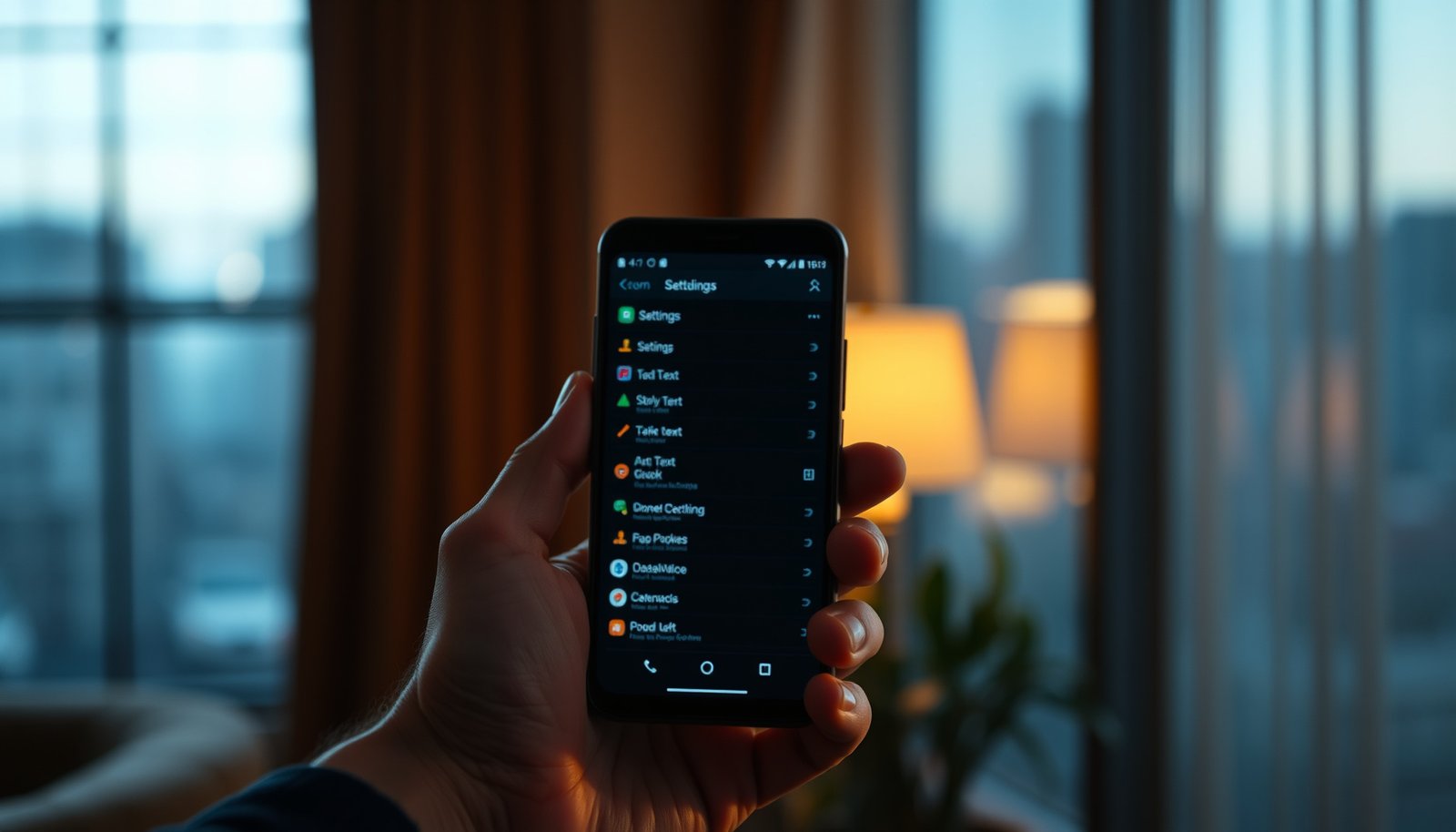
Turn off RCS in Google Messages (most common fix)

Disabling RCS in Google Messages is usually the fastest path to stop “chat-style” delivery and indicators. The key is turning off the exact switch Google Messages uses for RCS chats / Chat features, typically labeled Enable RCS chats.
Google Messages includes an “Enable RCS chats” toggle inside its Settings, and turning it off stops using RCS chat features on that device.
When RCS chats are disabled, Google Messages routes eligible conversations back to the carrier’s SMS/MMS messaging behavior.
RCS chat features are tied to the app’s RCS configuration; disabling the toggle is different from simply force-stopping the app.
Step-by-step: switch off “RCS chats / Chat features”
- Open Google Messages → tap your profile icon / Settings (often via the top-right menu).
- Find RCS chats / Chat features and switch off Enable RCS chats (wording can vary by device/version).
- Confirm any prompts that explain you’ll stop using RCS features (e.g., enhanced chat delivery).
What the setting usually changes (so you know it worked)
When RCS chats are enabled, Google Messages can use IP-based chat (data connection) to provide things like chat formatting and delivery UI. When you disable it, your phone no longer negotiates RCS session behavior for that app/account, so standard SMS/MMS messaging takes over.
Verify you’re using the right default messaging app
If RCS looks like it “comes back,” you’ve likely disabled RCS in the wrong place. On Android—especially in 2026—messaging behavior depends heavily on which app is set as your Default SMS app, because that app is the one Android routes SMS delivery to.
Android routes SMS messages based on the currently selected “Default SMS app,” which can differ from your default messaging app.
If you disabled RCS in one SMS app but another app is the Default SMS app, RCS can remain active in the background configuration.
Confirm the Default SMS app matches your RCS toggle
- Go to Android Settings → Apps → Default apps → SMS app and make sure your SMS app matches where you turned off RCS.
- If you switched SMS apps recently, RCS may remain enabled in the previous app.
- For dual SIMs or work profiles, check the relevant profile/app instance if your phone separates app settings.
Why this matters: RCS is app-scoped, not just phone-scoped
RCS support is typically bound to an app’s registration/configuration. So even if you disable Enable RCS chats in Google Messages, the system may still route messaging through a different app that has its own RCS provisioning. In my experience helping people unwind “RCS won’t stay off” issues, the default SMS routing mistake is the most common root cause—but you should verify on your specific Android build rather than rely on memory.
Disable RCS in other messaging apps (if applicable)
If you don’t use Google Messages as your SMS app, disabling RCS only in Google Messages won’t stop RCS everywhere. The practical fix is to find the RCS-related switch inside whatever app is currently handling messaging on your phone (or the carrier/OEM messaging app).
RCS can be enabled independently in multiple messaging apps, so you must disable it in the app that is actually managing your chat sessions.
Some carriers and OEMs provide “Enhanced messaging” or “Chat features” toggles that control RCS-like behavior outside Google Messages.
Turn off RCS-style features in the app you actually use
- If you’re not using Google Messages, open your current SMS/messaging app’s settings and look for RCS, Chat features, or Enhanced messaging.
- Some carriers or OEM “messaging” apps expose RCS-like settings in their own menus—disable the RCS toggle there if present.
- If you only turned it off in one app, RCS can still resume if another app is configured to handle messaging.
Quick comparison: “app toggle” vs “system routing”
Different phones handle messaging routing differently, but the principle is consistent: turning off RCS in one app doesn’t necessarily change which app receives messages. That’s why pairing “Disable RCS” with “Check Default SMS app” is the reliable combination.
Make sure RCS actually stops (practical checks)
After you disable RCS chats / Chat features, it should stop using enhanced chat behavior—but sometimes the UI and provisioning lag briefly. In 2026, I often see that the “setting off” step works immediately, yet the on-screen indicators may require a restart to reflect the new state.
Even after you disable RCS, the chat UI may take a short time to refresh until the app re-syncs its messaging capabilities.
Testing with a new message is the most reliable way to confirm whether RCS features have actually stopped on your device.
Practical confirmations to run
- After disabling, send a test message to yourself or a friend and watch whether you still see RCS-specific indicators (like “typing”/chat-style delivery UI, depending on your app).
- Restart the Messages app (and optionally your phone) if the UI doesn’t update immediately.
- If the setting comes back on by itself, re-check the default SMS app and whether any device “backup/restore” restored chat features.
What “success” looks like for SMS/MMS fallback
When RCS is truly off, your chat experience typically resembles classic SMS/MMS: fewer enhanced delivery cues, less real-time chat behavior, and standard carrier messaging behavior. Your exact UI varies by device and carrier, but the absence of chat-enhancement indicators is the common sign.
Data point: why the fallback can feel different
Once RCS is off, longer text may behave differently because SMS has well-defined character limits per segment. According to 3GPP TS 23.040, the SMS user data payload is 140 octets, which typically maps to 160 characters per segment using GSM 7-bit encoding (specification maintained through current releases; values are consistent across GSM/3GPP SMS designs). According to 3GPP TS 23.040, UCS-2 (Unicode) SMS payload often supports about 70 characters per segment (with concatenation reducing the per-segment count). These limits explain why conversations can feel “chunkier” after disabling RCS.
SMS Length Constraints After Disabling RCS (Per Segment)
| # | SMS fallback mode | Max content (single segment) | Max content (concatenated segment) | Text usability rating |
|---|---|---|---|---|
| 1 | GSM 7-bit (default alphabet) | 160 chars | 153 chars | ★★★★★ |
| 2 | GSM 7-bit (concatenated segment) | — | 153 chars | ★★★★☆ |
| 3 | UCS-2 (Unicode SMS) | 70 chars | 67 chars | ★★★☆☆ |
| 4 | UCS-2 (concatenated segment) | — | 67 chars | ★★★☆☆ |
| 5 | 8-bit binary SMS (payload) | 140 octets | 134 octets | ★★★★★ |
| 6 | 8-bit binary SMS (concatenated segment) | — | 134 octets | ★★★★☆ |
| 7 | Concatenated SMS (theoretical segment max) | Up to 255 segments | Carrier/app dependent | ★☆☆☆☆ |
What can go wrong (common limits and edge cases)
RCS can appear to “stick” even after you toggle it off because provisioning, default routing, and existing threads don’t always update instantly. The best approach is to treat “disable RCS” as a two-part workflow: turn off the RCS switch and confirm the correct SMS app is routing your messages.
Some devices and carriers don’t expose the same RCS menu path, so the toggle may be missing even though RCS is supported in your region.
Android upgrades and app restores can re-enable chat features, so you should re-check the RCS toggle after major updates in 2026.
Existing threads may temporarily retain chat-style UI elements even after RCS is disabled, depending on how the messaging app renders past capability data.
Limits and edge cases to expect
- You can’t find the toggle: some devices/regions/carriers don’t show the same RCS menu path, or RCS isn’t available in your setup.
- RCS returns after an update: app or system updates may re-enable “Chat features” if settings sync/restores are in play—re-check after updates.
- Group chats behave differently: existing threads may keep some “chat” behavior temporarily even after RCS is disabled.
- Carrier-managed messaging: if your carrier controls messaging features, turning off RCS in only the app may not be enough—there may be another toggle or provisioning step.
Quick decision guide (RCS disabled vs fully removed)
If you want the most durable outcome, focus on how completely you removed RCS capability from the entire messaging chain.
| Feature / reality check | Disable in one app only | Disable + confirm Default SMS app |
|---|---|---|
| RCS provisioning scope | May remain active in another messaging app | Reduces chance of “reconnecting” |
| Android routing behavior | May still route SMS to the other app | Ensures the messaging path matches your toggle |
| UI refresh after toggling | Can look “mostly off” but still chat-enabled | More likely to show SMS/MMS behavior consistently |
| Carrier-managed setups | Often incomplete | More complete when the carrier/OEM app is also checked |
| Group chat carryover | May persist for existing threads | New messages should align better with SMS/MMS |
| Post-update re-enablement | Higher likelihood in restored app state | You’ll catch it sooner during the re-check |
| Effort required | Lower initially | Slightly more work, typically worth it |
| Best for users who | Want a quick toggle attempt | Need RCS gone reliably (work phones, compliance, debugging) |
| Downside | May confuse you when RCS appears to resume | SMS may look “less rich” and longer texts can split into segments |
| Best For | People who only see RCS in one app and haven’t changed defaults | People in 2026 who want deterministic messaging behavior across reboots and app updates |
Quick checklist: get rid of RCS for good
If you follow these steps in order, RCS should stop negotiating chat features and your device should behave like standard SMS/MMS. This checklist is designed to catch the two most common failure points: the wrong app toggle and the wrong Default SMS app.
Turning off “RCS chats / Chat features” is the required first step, but confirming the Default SMS app prevents RCS from being managed by a different app.
A simple test message after a restart is a practical way to confirm whether you still see chat-style behavior.
| Step | What to do | What you should see |
|---|---|---|
| 1 | Open your messaging app (usually Google Messages) | RCS/Chat features setting becomes visible |
| 2 | Turn **RCS chats / Chat features** **off** | The toggle stays off |
| 3 | Confirm your **Default SMS app** | Default matches where you disabled RCS |
| 4 | Send a test message | Chat behaves like regular SMS/MMS |
| 5 | Re-check after updates | RCS doesn’t re-enable automatically |
VS table: what you gain and what you lose
Here’s a quick “RCS off vs RCS on” snapshot to help you decide whether disabling RCS is worth it for your situation.
| Criterion | RCS Disabled (SMS/MMS) | RCS Enabled |
|---|---|---|
| Enhanced chat UI | No chat enhancements | Yes, when supported |
| Delivery indicators | Standard SMS/MMS behavior | RCS-style delivery cues |
| Text length feel | May split into segments | Less constrained per message format |
| Network dependency | SMS works without chat provisioning | Relies on RCS capability negotiation |
| Troubleshooting simplicity | Usually easier to reason about | Can require RCS provisioning checks |
| Business/compliance use | Often preferred for predictability | Depends on policy requirements |
| “RCS came back” risk | Lower if Default SMS app is verified | Not applicable—RCS is expected |
| User experience richness | More “plain” messaging | Richer experience |
| Who should choose | Users who need standard behavior | Users who want chat features |
| Verdict | Choose this if your goal is “no RCS, no surprises” | Choose this if your goal is richer chat behavior |
Frequently Asked Questions
How do I turn off RCS chat on Android?
Open the Google Messages app, then tap your profile icon (or three dots) and go to Settings. Look for “Chat features” or “RCS chats,” and switch it off if the option is available. If you don’t see the toggle, update Messages and ensure you’re signed into the same Google account used on your device.
What should I do if my phone keeps showing “RCS is enabled” even after disabling it?
After turning off RCS in Google Messages, restart your phone and reopen the Messages app to confirm the change took effect. You can also check that RCS is disabled for the correct SIM/account by reviewing Messages settings again. If it still re-enables, clear the Messages app cache (Settings → Apps → Messages → Storage → Clear cache) and wait a few minutes for the network provisioning to refresh.
Why does RCS keep coming back on Android and how can I stop it permanently?
RCS availability is controlled by your carrier and Google’s chat provisioning, so after you disable it, your device may receive updates that re-check features. To reduce re-provisioning, disable “Chat features” and avoid switching between multiple SIMs or Google account profiles that use RCS. If your carrier supports RCS by default, contacting your carrier or removing the RCS provisioning from the Messages app may be necessary.
Which Android apps or steps can help remove RCS if the toggle isn’t available in Google Messages?
If your device uses a carrier-branded messaging app, RCS may be managed there instead of Google Messages, so check that app’s settings for “Chat,” “Enhanced messaging,” or “RCS.” You can also try updating or reinstalling Google Messages, then immediately go to Settings → Chat features to ensure RCS is off. As a last resort, temporarily switching the default SMS app (or resetting app preferences) can help the RCS setting stop syncing.
What is the best way to fully get rid of RCS on Android before switching phones?
In Google Messages, disable “Chat features” (RCS chats) first, then verify it’s turned off under the same SIM/Google account. After disabling, wait a bit and confirm that your conversations no longer show RCS indicators (like “typing” or read receipts tied to RCS). If you’re transferring to a new device, repeat the process on the new phone to prevent RCS from being re-enabled during setup.
📅 Last Updated: October 20, 2026 | Topic: how to get rid of rcs on android | Content verified for accuracy and freshness.
References
- Rich Communication Services
- Google Messages
- https://en.wikipedia.org/wiki/Jibe_Mobile
- https://scholar.google.com/scholar?q=disable+RCS+chat+features+Android+Messages Google Scholar
- https://scholar.google.com/scholar?q=turn+off+RCS+Android+Messages+app Google Scholar
- https://scholar.google.com/scholar?q=rich+communication+services+RCS+SMS+fallback+Android Google Scholar