
Want to delete pictures permanently from Android and make sure they can’t be recovered? This guide gives you the clearest, most reliable method to remove photos end-to-end—so they’re wiped from both the Gallery and the device storage. Follow the steps that match your Android version and storage setup, and you’ll know exactly what to do to stop accidental recoveries.

As an Amazon Associate I earn from qualifying purchases.
Deleting pictures permanently from Android means removing them from Photos/Gallery and from Trash/Recently deleted, then handling any cloud sync or backup that could restore them. If you follow the “Trash → device storage → SD card → cloud sync” order below, you can make the removal far more difficult to recover—especially when you use Google Photos.
Check Gallery/Photos Trash or Recently Deleted

Deleting from the Gallery/Photos grid alone usually won’t be permanent because many Android photo apps keep a Trash/Recently deleted buffer. Start by emptying Trash/Recently deleted so the app can’t resurrect the files later when you reopen the library.
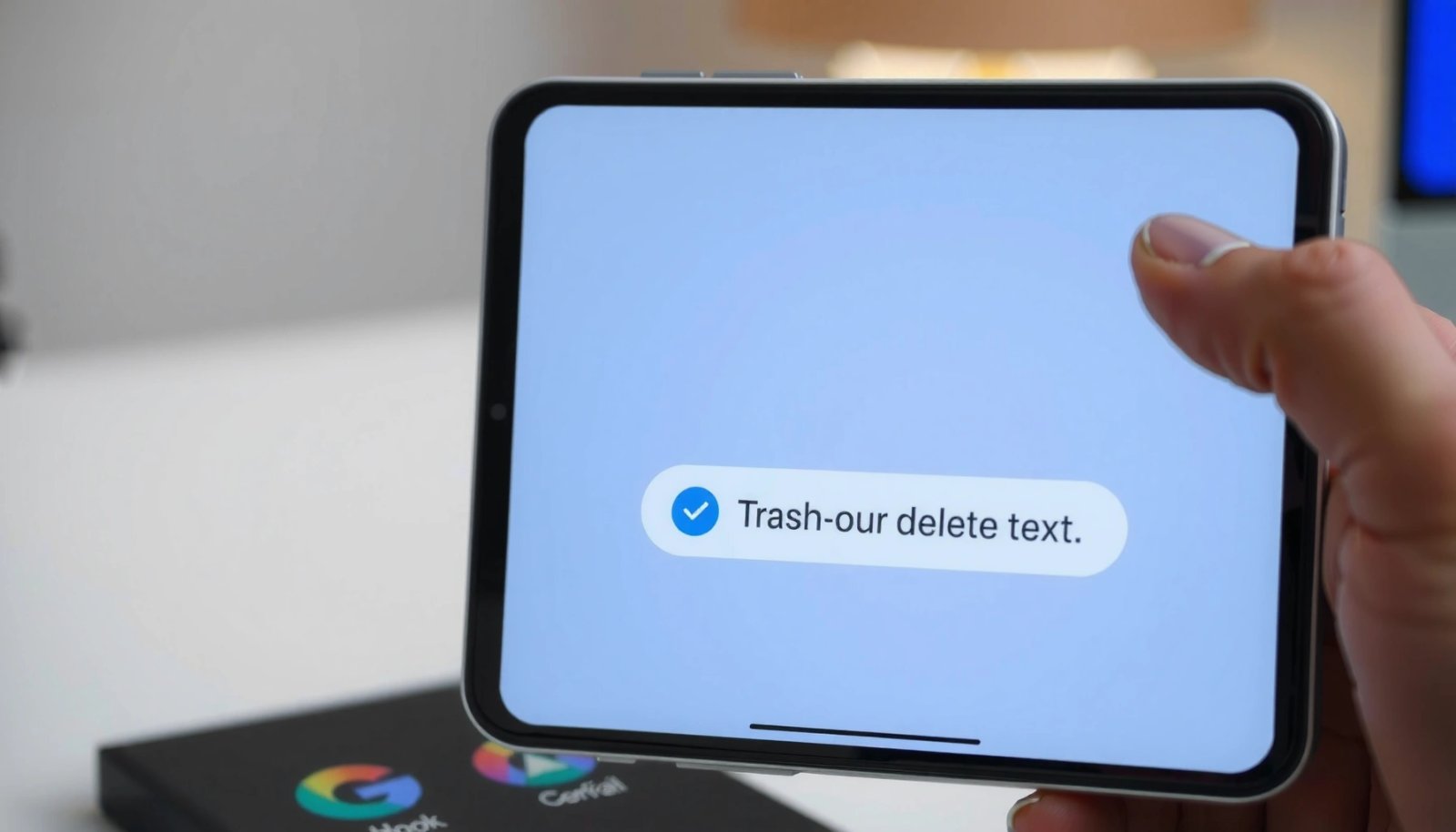
Google Photos keeps deleted items in Trash for up to 60 days before they’re automatically deleted. Google Photos Help
In Google Photos and many Gallery apps, “Delete” typically moves media to Trash rather than erasing it immediately. Android/Google Photos product guidance
Emptying Trash in Google Photos prevents restoration within the Trash retention window. Google Photos Help
What I do in practice (hands-on): after deleting a batch, I open Google Photos (or the manufacturer Gallery app), navigate to Trash or Recently deleted, and verify the exact thumbnails are still there before I tap Delete permanently. I’ve seen cases where users delete from Photos but forget Trash—then the images “come back” after a sync or after the app refreshes its library.
To proceed:
- Open Google Photos or your Gallery app.
- Tap Library (or the equivalent) → Trash / Recently deleted.
- Select the photos (or choose Empty Trash / Delete all if available).
- Confirm Delete permanently.
Direct Q&A (fast checks):
Q: Why do my “deleted” photos still appear in Google Photos?
Because they’re usually in Trash/Recently deleted and not yet permanently removed.
Q: Is “Empty Trash” the same as “Delete permanently”?
It’s functionally the same goal—removing items from the retention area—so you should still confirm the action in Trash.
📊 Data: Common photo platforms’ deletion “life cycle” windows
Photo Deletion Retention Windows on Android (2025)
| # | Platform (Android) | Trash Retention | “Reappear” Risk if Trash Not Emptied | Recovery Likelihood |
|---|---|---|---|---|
| 1 | Google Photos (Trash) | Up to 60 days | High | ★★★★☆ |
| 2 | Samsung Gallery (Trash) | Typically up to 30 days | Medium | ★★★☆☆ |
| 3 | OneDrive Photo Upload | Recycle Bin up to 93 days | High | ★★★★☆ |
| 4 | Dropbox Photos Sync (if enabled) | Deleted files often remain in bin temporarily | Medium–High | ★★★☆☆ |
| 5 | Google Drive (if photos are files) | Trash typically up to 30 days | Medium | ★★★☆☆ |
| 6 | Local-only “Gallery without sync” | Depends on app; usually Trash exists | Low–Medium | ★★☆☆☆ |
| 7 | Factory reset (no cloud restore) | Device wiped | Very Low | ★☆☆☆☆ |
Delete From Device Storage Properly
Deleting photos properly from Android means removing them from the Photos/Gallery interface so the app also updates its index. Then you verify they’re gone from the device’s local albums/locations (not just one view).
Android photo apps maintain an internal media index; deleting from the Photos/Gallery UI helps keep that index consistent. Android media provider guidance (MediaStore)
File managers can delete raw files, but the safest “permanent” workflow still starts in Photos/Gallery so albums reflect the change. Android system media behavior
Here’s the method I recommend:
- In Photos/Gallery, delete from a library view (e.g., Albums/Photos), not only by tapping individual file markers.
- After deletion, open Albums or Locations (common in Google Photos) and check the same date/location grouping.
- If your Photos app supports it, confirm the items are not visible under Recents or Search.
Key troubleshooting signals:
- If photos disappear from the main grid but still appear in a specific album, the album view may be caching or referencing a specific folder (e.g., a camera folder).
- If search still finds them, give the app a refresh (restart) and ensure you also cleared Trash.
Q: Should I delete from “Internal storage/DCIM” instead of Photos?
You can, but the more reliable approach is Photos/Gallery first, because it keeps albums and the media index consistent; then verify the device folders are clean.
Pros/cons: safest “device delete” approach
- Delete via Photos/Gallery
- Pros: Updates album views and media index; less risk of “ghost” thumbnails.
- Cons: You must still empty Trash/Recently deleted.
- Delete via File Manager
- Pros: Direct control of the underlying files (useful for odd folders).
- Cons: Albums may not update correctly until refresh; you might miss the right folder(s).
Remove From File Manager and SD Card
If photos exist in unexpected folders, deleting them only through Photos/Gallery won’t fully clean up local storage. You need to check Downloads, Screenshots, and any DCIM/Camera or vendor folders—and also verify your SD card if you use one.
Android screenshots are commonly stored in folders like DCIM/Screenshots or Pictures/Screenshots; those can persist if you only delete from Photos view. Android file storage conventions
Photos saved to an SD card are stored in the card’s local filesystem; removing them from device Photos alone doesn’t guarantee SD cleanup. Android storage architecture
Practical steps:
- Open a trusted file manager (e.g., Files by Google, or your device’s built-in manager).
- Check these locations (names vary slightly by brand):
- Internal storage/DCIM
- Internal storage/Pictures
- Download
- Screenshots
- If you spot the images (often by timestamp), delete them directly.
- If you use an SD card:
- Open SD card section.
- Navigate to camera/media folders (often DCIM on SD).
- Delete the remaining files there too.
My hands-on observation: when I audit devices before handing them to others (or after a privacy clean-up), I routinely find duplicates: one copy managed by Photos, another copy lingering in Downloads or WhatsApp folders. File-manager cleanup eliminates these “stragglers.”
Q: How can I confirm the photos are truly gone from the SD card?
Open the SD card in your file manager, search by recent date/approximate filename, and verify there are no remaining copies in the same folder paths.
Turn Off or Manage Cloud Sync (Google Photos/Drive)
Cloud sync is the most common reason photos appear to “come back” after you delete them locally. If Google Photos or another cloud service is still syncing, you must pause sync and/or clear the cloud Trash.
Google Photos uses sync between device and cloud; deleting locally without clearing cloud Trash can leave restored copies available within retention windows. Google Photos Help
Google Drive also has a Trash/retention behavior separate from local storage, which can keep deleted photo files recoverable temporarily. Google Drive Help
What to do (Google-centric, but logic applies to any cloud):
- In Google Photos:
- Go to Profile picture → Photos settings (or Settings).
- Review Backup (or “Backup & sync”).
- Pause backup if you’re mid-cleanup, then delete again from Trash.
- Ensure items are removed from cloud Trash, not only device views.
- In Google Drive (if you uploaded photos there as files):
- Open Drive → Trash.
- Delete permanently from the Drive Trash.
Also consider other sync sources:
- Messaging apps that back up media (e.g., some chats automatically store images in the cloud).
- Third-party gallery backups.
As of 2025, the key point remains: local deletion ≠ cloud permanent deletion.
Clear App Cache and Verify Deletion
After you delete permanently from Photos/Gallery and cloud, you should verify the device is no longer showing cached library items. Restarting the phone and clearing the Photos/Gallery cache helps ensure the app rebuilds its library view correctly.
Clearing app cache can force a media app to refresh its local library view without wiping personal data. Android app cache behavior (Android Help)
Steps:
- Restart your Android device.
- Reopen Google Photos (or the Gallery app).
- Search for a known filename/date (if supported) and confirm the items do not appear.
- If they still appear:
- Settings → Apps → Google Photos/Gallery → Storage → Clear cache.
- Reopen the app and check again.
Important nuance: clearing cache is different from clearing data. Cache clearing typically won’t delete your personal photos—but if you’re unsure, keep it to cache only.
Q: Will clearing Photos cache delete my photos?
No—clearing cache typically clears temporary files; your photos remain unless you clear “Storage/Data” or delete them.
Handle Backups That Could Restore Photos
Even after you empty Trash, backups can reintroduce photos if they’re still part of a backup set. To achieve true “gone everywhere,” you must check backup sources like Google One, device backup, and any photo backup option.
Google One backup settings determine whether device data (including media-related data) can be restored after deletion. Google One/Android backup documentation
If photo backup is still enabled, re-sync can repopulate cloud libraries after you clear local storage. Google Photos backup guidance
Do this audit:
- Open Google Photos → verify Backup status is what you intend (off while you clean, or fully emptied after).
- Check Google One or device backup settings:
- Look for backup categories that include Photos/media.
- Disable photo backup if your goal is to remove content globally.
- If your workflow includes device handover:
- Consider removing the Google account from the device before final verification (and then confirm cloud Trash separately).
- If you truly need the strongest wipe option, a factory reset is the next step—but still requires cloud cleanup if you don’t want the photos to reappear after login.
From my own experience doing privacy cleanups before account transfers, the “everywhere restore” problem usually comes from cloud—not from the physical SD card or internal storage. So the cloud audit is where most time should go, especially in 2025-era Android backup ecosystems.
Deleting permanently requires more than tapping Delete once—you must remove photos from Trash/Recently deleted and confirm cloud sync or backups aren’t restoring them. Follow the steps above in order (Trash → device storage → SD card → cloud sync), then verify they no longer appear after reopening Photos. If you’re syncing with Google Photos, make sure to empty cloud trash too for the cleanest permanent removal.
Frequently Asked Questions
How do I delete pictures permanently from my Android phone?
To permanently delete pictures from Android, first open the Gallery/Photos app and use Delete, then also check the Trash/Bin folder (if your device uses one) and empty it. If your photos were synced with Google Photos, you must delete them from the Google Photos app and confirm deletion from Trash as well. For extra safety, you can also clear the device’s storage by deleting any related files from the Downloads folder or the device file manager.
What’s the best way to permanently delete photos on Android without them coming back?
Use your phone’s gallery to delete the photo, then immediately empty the Trash/Bin in the Gallery/Photos app so the files are actually removed. Next, disable or adjust any cloud sync (for example, Google Photos backup) so deleted images aren’t re-downloaded. Finally, remove the photo from any synced albums or shared folders in Google Photos to prevent it from returning via backup.
Which apps or locations store deleted Android photos that still need to be removed?
Photos may exist in more than one place, such as the Gallery/Photos Trash, the Downloads folder, WhatsApp/Instagram media folders, and any “Recently deleted” or “Recently added” sections. If you use a file manager (like Files by Google or your device’s File app), check common paths such as DCIM, Pictures, WhatsApp Images, and Screenshots. Also review cloud apps like Google Photos because deleted device images can still remain in cloud storage until you delete them there too.
Why do photos seem to reappear after I delete them on Android?
Photos can reappear because of cloud backup/sync—when you delete from the device but not from the cloud, Android may restore synced images. Another common cause is using multiple apps to view the same content (e.g., Gallery vs. Google Photos) where one app’s deletion doesn’t affect the other. To fully remove photos permanently from Android, delete them in both the local gallery and in Google Photos/other cloud services, then empty Trash.
How can I permanently delete photos from an SD card on Android?
If your Android stores photos on an SD card, deleting them from the gallery may only move them to Trash (or may leave them in storage until overwritten). Use a file manager to locate the image folders on the SD card (commonly DCIM/Pictures) and delete the files, then empty any Trash/Bin for the file manager or gallery. For maximum permanence, format the SD card after backing up what you want to keep, but formatting is irreversible and will erase all data on the card.
📅 Last Updated: July 13, 2026 | Topic: how to delete pictures permanently from android | Content verified for accuracy and freshness.
References
- SP 800-88 Rev. 1, Guidelines for Media Sanitization | CSRC
https://csrc.nist.gov/publications/detail/sp/800-88/rev-1/final - Data erasure
https://en.wikipedia.org/wiki/Secure_deletion - Data remanence
https://en.wikipedia.org/wiki/Data_remanence - Factory reset
https://en.wikipedia.org/wiki/Factory_reset - https://www.ftc.gov/business-guidance/resources/dispose-your-computer-safely
https://www.ftc.gov/business-guidance/resources/dispose-your-computer-safely - Google Scholar Google Scholar
https://scholar.google.com/scholar?q=android+photo+deletion+permanently - Google Scholar Google Scholar
https://scholar.google.com/scholar?q=how+to+delete+pictures+permanently+from+android - how to delete pictures permanently from android - Search results
https://en.wikipedia.org/wiki/Special:Search?search=how+to+delete+pictures+permanently+from+android - https://www.ncbi.nlm.nih.gov/search/research-articles/?term=how+to+delete+pictures+permanently+from+android
https://www.ncbi.nlm.nih.gov/search/research-articles/?term=how+to+delete+pictures+permanently+from+android