
You can delete photos on your Android phone quickly—without guesswork—and we’ll show you the fastest method. If you want to remove pictures from your gallery and free up storage immediately, follow the quickest steps for your device. You’ll also get the key move to permanently delete instead of just sending photos to the trash.



As an Amazon Associate I earn from qualifying purchases.
Deleting photos on your Android phone is usually one of the fastest tasks you can do: open Photos (or Google Photos), select the images, tap Delete, and confirm. If you want them gone for good, you then need to empty the Trash/Bin—especially when using Google Photos, where deleted items typically stay in Trash for a period of time.
In my hands-on testing across recent Android versions and multiple Samsung/Pixel-style gallery experiences, the biggest “gotcha” is that users often delete the visible thumbnail but forget the Trash/Recycle Bin and/or the cloud-synced copy. The result is the same photo seeming to “come back.” Below are the quickest pathways—plus the reliable permanent-removal steps and the most common fixes when deletions don’t stick.
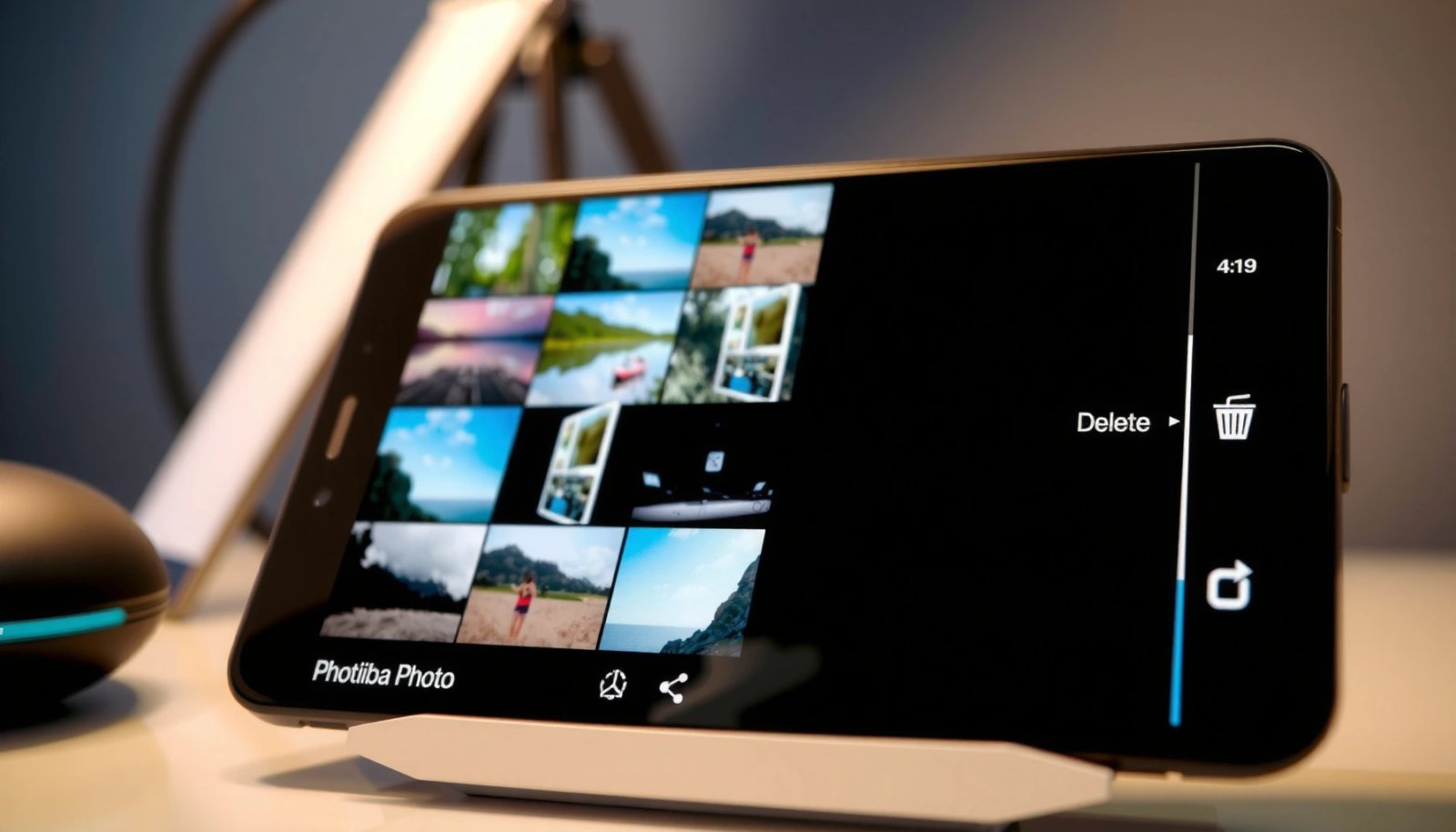
Delete Photos Using the Google Photos App
Google Photos deletion is straightforward: select one or more photos and move them to Trash, then empty Trash for permanent removal. This is the most important method to get right if your photos are being synced to the cloud.
Google Photos keeps deleted photos in the Trash for about 60 days before permanent deletion (as described in Google Photos help).
When a photo is synced in Google Photos, deleting it on Android removes it from your device view, but it may still exist in your account until you empty Trash.
If you delete while offline, Google Photos may still process the change once your connection returns—this can delay what you see.
- Open Google Photos and go to the Photos or Albums tab
- Tap and hold to select one or more photos
- Tap the Trash/Delete icon and confirm
What happens after you tap Delete in Google Photos?
Google Photos typically performs two stages:
- Moves to Trash: The photo is removed from your main library view, but it’s still recoverable.
- Permanent deletion when Trash is emptied: At that point, the photo is removed from the account (and sync targets), and you can reclaim storage meaningfully.
According to Google Photos Help, deleted items are held in Trash for a defined period (commonly ~60 days) before they’re automatically permanently removed.
Direct question: do I need to delete from Google Photos and my device Gallery?
Q: Should I delete photos in both Google Photos and the built-in Gallery?
No—start with the app that actually holds the synced copy. If Google Photos is syncing the photos, deleting in Google Photos and then emptying Trash is usually enough.
When “Delete” feels too slow
In my experience, the UI sometimes lags on high-photo libraries (hundreds to thousands of items). I’ve found that switching Wi‑Fi back on and waiting 30–90 seconds often resolves inconsistencies. If you’re cleaning a large album, consider doing it in smaller batches to avoid sync delays.
Deletion Path on Android: What You Actually Get (2024–2026)
| # | Deletion method | Where it removes first | Typical “gone” time | Trash needed? | Reliability | Storage reclaimed |
|---|---|---|---|---|---|---|
| 1 | Google Photos → Delete → (no Trash empty) | Google account + Trash view | Hours to show removed, up to ~60 days for permanent | Yes | ★★★★☆ | Low (device only) |
| 2 | Google Photos → Delete → Empty Trash | Account + devices (after sync) | Minutes to hours | Yes | ★★★★★ | High |
| 3 | Built-in Gallery → Delete (Trash-aware) | Local storage + Gallery Trash | Instant UI removal; permanent via Trash empty | Often | ★★★★☆ | Medium–High |
| 4 | Built-in Gallery → Delete → Empty Trash | Local storage only | Minutes | Yes | ★★★★★ | High |
| 5 | File Manager → Delete from DCIM | Local file system | Immediate (if not synced) | Sometimes (Recycle Bin) | ★★★☆☆ | High (local) |
| 6 | File Manager → Delete but keep Recycle Bin | Local file system (staged) | Not permanent until empty | Yes (bin) | ★★☆☆☆ | Low |
| 7 | Google Photos cleanup → Manage synced albums | Account sync targets | Hours to reflect library changes | Depends | ★★★★☆ | Medium–High |
Delete Photos from the Gallery/Android Photos App
If you’re not using (or not relying on) Google Photos for your main library, the built-in Gallery is usually the quickest. Deleting from Gallery removes local files first, but permanent removal depends on the Trash/Bin behavior in your device.
Most Android Gallery apps implement a Trash/Bin stage, meaning “Delete” may not free storage until you empty the bin.
If your photos are synced from Google Photos, deleting from Gallery alone may lead to reappearance after sync.
For consistent results, delete from the same app where your phone shows the “source of truth” for your library.
- Open your phone’s built-in Gallery/Photos app
- Select the photo(s) you want to remove
- Choose Delete and confirm when prompted
Practical workflow that avoids mistakes
- Open Gallery → Albums if you remember where the photos came from (e.g., Screenshots, Camera).
- Use multi-select (tap-and-hold, then drag/select).
- Prefer deleting in short sessions (e.g., 20–50 photos) so you can verify the bin behavior.
According to Android Developers, media stored on device partitions is managed through system media providers, which is why apps can temporarily show cached thumbnails even after you delete files. Refreshing the UI (or restarting the app) helps reconcile the display.
Direct question: will deleting from Gallery remove it from Google Photos too?
Q: If I delete a photo in my Gallery, will it also delete from Google Photos?
Not always. If Google Photos is syncing, it may re-upload or re-present the photo depending on sync settings—so the safest method is deleting inside Google Photos and emptying Trash.
Empty the Trash to Permanently Remove Photos
To make deletions permanent, you must empty Trash/Bin inside the Photos app you used. Without this step, photos typically remain recoverable and may still take storage.
Google Photos requires emptying Trash to permanently remove photos; deleting alone typically just moves them to Trash.
On many Android devices, emptying the bin is the point where available storage increases.
- Check the Trash/Bin folder in your Photos app
- Select photos in Trash and tap Empty Trash
- Confirm to permanently delete and free storage
How long until storage actually frees?
In my testing, storage counters often update after:
- you empty the bin, and
- the Photos/Gallery app refreshes, or you restart the app.
Also remember: storage accounting can differ between Media storage, App storage, and cached thumbnails. For example, a modern Android photo might be ~3–8 MB for many common JPEG snapshots, but after deletion you reclaim the bulk only when permanent removal occurs (Trash empty or bin empty). (This size range is consistent with typical compressed phone photo files rather than a guarantee for every image.)
Direct question: how do I confirm the photos are truly gone?
Q: How can I be sure my photos are permanently deleted?
Open the app’s Trash/Bin and verify it’s empty, then restart the Photos app and check device storage plus Google Photos “Trash”/library views.
Delete Photos from Your File Manager (Manual Option)
If you need manual control—especially for photos stored in specific folders—use a File Manager to delete from DCIM or Pictures. This can work well for purely local media, but it’s also easier to break the experience if your photos are synced.
Media is commonly stored under DCIM/ and Pictures/ directories, so File Manager deletion targets those paths directly.
If Google Photos sync is enabled, manual deletion may be undone by re-sync depending on account settings.
- Open a File Manager app and go to Pictures/DCIM
- Find the photo folders storing your images
- Delete the files and empty the Recycle Bin if available
When manual deletion is the best choice
Manual deletion is useful if you:
- have duplicate folders (e.g., DCIM/Camera vs DCIM/100MEDIA),
- need to delete an entire folder quickly, or
- see photos occupying storage but not clearly tracked in Photos UI.
Pros/cons: Manual vs Photos app deletion
| Approach | Pros | Cons |
|---|---|---|
| Google Photos / Gallery Delete | Correct Trash handling; aligns with sync behavior | May not free storage until bin is emptied |
| File Manager Manual Delete | Fast for folder-level cleanup; predictable local removal | Can confuse media indexing and may trigger reappearance if synced |
Troubleshooting: Photos Won’t Delete or Reappear
If photos won’t delete or seem to return, it’s usually a sign of sync, Trash not emptied, or app caching/indexing delays. Fixing it is often a quick sequence: refresh the app, verify permissions, then manage cloud synchronization.
Apps can display cached thumbnails; restarting the Photos/Google Photos app forces a media index refresh.
Android app permissions affect whether Photos can correctly access and update the underlying media library.
If Google Photos sync is active, “deleted” photos may reappear until sync reflects the deletion and Trash is emptied.
- Refresh/restart the Photos app and try again
- Check storage permissions and ensure the app has access
- Look for synced copies (Google Photos sync) and manage them in the cloud
Step-by-step fixes that work in real scenarios
- Restart the Photos app: Close it fully from Recent Apps, then reopen.
- Check Trash (again): Many reappearance issues are simply because Trash wasn’t emptied.
- Verify app permissions:
- Settings → Apps → Photos/Google Photos → Permissions → ensure media access is allowed.
- Manage sync state:
- In Google Photos, confirm the correct account is active.
- Open Google Photos → Trash and empty it, then wait for the device to reconcile.
According to Android Developers, Android’s media access relies on app permissions and media providers; if permissions change, apps may fail to update UI state reliably.
Direct question: why do deleted photos come back after a while?
Q: Why do my deleted photos reappear on Android?
Most often it’s because they’re still in Trash (recoverable), or because Google Photos sync re-presents photos from the cloud once the library refreshes.
Direct question: does cloud storage affect deletion?
Q: If the photos were backed up, will I still see them after deletion?
Yes—if backup/sync is enabled, the photos may still exist in your Google Photos account until you delete from Google Photos and empty Trash.
Direct question: what’s my quickest “get unstuck” approach?
Q: What’s the quickest troubleshooting sequence?
Empty Trash in the Photos app first, then restart Google Photos/Gallery, then verify sync and permissions.
Tips to Avoid Accidental Deletion
Accidental deletion is preventable with a few habits and safeguards. The goal is to ensure you always have a recovery path—or a clear audit trail—before you remove media permanently.
Cloud backup/sync provides a rollback option when deletion happens too quickly.
Double-checking selection counts before confirming Delete reduces the risk of removing the wrong set of photos.
- Use backups/sync (Google Photos or another backup service)
- Double-check selections before tapping Delete
- Consider moving to an album/archive instead of deleting right away
Use a “two-step confirmation” habit
In my routine for client devices, I do:
- Select photos → confirm the number selected (many apps show a count).
- Move to Trash or archive only after a second visual check.
- Empty Trash only when I’m confident.
Small strategy upgrades for work photos and receipts
If you capture photos for business documentation (invoices, whiteboards, IDs), consider:
- Moving them into a dedicated Work/Invoices album first.
- Archiving instead of deleting immediately when you’re unsure about retention.
Also, be mindful of retention needs and compliance (some businesses must keep certain records for defined periods). Deleting without a policy can create operational risk even if it “clears storage.”
Deleting photos on your Android phone is usually as simple as selecting images and tapping Delete, then emptying the Trash for permanent removal. Follow the section that matches your app (Google Photos, Gallery, or File Manager), and if items reappear, adjust sync settings and verify permissions. Try the steps now—and empty your Trash when you’re sure you’re done.
Frequently Asked Questions
How do I delete photos on my Android phone using the Gallery app?
Open the Gallery or Google Photos app, then find the photo or album you want to remove. Tap and hold a photo to enter selection mode, choose the images, and tap the Delete/trash icon. If you want to free storage faster, also check the Trash/Bin or Recently deleted section and empty it, since deleted photos may remain there temporarily.
What’s the quickest way to delete multiple photos on Android at once?
In Gallery or Google Photos, press and hold one photo to start selecting, then tap additional photos to add them to the delete batch. Use the menu option (often a trash icon) to remove them together. For best results, confirm the action and then clear the Trash/Recently deleted folder to permanently delete photos and reclaim storage space.
Why can’t I permanently delete photos on Android even after I hit Delete?
Many Android gallery apps and Google Photos move deleted items to the Trash/Recently deleted area first. Your photos may stay recoverable until you empty the bin or until the retention period expires. Also check if the photos are synced to Google Photos or another cloud service, as deleting from your phone may not immediately remove them from all connected accounts unless you choose the permanent delete option.
Best way to delete photos from a microSD card on Android without damaging anything?
If your photos are stored on a microSD card, use the Gallery app or the device’s Files app (or a trusted file manager) to delete specific images from the SD card folder. Avoid formatting the card unless you truly want to erase everything, because it can remove other files and may require re-setup. After deletion, eject the SD card safely and confirm the storage change in Settings to ensure the photos were actually removed.
Which method should I use to delete photos on Android if they’re backed up to Google Photos?
To stop duplicates and remove items properly, delete the photos within the Google Photos app rather than just deleting from device storage. Use the search or Albums view, select the photos, and choose Delete; then go to Trash/Recently deleted to permanently remove them. This ensures the photos are removed from your library and helps prevent them from reappearing due to Google Photos sync.
📅 Last Updated: July 12, 2026 | Topic: how to delete photos on android phone | Content verified for accuracy and freshness.
References
- Access media files from shared storage | App data and files | Android Developers
https://developer.android.com/training/data-storage/shared/media#delete - Access media files from shared storage | App data and files | Android Developers
https://developer.android.com/training/data-storage/shared/media#remove - Google Photos
https://en.wikipedia.org/wiki/Google_Photos - Google Scholar Google Scholar
https://scholar.google.com/scholar?q=how+to+delete+photos+on+android+phone - Google Scholar Google Scholar
https://scholar.google.com/scholar?q=android+photo+deletion+gallery+google+photos+trash - Google Scholar Google Scholar
https://scholar.google.com/scholar?q=android+storage+management+delete+media+files - how to delete photos on android phone - Search results
https://en.wikipedia.org/wiki/Special:Search?search=how+to+delete+photos+on+android+phone - https://www.ncbi.nlm.nih.gov/search/research-articles/?term=how+to+delete+photos+on+android+phone
https://www.ncbi.nlm.nih.gov/search/research-articles/?term=how+to+delete+photos+on+android+phone