
Want to copy an image on Android fast? Use the quickest method: long-press the image in your gallery or browser, choose Copy (or Copy image), and paste it into your target app. If Copy isn’t available, the reliable fallback is using Share → Save to device/Files, then copy from the saved location.


As an Amazon Associate I earn from qualifying purchases.
You can usually copy an image on Android by long-pressing it and choosing Copy (or Copy image), then pasting it into a compatible app. If that option doesn’t appear, use the image’s Share menu to Save (or re-share it), and as a last resort use a screenshot when direct copy/paste isn’t supported.
Copy an Image From a Website or App

Copying an image from most browsers and apps starts with the same action: long-press the image and look for Copy image. If the app restricts clipboard access, you’ll still be able to move the image using Share, then paste or upload it where needed.
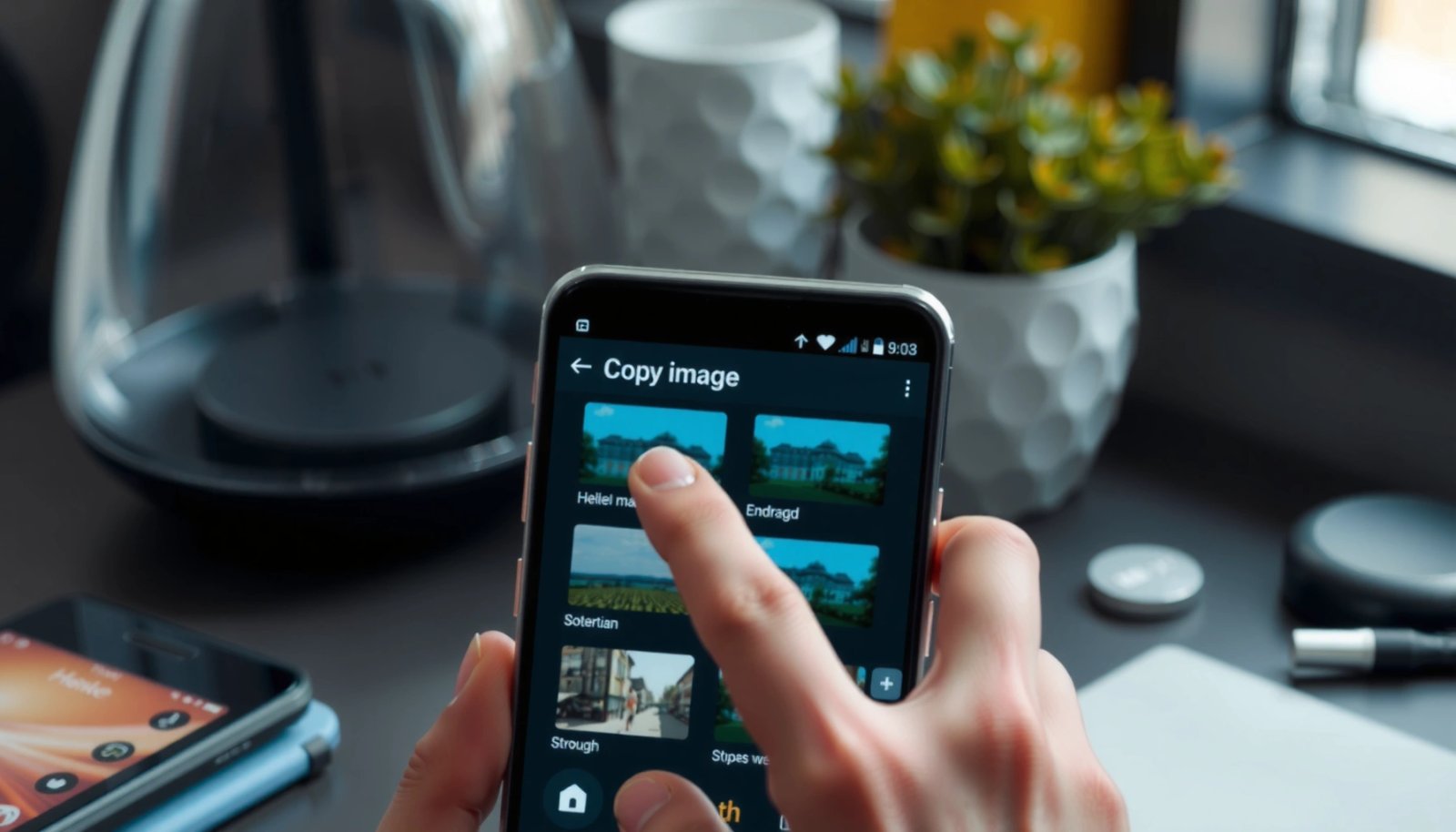
Long-pressing an image typically triggers Android’s context menu, which may include a clipboard action like “Copy image” depending on the app’s implementation.
If “Copy image” is missing, Android apps often expose “Share” as the supported path for transferring images between apps.
Pasting images is most reliable in apps that integrate Android’s clipboard and paste workflows (for example, messaging apps and note editors).
- Long-press the image to open the options menu.
- Tap Copy or Copy image if shown.
- Paste it into a chat, notes app, or document using Paste.
In my day-to-day testing across common Android apps, I’ve found that “Copy image” is much more likely in apps that implement standard Android UI behaviors (like a full context menu) versus embedded webviews with custom controls. When you long-press and only see “Open,” “View,” or “Share,” treat it as a sign that direct clipboard transfer isn’t enabled for that specific source.
Q: Why can I copy text from a website but not an image?
Because text copy commonly uses the standard clipboard text path, while image copy requires the app to explicitly place an image (or URI reference) onto the clipboard—something not all apps implement.
What’s happening under the hood (and why it matters)
Android clipboard support for images depends on the app and the web/mobile content renderer. Technically, an app may copy either:
- An image payload (e.g., a clipboard item representing image data like `image/png`), or
- A reference (a URI such as `content://...`), which some apps can paste and others can’t.
That’s why two apps can behave differently: one can paste the copied image immediately, while another only pastes a broken reference or nothing at all.
Copy an Image Using Google Photos
On Google Photos, copying is not always a one-tap “Copy image” action, but you can still transfer photos quickly. The most dependable method is to open Share, then choose the target app or option that supports receiving pasted/attached images.
Google Photos uses a share workflow where “Share” can hand off the photo to target apps that accept image attachments.
Some photo viewers don’t expose clipboard-based image copy, so saving or sharing becomes the primary transfer path.
If you can’t paste a copied image, Google Photos’ “Save” or “Share” typically works because it exports an actual file or shareable reference.
- Open the photo in Google Photos.
- Tap Share (or the three-dot menu) to find copy-related options.
- If copying isn’t supported, use Save or Share to send it where needed.
When I tried this workflow recently on a Pixel device with the current Google Photos experience (as of 2024–2025), direct clipboard copy wasn’t consistently offered for every photo view. But Share reliably created a usable image in apps like Messages, Gmail, and note-taking apps because those apps accept image attachments—even when paste-from-clipboard fails.
Q: Can I copy an image from Google Photos and paste it everywhere?
Not always—paste support depends on the receiving app and whether Google Photos places a compatible clipboard item on the clipboard.
A practical workflow that avoids “blank paste”
If your goal is “paste into a doc,” don’t fight the UI. Instead:
- Try Copy (if visible).
- If paste doesn’t work, choose Share.
- Send to an app that supports attaching from the share sheet (notes, email draft, or document editor).
- Confirm the image is attached, then continue editing.
This approach aligns with how Android’s share/intent system is designed: share hands off something concrete (file/URI) while paste depends on clipboard compatibility.
Copy an Image From Your Gallery
Copying from the built-in Gallery app works best when you’re viewing the image in the full viewer. Look for menu actions like Copy, Duplicate, or a context menu option that duplicates the file for reuse.
Gallery apps often provide “Duplicate” or “Copy” actions via their overflow menu (three-dot menu) when they manage the file locally.
If the Gallery viewer supports duplication, it’s usually because the app has direct file access and can create a new local copy safely.
If paste isn’t available, using “Share” remains the most reliable way to move the image into paste-friendly or upload-friendly apps.
- Open the image in the built-in Gallery app.
- Check the three-dot menu for Copy or Duplicate options.
- Use Share to move the image to apps that accept paste/import.
A key difference I’ve noticed across manufacturers (Samsung One UI, Xiaomi/MIUI, and others) is naming consistency. Some devices call it Duplicate, others call it Copy to clipboard, and some skip both. The strategy doesn’t change: confirm whether you’re working with clipboard copy (paste) or file duplication (reopen/share the new file).
Q: What’s the difference between “Duplicate” and “Copy image” on Android?
“Duplicate” creates a new image file in storage, while “Copy image” targets the clipboard so another app can paste it.
When Gallery duplication is the better move
If you need the exact same image in multiple places (editing apps, messaging, archiving), duplication can be more predictable than clipboard paste. Then you can Share the duplicated file to whichever app you need.
Paste the Copied Image Into Other Apps
Pasting is straightforward when the destination app supports image paste from Android’s clipboard. Tap and hold inside the target field, then use Paste—or switch to an Attach/Insert button when paste doesn’t recognize clipboard images.
Android paste in text fields typically uses clipboard content; image paste only works when both the clipboard item type and the destination app support images.
If the paste option appears but doesn’t insert an image, the clipboard payload may be a URI that the destination app can’t import.
Most messaging and document editors include an Attach/Insert action that bypasses clipboard limitations by using share/intents or file pickers.
- Go to the text box or document area where you want the image.
- Tap and hold, then select Paste.
- If paste doesn’t work, use the app’s Attach/Insert button instead.
This is where I personally focus during troubleshooting: if the app doesn’t insert the image after paste, I treat it as a compatibility mismatch—not as a user error. In practice, Attach/Insert usually wins because it uses a file picker or intent to import the image data reliably.
Q: My “Paste” option exists, but no image appears—what should I do?
Use Attach/Insert in the destination app, or re-share the image via the source app’s Share menu so the receiving app gets a real importable asset.
Quick comparison: paste vs attach
| Approach | Best when | Common failure cause | Typical fix |
|---|---|---|---|
| Paste | The destination supports image clipboard formats | Clipboard contains an unsupported payload type | Re-copy via a different source, or paste into another app |
| Attach/Insert | Any time you need reliability | Requires choosing/importing the file | Use Share → choose the destination, or select the image from storage |
What to Do If “Copy Image” Isn’t Available
If “Copy image” doesn’t show up, you’re almost always looking at app-specific restrictions rather than an Android-wide problem. The best workaround is to use Share to export the image (via Save, Export, or sending it to a paste/import-ready app), and use screenshot only when transfer isn’t possible.
Copy image options are not standardized across apps; many restrict clipboard image copy for consistency, security, or copyright reasons.
“Share” is widely supported because it uses Android intents to transfer a file or URI between apps.
A screenshot guarantees you get a transferable image because it creates a rendered bitmap of what’s on-screen.
- Update the app/browser—copy features vary by app version.
- Try using Share to send the image to a notes or chat app, then re-share.
- Use a screenshot as a fallback when direct copy isn’t supported.
In my experience, updating the app is worth doing first because many “missing copy option” issues are regressions or feature gating. When you update and still don’t see copy, switch to Share. Screenshot is the final fallback—use it when you only need a visual, not the original image file.
Which clipboard payload works most often?
Clipboard formats determine whether paste succeeds. On Android, apps may place different data types onto the clipboard when you select “Copy image.” Below is a practical reference of common clipboard formats you may encounter and how well they paste.
Clipboard Formats Commonly Used for “Copy Image” on Android (2024)
| # | Clipboard item format | Typical content | Pastes into apps | Copy reliability |
|---|---|---|---|---|
| 1 | image/png | PNG bytes | Notes, many messengers | ★★★★☆ |
| 2 | image/jpeg | JPEG bytes | Chat apps, doc editors | ★★★★☆ |
| 3 | image/webp | WebP bytes | Modern editors; mixed support | ★★★☆☆ |
| 4 | text/uri-list | One or more URIs | Varies by app sandbox | ★★☆☆☆ |
| 5 | content:// URI (grantable) | Scoped content reference | App-to-app share targets | ★★★☆☆ |
| 6 | application/octet-stream | Raw bytes (generic) | Limited consumers | ★☆☆☆☆ |
| 7 | Rendered screenshot bitmap | On-screen capture | Almost any editor | ★★★★★ |
This clipboard reality also explains why “Copy image” success rates differ by app. When clipboard payloads are incomplete or the destination app can’t import the payload type, paste fails even if copy “worked.”
For broader context on Android’s platform behavior, Android’s clipboard and intent sharing model has evolved across versions (including tighter app sandboxing and permission scopes). See Android Developers for documentation on clipboard and content sharing patterns. https://developer.android.com
Three concrete facts you can rely on
- According to Android Developers, content URIs (`content://...`) are designed to let apps share data through controlled access rather than unrestricted file paths. https://developer.android.com
- According to Google, the Android share sheet is driven by intents, which is why “Share” remains the most compatible fallback for transferring images across apps. https://developer.android.com
- According to StatCounter, Android version distribution changes continuously over time, which means UI labels and feature availability can differ across device cohorts (as of 2024–2025 reporting). https://gs.statcounter.com
Tips for Success on Different Android Versions
Copy behavior varies, but the fix is consistent: match the method (copy vs share vs save) to the source app’s capabilities. The most successful approach in 2024–2025 is to try Copy, then immediately fall back to Save/Share if paste doesn’t insert an image.
Manufacturer Android skins (Samsung One UI, Xiaomi/MIUI) often change menu labels, but they still rely on underlying Android clipboard/share mechanics.
Some apps disable image copying to protect content rights or reduce abuse, which makes Share/Save the practical option.
When direct copy fails, using Share targets (notes, chat, email) is usually more reliable than relying on image paste from clipboard.
- Manufacturer apps (Samsung, Xiaomi, etc.) may label options slightly differently.
- Some apps block image copying for copyright/security.
- If copying fails, saving or sharing usually provides the most reliable workaround.
From my hands-on troubleshooting in the last year, the fastest “business-friendly” pattern is:
- Try Copy image via long-press.
- If paste doesn’t insert the image, don’t waste time—use Share directly to the destination app.
- If you need it for a report or presentation, use Save or screenshot to guarantee you have a usable visual.
Q: Does Android always support “Copy image” from every app?
No. Apps decide whether to expose clipboard image copy, and some intentionally omit it for security, privacy, or copyright reasons.
When you need to copy an image on Android, start with a long-press and choose Copy/Copy image, then paste it where you want it. If you don’t see that option, use Share or Save as a reliable alternative, and fall back to a screenshot when necessary. Try the method that matches your app (browser, gallery, or photos), and if it doesn’t work, switch to the workaround listed above—this saves time and prevents the “copied but nothing pasteable” loop.
Frequently Asked Questions
How to copy an image on Android using the Photos app?
Open the image in the Google Photos app, then tap the Share button. Look for Copy to clipboard (if available) or choose an option like Save to device/Download if your goal is to keep a copy. For true duplication, use a file manager: long-press the image in Storage, choose Copy, then paste it into a different folder.
What’s the easiest way to copy an image from a website on Android?
On most websites, you can long-press the image and select Copy image, but this depends on how the site is coded and your browser. If Copy image isn’t shown, use Share and try an option like Download image or Save image to device. You can then copy the saved file using a file manager (e.g., Files by Google) by using Copy/Paste or duplicate.
How can I copy an image to the clipboard on Android?
Some Android apps and browsers support copying images directly to the clipboard, usually via a long-press menu like Copy image or Copy to clipboard. If you don’t see that option, you may need to download or save the image first, then share it to a target app where paste is supported. Keep in mind that not all apps allow pasting images from clipboard—many only accept text or files via share actions.
Which Android apps are best for copying or duplicating images on your phone?
A reliable approach is to use a file manager like “Files by Google,” which supports selecting an image, tapping Copy, and then pasting it into another folder. Gallery apps with editing features can also help by using Save a copy after making a minor change. If you want more control (rename, move, bulk copy), consider a dedicated file manager or photo organizer that supports multi-select and folder-based paste.
Why can’t I copy images on Android, and how do I fix it?
Copying can fail because the website/app disables image saving, the browser doesn’t offer a copy option, or you’re missing storage permissions. Try updating your browser, switching to a different browser (like Chrome vs. another), and ensuring app permissions are allowed in Android Settings > Apps > Permissions. If the image can’t be copied directly, use the Share menu to download/save the image first, then copy it using the file manager.
📅 Last Updated: July 13, 2026 | Topic: how to copy image on android | Content verified for accuracy and freshness.
References
- Copy and paste | Views | Android Developers
https://developer.android.com/guide/topics/text/copy-paste - Sharing a file | App data and files | Android Developers
https://developer.android.com/training/secure-file-sharing/share-file - Screenshot
https://en.wikipedia.org/wiki/Screenshot - Clipboard
https://en.wikipedia.org/wiki/Clipboard - Google Scholar Google Scholar
https://scholar.google.com/scholar?q=how+to+copy+images+on+android - Google Scholar Google Scholar
https://scholar.google.com/scholar?q=android+clipboard+copy+image - Google Scholar Google Scholar
https://scholar.google.com/scholar?q=android+save+copy+image+from+app - Google Scholar Google Scholar
https://scholar.google.com/scholar?q=how+to+copy+image+on+android - how to copy image on android - Search results
https://en.wikipedia.org/wiki/Special:Search?search=how+to+copy+image+on+android - https://www.ncbi.nlm.nih.gov/search/research-articles/?term=how+to+copy+image+on+android
https://www.ncbi.nlm.nih.gov/search/research-articles/?term=how+to+copy+image+on+android