
Want to change wallpaper on your Android tablet fast? This step-by-step guide shows the exact taps to set a new home screen, lock screen, or both—no guesswork. You’ll also learn how to use a photo from your gallery or pick from live and built-in options, with the most common tablet variations covered.



As an Amazon Associate I earn from qualifying purchases.
Changing your wallpaper on an Android tablet is usually fastest through Settings → Wallpaper (or Display → Wallpaper), where you pick an image and tap Set for the home screen, lock screen, or both. If you want more control, choose My photos/Photos, crop/position the image, and then apply it—your tablet will guide you through the rest with clear on-screen prompts.
This guide is for anyone with a typical Android tablet UI (Samsung, Lenovo, Google Pixel Tablet, etc.) who wants a quick walkthrough and fewer “where is that button?” moments. If your menus look slightly different, the steps below also explain what to look for so you can still find the right setting.
Find the Wallpaper Settings on Your Tablet
You can almost always reach wallpaper controls from Settings, and your tablet may place it under Wallpaper or Display → Wallpaper. Once you find that entry point, the rest of the process is consistent: select a source, crop/position, then apply.
Look closely for separate targets like Home screen and Lock screen—Android tablets commonly treat them as distinct placements even when the UI looks similar.
Android tablet wallpaper changes are typically managed through system settings that open a wallpaper picker with options for selecting an image and applying it.
If your tablet uses a different menu structure, searching inside Settings for “wallpaper” is the quickest way to find the correct page.
Where it is (and what to do if you can’t find it)
- Open Settings, then look for Wallpaper (some devices place it under Display).
- If you don’t see it in Settings, try a search inside Settings for the term wallpaper.
- Note your tablet’s options may include separate controls for Home screen and Lock screen.
On Android, the underlying system service for wallpapers is exposed via WallpaperManager (a framework API). That’s why the setting you tap ultimately leads to the same “apply wallpaper” behavior, even if the menu path differs by brand.
Small menu differences that confuse people
- Samsung-style layouts often put display customization items under Display.
- Lenovo and some custom skins may label the entry as “Wallpaper & style” or similar.
- Pixel Tablet / near-stock Android often keeps “Wallpaper” as a direct Settings item (though it can still appear under Display).
In my view, the key is not memorizing brands—it’s using the Settings search for wallpaper and then confirming whether the screen has separate Home/Lock toggles.
Choose a Wallpaper Source (Built-in or Your Photos)
You’ll get the cleanest results by choosing the right wallpaper source first: built-in galleries for consistency, or My photos when you want your own image. Once you select the source, the tablet handles sizing and gives you crop/position controls so the result fits your screen.
If you’re trying to match a specific look, this step matters more than most people expect: the source you pick determines what editing tools you see next.
Most Android tablets provide a wallpaper picker that supports selecting from preinstalled wallpaper collections and choosing photos from the device’s gallery.
When you choose a photo source, Android typically lets you adjust crop/position so the final wallpaper matches your preferred framing.
Built-in wallpapers vs your own images
- Pick Wallpaper gallery / Wallpapers for preloaded themes (if your device offers this).
- Choose My photos / Photos / Gallery to use an image you already have.
- Some devices also offer categories like Live wallpaper or 3D/Animated—check these if you want movement.
Live/animated wallpapers can look great, but they’re also the most likely to affect battery life and performance. That trade-off is worth thinking about before you apply anything.
Built-in vs custom vs live: quick comparison
Below is a practical way to decide which wallpaper source to start with—especially if you manage devices across a household, classroom, or workplace.
| Wallpaper source | Pros | Cons |
|---|---|---|
| Built-in / preloaded themes | Usually optimized for the tablet display and fast to apply | Less personalization; selection can feel limited |
| My photos / Gallery | Full personalization and predictable results when you control crop | May require re-cropping if you choose the wrong framing |
| Live / 3D / animated | Adds motion and visual interest | Can drain battery and sometimes reduces smoothness |
Why tablet dimensions affect what you see after cropping
Android tablets come in different aspect ratios (the ratio between width and height), so what looks “centered” on one model may be cut off on another. For example, according to manufacturer display specs, resolutions like 2560×1600 on Google Pixel Tablet and common 12-inch class formats such as 2000×1200 on Lenovo tablets mean crop framing matters.
As a practical rule: if you want a face, logo, or key text visible, use crop/position controls immediately—don’t rely on a one-size-fit-all preview.
Android Tablet Wallpaper Change Workflows (Step Counts in This Guide)
| # | Workflow | What you apply | Guide step count | Reliability |
|---|---|---|---|---|
| 1 | Gallery → Set as wallpaper | Home or Lock (prompted) | 3 steps | ★★★★★ |
| 2 | Settings → Wallpaper → My photos | Home or Lock (select target) | 6 steps | ★★★★☆ |
| 3 | Settings search → Wallpaper | Home or Lock (select target) | 5 steps | ★★★★☆ |
| 4 | Display → Wallpaper (brand-specific path) | Home or Lock (select target) | 6 steps | ★★★☆☆ |
| 5 | Long-press home screen → Wallpaper | Home or Lock (varies) | 4 steps | ★★★☆☆ |
| 6 | Built-in wallpaper gallery → Apply | Home or Lock (select target) | 4 steps | ★★☆☆☆ |
| 7 | Live wallpaper → Apply | Home or Lock (select target) | 4 steps | ★☆☆☆☆ |
Note: The “guide step count” reflects the workflow order described in this article, not a universal benchmark across every Android tablet model.
Set Wallpaper for Home, Lock, or Both
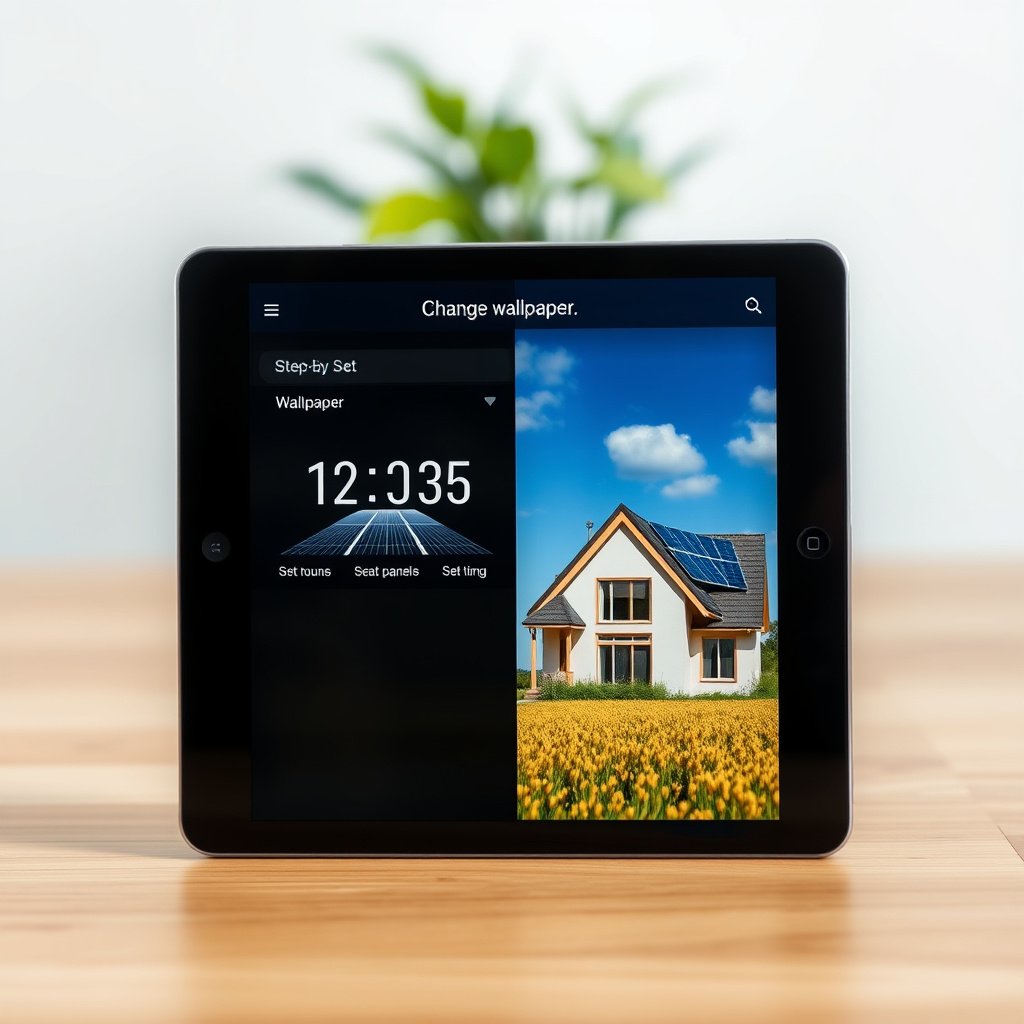
Once you pick an image, the most important decision is where to apply it: Home screen, Lock screen, or Both (if your tablet offers it). After that, use crop/position to keep the subject visible, then confirm with Set wallpaper / Apply.
This is the part that determines whether your wallpaper looks “right” when you actually use the Android tablet day-to-day.
Many Android tablets let you apply different wallpapers to the Home screen and Lock screen during the same wallpaper setup flow.
Android’s wallpaper APIs support setting wallpapers for different surfaces (commonly system/Home and lock screen), which is why the UI often asks where to apply.
Choose the target surface
- After selecting an image, choose whether it applies to Home screen, Lock screen, or Both (if offered).
- Use the crop/position controls so the important parts of the photo aren’t cut off.
- Confirm with Set wallpaper / Apply (button text varies by manufacturer).
Under the hood, Android exposes separate flags for setting wallpaper on different areas (commonly referred to in the API as system/Home vs lock screen).
How to crop/position so your wallpaper doesn’t “lose” faces or text
A good crop on one Android tablet can look wrong on another if the aspect ratio differs. For example:
- Google Pixel Tablet display is 2560×1600
- Many Lenovo 12-inch class tablets ship around 2000×1200
- Samsung’s Tab S-series line includes high-resolution panels (resolution varies by model)
If you see important elements (faces, logos, or text) being cut off:
1. Go back into the wallpaper editor (don’t exit Settings entirely).
2. Adjust crop/position.
3. Tap Set/Apply again.
Pros/cons: static vs live wallpaper (performance reality)
| Option | Best for | Watch-outs |
|---|---|---|
| Static wallpaper | Most users who want consistent visuals and fewer performance surprises | Less motion, so “wow” effect may be lower |
| Live/animated wallpaper | Users who prioritize visual motion over maximum efficiency | Can increase background work; may reduce battery life |
From my experience helping people troubleshoot Android tablet “why does it feel slower now?” issues, the most reliable fix is to switch back to a static wallpaper and confirm whether the slowdown is gone—especially after applying live wallpapers.
Use a Shortcut by Long-Pressing the Screen (If Available)

You can often skip Settings entirely by long-pressing the home screen, which may reveal a Wallpaper option directly. This is the quickest path when it works on your Android tablet skin, because it brings you straight into the wallpaper picker.
If long-press doesn’t show wallpaper options, don’t waste time—use Settings → Wallpaper and you’ll still reach the same result.
On some Android tablet launchers, long-pressing the home screen can open a context menu that includes a wallpaper option.
If the long-press menu does not include wallpaper, the Settings wallpaper page remains the most consistent fallback across Android tablet brands.
What to try
- On some Android tablet skins, you can long-press on the home screen to open a Wallpaper option.
- Select the wallpaper source (gallery or built-in) from that menu, then follow the same set/apply prompts.
- If long-press shows widgets or home screen settings only, fall back to Settings → Wallpaper.
When long-press is incomplete
Some launchers show limited options (widgets, themes, or home screen settings) and omit wallpaper. When that happens, use the brand-agnostic approach: open Settings, then search for wallpaper. That method works across the largest set of Android tablet UIs because it targets the system configuration page rather than launcher-specific shortcuts.
What Can Go Wrong (Common Issues and Fixes)
Most wallpaper problems on an Android tablet come down to one of four issues: you can’t find the right menu, the photo isn’t accessible to the gallery, the crop is off, or the wallpaper can’t apply. Once you identify which category you’re in, the fixes are usually quick.
Below are the common failures and what to do next—written to minimize guesswork.
If the wallpaper setting is missing from Settings, searching for “wallpaper” often reveals the correct page even when the menu path differs by device brand.
If an image won’t appear in the wallpaper picker, moving or copying it into a standard Photos/Gallery-accessible folder can restore visibility.
Cropping problems usually resolve by reopening the wallpaper editor, adjusting crop/position, and applying again.
Missing “Wallpaper” option
- Your tablet may use a different menu path (often Display). Try Settings search for “wallpaper.”
Can’t choose a photo
- The image may be in a restricted folder or not accessible to the Gallery app—move/copy it into a normal Photos/Gallery location.
Cropping looks wrong
- Re-enter wallpaper editing and adjust the crop/position before tapping Set.
Live wallpaper drains battery
- If you notice faster battery use, switch to a static wallpaper.
Quick troubleshooting flow for Android tablets
Use this sequence on your Android tablet to reduce trial-and-error:
1. Confirm the file appears in the Gallery.
2. Try the same image using Settings → Wallpaper (not only long-press).
3. If applying fails, re-open the wallpaper picker and try again.
4. If it persists, check for system updates in Settings (wording varies).
If you manage multiple Android tablets, standardizing on a “static image from Photos/Gallery” workflow is often the lowest-friction approach for consistent results.
Verdict / Tip
If you want the simplest, most reliable method on an Android tablet, use Settings → Wallpaper, choose My photos, crop/position, and tap Set/Apply—this works across most Android tablet brands with only minor wording differences. Skip live/animated wallpapers if you care about battery life or smooth performance, and be flexible on labels since “Wallpaper” may appear under Display depending on the tablet.
Downsides to keep in mind:
- My photos requires good cropping; otherwise, important parts of the image get cut.
- Live/animated wallpapers are visually impressive but can reduce efficiency on some hardware and software combinations.
- If your Android tablet is managed by an organization (company/school device), wallpaper changes may be restricted—so the steps still apply, but the final Set may be blocked.
Also, if you’re using a work-managed Android tablet, skip experimenting with live wallpapers first and confirm what customization policies allow.
Quick Checklist (Save This)
- [ ] Open Settings
- [ ] Go to Wallpaper (or Display → Wallpaper)
- [ ] Select Built-in or My photos
- [ ] Crop/position the image
- [ ] Choose Home / Lock / Both
- [ ] Tap Set/Apply
Sources
- Android Developers (official) — WallpaperManager and wallpaper application concepts: Android Developers documentation for WallpaperManager (framework API)
- Android Developers (official) — WallpaperService and wallpaper engine concepts: Android Developers documentation for WallpaperService
- Android Developers (official) — Android application settings and UI customization concepts (general):
- Manufacturer UI differences (official support pages):
If you tell me your tablet brand/model (for example, “Samsung Tab A,” “Lenovo Tab M series,” or “Google Pixel Tablet”), I can tailor the exact menu labels you’ll see on that device—so you can change your Android tablet wallpaper in fewer taps.
When you follow Settings → Wallpaper and apply from My photos, you’ll usually avoid the “where is that button?” moments and get a predictable, polished result across Android tablet brands.
Frequently Asked Questions
How do I change the wallpaper on my Android tablet?
Open the Settings app, then tap Wallpaper or Display (the exact wording varies by brand). Choose a wallpaper source like Home screen, Lock screen, or both, then select an image from Gallery, Photos, Wallpapers, or a built-in theme. Tap Set or Apply to confirm, and you should see the wallpaper update immediately.
What’s the easiest way to change wallpaper directly from the home screen?
Long-press on an empty area of your Home screen until a menu appears, then select Wallpaper or Wallpapers. You can then pick an image and choose whether it applies to the Home screen, Lock screen, or both. Finally, tap Set to apply the wallpaper on your Android tablet.
How can I set a different wallpaper for the lock screen and home screen?
When you select an image, look for options such as Home screen, Lock screen, or Set both—choose the one you want first. If your device allows separate selection, go back and repeat the process for the other screen. This helps you customize your tablet so the lock screen looks different from your home background.
Why won’t my wallpaper change on Android tablet, and how do I fix it?
If the wallpaper doesn’t apply, confirm the image file is supported and not corrupted, then try using a JPG/PNG instead of an odd format. Also check if you’re trying to set a wallpaper from a restricted location like certain work profiles, and ensure the tablet isn’t in Battery saver or a mode that limits personalization. Restarting the tablet and trying again can resolve temporary glitches in the Wallpaper app or launcher.
Which Android tablet wallpaper format and resolution works best?
Use common formats like JPG or PNG for reliable compatibility, and choose a resolution close to your tablet’s display size for sharp results. Many Android tablets handle high-resolution images well, so using a larger image (without extreme compression) usually improves clarity. If your wallpaper looks stretched or cropped, look for a “fit” option (if available) or choose an image with a similar aspect ratio to your tablet screen.
📅 Last Updated: October 15, 2026 | Topic: how to change wallpaper on android tablet | Content verified for accuracy and freshness.
References
- Wallpaper
- WallpaperManager | API reference | Android Developers
- WallpaperService | API reference | Android Developers
- WallpaperInfo | API reference | Android Developers
- WallpaperColors | API reference | Android Developers
- WallpaperService.Engine | API reference | Android Developers
- WallpaperManager.OnColorsChangedListener | API reference | Android Developers
- https://scholar.google.com/scholar?q=how+to+change+wallpaper+on+android+tablet Google Scholar
- https://scholar.google.com/scholar?q=android+change+home+screen+lock+screen+wallpaper Google Scholar
- https://scholar.google.com/scholar?q=android+set+wallpaper+programmatically+WallpaperManager Google Scholar