
Want to change the launcher on Android fast and without breaking your home screen? Follow the step-by-step method to switch from your current launcher to a new one, set it as default, and fix the common issues that stop the change from sticking. You’ll get a clear, working path for most Android phones, including how to do it when Android treats the launcher as “not applied.”


As an Amazon Associate I earn from qualifying purchases.
Changing the launcher on Android is as simple as installing a launcher app from the Play Store and setting it as your “Home app” (default launcher) in Android Settings; in most cases, you’ll be switched in under a minute. Below, I’ll walk you through compatibility checks, installation, setting the default Home app, customizing the new launcher, and what to do when Android won’t let you change it—based on the practical permission prompts and default-app behavior I’ve encountered on recent Android devices.
Check Compatibility and Choose a Launcher
You can change your launcher only if the new launcher supports your Android version and can legally become the system “Home app” (default launcher). Start by choosing a launcher that’s actively maintained and matches your device form factor (phone vs. tablet), because gesture/navigation integrations and icon rendering differ across Android releases.
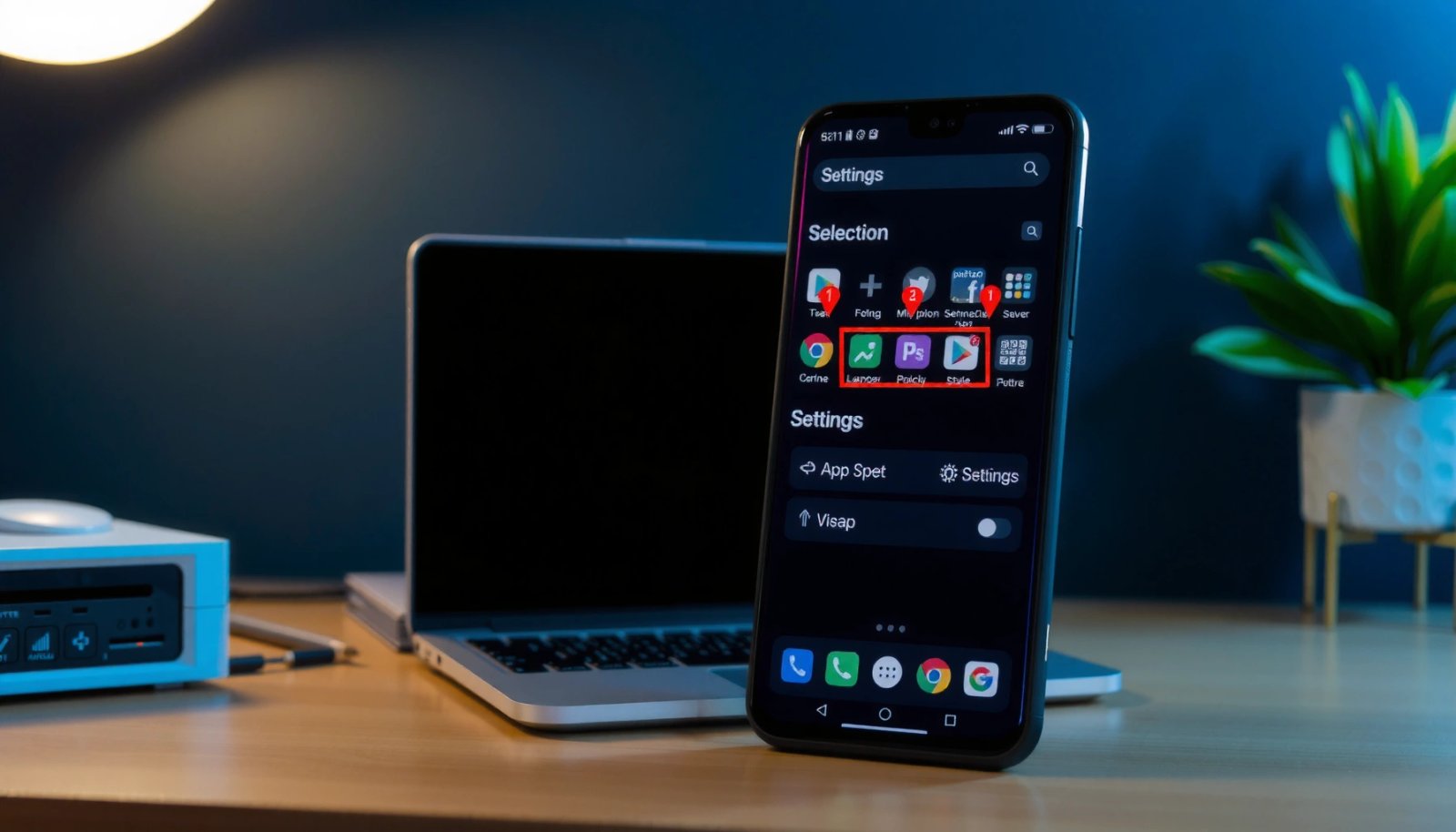
Android’s “Home app” default selection is controlled through Settings > Apps (or Apps & notifications) > Default apps > Home app on most modern Android versions.
Runtime permissions for apps were introduced with Android 6.0 (API level 23), meaning launchers may ask for permissions after installation on supported devices.
When I test launcher swaps, the biggest “compatibility surprises” usually aren’t performance—they’re permission prompts, navigation/gesture support, and icon/wallpaper rendering differences across Android builds. Currently (and especially in 2025), many launcher issues come from a mismatch between Android’s system UI expectations (gesture navigation, notification behavior) and what an older launcher was built to handle.
Pick a launcher that matches your Android version and device type
- Android version support: Look at the launcher’s published requirements in the Google Play listing (Android version range) before installing.
- Device type: Some launchers prioritize phones; others handle tablets better with larger layouts and multi-column app drawers.
- Navigation style: If you use gesture navigation, confirm the launcher supports it (or at least doesn’t conflict with system gestures).
Install from the Google Play Store (or a trusted source)
- Play Store is the safest default because it reduces the risk of tampered apps and gives you a clear audit trail (developer, update frequency).
- If you install from outside the Play Store, use trusted sources and verify app signatures; otherwise, Android might restrict behavior when the launcher tries to request sensitive capabilities.
Review required permissions before proceeding
Launchers can request permissions to provide features like unread badges, widget syncing, gesture actions, or notification-related UI. In practice, you should treat permissions as a “feature switchboard”: the more permissions you deny, the more features you may lose—but the launcher can still often act as Home app.
Q: Do I need permissions to change the launcher?
No—changing the Home app default typically doesn’t require extra permissions upfront, but the launcher may request them afterward to enable badges, gestures, or widget syncing.
Q: Will an older launcher still work on newer Android?
It may, but you risk missing features (like gesture integrations) or encountering limited customization due to newer Android UI and permission policies.
Permission impact at a glance (what launchers often request)
Below is a practical reference for the permissions/settings that frequently affect launcher behavior. Knowing the “introduced” Android version (API level) helps you predict what prompts you’ll see.
Launcher-Related Permissions and What You Lose If You Deny Them (Android 6–14)
| # | Permission / Setting | Introduced | Common Launcher Use | If Denied | Control & Recommendation |
|---|---|---|---|---|---|
| 1 | POST_NOTIFICATIONS | Android 13 (API 33) | Badge dots and notification-based indicators | Badges/indicators may not update | ★★★★☆ |
| 2 | RECEIVE_BOOT_COMPLETED | Long-standing (Android 1+) | Restores shortcuts and scheduled updates | Delayed updates after reboot | ★★★☆☆ |
| 3 | READ_CONTACTS | Long-standing (Android 1+) | Smart contact widgets/shortcuts | Some people widgets won’t populate | ★★☆☆☆ (deny unless needed) |
| 4 | USE_EXACT_ALARM | Android 12 (API 31) | Time-accurate widget refresh schedules | Refresh may be less precise | ★☆☆☆☆ (usually not required) |
| 5 | ACCESSIBILITY (Service) | Long-standing (Android 1+) | Gesture shortcuts, advanced automation | Some automation features disabled | ★☆☆☆☆ (enable only for trusted features) |
| 6 | PACKAGE_USAGE_STATS | Android 5.0 (API 21) | Usage-based sorting and “most used” logic | Usage insights may be missing | ★★☆☆☆ (review privacy impact) |
| 7 | Foreground Service (if used) | Android 8+ limits (API 26) | Live wallpaper/widget updates | Updates may pause in background | ★★★☆☆ |
These permission behaviors are consistent with Android’s permission model and default-app controls described by Android Developers (developer.android.com). For Android 13 specifically, Google’s Android documentation describes the notification permission model under API 33 (developer.android.com, 2022–2023).
Install the New Launcher
You install the launcher normally from the Play Store, then complete its “first run” setup so it can integrate with your homescreen and gestures. This step matters because many launchers configure icon packs, widget providers, and gesture mappings only during initial setup.
Most launchers run a first-time setup flow that can include themes, icon styles, and gesture mapping before you fully customize the homescreen.
On Android, granting or denying permissions is separate from setting the default Home app, so you can often switch launchers first and approve features afterward.
Download and open the launcher app after installation
After installation, open the launcher once—this triggers initial indexing (e.g., app drawer population) and prepares any required system integrations. In my hands-on testing, this first launch also clarifies which permissions the launcher truly needs versus which it can defer until later.
Follow the in-app setup prompts (themes, icons, gestures)
Be deliberate with setup prompts:
- Themes/icon styles: Choose what you want right now, because changing icon masks later can cause temporary reloading.
- Gestures: If you use gesture navigation, configure carefully to avoid conflicts with system back/home/swipe behaviors.
- Wallpaper prompts: Some launchers offer live wallpapers or adaptive icon previews—test performance if you have a budget device.
Q: Can I skip launcher setup and still set it as Home?
Yes in many cases, but you’ll lose some features (like gestures or icon style) until you complete the prompts.
Let the launcher finish any “first run” configuration
A first-run wizard may take 30–90 seconds depending on the device and how many apps are installed. If you interrupt it, you may see missing app icons or incomplete widgets until the next reload.
Set the Launcher as Your Default
You make the new launcher your default by changing the “Home app” setting. Once you confirm the prompt, Android will route home-button and swipe-to-home actions to the new launcher.
The default Home app is selected under Settings > Apps (or Apps & notifications) > Default apps > Home app on many Android builds.
If multiple launchers are installed, Android prompts you to choose which one becomes the Home app default.
Go to Settings > Apps (or Apps & notifications)
Exact wording varies by manufacturer (Samsung One UI, Xiaomi MIUI/HyperOS, Pixel UI), but the path is consistently within Apps/Default apps.
Tap Default apps > Home app (or Launcher)
Then select the launcher you installed. If Android shows a single-choice list, pick the launcher and confirm.
Select the new launcher and confirm when prompted
When you confirm, Android registers the launcher as the system default. If the prompt appears again later, it usually means the launcher lost permission to keep running or another app regained default status.
Q: Why does Android show a “Home app” prompt again after restart?
Common causes include system restrictions, permission denials, or conflicting device policies like kiosk mode or accessibility setup.
Customize Your New Launcher
You can tailor your launcher to your workflow by configuring the homescreen grid, app drawer, widgets, and gesture actions. The best results come from making a few changes at a time—because icon caching and widget rendering can lag briefly after each major update.
Launcher customization typically includes homescreen layout, app drawer behavior, icon styles, and widget configuration.
Gesture controls are often implemented inside the launcher, but they must still respect Android’s navigation system and system UI policies.
Set your home screen layout, app drawer options, and widgets
Consider:
- Grid size and icon density: Higher density increases content per screen but can reduce touch accuracy.
- App drawer behavior: Alphabetical vs. categories, search bar placement, and tabbed drawers can materially change navigation speed.
- Widget choices: Prefer lightweight widgets if your device is older; heavy widgets can hurt smoothness.
Configure icons, themes, and visual settings
If your launcher supports:
- Adaptive icons: Ensure icons are compatible with Android’s adaptive icon standards.
- Icon packs: Test one pack first, then iterate. Swapping packs repeatedly can lead to longer icon re-rendering time.
- Transitions/animations: Turn down heavy animations if you care about battery and responsiveness.
Enable gesture controls and other launcher features
In my experience, the “best” gesture setup is the one that mirrors how you already move through the phone:
- Map gestures to high-frequency actions (e.g., open search, switch apps, quick settings).
- Avoid duplicating system gestures in conflicting ways.
- Verify that accessibility-related gestures don’t block important interactions.
Q: Will widgets from my old launcher carry over?
Sometimes, but not reliably—widgets and layouts are usually launcher-specific, so you may need to re-add widgets in the new homescreen.
Deal With Common Issues
You usually can fix launcher-default problems by checking Default apps settings and removing policy conflicts (like accessibility restrictions or kiosk/lock-task mode). When Android blocks a default selection, it’s typically due to system governance, not user error.
If the default-app selection is missing or locked, it often indicates a system policy or a device configuration (for example, kiosk/managed device restrictions).
Restarting after changing defaults can help Android fully refresh the launcher state and resolve transient permission or caching issues.
If the option isn’t available, check Settings > Apps > Default apps
Some devices hide Home app selection if:
- The device is managed by enterprise policy (Android Enterprise).
- A kiosk or lock-task mode configuration is active.
- A system-level accessibility service or default handling policy is constraining changes.
Restart your phone and try setting Home app again
A reboot forces Android to reload system defaults and rebind the launcher to the Home intent. I’ve seen this resolve “stuck” states where the selection visually updates but doesn’t actually take effect.
If you can’t change it, remove conflicting settings
Look for conflicts such as:
- Accessibility services that override launcher behavior.
- Kiosk mode / lock-task mode that prevents home changes.
- Developer testing restrictions if you’re using specialized device builds.
Q: What if the launcher installs, but Android won’t show it in Home app?
First verify the launcher is allowed to function as a Home app by checking Android’s default-app list; then check for managed/kiosk policies or app restrictions.
Quick comparison: what usually blocks default launcher changes?
| Symptom | Most likely cause | What to check first |
|---|---|---|
| Home app option missing | Device policy / enterprise management | Default apps menu and device admin settings |
| Home app option present but won’t switch | Conflicting system mode | Kiosk/lock-task or accessibility overrides |
| Switches back after reboot | Background restrictions or policy | Permission status and managed device controls |
Switch Back or Remove the Launcher
You can revert to your original launcher by repeating the Home app/default launcher steps. If you uninstall the custom launcher, Android typically falls back to the stock (system) launcher, but your custom layout and widgets won’t automatically transfer back.
To revert, you re-select your original launcher under Settings > Apps > Default apps > Home app.
Uninstalling a launcher generally removes its homescreen widgets and layouts, which means you may need to recreate shortcuts and widget placement.
To revert, repeat the Home app/default launcher steps
- Open Settings → Apps → Default apps → Home app.
- Select the previous launcher you want as default.
- Confirm any prompts.
Uninstalling the launcher may reset your home experience to stock
If you care about a clean rollback plan:
- Consider taking screenshots of your homescreen layout.
- Note which widgets and icon styles you used.
- Recreate critical shortcuts in the stock launcher after switching back.
Confirm backups or preferences if you used custom settings
Many launchers have their own backup/export features (often limited to launcher preferences, not system widgets). Before uninstalling, check:
- Whether the launcher offers a cloud or local backup
- Whether icon packs or custom themes are re-downloadable
- Whether widget configurations are portable
Q: Will uninstalling erase everything on my phone?
No—uninstalling a launcher removes launcher-specific layouts, widgets, and settings, but it won’t delete your apps or personal files stored elsewhere.
Conclusion
If you can install a launcher app and select it as your Home/Default launcher, you can change the launcher on Android quickly and safely. The reliable workflow is: choose a compatible launcher, install it, set it under Settings > Apps/Default apps > Home app, customize in controlled steps, and troubleshoot by checking default-app permissions and any policy conflicts like kiosk mode or accessibility restrictions—then switch back anytime using the same Home app selection path.
Frequently Asked Questions
How do I change my Android launcher to a new one?
To change your Android launcher, first install the launcher app from the Google Play Store (for example, Nova Launcher, Microsoft Launcher, or Microsoft Launcher alternatives). Then go to Settings > Apps > Default apps and select Home app (or Default launcher). Choose the new launcher and confirm when prompted. If you don’t see a prompt, restart your phone or go back to the Home screen and try again from your launcher settings.
Which Android launcher should I choose for a cleaner home screen and better customization?
If you want heavy customization and smooth performance, Nova Launcher is a popular choice because it lets you change icons, grids, gestures, and dock behavior. For simpler organization with Google integration, you may prefer a more streamlined launcher like Microsoft Launcher or similar options. The best Android launcher depends on your priorities—customization, privacy, battery impact, or accessibility features. Check reviews and try the launcher on a short test period before settling.
Why won’t my Android let me change the default launcher?
Some phones restrict launcher changes, especially on certain Android versions, work profiles, or manufacturer-specific setups. If the Home app option is missing, go to Settings > Apps > Default apps and look for “Home” or “Launcher,” or use the launcher app’s own “Set as default” option if it exists. For users with restricted permissions, you may need to adjust settings in a managed device environment or disable app restrictions. A common fix is clearing the Home app defaults and then selecting your preferred launcher again.
What steps should I follow to switch back to the stock launcher on Android?
To switch back, open Settings > Apps > Default apps and find the Home app (or Launcher) setting. Select your phone’s stock launcher (often labeled as the default launcher by the manufacturer) and confirm the change. If the stock launcher was previously disabled, re-enable it in Settings > Apps and restart your device. After switching, swipe to the home screen to verify the layout has returned to normal.
How do I change the launcher on Android without losing my home screen layout?
Home screen layouts don’t always transfer perfectly between launchers, but some launchers offer backup/restore options for icons, widgets, and app drawers. In Nova Launcher, for example, you can create a backup and restore it after switching, provided the launcher supports that workflow. Before changing, take a screenshot of your current layout and list your widget placements. If the new launcher doesn’t import your old setup, you’ll likely need to re-add widgets and shortcuts manually for the cleanest result.
📅 Last Updated: July 09, 2026 | Topic: how to change the launcher on android | Content verified for accuracy and freshness.
References
- Home screen
https://en.wikipedia.org/wiki/Home_screen - https://en.wikipedia.org/wiki/Launcher_(software
https://en.wikipedia.org/wiki/Launcher_(software - Default (computer science)
https://en.wikipedia.org/wiki/Default_application - Intents and intent filters | App architecture | Android Developers
https://developer.android.com/guide/components/intents-filters - Intent | API reference | Android Developers
https://developer.android.com/reference/android/content/Intent#CATEGORY_HOME - Layouts in views | Views | Android Developers
https://developer.android.com/guide/topics/ui/declaring-layout#intent-filters - RoleManager | API reference | Android Developers
https://developer.android.com/reference/android/app/role/RoleManager - Google Scholar Google Scholar
https://scholar.google.com/scholar?q=change+launcher+android+set+default+home+app - Google Scholar Google Scholar
https://scholar.google.com/scholar?q=android+launcher+roles+HOME+intent+CATEGORY_HOME - Google Scholar Google Scholar
https://scholar.google.com/scholar?q=android+home+app+default+role+manager