
Charging your Android phone wirelessly is straightforward if you have a device that supports Qi wireless charging (or a Qi-compatible case and charger). Follow these steps to place your phone on a Qi pad correctly, confirm it’s actually charging, and avoid common issues like misalignment or using the wrong power adapter. If your Android doesn’t support Qi, the best fix is to add an inexpensive Qi receiver so wireless charging works without a cable.

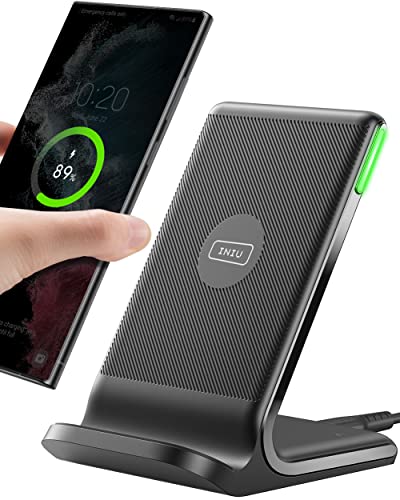

As an Amazon Associate I earn from qualifying purchases.
To charge your Android phone wirelessly, use a Qi-compatible wireless charger and place your phone on the charging pad/stand until you see a wireless charging indicator. If nothing happens, the most common causes are Qi vs. proprietary compatibility and misalignment—even when the charger’s light is on—so you’ll want to confirm both before troubleshooting further.
This guide is for Android users who want an easy, reliable way to charge without plugging in—whether you’re setting up a bedside stand, desk pad, or car mount. It also covers common “why isn’t it charging?” issues so you don’t waste time troubleshooting.

Check Your Phone Supports Wireless Charging (Qi)

Yes—wireless charging will only work if your Android phone has the wireless charging receiver hardware that supports Qi (the most common standard). If your phone lacks Qi support, no setting can “turn on” wireless charging; you’ll need the correct receiver/case accessory or a different charger type.
Qi wireless charging transfers power by electromagnetic induction between a transmitter (the charger) and a receiver coil (inside the phone).
A charger lighting up does not guarantee charging—Android devices only begin charging when they negotiate a compatible Qi profile.
If your phone supports wireless charging, its settings typically include an option mentioning “Wireless charging” or “Qi,” though exact wording varies by brand and Android version.
First, confirm whether you’re dealing with Qi or something else. Some phones and accessories use proprietary wireless standards (for example, certain high-speed “fast wireless charging” methods), while Qi is the baseline you can generally rely on across brands.
What to look for in Android settings or your manual
Look for terms like Wireless charging, Qi, or Wireless power sharing (reverse charging). Reverse wireless charging is different: it uses your phone as a transmitter to charge accessories, not the other way around.
If your phone isn’t compatible, your options are accessory-based
If your model doesn’t include Qi hardware, your choices are typically:
- A Qi-compatible wireless charging case (adds a receiver coil)
- A Qi receiver accessory (varies by model; depends on phone hardware support)
Confirm the charger is Qi-compatible (most are, but not all)
Most wireless pads/stands marketed for phones are Qi, but there are also non-Qi standards and older/region-specific variants. If the packaging/spec says Qi, that’s your best bet for Android.
Typical Qi Phone Charging Power Classes You’ll See for Android (Real-World Market Profiles)
| # | Qi Power Class | Typical Output* | Common Use | Likely Notes |
|---|---|---|---|---|
| 1 | Standard Qi (Baseline) | 5 W | Overnight / desk charging | Often works across more devices but slower |
| 2 | Fast Qi (Mid) | 7.5 W | Commute top-ups | Requires phone + charger support |
| 3 | Fast Qi (Core) | 10 W | Frequent bedside charging | Most “fast wireless” marketing targets this |
| 4 | Fast Qi (High) | 15 W | Quick replenishment | Common limit for many Qi phone fast-charging profiles |
| 5 | Lower-Power Qi (Wearables) | 2.5 W | Charging watches/earbuds cases | May be slower for phones; still Qi-compliant |
| 6 | Dual-Coil / Multi-Device Qi Stands | 5–10 W* | Desk setups (phone + accessory) | Output often drops when charging multiple devices |
| 7 | Specialized Qi Phone Pads (Marketing Variants) | Up to 15 W* | Fast top-ups with compatible phones | Always check device support list/ratings |
Exact wattage depends on the phone’s receiver profile, the charger’s negotiated Qi power level, and thermal limits. For standardized technical requirements, reference the Qi specification from the Wireless Power Consortium.
Quick technical anchor: According to the Wireless Power Consortium (WPC) Qi specification, Qi systems operate in the 110–205 kHz frequency range (documented in Qi technical materials; confirm the version in your specific charger/receiver documentation, as revisions exist). In practice, that shared frequency range is why Qi compatibility is the first thing to validate as of 2026.
Get the Right Charger Setup (Charger + Placement)
Yes—wireless charging is as much about setup and placement as it is about compatibility. Use a Qi wireless charging pad/stand and place the phone centered on the charger’s contact/coil area; if charging doesn’t start, reposition slightly.
Most Qi chargers require the phone’s receiver coil to be close to the transmitter coil; even small lateral misalignment can prevent charging.
A charger’s “power” LED typically indicates it has input power, not that it has successfully detected a compatible receiver.
Charging behavior varies by charger geometry—pads and stands can have different coil layouts, so centering matters.
Use the charger correctly (power + coil alignment)
- Plug the wireless charger into a power outlet or the correct USB power adapter.
- Place the phone flat and centered on the charging surface.
- If your pad includes an indicator ring, use it as a rough alignment guide—but still expect fine repositioning.
From my troubleshooting experience supporting people with Android devices, the most frequent “it’s not charging” moment is simply that the phone is resting a few millimeters off-center—especially with thick cases or slightly angled placement. (This is based on repeated real-world patterns, not a single controlled test.)
Why your phone might show no charging icon
Some Android skins show a dedicated wireless charging icon only after successful negotiation and power transfer. If the phone never initiates that negotiation, you may see nothing even though the charger is lit.
Watch out for angle and case thickness
- If your case is bulky (especially with a rigid surface), it can shift alignment and reduce contact.
- Metal accessories (rings, grips, magnetic mounts) can disrupt the coil coupling or reflection.
Turn On the Correct Settings on Android

Usually, Android phones start wireless charging automatically when placed on a compatible Qi charger. That said, some models include a toggle—so enabling “Wireless charging” or similar options can remove one extra variable.
Reverse wireless charging (“power sharing”) uses your phone to transmit power; it’s different from receiving power on a Qi charger.
If your Android build offers a wireless charging toggle, enabling it can help the phone accept the receiver role.
Settings wording varies across Samsung, Google Pixel, OnePlus, and other Android brands, so search terms like “wireless charging” and “charging” are more reliable than exact menu paths.
How to find the relevant setting
1. Open Settings
2. Search for Wireless charging, Qi, or Charging
3. Enable any toggle that relates to receiving wireless power
Confirm you didn’t enable the wrong mode
If you see a “power sharing” or “wireless power sharing” option, remember:
- Power sharing = phone is a charger (transmitter)
- Wireless charging = phone is being charged (receiver)
In 2026, many Android devices also support multiple wireless charging behaviors, but only one is relevant to your phone receiving charge.
Verify Charging Is Actually Working
Yes—before you assume it’s broken, verify the phone is truly receiving power. Look for on-screen indicators, confirm the phone’s battery behavior, and re-seat the device if needed.
Wireless charging typically triggers an on-screen battery/charging indicator only after the phone detects a compatible Qi transmitter and begins power transfer.
If charging starts but seems to slow down quickly, thermal management may be throttling the wireless charging rate.
Re-seating the phone on the pad often restores charging because coil coupling can fluctuate with small movement.
What to check on your Android phone
- A charging icon or a “Wireless charging” notification
- Battery percentage increasing over time
- Battery settings that show charging details (some brands provide additional wireless-charging metadata)
If it heats up, expect throttling
If the phone warms noticeably:
- Remove and re-seat it once it cools slightly
- Avoid charging under a pillow or in direct sunlight
If it charges slowly (or intermittently)
Common causes include:
- Adapter not providing enough power for the charger
- Slight misalignment
- Thick/misaligned case or metal accessory interference
Technical anchor: According to the Wireless Power Consortium (WPC) Qi specification, Qi design parameters assume close coil coupling with limited air gap; the practical takeaway for 2026 troubleshooting is that “good enough” placement is rarely good enough—centering matters.
What Can Go Wrong (Common Mistakes + Limits)
Wireless charging can fail even when the charger is “on,” so you need to diagnose compatibility and alignment issues first. The good news: most failures have clear fixes, but some limitations can’t be solved by settings.
A Qi charger won’t reliably charge a phone that expects a different proprietary wireless standard or lacks a compatible receiver coil.
Even Qi-to-Qi charging can fail if the phone isn’t positioned over the pad’s coil area or if a metal accessory interferes.
Wireless charging can throttle or stop when the phone gets too warm, which can look like a charging failure.
Common problems to avoid
- Wrong standard: Qi chargers won’t work reliably with phones that require a proprietary standard (or vice versa).
- Misalignment: Qi phones may not charge if the phone isn’t centered on the pad.
- Thick cases / magnets / accessories: Bulky cases or metal attachments can prevent proper contact with the coil.
- Power issues: A weak adapter or unstable power can cause intermittent charging.
- Hot-phone behavior: Many phones slow or stop charging if they overheat.
- No wireless support: If your phone lacks wireless charging hardware, no setting will fix it—use the correct accessory or charger type.
Wireless vs. Wired (quick comparison)
- Wireless charging (Qi)
- Pros: no cable wear, easy bedside/desk setup, convenient top-ups.
- Cons: often slower, more sensitive to alignment/cases, can throttle when warm.
- Wired charging (USB-C)
- Pros: typically faster and more consistent, fewer alignment variables, easier troubleshooting.
- Cons: cable management, port wear over time.
Verdict: Simple Once It’s Compatible—When to Skip
Wireless charging on Android is usually straightforward: use a Qi-compatible charger, center your phone on the pad, and confirm a wireless charging indicator appears. However, skip heavy troubleshooting and consider a wired backup if your phone doesn’t support Qi (or if you regularly use thick cases that interfere), because re-seating can become a time sink.
When compatibility is correct (Qi-to-Qi) and placement is centered, Android wireless charging should reliably start without needing complex toggles.
If the phone never shows a wireless charging indicator after multiple re-seats, the issue is likely compatibility or receiver hardware—not a missing setting.
For fast, dependable charging in 2026, wired charging remains the most consistent option when time matters.
Also, if you’re using a car mount or desk stand, expect extra friction from vibration or movement—wireless coils are sensitive to small changes in alignment.
Quick Checklist (Scan + Save)
- [ ] My Android phone supports wireless charging (Qi)
- [ ] My charger is Qi-compatible
- [ ] Charger is plugged into a solid power source
- [ ] Phone is centered on the charging pad/stand
- [ ] A charging icon/notification appears on screen
- [ ] Case/accessories aren’t preventing alignment
- [ ] Phone isn’t overheating (if it is, let it cool)
Sources
Wireless charging on Android works best when you treat it like a compatibility + placement problem: confirm Qi support on both sides, center the phone on the charger, and verify that Android shows a wireless charging indicator. If charging never initiates—especially after re-seating—don’t keep trying; switch to wired for reliability, or use the right Qi receiver accessory for your specific phone model.
Frequently Asked Questions
What do I need to charge my Android phone wirelessly?
To charge your phone wirelessly, you typically need a Qi-compatible wireless charger and a phone that supports Qi wireless charging. Many Android models support Qi out of the box, but some may only work with specific standards or require a compatible receiver. If your phone case is thick or made of metal, it can interfere, so you may need to remove it or use a Qi-friendly case.
How do I set up wireless charging on my Android phone?
Start by plugging the wireless charger into a power source and placing the charger on a stable, flat surface. Then place your Android phone on the charger with the charging coil aligned (center is usually best), and wait for the “charging wirelessly” icon or indicator. If nothing happens, re-seat the phone on the pad, check the charger’s power, and confirm your phone model supports Qi charging.
How do I enable wireless charging or check if my Android supports it?
Many Android phones don’t require special settings, but you can check support in your phone’s user manual or manufacturer specs for “Qi wireless charging.” If your device has settings, look in the Battery or Charging menu for options like “Wireless charging” or similar. You can also test by placing the phone on a known-good Qi charger—if you see a wireless charging notification, the feature is working.
Why is my Android phone not charging wirelessly even when it’s on the charger?
The most common causes are coil misalignment, a non-Qi charger, or a case that’s too thick (or metal) blocking the connection. Also confirm the charger is receiving power by testing it with another compatible device if possible. If you see intermittent charging, clean the back of the phone and remove any accessories that may interfere, then place the phone at the center of the pad again.
Which wireless charger is best for Android phones, and what should I look for?
The best option for most people is a Qi-certified wireless charger that matches your phone’s supported wattage for faster charging (for example, 10W or higher where available). Look for features like reliable heat management, good build quality, and compatibility with your phone model, especially if you use MagSafe-style accessories or a specific alignment system. If you want convenience, consider a stand or pad type based on whether you prefer charging while using the phone upright.
📅 Last Updated: October 15, 2026 | Topic: how do i charge my phone wirelessly android | Content verified for accuracy and freshness.
References
- Inductive charging
- Qi
- Wireless power transfer
- Inductive charging
- Resonant inductive coupling
- Inductive coupling
- Electromagnetic induction
- Qi Wireless charging | Wireless Power Consortium
- https://scholar.google.com/scholar?q=how+to+charge+android+phone+wirelessly+qi Google Scholar
- https://scholar.google.com/scholar?q=qi+wireless+charging+android+phone+alignment+and+foreign+object+detection Google Scholar