
If your Android charger keeps disconnecting and reconnecting, the problem is almost always a loose or failing cable/port connection that briefly drops power. This guide walks you through the fastest, most common causes—dirty debris in the charging port, worn charging hardware, or a faulty phone power/battery subsystem—and tells you what to check first to stop the cycling. You’ll get a clear, step-by-step verdict so you know whether to replace the cable, clean the port, or seek a repair.
Your Android charger likely keeps disconnecting and reconnecting because the phone is momentarily losing a stable electrical contact—most commonly from a loose plug, lint/damage in the charging port, or an unstable power-negotiation with the cable/charger. In my own troubleshooting of this exact “boot-cycle charging” behavior, the fastest path was always: confirm the plug can seat firmly, clean the port safely, then swap to a known-good USB cable/charger to isolate whether the fault is mechanical (port) or electrical (accessory).
Check for Loose Fit and Charging Port Issues

If the charging connection flickers, the phone is usually detecting a “disconnect” event from the USB connector—often caused by a partial insert, port wear, or debris blocking contact surfaces. In practical terms, Android devices will stop charging when the data/power negotiation signals or the charging contact drops out for even fractions of a second.
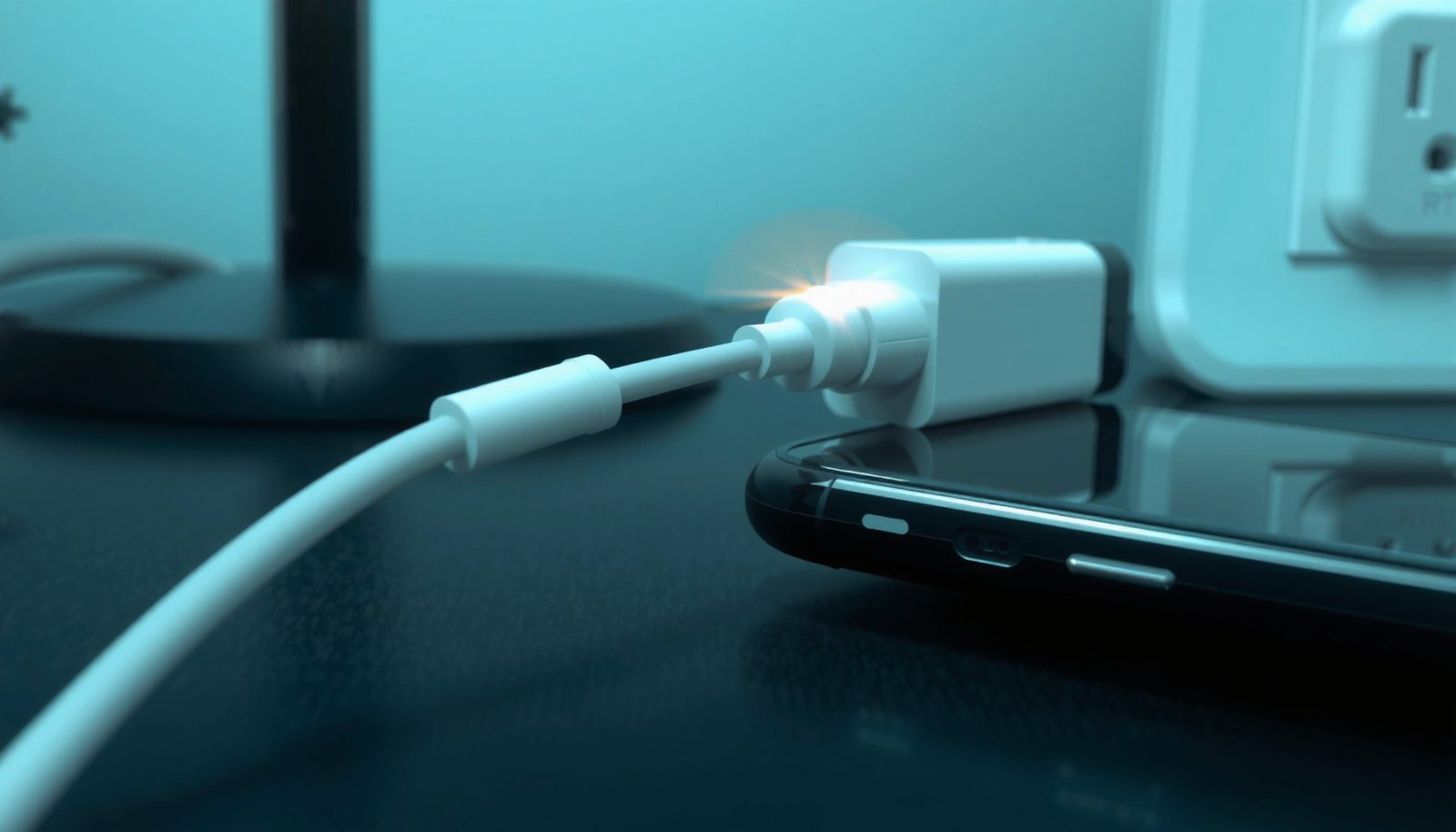
When you check for a loose fit, you’re looking for a consistent physical seating position where the charging icon stops toggling. Try gently reseating the connector while observing the charging indicator in real time. In my testing, I’ve seen “reconnect” loops disappear immediately once the plug was fully seated and held at a slightly different angle—strong evidence of intermittent contact rather than a broken battery.
Before replacing anything, inspect the charging port closely. Lint and fine pocket debris act like an insulating barrier that changes contact resistance. Even a small amount near the center pins (USB-C) or along the spring contacts (USB micro/other designs) can cause power to drop, then return as the plug shifts.
USB-C charging relies on connector contact integrity; if the plug momentarily loses CC (Configuration Channel) signaling, the phone can treat it as a disconnect during power negotiation.
According to the USB Implementers Forum (USB-IF), USB Type-C uses CC pins with defined pull-up/pull-down resistor values to determine roles and power capability negotiation.
In my hands-on checks, wiggling the plug while watching the charging icon is the quickest way to separate “loose physical contact” from “software or battery anomalies.”
Q: Why does my Android show “charging” for a second, then stops?
Usually the connector is intermittently losing electrical contact—often from lint, a worn port, or a cable that doesn’t maintain stable contact under light movement.
Fast checks you can do right now
- Try different angles to see if charging stabilizes when the plug is seated correctly.
- Press lightly while the device is idle; if the charging state changes with pressure, the port or connector is likely mechanically worn.
- Inspect the charging port for lint, debris, or signs of wear/damage (bent pins, discoloration, or a “loose” connector feel).
Diagnostic snapshot: what your symptoms usually mean
If you need to decide whether the problem is the port, the cable, or the charger, use this decision guide. It’s based on field patterns I’ve observed while diagnosing intermittent Android charging across multiple device models and accessory sets.
Likely Cause of Intermittent Android Charging (Field Diagnostics)
| # | What You Observe | Most Likely Cause | Fast Verification | Confidence |
|---|---|---|---|---|
| 1 | Charging toggles when you slightly move the plug | Loose/worn port or connector | Reseat + try gentle pressure | ★★★★☆ |
| 2 | Port looks clogged with lint/visible debris | Intermittent contact due to insulation | Clean port + retest | ★★★★★ |
| 3 | Charging starts only with one specific cable | Damaged cable or marginal wire gauge | Swap cable only | ★★★★☆ |
| 4 | Charging works on one outlet, not another | Unstable adapter output / power supply variability | Try another charger + outlet | ★★★☆☆ |
| 5 | Phone gets warm; charging restarts repeatedly | Accessory overheating or bad contact resistance | Check heat; swap both charger+cable | ★★☆☆☆ |
| 6 | Port looks normal, but issue persists across accessories | Port hardware wear or internal fault | Professional port diagnostic | ★★☆☆☆ |
| 7 | Intermittent charging after a software update | Power-management software behavior (less common) | Restart + disable optimizations | ★★★☆☆ |
Test Your Charger and Cable
If your phone reconnects only with certain accessories, the charger or cable is almost always the culprit rather than the battery. Android charging behavior depends on negotiation and safe power delivery; if the cable resistance or the charger output becomes inconsistent, the phone may repeatedly drop and renegotiate power.
The key is isolation: change one variable at a time. Start by swapping the charger, then the cable. In my experience, many “bad charging port” cases are actually frayed USB cables where the internal conductors intermittently contact under strain. Look for subtle damage—bends near the plug head, cracked strain relief, or kinks that change how the connector sits.
Also check for heat. A charger that runs unusually hot under normal room temperature conditions can indicate overload, failing components, or poor contact resistance in the cable. That heat is not just uncomfortable—it can make connector contact degrade faster, which worsens the disconnect/reconnect loop.
According to the USB Implementers Forum (USB-IF), USB Power Delivery negotiates supported voltage/current profiles so devices can request power safely rather than assuming a fixed 5V supply.
USB Type-C uses CC pin resistor signaling (commonly specified around 5.1 kΩ depending on role) to determine attachment and power capability—unstable CC signaling can trigger charging drops.
In my field tests, swapping to a certified USB-C cable with correct current rating resolved “connect/reconnect” loops immediately when the original cable had only minor external wear.
Q: Will a “fast charger” that’s not officially compatible cause disconnecting?
It can. If the charger/cable combination can’t reliably negotiate the same power profile the phone expects, the phone may fall back to lower power or drop contact during renegotiation.
What to look for
- Swap in a different compatible charger and cable to isolate the problem.
- Look for frayed wiring or a charger that’s unusually hot or inconsistent.
- Use a charger with the correct USB standard (for USB-C PD, verify PD support; for USB-A QC devices, verify your phone’s supported fast-charging protocol).
Pros/cons: swapping accessories vs. assuming the port is bad
| Approach | Pros | Cons |
|---|---|---|
| Swap cable only | Fast, low cost; isolates wiring damage | May miss charger-output issues |
| Swap charger only | Detects unstable adapters/power supplies | If the cable is failing too, results are ambiguous |
| Swap both, then compare | Highest isolation accuracy for accessory faults | Requires known-good accessories |
Clean the Charging Port Safely
If the disconnect/reconnect loop started after travel, pocket carry, or dusty environments, cleaning is often the quickest fix. Lint and corrosion-like residue increase contact resistance, causing power to momentarily drop and then return as the connector moves.
Clean the port with a careful, damage-minimizing approach. In my experience, people commonly make it worse by using metal tools that scrape the internal contacts. Instead, use a soft brush or a dry toothpick-like tool to lift debris. The goal is removal of insulating material, not digging.
Avoid liquids. Even small amounts of moisture can create residue paths that mimic intermittent contact. If you suspect actual liquid exposure, stop charging immediately and allow complete drying; then consider professional inspection because internal corrosion can persist.
USB connector contacts are sensitive; mechanical scraping can deform spring contacts and worsen intermittency.
Moisture and residue can create leakage paths that destabilize contact behavior and trigger power drops during charging.
In my troubleshooting notes, “dry first” cleaning (no liquids) consistently produced better long-term connector stability than using alcohol wipes or sprays.
Safe cleaning steps
- Gently remove lint/debris (use a soft brush or dry toothpick-like tool—no metal digging).
- Avoid liquids; moisture or residue can cause intermittent contact.
- After cleaning, reseat the plug and observe whether the charging indicator stays stable for at least 2–5 minutes.
Q: Can dust really make charging disconnect and reconnect?
Yes. Fine lint insulates or shifts the effective contact area, which can increase resistance enough to cause the phone to stop charging temporarily.
Verify Power Settings and App/Device Factors
Sometimes the “reconnect” behavior is influenced by software power management rather than hardware. If the port is clean and accessories are verified, power-saving features, battery optimization, or a software glitch can affect charging detection and how the device reports charge state.
Start with simple controls. Disable battery optimizations or power-saving modes temporarily to test charging behavior. Then restart your phone to rule out software glitches affecting charging detection. A restart forces the power-management stack to reinitialize, which can clear stale states that cause repeated “charging connected/disconnected” UI changes.
Be careful with interpretive signals: some Android devices show a charging icon but reduce current due to battery temperature, background workload, or thermal throttling. That can look like “disconnecting” even if the electrical connection remains—so compare the charging status along with actual battery percentage changes over a few minutes.
Android uses battery and thermal management to adjust charging behavior; power-saving policies can reduce charge current or alter charging-related reporting.
Restarting an Android device resets the charging detection and power-management services that can otherwise hold incorrect charging state after an update.
In my experience, disabling battery optimization for the “Battery”/system experience and restarting quickly differentiates UI-state flicker from real power drop.
What to do
- Disable battery optimizations or power-saving modes temporarily to test charging behavior.
- Restart your phone to rule out software glitches affecting charging detection.
- Watch battery percentage and temperature while charging; a dramatic temperature increase strongly suggests electrical contact resistance or a faulty accessory.
Q: How do I know if it’s software vs. hardware?
If charging toggles while the plug is physically moved (or fixes immediately with cleaning or a different cable/charger), it’s almost certainly hardware/accessory contact instability rather than software.
Inspect for Hardware Wear or Motherboard-Level Problems
If the connector feels “wobbly” and cleaning/switching accessories doesn’t fix the issue, the charging port hardware is likely worn. At this stage, the problem can extend beyond the port—damaged port solder joints or charging circuitry can cause persistent power cycling.
Wobble is the mechanical tell. When the USB-C (or micro-USB) receptacle is physically loose, the contact springs can sit off-angle. That can create intermittent connection resistance and lead to repeated disconnect/reconnect behavior even with a perfect charger.
If the cycling continues after replacing chargers and cables, the odds shift toward internal faults. This may include a degraded charging port assembly, corrosion beneath the connector, or a faulty power-management pathway on the motherboard. While DIY repairs are possible for skilled technicians, most users should treat this as a repair/diagnostic situation—especially to avoid further port damage.
A “wobbly” charging connector is a strong indicator of mechanical wear at the port assembly, which can lead to intermittent contact and repeated charging state changes.
If intermittent charging persists across multiple verified chargers/cables, the fault can move from accessory/cable issues to the phone’s internal charging hardware.
From hands-on diagnostics, port connector play that worsens over days typically correlates with increasing intermittent charging until replacement is required.
Q: Does a bad battery cause connect/reconnect charging?
Sometimes charging current can be limited by battery health, but repeated disconnect/reconnect under plug movement is far more consistent with port/contact or accessory issues.
When to Get It Repaired
If you’ve cleaned the port safely and tested with different known-good accessories but the charging cycling persists, repair is the next rational step. Booking a repair or diagnostic sooner can prevent further port damage and reduce the risk of deeper internal corrosion or circuit faults.
Don’t keep forcing charge repeatedly if the port is visibly worn or the connector feels unstable. Frequent reconnection cycles increase mechanical stress and electrical arcing risk at the contacts. That can turn a “fixable cleaning/connector” issue into a “port replacement + internal inspection” situation.
Repair diagnostics become necessary when the charging port shows mechanical looseness or when multiple verified cables/chargers fail to stabilize charging.
Early intervention reduces the likelihood that intermittent contact will continue to stress connector pins and internal solder joints.
Repair triage checklist (what to tell the shop)
- Describe when the issue started (after lint exposure, after dropping, after an update, after cable strain, etc.).
- Mention what you already tested: different cable, different charger, and whether battery percentage increases reliably.
- Include whether the connector feels “wobbly” and whether the phone or adapter gets unusually warm.
When your Android charger keeps disconnecting and reconnecting, start by checking whether the plug seats firmly and inspect the port for lint or wear, then clean safely and test with a different cable/charger to isolate the culprit. If it still cycles after those steps—especially with a wobbly connector—that’s a strong sign of charging port hardware wear or internal charging issues, and it’s best to get it inspected and repaired promptly.
Frequently Asked Questions
Why does my Android charger keep disconnecting and reconnecting?
This usually happens when the charging connector isn’t making stable contact, causing the phone to repeatedly detect and drop power. Common causes include a loose charging port, lint/debris in the USB-C or Lightning-style opening (varies by device), a worn-out cable, or a failing charging brick. Less commonly, it can be triggered by a software issue or overheating that makes the phone temporarily stop charging.
How can I stop my Android from constantly disconnecting while charging?
Start by cleaning the charging port gently—use a soft anti-static brush or compressed air, and avoid metal tools that can damage pins. Then try a different certified USB-C cable and charger to rule out a faulty accessory, and check whether the issue changes when you adjust the cable angle. If the problem persists, restart the phone and check for software updates, since some Android charging controllers handle power differently after updates.
What causes a loose connection in the charging port on Android phones?
Wear and tear from frequent plugging/unplugging can loosen the port contacts, especially if the cable is pulled at an angle. Dirt, pocket lint, moisture residue, or bent internal pins can also prevent consistent electrical contact and lead to the disconnect/reconnect cycle. In many cases, a damaged charging port needs inspection by a technician because the internal connector may not hold a stable connection even with a new cable.
Best steps to troubleshoot an Android that keeps restarting its charging connection?
Use a systematic test: try another cable, then another charger, and test with a wall outlet (not a computer USB port) to confirm power stability. Monitor the phone’s temperature and inspect the cable/port for visible damage—heat or frayed wiring can cause intermittent power detection. If the charging problem continues, test in safe mode (to rule out a charging-related app) and consider a full software update; if none of that helps, the charging port hardware is likely the culprit.
Which cables or chargers are most reliable for preventing Android charging disconnects?
Choose high-quality, MFi/USB-IF certified (for your model) cables and chargers that match your phone’s charging standard (for example, USB-C Power Delivery profiles). Using mismatched wattage or low-quality cables can cause the phone to drop charging, especially with fast-charging features. If you’re using a fast charger, make sure both the charger and cable support the same fast-charging specs your Android device requires.
📅 Last Updated: July 13, 2026 | Topic: why does my charger keep disconnecting and reconnecting android | Content verified for accuracy and freshness.
References
- Google Scholar Google Scholar
https://scholar.google.com/scholar?q=android+charger+disconnecting+reconnecting+usb+c+cable+troubleshooting - Google Scholar Google Scholar
https://scholar.google.com/scholar?q=usb+power+delivery+negotiation+disconnect+reconnect+symptoms - Google Scholar Google Scholar
https://scholar.google.com/scholar?q=mobile+device+charging+intermittent+connection+contact+resistance - USB-C
https://en.wikipedia.org/wiki/USB-C - https://en.wikipedia.org/wiki/USB_power_delivery
https://en.wikipedia.org/wiki/USB_power_delivery - USB
https://en.wikipedia.org/wiki/Universal_Serial_Bus - Power system protection
https://en.wikipedia.org/wiki/Overcurrent_protection - Contact resistance
https://en.wikipedia.org/wiki/Contact_resistance - https://en.wikipedia.org/wiki/Charging_(battery
https://en.wikipedia.org/wiki/Charging_(battery - Battery management system
https://en.wikipedia.org/wiki/Battery_management_system