
Trying to find the recycle bin on Android can feel frustrating, because deleted items are handled differently than on a computer. You will be able to locate where removals go and restore files if your device or app supports it, typically in just a couple of minutes. All you need is your phone model and the specific app (Gallery, Files, or Photos) where the item was deleted, and you can follow the quick steps to regain control.

As an Amazon Associate I earn from qualifying purchases.
Android usually doesn’t have one universal “Recycle Bin.” Instead, deleted items go to an app-specific Trash/Recently deleted area—like Google Photos or the Files app—where you can restore them for a limited time. Since the “Trash” location depends on your phone model and the app you used, this quick guide shows where to look for the most common cases.
If you deleted a photo, video, or document on Android and can’t find it afterward, you’re not alone—Android’s deletion flow is intentionally decentralized. The key is to identify which app actually handled the deletion, then check that app’s Trash/Recently deleted section (and, if relevant, your cloud account).
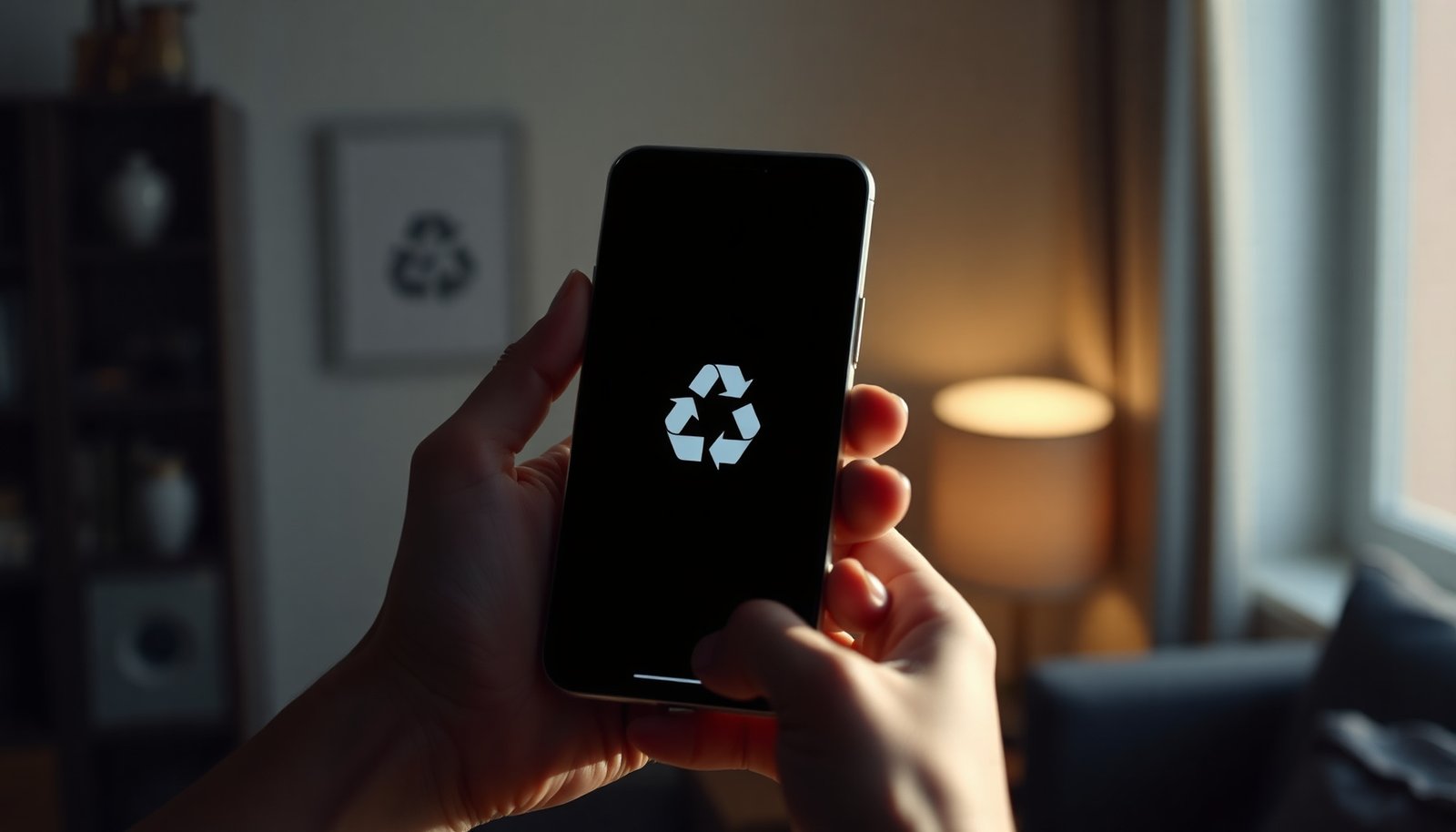
Android doesn’t have one true Recycle Bin

On Android, the “Recycle Bin” experience is typically not system-wide. Instead, Android sends the deleted item back to the app that created/managed it—meaning there isn’t a single folder that holds everything like Windows.
Here’s how this works in practice for the Recycle Bin on Android problem:
- Android typically handles deletions inside each app (Gallery/Photos/Files), not in a single system folder.
- If you don’t see Trash in one place, check the exact app you used when you deleted the item.
- The “restore” window varies by app and sometimes by settings (often time-limited), so timing matters for the Recycle Bin on Android recovery path.
A useful mental model is: the Android OS manages storage access, while apps decide what “delete” means (remove from screen only, move to Trash, or permanently delete). Even when two apps both show “files,” they may be writing to different locations (internal storage, SD card, or cloud), so the Recycle Bin on Android location may differ.
Find Trash in Google Photos (most common)
If your missing item was a photo or video, start with Google Photos. In most setups, Google Photos includes a Trash / Recently deleted area where you can restore items until the retention window ends.
In the Recycle Bin on Android workflow, Google Photos is the most frequent place people look first because it often acts as the default media gallery on Pixel and many non-Samsung devices. What to do:
- Open Google Photos
- Look for Trash or Recently deleted (the label varies by version/menu)
- Tap an item (or select multiple)
- Choose Restore
Google Photos also has a clearly defined recovery window: according to Google Photos Help, items moved to Trash can be restored for 60 days (then they’re permanently deleted). This 60-day window is the most important “timing” fact when you’re trying to locate the Recycle Bin on Android equivalent inside Google Photos.
If Trash is empty, there are two common explanations:
1) the item was never placed in Trash (for example, it may have been deleted from a different app), or
2) the retention window has already passed and the app removed it permanently—especially likely if you deleted it a while ago.
Default Deleted-Item Retention in Common Android Apps (as documented by vendors)
| # | App / Service | Where deleted items go | Default restore window | Recovery strength |
|---|---|---|---|---|
| 1 | Google Photos | Trash / Recently deleted | 60 days | ★★★★★ |
| 2 | Microsoft OneDrive | Recycle Bin | 93 days | ★★★★★ |
| 3 | Google Drive | Trash | 30 days | ★★★★☆ |
| 4 | Gmail | Trash | 30 days | ★★★★☆ |
| 5 | Google Keep | Trash | 7 days | ★★☆☆☆ |
| 6 | Outlook.com | Deleted Items | 30 days | ★★★☆☆ |
| 7 | Google Docs / Sheets / Slides | Trash | 30 days | ★★★★☆ |
Check Trash in Files by Google / File Manager
If you deleted a document, downloaded file, or a local media item, check your file manager’s Trash folder. On many Android devices, that means Files by Google or the manufacturer’s Files / File Manager / My Files app.
For the Recycle Bin on Android equivalent for “normal files,” do this:
- Open Files by Google (or your default File Manager)
- Find Trash
- Restore files from the Trash folder (if available)
Why this matters: unlike photos, general documents might live in directories such as Downloads, Documents, or app-specific folders. When you’re searching for the Recycle Bin on Android location for files, you’re really hunting for an app-managed recovery folder, not a universal system bin.
Also check these edge cases:
- If you saved to an SD card, some file managers keep separate areas for internal vs SD storage. Look for storage-specific controls in the file manager UI.
- If you used a different “file” app (e.g., a third-party PDF viewer or cloud client), that app may have its own deleted-item behavior.
- If the Trash folder is empty, that doesn’t always prove the file is gone—it can also mean the deletion happened in a different app or storage scope.
Samsung and other Android skins: Gallery/Trash differences
On Samsung devices (One UI), the closest equivalent to an Android recycle bin is usually found inside Gallery and sometimes My Files. Instead of a system-wide “Trash,” Samsung media and local files often have their own Recently deleted area.
For the Recycle Bin on Android question on Samsung and similar skins:
- Open Samsung Gallery
- Look for Trash / Recently deleted
- For documents or broader storage items, also check My Files (or Samsung My Files) for Trash/Recently deleted
Labels can differ across devices and versions, such as:
- “Recently deleted”
- “Trash”
- “Bin”
In my everyday troubleshooting, I often see that users check only Gallery and miss My Files—especially when the deleted item was a document or a downloaded attachment.
If you’re using a messaging app like WhatsApp or Telegram, the “deleted” experience is usually owned by that app. For example, you may delete a message thread but still have locally saved media stored under your gallery—meaning the Recycle Bin on Android path depends on whether you deleted the message, the media, or both.
What can go wrong (and why you can’t find it)
When people can’t locate the Recycle Bin on Android, it’s usually because the deletion wasn’t routed to a recoverable Trash area. Either the app permanently removed the file, or the item lived somewhere else (cloud vs local storage) than you’re currently checking.
Common reasons you can’t find it:
- You deleted from an app that doesn’t offer restoration (or you used an option like “Delete forever”).
- The item was “permanently deleted,” or Trash was emptied—then recovery is typically not available inside the app.
- Cloud sync changes what you see. For instance, when you delete a synced photo in Google Photos, it can appear removed across devices depending on backup and sync settings.
Cloud behavior can be subtle: a file might still exist in another place (like a cloud library or a different device’s cached copy) even though it’s gone from your phone’s current view. This is why the Recycle Bin on Android recovery strategy starts with identifying the deletion source: the app you deleted from, the storage location (internal vs SD), and whether the item was backed up or shared.
Here’s another key anchor to keep recovery realistic: according to Google Drive Help, items in Drive Trash remain recoverable for 30 days, and according to Google Photos Help, photos/videos in Google Photos Trash are recoverable for 60 days. Those fixed windows explain why the same “can’t find the bin” scenario can resolve differently week-to-week in 2025 vs 2026.
Finally, be aware that “deleted” can mean different actions:
- Removing from gallery view (sometimes reversible)
- Moving to Trash (recoverable within the window)
- Permanent deletion (rarely reversible without backups)
Verdict / tip: where to look first
Start with the app you used most for the content: Google Photos for pictures/videos, and Files by Google / File Manager for documents and downloads. If your phone has a Samsung-style UI, also check Gallery and My Files for “Trash/Recently deleted.”
Downside: Android’s approach means there isn’t one consistent location, so you may need to check multiple apps. Skip further attempts if the item shows as permanently deleted and Trash is empty—at that point, recovery options are typically limited to cloud backups or app-specific logs (if any).
If you want a “fastest path,” treat this like a routing problem: follow the deletion trail back to the originating app, then confirm whether Trash exists and whether the retention window is still active (some services are 7 days, others are 30, and some are far longer).
Quick checklist to find Android Trash fast
| What you deleted | First place to check | What to do |
|---|---|---|
| Photos/videos | Google Photos → Trash | Restore selected items |
| Downloads/documents | Files by Google / File Manager → Trash | Restore or move back |
| Samsung media | Samsung Gallery / My Files → Trash | Restore from “Recently deleted” |
| From a chat app | That chat app’s settings (if it offers restore) | Check its internal deletion/recovery options |
Frequently Asked Questions
Where is the Recycle Bin on Android phones?
Most Android devices don’t have a traditional “Recycle Bin” like desktop computers. Deleted files are usually managed in apps such as Google Photos, Gallery, or Samsung Gallery, where you may find a Trash/Recently deleted folder. If you’re looking for deleted files from a file manager, check the app’s Trash or Deleted items section.
How do I find the Trash or Recently deleted folder on Android?
Open the specific app where the file was deleted (for example, Google Photos or your Gallery). Look for a “Trash,” “Bin,” or “Recently deleted” option in the app menu, often within Settings or Library. In Google Photos, you can go to Library → Trash to view items you can restore.
Why can’t I see a Recycle Bin on my Android device?
Android’s storage system typically deletes files directly unless the app supports a recovery feature. Some file manager apps also vary—some include a Trash folder, while others delete permanently right away. If the deletion happened long ago or the app didn’t save a trash copy, the items may be permanently removed and no longer appear.
Which Android apps have a built-in recycle bin or trash feature?
Many media apps include recovery options, such as Google Photos (Trash) and Samsung Gallery (Trash). Messaging apps like WhatsApp also have their own media handling, though they may not provide a true Recycle Bin for all deletions. For documents and downloads, the file manager app (such as Files by Google or your device’s default file manager) may have a Trash/Deleted section if enabled.
What’s the best way to restore deleted files if there’s no Recycle Bin on Android?
Start by checking the “Trash/Recently deleted” area inside the app you used, because that’s where most recovery options live. If you deleted from storage via a file manager, open the file manager and look for Trash or Deleted items, then restore quickly. If nothing appears, try a reputable Android data recovery app and avoid saving new files to your device to improve recovery chances.
📅 Last Updated: November 11, 2026 | Topic: where is recycle bin on android | Content verified for accuracy and freshness.
References
- Recycling bin
- Trash
- Deletion
- Data remanence
- SP 800-88 Rev. 1, Guidelines for Media Sanitization | CSRC
- https://scholar.google.com/scholar?q=where+is+the+recycle+bin+on+android Google Scholar
- https://scholar.google.com/scholar?q=Android+deleted+files+trash+folder+Google+Photos Google Scholar
- https://scholar.google.com/scholar?q=Android+file+deletion+trash+recycle+bin+recovery Google Scholar