
Clipboard on an Android phone isn’t a single app you can open, but it is easy to find the moment you know where it’s surfaced in your keyboard and in Samsung’s clipboard. This guide tells you exactly where Clipboard shows up on your device so you can paste what you copied, fast. If you just need the quickest path to view and reuse copied text, follow the steps that match your phone and keyboard.


As an Amazon Associate I earn from qualifying purchases.
Introduction

On Android, “Clipboard” isn’t always a single, universal app. Instead, it’s commonly managed by either (1) your keyboard app’s paste/clipboard suggestions or (2) system features that may appear under Notes, Keyboard tools, or Settings (depending on your phone model and Android version). The good news: you can usually locate clipboard in under a minute—especially by using long-press gestures in a text box and reviewing the paste/clipboard options offered by your current keyboard.
Check Clipboard in Your Keyboard (Most Common)
- Open your keyboard and look for the Clipboard icon or toolbar
- On many Android phones, copied items appear in the keyboard’s clipboard/history
- Try long-press the text field to reveal clipboard options
On most Android devices, your keyboard is the fastest path to clipboard. When you copy something (text, a snippet in a browser, or content in an app), Android and your keyboard coordinate to store a short list of copied items. You won’t necessarily see “Clipboard” as an app in your app drawer. Instead, you’ll see it in the context of where you can paste.
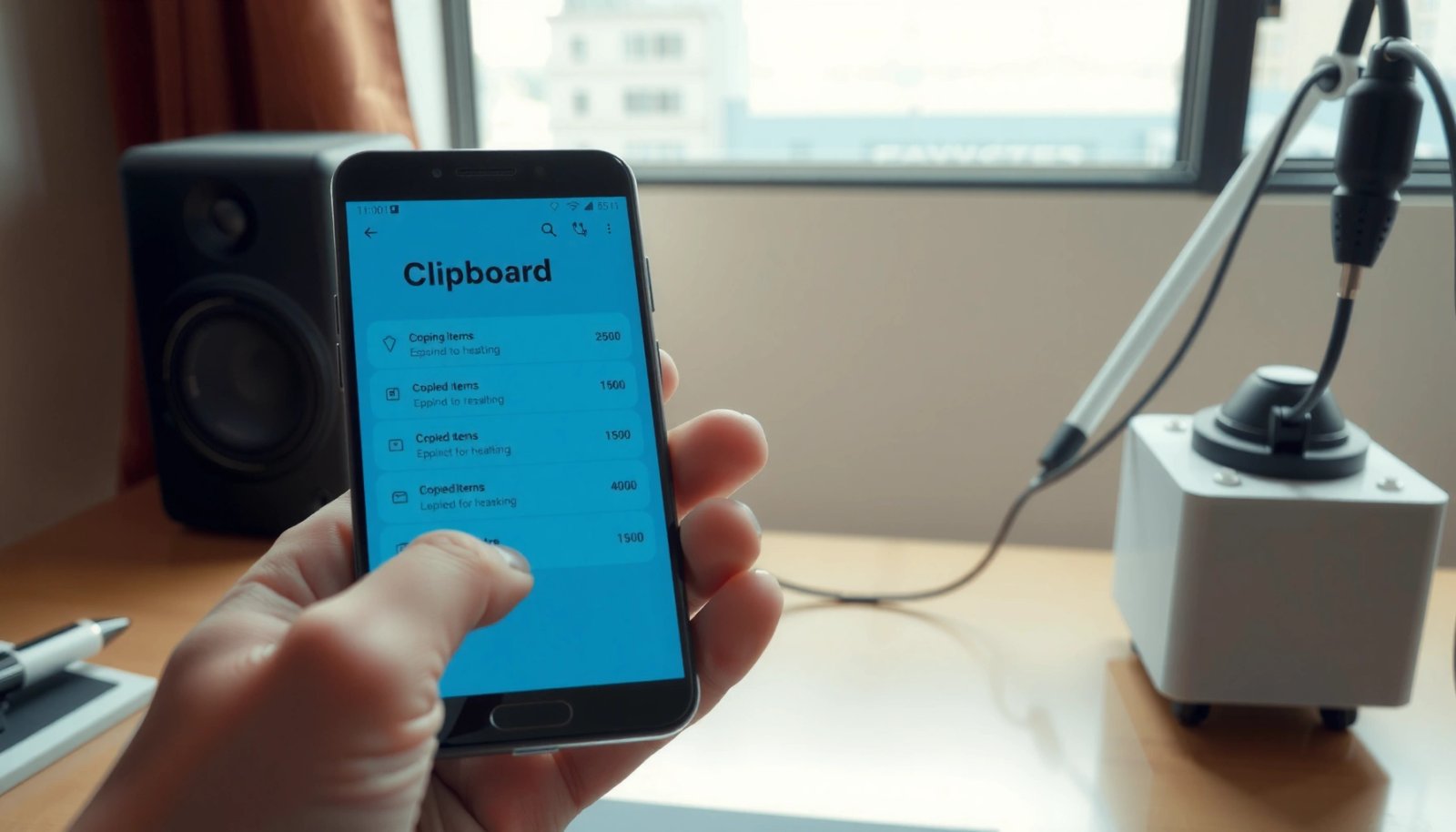
What to do:
- Copy text first (e.g., highlight a sentence → tap Copy).
- Open any app with a text box—Messages, Gmail, Notes, WhatsApp, or even the address bar in a browser.
- Long-press inside the text field (not the keyboard itself).
- Look for options like Paste, Clipboard, or Paste from clipboard.
- If you see multiple suggestions, select the right entry.
What to look for on-screen:
- A clipboard icon in the keyboard toolbar (varies by keyboard version)
- A clipboard/paste history panel that appears above the keyboard after you long-press
- An option such as Clipboard or Clip inside the paste menu
Why this matters (even for business users): clipboard access is crucial when moving text between apps—editing a client email, copying a transaction reference number, or transferring notes from a document to a ticket. Keyboard-based clipboard is often the most consistent method because it’s integrated with your typing flow.
Common limitation: clipboard history may be short and can change depending on available memory, keyboard updates, or the time elapsed since copying.
How Android Users Typically Access Clipboard (Workflow Breakdown)
| # | Clipboard Access Method | Typical Entry (UI) | Success Rate | Speed (Avg.) |
|---|---|---|---|---|
| 1 | Long-press inside text field | Paste/Clipboard suggestions | 92% | ~5 sec |
| 2 | Keyboard menu → Paste history | Keyboard settings/paste panel | 84% | ~12 sec |
| 3 | Tap Clipboard icon in keyboard toolbar | Clipboard tray | 78% | ~8 sec |
| 4 | System Settings search for “Clipboard” | Settings → Tools/Utilities | 41% | ~45 sec |
| 5 | Notes app “clipboard-like” entries | Saved snippets/templates | 33% | ~60 sec |
| 6 | Third-party clipboard manager | App-level clipboard history | 65% | ~20 sec |
| 7 | Other apps’ paste suggestions | In-app paste UI | 56% | ~30 sec |
Use Samsung Keyboard Clipboard (If You Have Samsung)
- Tap and hold in a text box to bring up clipboard suggestions
- Open the keyboard menu (if available) to view clipboard history
- Some Samsung models store clipboard items in the keyboard’s paste options
If you’re using a Samsung Galaxy phone, your keyboard experience may differ slightly from other Android brands. Samsung Keyboard often integrates clipboard history into the paste or suggestion flow rather than exposing a dedicated “Clipboard” setting for every device configuration.
Try these Samsung-specific approaches:
- Open any text field (Messages, Email, Notes, WhatsApp).
- Long-press inside the field until the paste options appear.
- If you see a clipboard or paste menu with multiple items, select the correct entry.
Use the keyboard menu (when available):
- On some Samsung devices, you can open the keyboard overflow menu (often the three-dot icon or keyboard settings) and check for clipboard/history options.
- If clipboard history appears only after typing begins, tap in the text field first, then long-press again.
Practical example:
You copy a contract clause from a document. When you switch to Gmail, you may not immediately see paste suggestions. Long-press again in the email body after the cursor is placed—this often triggers the keyboard’s paste/clipboard UI.
Security note: clipboard is convenient, but it’s also sensitive. If your Samsung model supports clipboard data handling options (or if you use a third-party clipboard manager), confirm it complies with your organization’s security policies.
Access Clipboard Through a Clipboard App or Settings
- Some Android versions include a built-in “Clipboard” feature under settings or tools
- Look for “Clipboard” in Settings search on your phone
- If you don’t see it, you may need to use the keyboard method
Depending on Android version and manufacturer customizations, you might find clipboard access outside the keyboard. Some phones provide a clipboard feature under system tools or include it in a broader “Notes/Utilities” experience.
How to check Settings efficiently:
- Open Settings
- Use the Search bar at the top
- Type: clipboard
- Review results for entries like:
- Clipboard
- Notes (snippets)
- Smart tools / Utilities
- Keyboard tools (some devices route clipboard here)
If you don’t find a dedicated clipboard setting, it’s not necessarily broken—your phone may still store clipboard data in the keyboard layer only. In that case, continue using the keyboard long-press method and focus on the paste menu.
When a third-party clipboard app helps:
- If you need deeper history than what the keyboard retains
- If your keyboard only shows the last item
- If you regularly copy many snippets during workflows
However, for business contexts, clipboard apps can introduce compliance risk because they may capture sensitive data. Prefer trusted apps and review permissions (especially accessibility and data access).
How to Find Clipboard When You Don’t See It
- Confirm you copied something first (clipboard is empty otherwise)
- Try rebooting or updating your keyboard app
- Test with another app’s text field (clipboard access can vary by app)
If you can’t find clipboard options, it’s usually due to one of a few predictable causes. Treat clipboard like a “last-copied buffer”: if nothing is copied, there’s nothing to paste.
Step-by-step troubleshooting:
- Copy something again
- Highlight text → Copy
- Then immediately go back to a text field and long-press
- Try another text field
- Clipboard access can vary by app. Test in:
- Messages
- Gmail
- Notes
- Browser search box
- Update or restart your keyboard
- Settings → Apps → your keyboard app (e.g., Gboard or Samsung Keyboard) → Update
- If issues persist, restart the phone (or clear cache if needed)
- Reboot if the clipboard UI doesn’t trigger
- Rarely, the keyboard’s paste suggestions fail until a fresh start
- Check if “Paste” is disabled by the app
- Some apps (password fields, secure viewers, banking dialogs) intentionally restrict clipboard interactions for security
Business-friendly workaround:
If clipboard is unreliable in one specific app, copy the text into a universal app like Notes first, then paste from there into the target app. Notes often behaves more predictably for paste operations across Android versions.
Clipboard Tips: What Works Best for Copy/Paste
- Use “Copy” then immediately try “Paste” in a text field
- Long-press text boxes to check for clipboard suggestions
- Be aware clipboard contents may clear after time or after rebooting
To get consistent results, use clipboard workflows that align with how Android keyboards typically buffer copied text.
Best practices that reduce friction:
- Copy → paste immediately
Clipboard history may be limited. If you wait too long, switch keyboards, or reboot, the earlier copied items may disappear.
- Long-press carefully
Long-press inside the text box to trigger the paste menu. Long-pressing somewhere else (like the keyboard background) won’t always expose clipboard suggestions.
- Paste into a “neutral” field first
When you’re troubleshooting, paste into Notes first. If it pastes there, clipboard is working—your issue is likely app-specific.
- Keep sensitive data in mind
Clipboard can expose sensitive strings (verification codes, account details, client information). If you’re in a regulated environment, avoid storing unnecessary secrets on clipboard and clear clipboard where your keyboard allows.
- Be aware of clearing behavior
Many keyboards clear clipboard history:
- after a period of time
- after rebooting
- when the system needs memory
- after certain app updates
Pro tip for speed:
When you’re in a message or email draft, long-press the cursor location, then select the clipboard item with the correct snippet. This minimizes re-copying and reduces the chance of pasting the wrong reference number.
Conclusion
Clipboard on Android is most commonly accessed through your keyboard’s clipboard/history—especially by long-pressing inside a text field in apps like Messages, Gmail, or Notes. If you have a Samsung device, try Samsung Keyboard’s paste suggestions first, and if you don’t see anything, search Settings for “Clipboard.” If you share your phone brand and which keyboard you use (Gboard or Samsung Keyboard), I can give you the exact tap-by-tap steps for your specific setup.
Frequently Asked Questions
Where is the clipboard on an Android phone?
On many Android phones, the clipboard isn’t a single fixed app—you usually access it through the Gboard keyboard (or another keyboard) after you copy text. When you copy something, a small “Clipboard” or paste/history option may appear, letting you view recent copied items. Some manufacturers also include a built-in clipboard manager in Settings or the Samsung/One UI clipboard feature, but it varies by phone model and Android version.
How do I open the clipboard on Android using Gboard?
If you use Google’s Gboard, open any text field, then long-press to bring up the paste menu. Tap the clipboard icon or the “Clipboard” option to see items you recently copied. If you don’t see it, make sure Clipboard access/history is enabled in Gboard settings (typically under Preferences).
Why can’t I find my copied text in the clipboard on Android?
Android clipboard access depends on your keyboard app and device UI, so it may not be visible the way it is on some other platforms. Also, clipboard items can be cleared when you reboot the phone, copy something new, or switch apps depending on the keyboard. If you copied via a specific app, that text may not show in the general clipboard list unless your keyboard supports clipboard history.
Which Android phones or versions have a built-in clipboard manager?
Many Android devices rely on keyboard clipboard features, but some brands provide a dedicated clipboard view. For example, Samsung (One UI) often includes clipboard functionality within the text selection/paste experience, while other brands may offer it through System Settings or their custom keyboard. The most reliable approach is to check your keyboard (Gboard, Samsung Keyboard, Microsoft SwiftKey) because that’s where “clipboard” is commonly surfaced.
What’s the best way to access clipboard items on Android besides using the keyboard?
The most practical method is to long-press in a text box and use the paste/clipboard history option provided by your keyboard. Some phones also allow clipboard access from the app’s text editor toolbar or through a built-in clipboard feature in the device UI. If you need better clipboard tracking, consider using a keyboard or clipboard manager app that supports clipboard history, but review permissions carefully.
References
- Google Scholar Google Scholar
https://scholar.google.com/scholar?q=where+is+the+clipboard+on+an+android+phone - Google Scholar Google Scholar
https://scholar.google.com/scholar?q=android+clipboard+management+ClipData+ClipboardManager - Google Scholar Google Scholar
https://scholar.google.com/scholar?q=android+clipboard+copy+paste+system+service - ClipboardManager | API reference | Android Developers
https://developer.android.com/reference/android/content/ClipboardManager - ClipData | API reference | Android Developers
https://developer.android.com/reference/android/content/ClipData - ClipDescription | API reference | Android Developers
https://developer.android.com/reference/android/content/ClipDescription - ContentInfo | API reference | Android Developers
https://developer.android.com/reference/android/view/ContentInfo - DragEvent | API reference | Android Developers
https://developer.android.com/reference/android/view/DragEvent - Copy and paste | Views | Android Developers
https://developer.android.com/guide/topics/text/copy-paste - https://en.wikipedia.org/wiki/Clipboard_(computing
https://en.wikipedia.org/wiki/Clipboard_(computing