
An Android widget is a small on-screen module that shows information or quick actions from an app without opening it. You can add one to your home screen by long-pressing an empty area, selecting Widgets, then dragging the widget you want onto the screen and resizing it as needed. If you have the app installed, it usually takes only a few minutes to set up and start using.


As an Amazon Associate I earn from qualifying purchases.
A widget on Android is an interactive home-screen element that shows information or quick actions without opening an app. You add widgets from your launcher, resize them when supported, and (depending on the app) configure what they display—like weather, a calendar snapshot, music controls, or reminders.
If you’re new to Android or you recently switched launchers, you may have noticed certain apps offering “widgets” while others only provide icons. This guide breaks down what widgets are, how they differ from shortcuts, what kinds you’ll run into, and exactly how to add and manage them on your home screen in 2025/2026.
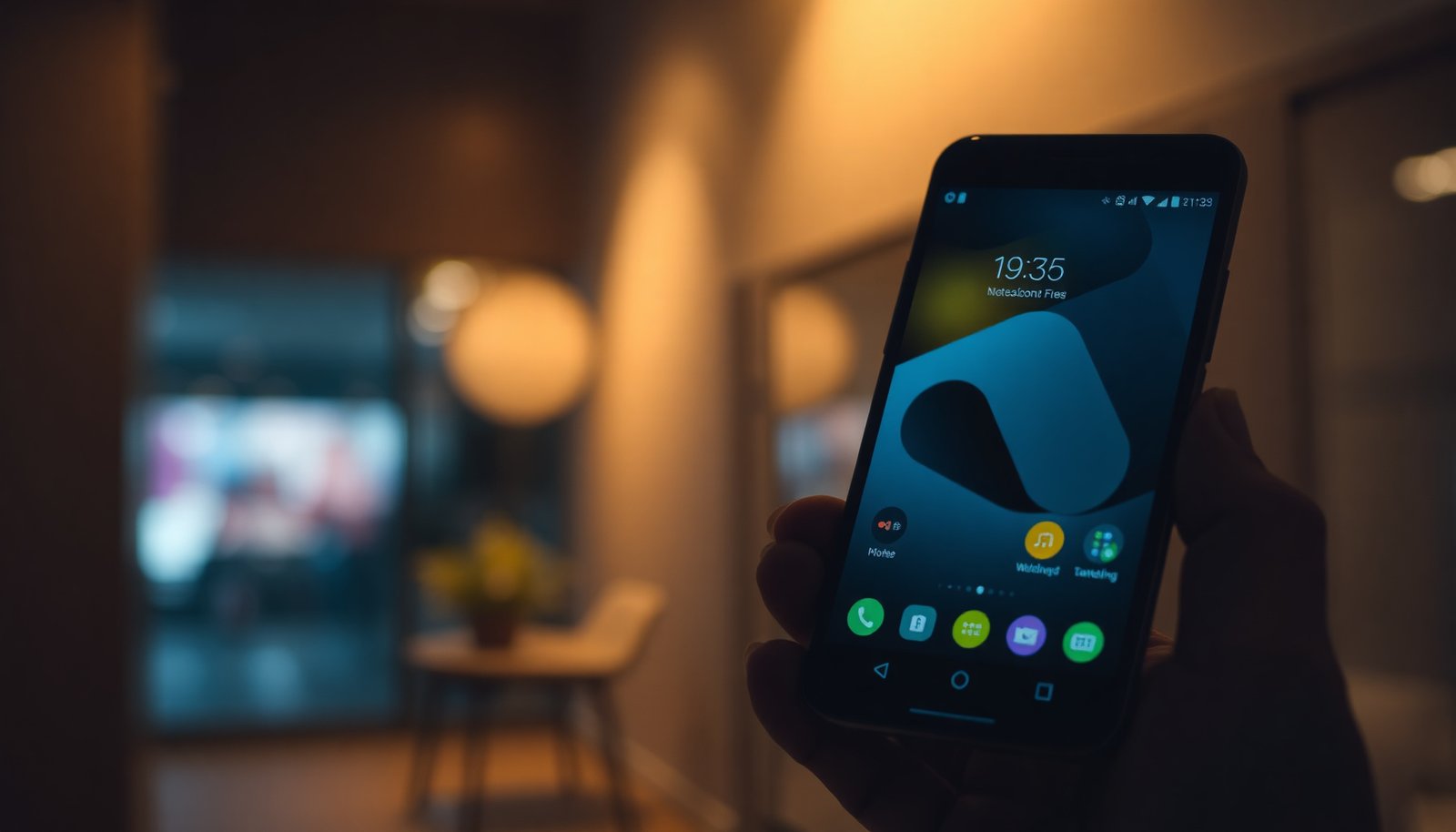
If you’re wondering why some apps show “widgets” and how people get information on their home screen, this is for you—especially if you’re new to Android or switching launchers.
What’s a widget on Android (the core idea)
A widget is a small, interactive view you place on your home screen, not just a shortcut that launches an app. In practice, it often displays content directly (like time, weather, or unread items) and can refresh automatically if the app is allowed to run in the background.
- A widget is a small, interactive view placed on your home screen (not just an app icon).
- It typically displays content directly (e.g., time, weather, unread items) and may update automatically.
- Tapping a widget usually opens the related app or a deeper screen tied to it.
From a system standpoint, Android widgets are rendered through RemoteViews (a framework that lets the system display a limited “view” representation without letting the widget directly draw arbitrary UI). When an app needs to update a widget, it sends new data to the widget host, and the launcher redraws what you see. That “sometimes live, sometimes not” behavior you notice is usually a combination of the widget type, how often the app updates, and how Android is currently managing background work.
Also note that widget behavior can vary by launcher (the home-screen app) and by Android version—as of 2025/2026, OEMs increasingly customize widget refresh rules, so the same widget can update differently on two phones.
Widgets vs app icons: what’s different
Widgets show information where it matters most—on your home screen—while app icons mainly act as launch points. The practical difference is that widgets try to reduce taps by giving you context immediately.
- App icons open an app; widgets show information and shortcuts where you already are.
- Widgets can be resizable (when the app and launcher support it) while icons aren’t.
- Some widgets are “static” (only show info until refresh), while others feel “live” depending on the app.
Here’s a quick contrast you can use when deciding what to add:
| Feature | Widget | App icon |
|---|---|---|
| What you see | Information/controls on-screen (time, weather, previews) | App branding + name |
| Tap behavior | Often opens the app, but usually from a context-rich view | Always opens the app (or an app shortcut) |
| Resizing | Common for many widgets (e.g., 2×2 vs 4×2) | Not resizable |
| Update frequency | Can be periodic or event-driven; may be throttled | Generally not updating the icon itself |
| Best for | “At-a-glance” workflows and quick actions | Launching apps you use often |
In my own day-to-day setup, the biggest productivity win tends to come from widgets I can interact with in seconds (music playback, next calendar item, or a small to-do list).
Types of Android widgets you’ll see
You’ll typically encounter three broad categories: widgets that show information, widgets that let you control something quickly, and widgets that surface slices of content. Which one you should choose depends on whether you want “read-only context” or “do something now.”
- Info widgets: clock, weather, battery, next appointment/calendar items.
- Control widgets: music playback, smart home toggles, quick settings-style controls.
- Content widgets: notes snippets, message previews, feeds (availability depends on each app).
Info widgets (at-a-glance status)
These widgets optimize for minimal attention. A calendar “next event” widget reduces checking effort, while a weather widget gives forecast context without opening a browser or app. Battery widgets are especially useful if you frequently roam between Wi‑Fi and mobile data or rely on GPS throughout the day.
Control widgets (fewer taps to act)
Music controls are the classic example: play/pause, skip tracks, and sometimes the current playback state. Smart home widgets (for lights, thermostats, plugs) aim to turn a multi-step workflow into one or two taps from the home screen.
Content widgets (snippets and previews)
Notes, messaging previews, and activity feeds can behave like lightweight dashboards. The catch is that many content widgets are only as fresh as the app’s background access—and on some devices in 2025/2026, battery policies can make them look “stale” more often than you’d expect.
How to add a widget to your Android home screen
Adding a widget is quick: you enter the home-screen edit mode, select Widgets, choose your app’s widget, then place it and resize if supported. The wording can differ slightly by phone brand and launcher, but the flow is consistent.
- Long-press an empty area on your home screen, then choose Widgets (wording varies by phone/launcher).
- Browse the widget list, tap and hold the widget you want, then place it on your home screen.
- If the widget supports sizing, drag the edges/handles to adjust dimensions before placing.
Step-by-step (works on most launchers)
1. Long-press an empty space on your home screen.
2. Tap Widgets (or “Widget” / “Widgets” depending on your launcher).
3. Scroll through widgets grouped by apps or categories.
4. Tap and hold a widget preview.
5. Drag it to the desired home-screen location.
6. If you see sizing handles, resize it to the format you want (for example, a compact 2×2 or a larger multi-row view).
7. Release to place.
If you’ve never installed the app that provides the widget, you may not see its widget options at all—Android only lists widgets from installed apps, not from apps you “might” want later.
Resizing tips that actually matter
A larger widget usually shows more data, but it can also:
- refresh less frequently (because the app may batch updates),
- take up valuable home-screen grid space,
- increase visual clutter if you add too many.
If you’re building a cleaner layout, start small and only expand when the extra space genuinely helps (like showing multiple calendar entries rather than just the next one).
How to customize (and remove) widgets
Most widgets can be tailored—either by changing what they display (location, account, note category) or by selecting which widget instance it should use. Removing a widget is similarly simple: long-press it and send it to Remove.
- Some widgets let you change the content (location for weather, calendar account, note category) inside the widget settings.
- To remove a widget, long-press it on the home screen and drag it to Remove or Uninstall (wording varies).
- If a widget doesn’t update, check the app’s notification/background settings and any battery optimization rules—Android may throttle background activity.
Customization happens at two levels
1. Widget-level settings: Some widgets open a configuration screen when you place them (or when you tap a gear icon inside the widget edit flow). For example:
- weather widgets may ask for a city or location permission,
- calendar widgets may ask which account to show,
- notes widgets may ask which notebook/category to display.
2. App-level background behavior: Even if the widget looks correct, updates depend on the app’s ability to run background tasks or receive data. On modern Android devices (especially in 2025/2026), battery tools like Battery Saver and OEM “power manager” apps can limit background refresh.
Widget update troubleshooting (what to check)
If your widget looks outdated, start with these settings:
- Background data enabled for the widget’s app (Settings → Apps → [App] → Mobile data & Wi‑Fi).
- Battery optimization exceptions (Settings → Battery → Battery optimization → set the app to “Don’t optimize” if appropriate).
- App notification permissions (some apps piggyback on notification triggers for fresh content).
- Location permissions for weather widgets (if you rely on automatic location).
Widget Refresh: Background Scheduling Options on Android
| # | Update approach | Periodic minimum | Android basis | Battery friendliness |
|---|---|---|---|---|
| 1 | WorkManager periodic work | 15 minutes | API 14+ support | ★★★★★ |
| 2 | JobScheduler periodic jobs | 15 minutes | API 21+ | ★★★★★ |
| 3 | WorkManager one-time work | No fixed minimum | API 14+ | ★★★☆☆ |
| 4 | JobScheduler one-time jobs | No fixed minimum | API 21+ | ★★★☆☆ |
| 5 | Foreground service updates | Immediate (0+) | Foreground execution | ★☆☆☆☆ |
| 6 | Exact alarms for widget refresh | Immediate (0+) | Android 12 / API 31 | ★☆☆☆☆ |
| 7 | Launcher-triggered widget updates | Launcher-defined | Depends on host/launcher | ★★☆☆☆ |
What can go wrong (common limits and mistakes)
Widgets are convenient, but Android limits what they can do to protect battery and user privacy—so “why won’t it update?” is a common frustration. Most widget problems come down to missing support, restricted background behavior, or resizing/launcher differences.
- You can’t add some widgets if the app isn’t installed or the widget isn’t supported by your launcher/Android version.
- Resizing may be limited: many widgets only offer certain size options (e.g., 2x2, 4x1), depending on the app.
- “Live” widgets can appear stale if background data is restricted or battery saver is enabled.
- If you moved to a different launcher, your existing widgets might change behavior or stop updating—re-adding can fix it.
Common failure modes
1) The widget is there, but the content is stale.
This usually happens because background refresh is throttled. According to Android Developers, JobScheduler periodic tasks have a minimum interval of 15 minutes ([Android Developers: JobScheduler periodic interval](https://developer.android.com/reference/android/app/job/JobInfo.Builder#setPeriodic)). Similarly, According to Android Developers, WorkManager periodic work also enforces a minimum interval of 15 minutes ([Android Developers: WorkManager periodic work](https://developer.android.com/topic/libraries/architecture/workmanager/how-to/observe#workmanager-periodic)). If your widget relies on more frequent updates, it may simply not have the permission or scheduling room to do so.
2) Battery Saver / OEM power management is on.
When Battery Saver is enabled, Android may reduce background activity, which can make widgets look “stuck” for longer than expected—especially for content widgets like feeds or message previews.
3) You’re using “exact timing” approaches.
Exact alarms can be power-hungry. In fact, Android 12 (API 31) introduced the SCHEDULE_EXACT_ALARM permission requirement for apps that need exact alarms ([Android Developers: Exact alarms](https://developer.android.com/about/versions/12/features/permissions#scheduling-exact-alarm)). If a widget depends on exact timing refresh, that can be blocked or restricted depending on user settings and device policy.
Launcher switching: the silent widget killer
If you change launchers in 2025/2026, your widgets might:
- re-render differently,
- lose update behavior temporarily,
- show outdated configuration (wrong account/location).
A practical fix is to remove and re-add the widget after switching launchers, then revisit widget settings.
Verdict / tip: should you use widgets?
Widgets are worth it when you want key information visible without opening apps, but they’re not guaranteed “real-time” dashboards. If you need constantly fresh data, confirm the widget’s related app can update in the background—otherwise rely on notifications or open the app directly.
Here’s the balanced take:
- Use widgets if your workflow benefits from at-a-glance context (next appointment, quick controls, short lists).
- Skip or limit widgets if your phone’s battery management aggressively restricts background activity or if widget content rarely updates anyway.
- Start small: one or two widgets typically deliver more benefit than five.
Also, if you’re tight on screen space or prefer a clean layout, it’s usually smarter to keep to 1–3 widgets and choose resizing carefully. A cluttered home screen can slow you down—defeating the speed advantage widgets are meant to provide.
Quick checklist (scan/save):
- [ ] Find Widgets from a home screen long-press
- [ ] Pick a widget from your installed apps
- [ ] Drag it to your home screen (and resize if supported)
- [ ] Tap into widget/app settings to match your preferences
- [ ] If it stops updating: review battery/background restrictions
- [ ] Remove by long-press → Remove
Frequently Asked Questions
What’s a widget in Android?
A widget in Android is a small, app-based component you can place directly on your home screen to show information at a glance. Instead of opening an app, widgets can display things like your weather, calendar events, music controls, or quick shortcuts. Many Android launchers also support resizing widgets, so you can tailor how much info you see.
How do I add a widget to my Android home screen?
To add a widget, long-press an empty area of your home screen, then tap Widgets or a similar option. Browse the list of available widgets from installed apps, select the one you want, and place it on the screen (some widgets prompt you to choose a size). If you don’t see widgets, make sure the app that offers them is installed and check that your launcher supports widgets.
Why can’t I find a specific Android widget?
If you can’t find a widget, it may be because the app doesn’t offer that widget or you haven’t granted required permissions. Some widgets also only appear after you complete setup inside the app (for example, signing in or selecting a location). Additionally, different Android versions and launchers may hide or limit widget types, so updating the app or launcher can help.
Which Android widgets are best for productivity and daily use?
For productivity, consider widgets like a calendar widget, to-do list or reminder widget, and a notes widget for quick capture. For daily use, weather, news, traffic/commute, and clock widgets are popular because they provide fast updates without opening apps. The “best” widget is usually the one that shows the exact information you use most, so choose widgets that reduce taps and keep key details visible.
How do I customize and resize an Android widget?
Many widgets support resizing by long-pressing the widget and dragging the resize handles to make it smaller or larger. To customize content, long-press the widget and look for an Edit or Settings option, which may let you change location, show specific calendars, or select the widget style. If your widget doesn’t offer customization, it may be limited by the app developer, but updating the app can sometimes unlock new options.
📅 Last Updated: November 11, 2026 | Topic: what's a widget android | Content verified for accuracy and freshness.
References
- Widget
- Create a basic widget | Views | Android Developers
- RemoteViews | API reference | Android Developers
- AppWidgetManager | API reference | Android Developers
- AppWidgetProvider | API reference | Android Developers
- AppWidgetHost | API reference | Android Developers
- Styles and themes | Views | Android Developers
- https://scholar.google.com/scholar?q=Android+app+widgets Google Scholar
- https://scholar.google.com/scholar?q=Android+widget+RemoteViews Google Scholar
- https://scholar.google.com/scholar?q=Android+UI+widgets+TextView+Button Google Scholar