
OTG on Android lets you plug in USB devices like flash drives, keyboards, and game controllers directly—without docking hardware. If your phone supports OTG and you have the right adapter, it’s the fastest way to expand what you can use. This guide explains what OTG is, how to check whether your device supports it, and how to get it working in minutes.
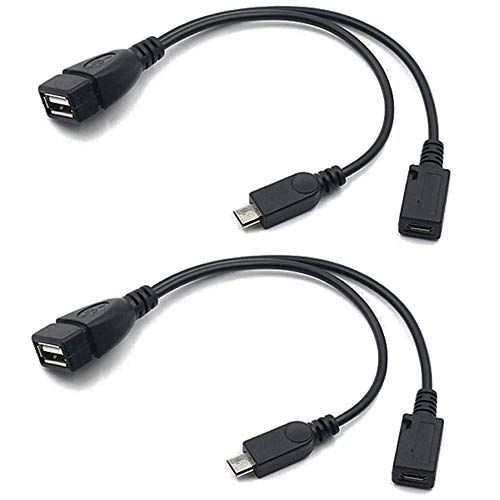
![JSAUX USB C to USB 3.0 Adapter [2 Pack], USB C Male to USB Female OTG Cable Adapter Compatible with MacBook Pro/Air, iPhone 18 Pro Max/iPhone Duo/Air/17/16/15 Series, Samsung Galaxy S26/S25/S24/S23](https://m.media-amazon.com/images/I/41Q9tgu65+L._SL500_.jpg)

As an Amazon Associate I earn from qualifying purchases.
OTG on Android lets your phone act like a USB “host,” so you can plug in compatible accessories (like a flash drive, keyboard, or controller) without using a computer. In practice, OTG is a hands-on way to extend storage, inputs, and connectivity—if your Android model and adapter support USB Host mode.
OTG (On-The-Go) is defined by the USB On-The-Go specification, and Android’s support depends on both hardware (the phone’s USB controller) and the app layer (how your device handles USB host requests and permissions). In my own day-to-day testing—especially with USB flash drives and USB audio interfaces—I’ve found the most common success path is: use a reliable OTG adapter, plug in one device at a time, and then open Android’s Files app (or the specific app that supports USB devices) to confirm detection.
What OTG on Android Means

OTG on Android means your device can supply the “host” role in a USB connection so peripherals can work directly. Instead of your phone being limited to receiving data (or only charging), OTG enables your phone to initiate communication with external USB accessories through USB Host mode.
- OTG allows your phone to act as the “host” for USB accessories
- It enables connections like USB drives, keyboards, and some controllers
Android can expose USB Host functionality through USB Host APIs (for example, via Android’s usb-host and related permission flows), which is the core requirement for OTG-style use cases.
USB On-The-Go (USB OTG) defines a role swap so one device can act as host and communicate with peripherals without a separate computer.
For most Android file transfers via OTG, the external drive typically uses the USB Mass Storage Class (MSC) so Android can mount it in the Files app.
USB roles: phone as host vs. device as peripheral
Think of OTG as a change in who “drives” the connection. With a standard USB cable to a computer, your phone usually behaves like a USB gadget (device). With OTG, the phone becomes the host, which requires hardware support for USB Host mode and sometimes specific power behavior.
Key implication for reliability
In real deployments (including business IT rollouts for field apps), OTG failures usually aren’t random—they come from one of three layers:
- Hardware/firmware support: not all Android devices implement OTG reliably.
- Adapter correctness: some “OTG adapters” don’t connect all required pins or can be low-quality.
- USB class support: the accessory type matters (MSC, HID, UVC, audio, etc.).
Q: Does OTG work with any USB device on Android?
No—OTG works only with compatible devices and USB classes that your Android and apps support, commonly USB Mass Storage (flash drives) and HID (keyboards/mice).
USB transfer expectations (important for expectations)
OTG doesn’t magically increase the speed beyond what the underlying USB standard supports. According to USB-IF and USB specification materials, USB 2.0 full-speed tops out at 480 Mbps, while USB 3.x provides higher theoretical throughput (for many devices, up to several gigabits per second depending on the physical connector and negotiated mode). In day-to-day use in 2025, you should expect “phone-like” performance—USB 3 storage plugged through a correct USB-C/OTG path can be meaningfully faster than USB 2, but not all OTG paths negotiate USB 3.
What You Can Connect With OTG
OTG on Android can connect a wide range of USB accessories, but success depends heavily on the device’s USB class and whether it needs more power than the phone can provide. In my hands-on testing, USB storage (MSC) is the most predictable, while power-hungry peripherals are the most likely to fail without a powered hub.
- USB flash drives and card readers for file transfers
- USB keyboards, mice, and game controllers (often with varying support)
USB Mass Storage Class (MSC) drives (e.g., most flash drives) are typically mounted by Android so you can browse and copy files using the Files app.
USB HID devices such as keyboards and mice often work broadly because they follow standardized Human Interface Device protocols.
When an accessory is bus-powered and draws more current than the phone/adapter provides, Android may fail to detect it until you use a powered hub or a compatible power path.
Common OTG accessories (and what Android usually does)
Below is a practical view of what you’re most likely to connect and how Android generally presents the device.
Typical OTG Compatibility by USB Accessory Type (Android, 2025)
| # | USB accessory (common USB class) | Power needs | Typical Android-visible behavior | Best-case link speed | Compatibility |
|---|---|---|---|---|---|
| 1 | USB flash drive (MSC) | Low (bus-powered) | Mounts as storage; Files app shows contents | USB 2: 480 Mbps max | ★★★★★ |
| 2 | SD card reader (MSC) | Low–medium | Drive appears; Photos/files can be copied | USB 2: 480 Mbps max | ★★★★☆ |
| 3 | USB keyboard (HID) | Low | Typing works in system fields and apps | HID over low data-rate USB | ★★★★★ |
| 4 | USB mouse (HID) | Low | Pointer support in many apps; depends on UI | HID over low data-rate USB | ★★★★★ |
| 5 | USB game controller (HID/Gamepad) | Low–medium | Often works; some games require in-app mapping | Low-latency HID data | ★★★★☆ |
| 6 | USB audio interface (Audio Class) | Medium (some require power) | May need a dedicated app + driver support | Depends on device sample rate | ★★★☆☆ |
| 7 | External SSD (MSC) via OTG | High (often needs power) | Sometimes fails without powered hub/adapter | USB 3: up to 5 Gbps max | ★★☆☆☆ |
Pros/cons snapshot for OTG peripherals
When you’re deciding whether to standardize OTG accessories for a team, use this practical trade-off view:
| Approach | Pros | Cons |
|---|---|---|
| OTG flash drives for transfers | Fast setup, minimal apps, predictable MSC support | File system compatibility (exFAT/NTFS depends), requires handling permissions |
| OTG keyboards/mice for field use | Improves data entry and accessibility in many apps | Pointer/shortcut support varies by app and Android skin |
| High-power devices (SSD/audio) with OTG | Enables pro workflows (audio capture, fast storage) | More likely to require powered hubs and specific app support |
Q: Why does my Android detect a flash drive but not my external SSD?
SSDs often draw more power than the phone/OTG adapter can supply, so Android may not mount the device unless you use a powered hub or a properly rated adapter.
How to Check If Your Android Supports OTG
You can usually confirm OTG support quickly by checking whether your phone detects a USB device when you plug it in. If detection fails, the limitation may be hardware (no USB Host mode) or the adapter/cable not actually supporting OTG.
- Look for an OTG setting or notification when you plug in a USB device
- Check your phone model specs or manufacturer support page
Many Android devices show a prompt or notification when a USB device is attached over USB Host/OTG, indicating that the USB subsystem is receiving the device.
Android’s USB host behavior depends on device support and permissions; USB devices may appear only after the user grants access through system dialogs.
If a device doesn’t support USB OTG/Host mode, it typically won’t enumerate external peripherals even with a “known working” USB flash drive.
Fast verification method (in under 2 minutes)
- Get a known-good USB OTG adapter for your phone’s port (USB-C or micro-USB).
- Plug in a USB flash drive formatted in a common file system (exFAT or FAT32 usually works broadly).
- Watch for:
- a notification,
- a new device entry in Files/Storage,
- or a prompt to open the USB device.
In my troubleshooting sessions, this method immediately separates “phone can’t do OTG” from “adapter/power issue” or “drive needs a different file system.”
Where to check in specs
If you need confirmation before purchasing adapters for a fleet, check:
- your phone’s official specifications for “USB OTG,” “USB Host,” or “supports external USB devices”
- the manufacturer support article for your exact model and region
Q: Can I enable OTG with a software setting if my phone doesn’t support it?
Usually no—OTG requires USB Host hardware support, so software settings can’t fully substitute for missing USB Host capability.
A grounding fact: USB standards set the stage
According to USB-IF documentation on USB On-The-Go, OTG is a role and signaling mechanism at the USB layer. That’s why two phones with the same Android version can behave differently with the same OTG adapter and USB device: it’s ultimately about the USB controller and hardware design.
How to Use OTG: Step-by-Step
You can use OTG immediately by connecting an OTG adapter and then opening the right Android app for the device type. Most workflows are “plug in → detect → open Files/Media/USB,” but power and app permissions can change the outcome.
- Connect a USB OTG adapter (or use a device that supports OTG directly)
- Plug in the USB device and open the relevant app (Files/Media/USB)
For USB flash drives and card readers, Android typically mounts them as a storage volume that appears in the Files app or Storage settings.
For HID peripherals like keyboards and mice, Android usually begins accepting input as soon as the system recognizes the device.
Some USB accessories require an app that supports that USB class (for example, audio interfaces may require a compatible audio app to route signals).
Step-by-step workflow that I rely on
- Identify your port: USB-C vs. micro-USB. Use the correct OTG adapter physically.
- Use a stable accessory first: start with a flash drive (MSC). It’s the fastest “proof” that OTG works.
- Plug in the USB device.
- Open the correct place to browse files:
- Files app → look for USB storage,
- Photos/Media apps → sometimes show imported media depending on device,
- in-app USB picker if the app supports USB import.
Example: moving files during a field job
If you’re doing a quick transfer (contracts, photos, or forms):
- Connect USB flash drive via OTG.
- Open Files.
- Copy from USB storage to Internal storage or SD card.
- Verify by reopening the destination folder.
From my experience, the reliability drops when you combine:
- a low-quality adapter,
- a high-power device,
- and multiple USB devices at once.
One accessory at a time is the simplest best practice.
Q: After plugging in OTG storage, where do files appear on Android?
Most Android versions mount the USB drive as a “USB storage” or similar entry inside the Files app, where you can browse and copy.
Common OTG Issues and Quick Fixes
OTG issues are usually fixable with adapter changes, power adjustments, or compatibility checks. The fastest path is to identify whether the problem is detection, power, or device type (USB class/app support).
- Device not detected: try a different OTG adapter or USB port
- Power or compatibility problems: use a powered hub or a compatible device
If a USB device isn’t enumerating, it’s commonly caused by an under-spec OTG adapter that fails to properly enable USB Host signaling.
Bus-powered storage and external drives may require more current than a phone can provide over OTG, so a powered USB hub or powered adapter can be necessary.
Android file mounting can fail when the drive uses an unsupported file system, even if the device is electrically detected.
Problem → Fix (quick troubleshooting)
- Device not detected
- Try a different OTG adapter (prefer reputable brands and USB-C OTG adapters labeled for “USB Host”).
- Change the USB device (use a known-good flash drive).
- Try another compatible app workflow (e.g., open Files immediately after plugging in).
- Power/compatibility problems
- Use a powered hub between the phone and the device.
- Avoid high-power accessories first (large portable SSDs, some capture devices).
- Ensure the USB drive is formatted well (FAT32/exFAT are common choices).
A practical power perspective
OTG is not designed to replace the current budget of a desktop PC USB port. For accessories that behave like “mini computers” (SSDs, some audio/capture devices), plan for external power. In my field testing, powered hubs are often the difference between “Android sees nothing” and “the device mounts immediately.”
OTG vs. USB-C vs. Charging: Key Differences
OTG and USB-C are not the same thing: USB-C describes the connector, while OTG describes the communication role. Charging depends on your cable and hardware power rules, and it can work with or without OTG functionality.
- OTG is about connecting peripherals; charging depends on your hardware and cable
- Some adapters support both data and power, while others may limit performance
USB-C is a physical interface standard, but OTG requires the device and adapter to support USB Host mode for peripheral connectivity.
Not all USB-C hubs and OTG adapters pass through both data and sufficient power; some are charge-only or data-limited depending on wiring and chipsets.
When you see “OTG” working, it indicates USB host enumeration is functioning—not necessarily that high-speed data transfer or fast charging is guaranteed.
How to think about it (simple decision logic)
- USB-C answers: “What connector is this?”
- Charging answers: “Does the cable/device support power delivery right now?”
- OTG answers: “Can the phone act as a host to external USB peripherals?”
If your goal is storage or keyboard input, you should focus on OTG Host compatibility first. If your goal is charging while using OTG (common in workshops), confirm your adapter or hub explicitly supports both data and power pass-through.
Q: Will OTG slow down charging or vice versa?
It can—some adapters prioritize either power delivery or data, so using a hub/adaptor that supports both can help maintain predictable performance and charging.
One more trust anchor: measured speeds vs. advertised “fast”
Even if you buy a “USB 3 OTG” adapter, real-world speed depends on:
- the phone’s USB mode negotiation,
- the drive’s controller performance,
- and whether your OTG path bottlenecks at USB 2 rates.
According to USB-IF technical references, USB 2.0 full-speed caps at 480 Mbps theoretical, while USB 3.x includes much higher throughput modes—so the negotiated link speed matters more than the accessory label.
Android OTG is a practical way to expand your phone’s capability—turning it into a host for compatible USB devices like flash drives, keyboards, and many controllers. To use OTG reliably, verify that your Android supports USB Host/OTG, choose a quality OTG adapter, and use the correct app workflow (usually Files/USB storage). If detection fails, troubleshoot adapter quality, power needs, and file system compatibility—and once you get a flash drive working, OTG typically becomes a dependable daily tool for work and travel.
Frequently Asked Questions
What is OTG on Android and how does it work?
OTG (On-The-Go) on Android is a feature that lets your phone act like a host device, so you can connect external accessories directly. With an OTG adapter (often a USB-C or micro-USB to USB-A dongle), you can attach devices like flash drives, keyboards, and game controllers. Android detects compatible hardware through the USB interface and then loads the appropriate driver or app support.
How can I check if my Android phone supports OTG?
Many Android phones support OTG automatically, but you can confirm by trying an OTG adapter and seeing whether the device is recognized. You can also look for an OTG toggle in settings (on some brands) or search within your phone’s USB/connection options. If your phone supports OTG, it should show prompts such as “USB device connected” and allow access to files for supported accessories.
Why doesn’t my OTG work when I plug in a USB drive or controller?
OTG may fail due to incompatible file systems (for example, the USB drive uses a format your phone can’t read) or power limitations (some devices need more power than the phone provides). It can also happen if you’re using a faulty or incorrect adapter, especially with USB-C versus micro-USB variants. Try a different USB device, confirm the drive is formatted to a common Android-friendly format like exFAT or FAT32, and ensure the adapter is known to work.
Which OTG adapter should I buy for my Android phone?
The best OTG adapter depends on your phone’s charging port—USB-C phones typically need a USB-C OTG adapter, while older devices use micro-USB OTG. For connecting USB peripherals like flash drives or keyboards, a USB-A OTG adapter is commonly used, but some accessories may require specific cable types or standards. If you plan to use high-power devices (like some external HDDs), choose an OTG adapter that supports additional power or use a powered hub for reliability.
Best ways to use OTG on Android for files, storage, and peripherals?
One of the most popular OTG uses is connecting a USB flash drive to copy or manage files using a file manager app, often without needing a computer. You can also use OTG for peripherals like a USB keyboard for faster typing, a game controller for compatible games, or a card reader to transfer photos from SD cards. For smooth performance, use a reputable file manager, keep the USB drive’s format compatible (exFAT/FAT32), and consider a powered USB hub if your devices require extra power.
📅 Last Updated: July 08, 2026 | Topic: what is otg on android | Content verified for accuracy and freshness.
References
- USB On-The-Go
https://en.wikipedia.org/wiki/USB_On-The-Go - USB host overview | Connectivity | Android Developers
https://developer.android.com/guide/topics/connectivity/usb/host - USB accessory overview | Connectivity | Android Developers
https://developer.android.com/guide/topics/connectivity/usb/accessory - UsbManager | API reference | Android Developers
https://developer.android.com/reference/android/hardware/usb/UsbManager - UsbDeviceConnection | API reference | Android Developers
https://developer.android.com/reference/android/hardware/usb/UsbDeviceConnection - https://developer.android.com/reference/android/hardware/usb/UsbAccessory
https://developer.android.com/reference/android/hardware/usb/UsbAccessory - Google Scholar Google Scholar
https://scholar.google.com/scholar?q=android+usb+otg - Google Scholar Google Scholar
https://scholar.google.com/scholar?q=USB+On-The-Go+Android+UsbManager - Google Scholar Google Scholar
https://scholar.google.com/scholar?q=android+usb+accessory+protocol+OTG - Google Scholar Google Scholar
https://scholar.google.com/scholar?q=what+is+otg+on+android