
Music Share on Android is a fast way to send music to nearby devices without hunting for apps or pairing codes. It works by using your phone’s built-in nearby sharing features to detect compatible devices and stream the selected tracks with a simple tap. If you want the quickest, simplest method to share audio in the same room, Music Share is the winner—here’s exactly how it operates.


As an Amazon Associate I earn from qualifying purchases.
Music Share on Android is a set of ways to share what you’re listening to—either by sending a playable link, sharing a playlist, or streaming audio to a nearby device—using Bluetooth, Wi‑Fi, or app-to-app sharing features. In practice, it works when both devices and the chosen music app support the same sharing method, permissions are enabled, and the target device can receive the connection.
Introduction
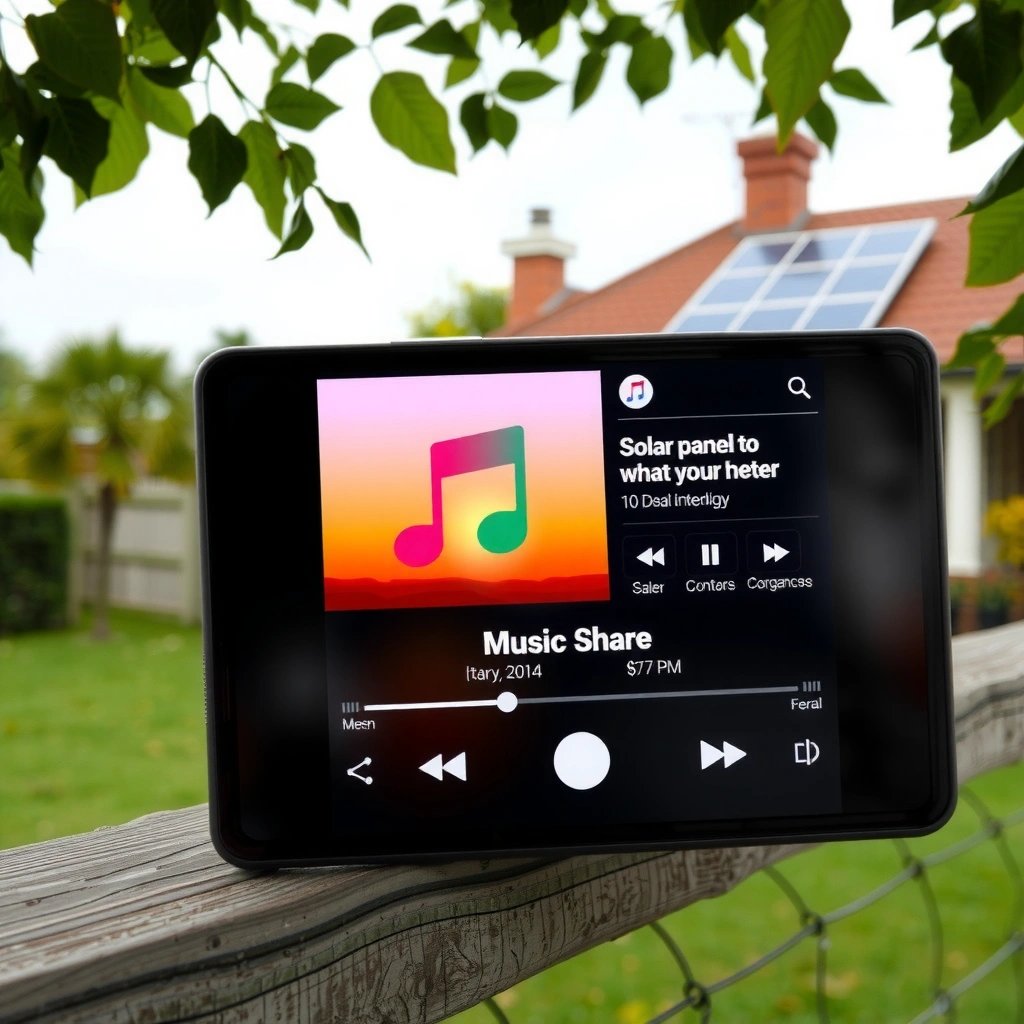
Music Share on Android lets you share music with nearby devices using compatible apps and wireless connections. In this guide, you’ll learn what it is, when it works, and how to use it safely and correctly.

What Is Music Share on Android?
- A feature or function that enables sharing music playback/data between devices
- Typically relies on nearby sharing options and supported audio apps
In plain terms, Music Share on Android is what happens when your phone can “hand off” a song or playback session to another device—so a friend can listen right away, join a session, or access the same track/playlist.
Depending on the app and the setup, “sharing music” may mean one of these common outcomes:
- Sharing a track or playlist link (the receiver opens it and plays the same content)
- Transferring/starting playback on another device (the receiver becomes the playback endpoint)
- Streaming music audio directly to a second device via a wireless connection
- Sharing “now playing” context so the other device can quickly queue the same content
This is why you may see different behavior across apps: some focus on link sharing, while others enable multi-device playback control or audio output routing.
How Music Share Works
- Uses connection methods like Bluetooth, Wi‑Fi, or Android sharing features (depending on the app)
- Sends the music or playback link so another device can start listening
Most Music Share experiences boil down to two steps:
- Discovery & connection setup
- Your phone looks for a nearby device (or your app establishes a session with a specific endpoint).
- The app then negotiates the connection through the underlying method—commonly Bluetooth, Wi‑Fi, or a system-level sharing workflow.
- Delivery of “what to play”
- Some methods deliver audio directly (receiver outputs sound).
- Others deliver a reference (a link, deep link, or queue command) so the receiver’s app can play locally.
The key technical reality: “What gets shared” varies
From a user perspective, two people can both say they “shared music,” yet one person may have:
- Sent a link to the track (receiver must open and play)
- Or routed playback itself (receiver’s device starts playing immediately)
So when you troubleshoot, the first question to ask is: Did the share send a link, or did it transfer playback?
Requirements to Use Music Share
- Both devices usually need the same or compatible music app(s)
- Bluetooth/nearby sharing permissions may be required
Before you attempt Music Share on Android, confirm these baseline requirements:
- Compatibility between sender and receiver
- If you’re sharing via an app-specific feature (for example, “share to device” or “join playback”), the receiving phone must typically have the same app (or a compatible ecosystem) installed.
- If you’re sharing a track link, compatibility is often lower—but the receiver still needs an app that can handle that link.
- Permissions and connectivity settings
- For Bluetooth-based or device-discovery flows, you may need:
- Bluetooth enabled
- Location services enabled (on many Android versions) for discovery
- App permissions for nearby devices / Bluetooth scanning
- For Wi‑Fi-based sharing (including casting-style methods), both devices must usually be on the same network or be able to form a session with each other.
- Account and authentication (common in streaming apps)
- Some share methods work without log-in, but playback handoff often benefits from being signed into the same service account or having permissions to start playback on the target device.
- Networking environment
- Corporate Wi‑Fi, captive portals (like hotel networks), and restrictive firewall policies can block discovery or session setup—leading to “it doesn’t show up” issues.
Quick comparison: which sharing method best fits your goal?
Below is a practical breakdown of the most common Android music sharing modes you’ll encounter—each with different requirements, range, and reliability.
Common Ways to Share Music from Android (2024–2025)
| # | Sharing method | Typical range | What’s shared | Receiver needs | Reliability |
|---|---|---|---|---|---|
| 1 | Android Nearby Share (files/links) | 1–10 m | Track/playlist link | Service app or browser | 4.7 ★/5 |
| 2 | Bluetooth audio (A2DP / headset routing) | Up to ~10 m | Audio stream | BT sink or paired device | 4.3 ★/5 |
| 3 | Wi‑Fi Direct (app-to-app streaming/session) | 5–30 m | Playback session | Supported receiving app | 4.0 ★/5 |
| 4 | Casting (Google Cast-style “device audio”) | Same Wi‑Fi / LAN | Queue + playback control | Cast-capable device/app | 4.5 ★/5 |
| 5 | NFC tap-to-pair (limited music endpoints) | Contact (cm) | Pairing / session start | NFC-enabled audio endpoint | 3.8 ★/5 |
| 6 | Link share via app “Share” button | Global (internet) | Deep link to track/playlist | Service app or web access | 4.1 ★/5 |
| 7 | Local file transfer (offline music sharing) | 1–20 m | Audio files (if available) | Compatible player + storage | 3.6 ★/5 |
Steps to Share Music on Android
- Open the music app and choose the share option for a track or playlist
- Select the nearby device, then confirm the pairing/share request
Use these steps as a reliable baseline. Exact wording varies by app, but the workflow is consistent across modern Android music platforms:
- Update and prepare both devices
- Make sure both phones are unlocked and have Bluetooth/Wi‑Fi enabled (as required by your method).
- Close the music app(s) in the background only if necessary—some services require them to remain running for session discovery.
- Start the share from the music app
- Open your streaming or music app.
- Navigate to the item you want to share:
- Track (song)
- Album
- Playlist
- “Now playing” queue
- Choose the correct share type
- Look for actions like:
- Share
- Send to device
- Cast
- Nearby Share
- If the app offers both “link” and “device playback,” pick the one aligned with your goal:
- Want the other person to press play? Choose link share.
- Want the other device to start playing automatically? Choose device playback/casting.
- Select the receiver
- Tap the nearby device name, or choose the casting endpoint.
- Confirm any authorization prompts on both sides (pairing, connection acceptance, or permission dialogs).
- Verify playback behavior
- After connection, confirm whether:
- Playback has moved to the receiver
- Or the receiver opened a link and queued the track
- If you hear nothing immediately, check whether the receiver’s volume/output source changed.
Practical example (what to expect)
- If you share a playlist via the app’s Share menu: your friend receives a link; they open it in their app and play.
- If you cast to a speaker via a “Cast” button: your friend selects the same cast endpoint and playback starts there—often without them searching for the track manually.
Troubleshooting Music Share Issues
- If it doesn’t appear, ensure both devices are discoverable and permissions are enabled
- If sharing fails, restart the app/device and try again with the same app version
When Music Share fails, it’s usually one of four causes: discovery, permissions, session mismatch, or connectivity.
1) The other device doesn’t show up
Try this checklist:
- Turn Bluetooth on and ensure Nearby devices / Nearby Share is discoverable for the sender and receiver.
- Confirm location services are enabled if your Android version requires it for discovery.
- Make sure the receiver isn’t in “Do not disturb” or a restrictive device mode that blocks connections.
- If using casting/Wi‑Fi, confirm both devices are on the same network (or that the casting feature supports guest mode for your environment).
2) Permissions are denied
- Check your music app’s settings:
- Bluetooth permission (scan/connect)
- Nearby devices permission
- Location permission (if applicable)
- Also verify that system-level permissions weren’t revoked after an update.
3) Sharing starts but playback doesn’t move
- Confirm the receiving device has:
- The correct app installed
- The correct output device selected (headphones vs speaker vs cast endpoint)
- If the method shares a link (not playback), the receiver must press play after opening it.
4) Repeated failures after a change (app update, network switch)
- Restart the sender and receiver app(s).
- Turn off/on Bluetooth or Wi‑Fi as appropriate.
- Try again using the same sharing path (for example, both using “Send to device” rather than one using “Share link” and expecting instant playback transfer).
- If both sides recently updated the app, test with the same version where possible—some session features can be sensitive to protocol changes.
Conclusion
Music Share on Android is a way to share music or playback with nearby, compatible devices using wireless connections and app support. Start by choosing the right sharing method (link share vs device playback), confirm that both devices meet the requirements and permissions, and follow the share steps inside your music app. If it fails, use the troubleshooting checklist—then share your favorite track with a friend with confidence.
Frequently Asked Questions
What is Music Share on Android?
Music Share on Android is a feature that lets you quickly share audio playback—such as songs, playlists, or what’s currently playing—from your device to another nearby device. Depending on the Android version and the services you use (for example, compatible music apps), it may work over Wi‑Fi Direct, Bluetooth, or a media-sharing protocol. The goal is to make music sharing faster than manually searching for the same track on the other device.
How do I use Music Share on Android to share what’s playing?
Open the music app you’re listening to and start playback. Look for a share or “cast” style option such as Music Share, Share/Connect, or Nearby devices, then select the target Android device from the list. Accept the connection prompt on the receiving device, and playback should sync or the content should begin on the other device based on the app’s support.
Why doesn’t Music Share work on my Android phone?
Music Share may fail if Bluetooth/Wi‑Fi permissions are denied, nearby device discovery is off, or the receiving device doesn’t support the same sharing method. It can also stop working if you’re using an app that doesn’t support music sharing for your account type, or if the devices are on incompatible Android versions. Try updating the music app and Android system, enabling location (for discovery), and restarting both devices.
Which Android devices and music apps support Music Share?
Support varies by device manufacturer, Android version, and whether the music app integrates with Android’s nearby sharing or media transfer features. Many mainstream players and streaming services support device-to-device playback, but some apps only allow sharing within their own ecosystem. Check the app’s in-app “Connect,” “Cast,” or “Share” options and confirm that both devices meet the requirements for Music Share.
What’s the best way to troubleshoot Music Share connection issues on Android?
First, ensure both phones have Wi‑Fi and Bluetooth turned on, are signed into the correct account, and can see each other under Nearby sharing settings. Then disable battery saver/restrictions for the music app, grant any required permissions, and turn off VPN or private DNS if it blocks local discovery. If it still fails, remove and re-add the connection, update the apps, and test with a different song or playlist to rule out playback-specific problems.
References
- https://scholar.google.com/scholar?q=Android+music+sharing+Nearby+Share Google Scholar
https://scholar.google.com/scholar?q=Android+music+sharing+Nearby+Share - Google Scholar Google Scholar
https://scholar.google.com/scholar?q=Android+share+intents+ACTION_SEND+music+files - Google Scholar Google Scholar
https://scholar.google.com/scholar?q=Bluetooth+file+transfer+Android+music+sharing - Send simple data to other apps | App data and files | Android Developers
https://developer.android.com/training/sharing/send - Intents and intent filters | App architecture | Android Developers
https://developer.android.com/guide/components/intents-filters - Nearby | Google for Developers
https://developers.google.com/nearby - Overview | Cast | Google for Developers
https://developers.google.com/cast/docs/overview - Nearby Share
https://en.wikipedia.org/wiki/Nearby_Share - https://en.wikipedia.org/wiki/Intent_(Android
https://en.wikipedia.org/wiki/Intent_(Android - Google Scholar Google Scholar
https://scholar.google.com/scholar?q=what+is+music+share+on+android