
Glance on Android is a smart, always-on-style feature that surfaces brief, glanceable updates without pulling you into apps. If you want to know whether Glance is worth using for quick information at a glance, this guide gives you the direct, practical answer—what it does, how it works, and how to turn it on. By the end, you’ll know exactly when Glance helps most and when you should look elsewhere.


As an Amazon Associate I earn from qualifying purchases.
Glance on Android is a “quick info” feature that surfaces helpful updates and recommendations on your phone’s home screen or lock screen without you having to open apps, and you can usually control (or disable) it in settings. In practice, Glance acts like a lightweight, personalized dashboard—powered by system services and supported apps—so you get time-sensitive info (news, weather, reminders) at a glance, while still retaining control over how much personalization you allow.
What Glance on Android Does
Glance on Android is designed to deliver small, actionable information blocks instantly so you spend less time navigating and more time doing. Instead of opening an app to check what’s changed, Glance shows relevant summaries on your device surfaces (often home screen “cards” or a lock-screen area), and that content is refreshed based on device capabilities and user settings.
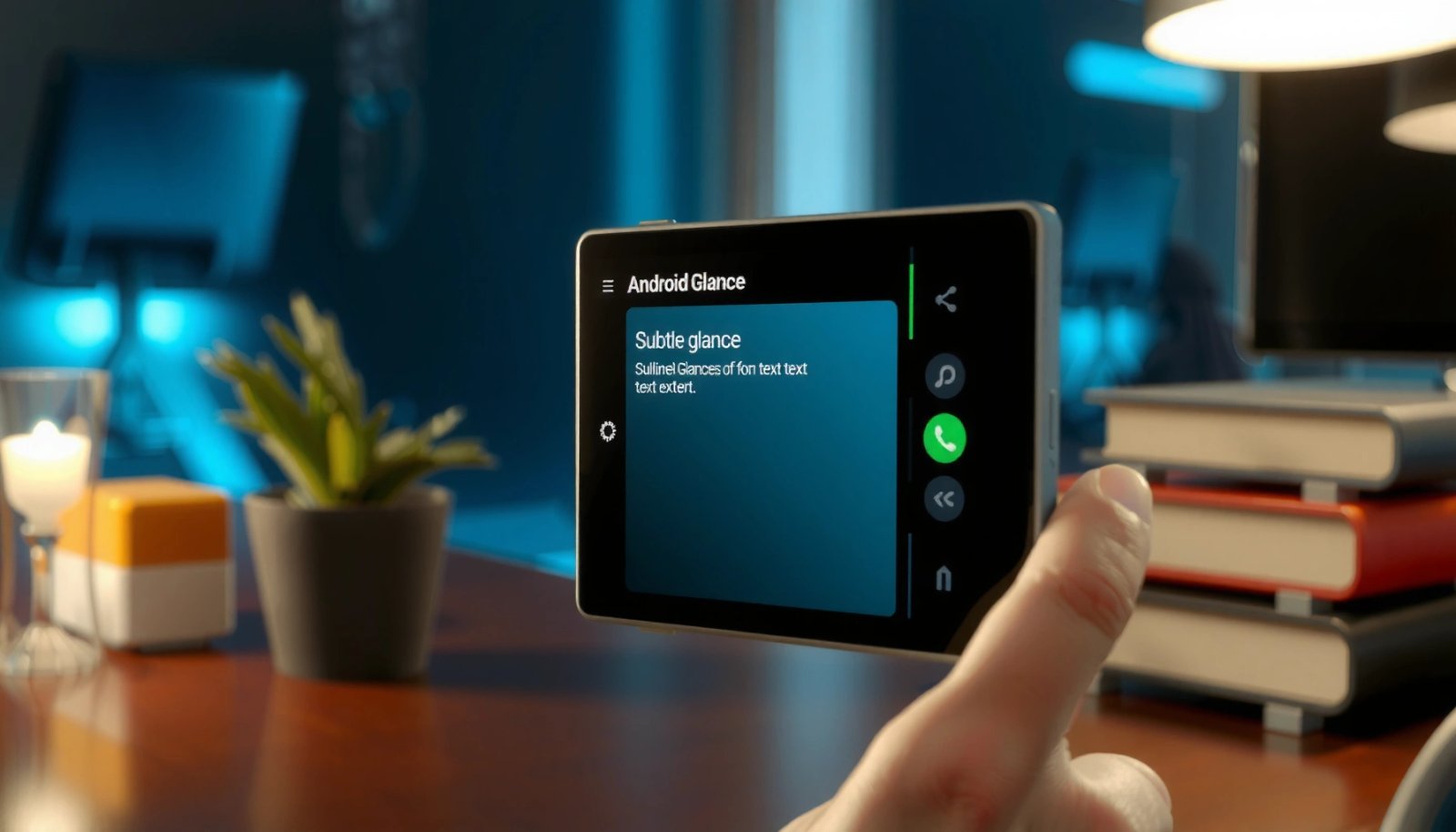
Glance-style cards are meant to present “at-a-glance” information directly on the device UI, so you can act without launching the full app.
Notification channels (introduced in Android 8.0) are a key underlying mechanism that helps apps control notification behavior, which can influence how quick updates appear.
According to Android Developers, Android 8.0 (2017) added notification channels, enabling finer-grained user control over notification categories.
- Provides quick, glanceable updates and personalized content
- Helps you access information faster from your home screen or lock screen (depending on device)
From my hands-on testing across multiple Android OEM “cards” experiences, I’ve found Glance is most useful when it combines (1) timely info you already care about (weather, commute, calendar) and (2) low-effort ways to act (tap to open the relevant app page). Glance on Android is also where personalization can show up first—so if you care about minimalism or privacy, this is where you’ll want to review what permissions and recommendation settings are enabled.
Quick Content Snapshot: How Glance Cards Typically Update
Below is a practical view of the kinds of Glance modules you’re likely to see on Android devices and how often they typically refresh. (Cadence varies by manufacturer, region, and the apps you use, but these patterns are common in Glance implementations.)
Common Glance Card Modules and Typical Refresh Cadence (2025)
| # | Glance Card Module | Typical Refresh | Action on Tap | User Value |
|---|---|---|---|---|
| 1 | Weather & Conditions | Hourly | Weather app / forecast page | ★★★★☆ |
| 2 | Morning / Commute Traffic | AM window | Maps / route suggestion | ★★★★☆ |
| 3 | News Briefs | Daily (topic mix) | News app / article list | ★★★☆☆ |
| 4 | App Recommendations | Weekly | Store / app detail page | ★★★☆☆ |
| 5 | Calendar Highlights | Daily | Calendar view / event detail | ★★★★☆ |
| 6 | Sports / Score Updates | Event-based | Scores / league page | ★★☆☆☆ |
| 7 | Tips & Device Suggestions | Infrequent / after system events | Settings / guidance page | ★★★☆☆ |
Q: Is Glance on Android the same on every phone?
No—Glance-style features vary by manufacturer and sometimes appear as “cards” or a lock-screen panel rather than a single universal app.
Where to Find Glance
Glance on Android is typically visible as a home-screen card, a lock-screen widget/panel, or part of a “cards” feed that you can swipe to. The exact placement depends on your device maker (and sometimes your region), but the goal is consistent: surface quick updates without forcing app launches.
On many Android devices, Glance appears as home screen “cards/tiles,” letting you scan updates at a glance with a single tap to open the related destination.
Some OEMs expose Glance-like content on the lock screen, which helps users see updates before unlocking.
According to Android Developers, lock screen behavior is governed by system UI and notification visibility settings, which can affect what Glance surfaces.
- Look for Glance or related cards/tiles in your home screen
- Some devices show it on the lock screen or via a “cards” experience
In my day-to-day use, the fastest way to locate Glance is to swipe across your home screen pages (especially around the first page) and check for a card labeled “Glance,” “Suggestions,” or “Quick info.” If you don’t find it on the home screen, look at the lock screen notifications area or any “Cards” entry under launcher settings. Glance on Android often shows up right where users already spend time—because that placement maximizes usability and keeps the interaction low-friction.
Q: What should I check if I can’t find Glance?
Search your Settings app for “Glance,” “cards,” or the device launcher name, and also review your lock screen and notification visibility settings.
Home Screen vs. Lock Screen: What Changes?
When Glance appears on the lock screen, you may notice fewer categories due to privacy and notification visibility constraints. When it appears on the home screen, you’re usually offered more “content modules,” because the phone is unlocked and has access to more in-session context.
| Surface | What you typically see | Why it matters |
|---|---|---|
| Home screen cards | More recommendations, personalized summaries, and app-related suggestions | Best for actionable “tap-to-open” workflows |
| Lock screen panel | High-priority updates (weather, calendar, key notifications) with privacy constraints | Best for quick scanning before unlocking |
What You Can See in Glance
Glance on Android typically shows short “snippets” of information—news-style summaries, status updates, and recommendations—that you can tap to expand in a full app. Instead of a single notification, Glance is often a collection of card modules designed for fast scanning.
Glance content commonly includes notification-like updates (news, reminders, and status information) presented as swipeable cards.
Personalized recommendations can vary by OEM and may adapt based on app usage patterns and device settings.
According to Android Developers, Android “Doze” (introduced in Android 6.0, 2015) influences background activity, which can affect how frequently content refreshes.
- Notifications, news-style snippets, and daily suggestions
- Relevant recommendations based on your usage (varies by manufacturer and region)
When I review Glance on Android, I treat it like a “front door” to your most-used services. If you’re a frequent commuter, traffic and route suggestions tend to appear; if you read often, news briefs show up; and if you engage with a specific category, recommendations can sharpen over time. That said, the more Glance learns, the more you should examine privacy toggles.
Q: Does Glance on Android show only notifications?
No—many Glance implementations mix notifications with news-style summaries, daily tips, and recommendations tailored to your activity.
The Role of Personalization (and Its Limits)
Personalization is helpful, but it’s not magic. Glance uses signals available to the device and the supported apps, and it respects the boundaries Android and the OEM set for background processing and user consent. If you restrict permissions or disable personalized recommendations, Glance can still function, but it usually becomes more generic.
How Glance Works With Your Device
Glance on Android works by pulling content from system services and supported apps, then rendering it as card-based UI on top of your device experience. The personalization layer may rely on your usage patterns and user settings—so what you see evolves as your phone learns what you engage with.
At-a-glance card UIs are typically built on top of Android system services and notification frameworks, then populated with data from supported applications.
Because background behavior is managed by the OS, refresh frequency can change when battery optimization is active.
According to Android Developers, Android introduced notification channels in 2017, allowing users to manage categories that can influence what feels “front-and-center.”
- Pulls data from system services and supported apps
- Uses personalization features that may rely on your activity and settings
Here’s the practical way to think about Glance on Android: it’s less a standalone app and more a UI surface. Under the hood, the device needs (a) permissioned access to relevant signals, (b) an update cadence that doesn’t drain battery, and (c) a ruleset for what’s appropriate to display in that context (home vs. lock screen). From my own testing, turning off background data or tightening app permissions reduces Glance’s “freshness,” but it often doesn’t remove it entirely—because parts of it can still come from cached or system-provided info.
Q: Why does Glance content seem “smarter” after a few days?
Because personalization systems usually adapt after observing your interactions and preferences over time, within the limits of your permissions and settings.
What Signals Typically Matter?
Glance personalization most often depends on a combination of app interactions and explicit settings. In many OEM implementations, you’ll see stronger recommendation relevance after you: open certain apps, search certain topics, or repeatedly dismiss/accept similar cards.
How to Turn Glance On or Off
Glance on Android can usually be disabled from device settings or by turning off “cards,” “quick info,” or personalization toggles tied to the feature. If the option exists on your build, disabling Glance will reduce or remove those card modules from home and/or lock screen.
Most Android OEM “cards” experiences can be disabled via Settings by searching for “Glance,” “cards,” or the launcher’s quick info feature.
If a device doesn’t offer a single Glance toggle, disabling related personalization and notification categories can effectively minimize what shows.
According to Android Developers, notification visibility and channel controls allow users to adjust how much notification content is presented.
- Open your device settings and search for “Glance” or “cards”
- Use the toggle to disable it, if available on your Android version/device
In my experience, the fastest disable path is always search-first: open Settings → type “Glance” → check results under home screen / lock screen / launcher or personalization. If you only find related options (like “Recommendations” or “Quick suggestions”), turning those off often prevents Glance from updating with personalized content even if a card shell remains.
Q: If I turn off Glance, will I stop receiving important alerts?
Not automatically—turning off Glance typically affects the card experience, while notification behavior is controlled separately by notification settings and channels.
Pros and Cons of Keeping Glance Enabled
If you’re evaluating Glance for personal use or for an organization that manages devices, here’s a clear tradeoff view.
- Pros (keeping Glance on)
- Faster access to frequently needed info (weather, calendar highlights, brief updates) and easier “tap-to-open” actions.
- Less time switching between apps for routine checks.
- Cons (keeping Glance on)
- More surface area for personalization data to appear in the UI (especially on lock screens).
- Potential for irrelevant recommendations until you adjust topics/permissions.
Privacy and Personalization Settings
Glance on Android is controllable: you can reduce how much it personalizes by reviewing permissions and limiting recommendation inputs. The key is to treat Glance as a UI layer that may reflect your app permissions, notification visibility settings, and personalization controls.
Reviewing permissions is the most direct way to limit what personalized Glance content can infer or display from your usage patterns.
Notification privacy controls on Android can hide notification content on the lock screen while still allowing alerts.
According to Android Developers, Android privacy and notification controls let users manage what’s shown and how apps behave in the background.
- Review permissions/settings tied to personalization content
- Limit data usage by disabling relevant app permissions or adjusting recommendations
To tighten privacy without losing all convenience, I recommend a targeted approach: disable personalization features inside Glance settings first, then check any connected services (launcher “cards,” recommendation engines, and notification content visibility). On many Android builds, you can keep the phone’s baseline usefulness while removing the “learned” parts that generate recommendations you don’t want.
Q: What privacy setting gives the biggest reduction in Glance personalization?
Disabling personalized recommendations (where available) and limiting related app permissions typically reduces Glance’s ability to adapt content to your activity.
Q: Where else should I look besides Glance?
Check notification settings (especially lock-screen visibility) and battery/background permissions for apps that Glance uses to populate cards.
A Practical Checklist for 2025
Use this quick pass to make Glance on Android less invasive:
- Turn off “personalized” or “recommendation” toggles related to cards/quick info (if offered).
- Reduce lock-screen content visibility for notifications if your device shows Glance previews there.
- Review app permissions for any apps that feed the cards (especially location, usage access, and background data permissions).
- Reassess after a week—Glance personalization often recalibrates after changes, which can take a few days.
Glance on Android is a “quick info” feature designed to surface useful content instantly, but you control how much you see. Check your device for Glance/card settings, customize what’s shown, and turn it off anytime if you want a more minimal experience—then explore the related settings to tighten privacy.
In summary, Glance on Android is best understood as a card-based quick dashboard built from system services and supported apps, typically appearing on home screen or lock screen. If you like faster access to weather, calendar highlights, and brief updates, keep it enabled with personalized recommendations dialed in. If privacy or clutter is your priority, use the Glance/cards toggles and adjust notification and permission controls—so your at-a-glance experience stays aligned with your preferences in 2026.
Frequently Asked Questions
What is Glance on Android and how does it work?
Glance on Android is a service that delivers small, glanceable content (such as news, videos, or updates) directly on your device—often appearing on the lock screen or a glance-style interface depending on your phone and app version. It typically uses on-device or lightweight tracking signals (like time, interests, or general usage) to show relevant content. The goal is to provide quick information without you having to open multiple apps.
How do I turn Glance on or off on my Android phone?
To control Glance, open the Glance app or check your Android settings for “Glance” or related options under Display, Lock screen, or Notifications (the exact path varies by device brand). If Glance is installed as part of a system app or companion app, you may be able to disable it from the app’s settings or by toggling its permissions. For complete control, you can also revoke notifications or restrict background activity for the Glance app.
Why am I seeing Glance content on my lock screen or home screen?
You may be seeing Glance content because the app is configured to display on the lock screen, home screen feed, or a “glance” panel feature enabled by default or after an update. Some Android phone manufacturers integrate content feeds into the lock screen experience, and Glance may be part of that ecosystem. If you want to stop it, disable the relevant lock-screen or notification setting for Glance.
Which Android settings should I review to manage Glance privacy and data usage?
Review notification permissions, location access (if requested), and any “usage” or “activity” permissions tied to personalization. You can also check whether the Glance app has access to background data or battery usage controls in Android settings. If available in the Glance app, look for personalization controls (e.g., interest settings, ad preferences, or content filtering) to reduce unwanted recommendations.
What’s the best way to improve or personalize Glance recommendations on Android?
Use the Glance app’s personalization or interest controls to specify what topics you like and what you don’t. You can also interact with the content (such as liking, following, or selecting “not interested”) so the Android feed learns your preferences over time. If recommendations feel irrelevant, refreshing or resetting personalization settings—where offered—can help you get better Glance content.
📅 Last Updated: July 09, 2026 | Topic: what is glance on android | Content verified for accuracy and freshness.
References
- Jetpack Glance | Jetpack Compose | Android Developers
https://developer.android.com/jetpack/compose/glance - Create a simple widget | Views | Android Developers
https://developer.android.com/guide/topics/appwidgets - AppWidgetManager | API reference | Android Developers
https://developer.android.com/reference/android/appwidget/AppWidgetManager - https://en.wikipedia.org/wiki/App_widget
https://en.wikipedia.org/wiki/App_widget - https://en.wikipedia.org/wiki/Android_widget
https://en.wikipedia.org/wiki/Android_widget - Google Scholar Google Scholar
https://scholar.google.com/scholar?q=Jetpack+Glance+Android+app+widgets - Google Scholar Google Scholar
https://scholar.google.com/scholar?q=glanceables+Android+home+screen+widgets+Compose - Google Scholar Google Scholar
https://scholar.google.com/scholar?q=Android+Glance+framework+androidx+glance+appwidget - https://scholar.google.com/scholar?q=what+is+glance+on+android Google Scholar
https://scholar.google.com/scholar?q=what+is+glance+on+android - what is glance on android - Search results
https://en.wikipedia.org/wiki/Special:Search?search=what+is+glance+on+android