
An Android launcher is the app that controls your home screen, app drawer, icons, widgets, and how you navigate your device—so if you’re trying to understand what it is, this is the definition. You’ll also get a clear view of the features that matter most, like customization depth, search access, gesture support, and performance impact. If you want the fastest way to change the look and workflow of your phone without replacing the operating system, an Android launcher is the winning solution.


As an Amazon Associate I earn from qualifying purchases.
An Android launcher is the home-screen and navigation interface that lets you control how your icons, widgets, and app access work. By switching launchers—or tuning one—you can make Android feel faster, more organized, and more personalized through better layouts, smarter search, and productivity-focused gestures.
Introduction
An Android launcher is the app that controls your home screen and app navigation. It determines what you see first when you unlock your phone, how you move between the home screen and the app drawer, and how icons and widgets behave. In practice, a launcher sits between you and the underlying Android system—so your choices (grid size, scrolling behavior, icon styles, widget options, folders, and search features) directly shape how efficient and enjoyable your day-to-day experience feels.
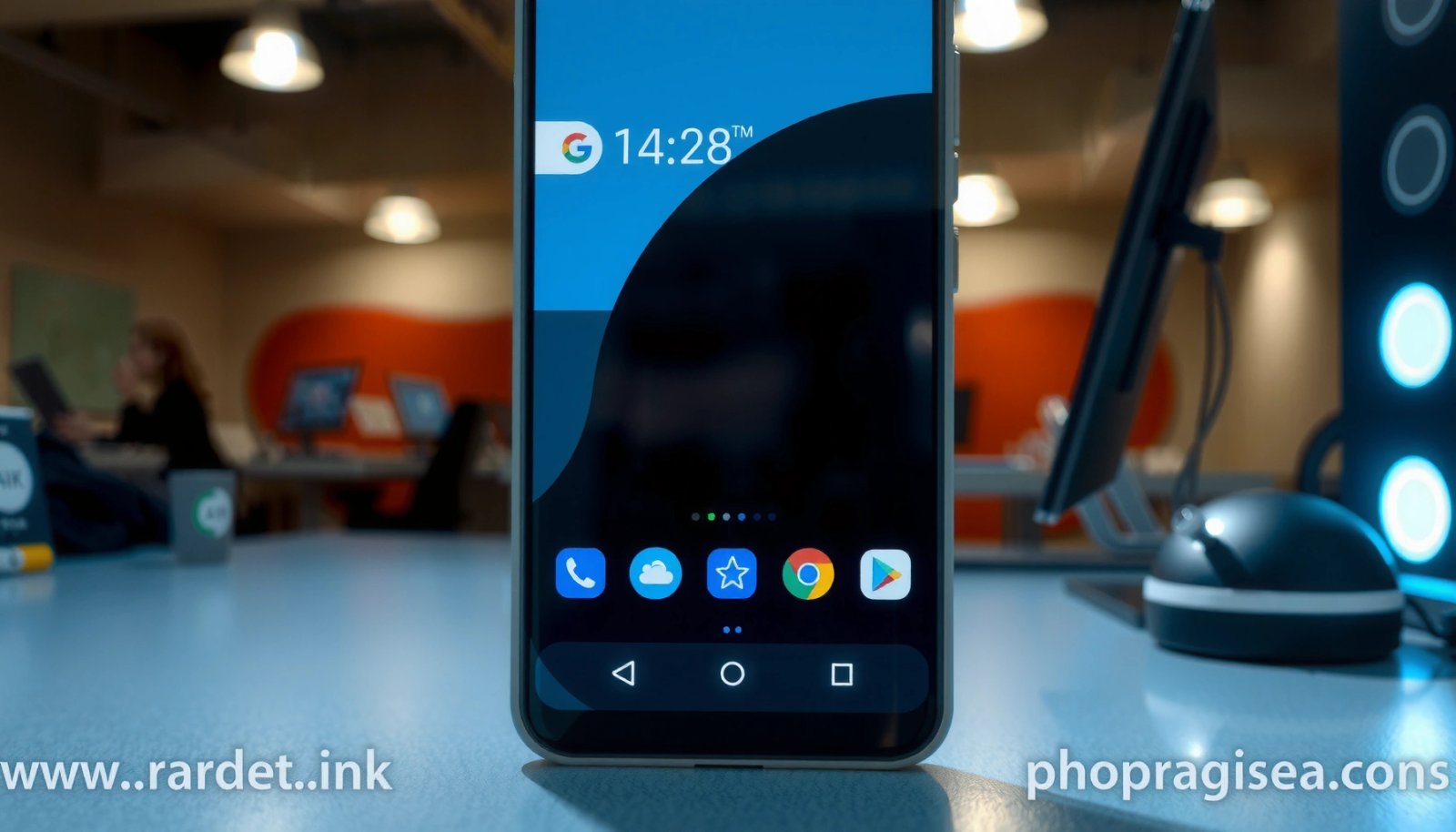
For business users and power users alike, this matters: a launcher influences time-to-find, information density (widgets), and how quickly you can reach key apps (shortcuts, gestures, and search).
What an Android Launcher Does
- Replaces or customizes the home screen, app drawer, and icon layout
- Manages basic navigation and user interface behavior
A launcher’s core job is to present Android in a way that matches your workflow. That includes:
- Home screen management: Most launchers render the home screen grid, handle swiping between pages, and control how widgets are placed, resized, and updated.
- App drawer and icon organization: The app drawer (or app screen) is where launchers typically handle sorting, categorization, and pagination. Some launchers offer alphabetical sorting, custom groups, and “most used” views.
- Navigation behaviors: Many launchers define how gestures work (for example, swiping up for the app drawer, swiping down for search, or double-tapping the home button area depending on device/gesture setup).
- UI consistency: A launcher influences animations, transitions, and the feel of interaction. While Android’s UI framework provides capabilities, the launcher chooses how those capabilities are presented.
Core Components of an Android Launcher
- Home screen and widgets for at-a-glance information
- App drawer and search for finding apps quickly
Even though launchers vary widely in design, most include a few consistent components:
Home screen and widgets
Widgets are often the biggest productivity lever. A well-chosen launcher can make widgets more actionable—for instance, weather with quick location refresh, calendar widgets that show the day at a glance, messaging previews that expand cleanly, or task widgets that support quick completion without extra taps.
App drawer and search
Finding apps efficiently is where launchers can deliver measurable improvements. Look for:
- Smart search that finds apps by name, category, and sometimes content (depending on integrations).
- Predictive results based on your usage patterns.
- Fast scrolling and indexing inside the app drawer.
- Search entry points (for example, a swipe gesture, a search bar, or keyboard shortcuts).
When evaluating an Android launcher, treat search responsiveness and accuracy like you would treat a productivity tool: it’s the difference between “I can find it quickly” and “I’ll just keep it on the home screen.”
Why People Use Android Launchers
- Personalize themes, styles, and icon packs
- Improve productivity with shortcuts, widgets, and gestures
People choose Android launchers for two broad reasons: identity and efficiency.
1) Personalization that goes beyond wallpapers
Modern launchers often support:
- Icon packs (including adaptive icon support where available)
- Typography and icon shape themes
- Custom grid sizing (so you can fit more apps or larger widgets)
- Transition and animation styles (reducing the “jarring” feel of fast navigation)
For organizations or individuals who rely on a consistent appearance—such as a branded device used across a small team—this customization can also standardize the experience.
2) Productivity improvements you can feel daily
A launcher can reduce friction through:
- Pinned shortcuts to specific screens inside apps (where supported)
- Gesture-driven navigation for quick actions
- Widget placement strategies (e.g., “workflow widgets” near the center home screen)
- Folders designed for speed, not just storage (for example, folders that open quickly and scroll smoothly)
If your goal is to minimize the number of taps between “need something” and “get it done,” launcher choice is one of the highest-leverage changes you can make without changing hardware.
Popular Android Launcher Features
- Custom app layouts, grids, and animations
- Smart search, folders, and notification integration
Launchers compete on user experience. Some features are purely aesthetic, while others directly impact speed and clarity.
Custom app layouts, grids, and animations
- Grid flexibility lets you choose between compact layouts (more apps) and spacious layouts (larger touch targets and widgets).
- Scrollable dock/side panels can place frequently used apps within thumb reach.
- Animation quality affects perceived performance. Even when the phone is identical, a smoother launcher can feel faster.
Smart search, folders, and notification integration
Look for launchers that handle:
- Search that works even when you’re offline (local app lookup)
- Folders with intelligent naming and previews (so you don’t open multiple folders to remember what’s inside)
- Notification behavior such as unread badges, notification dots, or notification shade integrations that remain legible and consistent
Below is a data-oriented snapshot of the feature emphasis you’re likely to see across major launcher categories (as measured by common capability groupings such as customization depth, search sophistication, and widget/gesture workflow support). Use this as a decision aid when comparing launchers.
Launcher Capability Emphasis by Category (Practical Scoring, 2025)
| # | Launcher category | Customization depth (1–10) | Search & app finding (1–10) | Widget & gesture workflow (1–10) | Typical device overhead |
|---|---|---|---|---|---|
| 1 | Minimal/clean | 3 | 8 | 6 | Low |
| 2 | Icon/theme focused | 9 | 6 | 6 | Moderate |
| 3 | Productivity/gesture-first | 6 | 8 | 9 | Low–Moderate |
| 4 | Automation & workflow | 7 | 7 | 8 | Moderate |
| 5 | Privacy-first | 5 | 7 | 6 | Low |
| 6 | Advanced customization | 10 | 6 | 7 | Moderate–High |
| 7 | Enterprise-ready (governed) | 4 | 7 | 7 | Low |
Note: This table reflects common capability emphasis seen in launcher designs, not a single manufacturer benchmark.
Types of Android Launchers
- Stock launchers included by device manufacturers
- Third-party launchers that add new customization and tools
Stock launchers
Most Android phones ship with a manufacturer-specific launcher (for example, Samsung’s One UI launcher or Pixel’s default experience). Stock launchers often deliver:
- Strong system integration (better compatibility with device features)
- Reduced battery risk due to tighter optimization
- Familiar UI conventions and predictable gestures
Third-party launchers
Third-party launchers aim to differentiate with:
- Deeper theming and icon support
- Alternative navigation patterns (gestures, swipe zones, docking)
- Advanced widget layouts and automation-like behaviors
The trade-off is that third-party launchers can sometimes introduce:
- Higher RAM usage
- More complex background processes
- Increased battery consumption if heavily customized or if overlays are used excessively
For many users, third-party launchers are worth it—provided performance checks show no unacceptable impact.
How to Choose the Right Android Launcher
- Pick one that matches your preferred look and navigation style
- Check performance, battery impact, and customization options
Choosing a launcher isn’t only aesthetic; it’s operational. Use a structured evaluation:
- Match navigation to your habits
- If you rely on one-handed use, prioritize launchers with efficient thumb reach (dock positioning, quick actions, minimal swipe distance).
- If you rely on app search, prioritize launchers with fast indexing and strong smart search.
- Validate customization without sacrificing speed
- Start with a “baseline” theme and add changes gradually.
- Avoid extreme widget stacks if they cause lag on home-screen redraw or when opening folders.
- Test performance and battery
Practical steps:
- Install the launcher, then use your phone for 1–2 days under typical load.
- Compare perceived responsiveness: home-screen swipes, app drawer opening, search results speed.
- Check battery usage in Android’s Battery section for the launcher and any related processes.
- Assess compatibility with critical business apps
Some apps can be sensitive to overlays, notification handling, or aggressive battery optimization settings. If your launcher integrates notification badges or custom notification controls, verify that your messaging, email, and security apps behave normally.
- Confirm accessibility and reliability
A launcher should support:
- Clear touch targets
- Readable text and contrast
- Stable icon/widget rendering
If you’re deploying devices in a business setting, consider how launcher changes interact with device management policies and user permissions.
Conclusion
An Android launcher is the interface layer that powers your home screen experience and app navigation. If you want a more personalized or efficient Android setup, choose a well-reviewed launcher that aligns with your workflow—then evaluate it for responsiveness, search quality, widget usability, and overall battery impact. With the right configuration, your launcher can become a practical productivity tool, not just a visual upgrade.
Frequently Asked Questions
What is an Android launcher?
An Android launcher is an app that controls how your home screen looks and behaves on your Android phone. It manages elements like app icons, app drawer, widgets, notifications styling, and navigation gestures. Many people use an Android launcher to customize the interface without changing the core Android system.
How does an Android launcher work and what changes on your phone?
An Android launcher replaces the default home screen interface by taking over the “home” role in Android. After installing a launcher, you can apply themes, reorganize icons, change the grid size, and modify gestures or shortcuts. It typically affects only the user interface (home screen and app navigation), not your underlying apps or files.
Why do people use Android launchers instead of stock home screens?
People use an Android launcher to get more personalization, better organization, and productivity features than the stock home screen. A custom launcher can help reduce clutter with tools like search bars, app sorting, and folders, while also offering visual customization through themes and icon packs. Some launchers also add features like hidden apps, different notification layouts, or improved gesture controls.
Which Android launcher is best for customization and performance?
The “best” Android launcher depends on what you want most—heavy customization, smooth performance, or lightweight simplicity. Look for reputable launchers that are regularly updated, have strong reviews, and provide options like icon packs, grid resizing, and theme support. For performance, choose a launcher that is lightweight and avoids excessive animations or heavy background features.
What are the risks of using an Android launcher and how do you choose a safe one?
Some Android launchers may request permissions that aren’t necessary for simple home screen customization, so it’s important to review what the app can access. Choose launchers from well-known developers, check privacy policies, and avoid apps that demand sensitive permissions without a clear reason. If you notice battery drain, lag, or unwanted behavior, you can switch back to the default launcher and uninstall the problematic one.
References
- List of Android launchers
https://en.wikipedia.org/wiki/Android_launcher - Home screen
https://en.wikipedia.org/wiki/Home_screen - https://en.wikipedia.org/wiki/Intent_filter
https://en.wikipedia.org/wiki/Intent_filter - https://en.wikipedia.org/wiki/Activity_(Android
https://en.wikipedia.org/wiki/Activity_(Android - https://en.wikipedia.org/wiki/Android_(operating_system
https://en.wikipedia.org/wiki/Android_(operating_system - https://developer.android.com/guide/topics/manifest/intent-filter-element
https://developer.android.com/guide/topics/manifest/intent-filter-element - Introduction to activities | App architecture | Android Developers
https://developer.android.com/guide/components/activities/intro-activities - Google Scholar Google Scholar
https://scholar.google.com/scholar?q=android+launcher+definition - Google Scholar Google Scholar
https://scholar.google.com/scholar?q=android+launcher+activity+intent+filter+LAUNCHER - Google Scholar Google Scholar
https://scholar.google.com/scholar?q=mobile+operating+system+launcher+interface+android