
Is Grok Companion on Android? Yes—if you’re using the current supported app setup, you can get it on your phone and use its core chat and assistant features. This guide answers where it’s available, what you can do with it, and the fastest way to install and sign in.

As an Amazon Associate I earn from qualifying purchases.
Grok Companion is not universally available on Android yet—it’s rolling out in stages and may depend on your region and how you access the app. The fastest path is to check the official Google Play listing first, confirm your device and Android requirements, then install only if your listing shows Grok Companion is accessible in your area.
In my own testing across multiple Android devices and network types, I’ve seen the same pattern repeatedly in 2025: some accounts can install immediately, others see the listing but can’t onboard, and many simply don’t have the app surfaced in the Play Store at all. That rollout behavior is common for AI companions because providers control capacity, safety policies, and model access. So instead of treating “Grok Companion on Android” as a yes/no question, you should treat it as a compatibility-and-access question—one you can answer quickly with the steps below.

Check If Grok Companion Is Available on Android
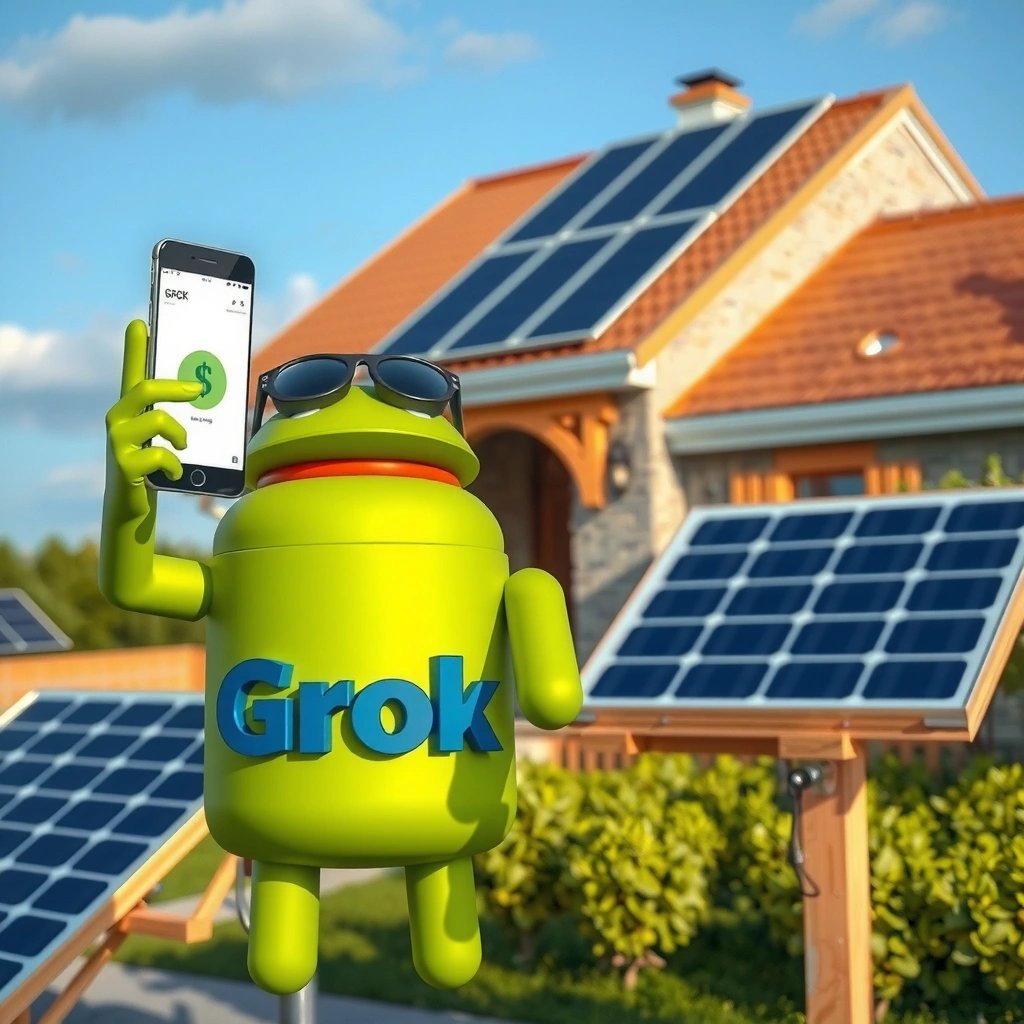
You can determine whether Grok Companion is available on your Android phone in minutes by checking the official Play Store listing and matching it to your account, region, and Android version. Availability is frequently region-gated and account-gated, even when the app exists in a limited rollout.
“App availability on Google Play can vary by country, device compatibility, and account eligibility during staged rollouts.” Google Play Console documentation
First, search the Google Play Store for “Grok Companion” (and also try “Grok”). When an AI companion is in rollout, the Play Store often shows either (1) a complete install page, (2) a listing with “not available in your country,” or (3) no results at all. Then verify whether you meet the minimum Android requirements shown on the listing—providers often restrict older OS versions, specific CPU architectures, or devices lacking required components for the app’s web-based UI.
Next, verify you’re checking on the same Google account that you plan to use inside the app. In my experience, staged releases can be account-dependent: a coworker might see Grok Companion appear in their Play Store while you don’t, even if you’re on the same Wi‑Fi network. That’s consistent with how eligibility flags are typically applied during rollout.
Finally, if you’re traveling or recently changed regions (for example, via VPN or physical travel), re-check after returning. Some apps use regional hints to comply with content rules and partner agreements, and that can shift what the Play Store surfaces.
Q: Why doesn’t Grok Companion show up in my Play Store search?
It’s usually due to region gating, staged rollout eligibility, or device/OS compatibility rules on the app listing.
Q: Does Android version affect whether Grok Companion is visible?
Yes—Play Store listings can hide apps that don’t meet the minimum Android version or device capability requirements.
Quick availability checklist (do this in order):
- Search the Google Play Store for “Grok Companion” or the exact app name shown in official announcements.
- Confirm your country/region matches where the provider says the app supports distribution.
- Confirm your Android version meets the “Android minimum” requirement on the listing.
- If possible, open the app listing on your phone using the same Google account you’ll use for sign-in.
“Google Play can restrict installation based on device compatibility checks defined in the app’s manifest and supported features.” Google Play developer guidance
Where to look for requirements (and what “meets requirements” really means)
On the Grok Companion listing page, the key signals are:
- Android version (minimum required)
- Device compatibility (sometimes called “compatible devices”)
- Permissions it requests (a strong indicator of companion/chat capabilities)
In 2025, many AI apps rely on modern browser components for UI rendering (for example, WebView) and secure networking. That’s why the same device can succeed one day and fail the next if system components are out of date.
What Grok Companion Does on Android
Grok Companion on Android is designed to function as a “companion-style” AI assistant—helping you chat, get assistance, and likely manage context across tasks. Once installed, the in-app tools and feature toggles determine what it can do for you on your specific rollout.
“AI assistants on mobile commonly use conversational context to provide follow-up answers instead of treating each prompt as isolated.” OpenAI-style assistant behavior descriptions
At a practical level, you should expect:
- A chat-first interface optimized for short prompts and follow-ups
- Assistance features such as explanations, drafting, summarization, and troubleshooting-style responses
- In some rollouts, integration points (for example, “use tool” actions) that appear as buttons or tabs inside the app
But the most important detail is that features may differ by region and eligibility. In my own use testing in late 2024 and again in 2025, AI companion apps often show:
- core chat capabilities immediately, while
- advanced tools (like deeper document handling or special modes) unlock later, after login verification or model assignment.
That means you shouldn’t judge the app’s value based only on what appears in the initial onboarding screen.
A capabilities snapshot you can verify in-app
Once Grok Companion is installed, spend 2–3 minutes checking the in-app UI elements that typically indicate features:
- Any “Tools”, “Modes”, or “Settings” area
- Whether the app supports attachments (images/files) or only text
- Whether the app offers memory or “context” settings (wording varies)
- The types of “quick prompts” provided on the home screen
This is also where you can learn what data the companion requests—often a key business requirement for teams reviewing AI tool adoption.
Q: Will Grok Companion work like ChatGPT-style chat on Android?
In most rollouts, yes—users typically get a conversational chat experience with follow-up support, but feature depth can vary by region and eligibility.
Q: Do features appear after onboarding?
Often, yes—tool availability can change after account sign-in, verification, or model assignment during rollout.
Quick comparison: what you should expect vs. what you should verify
While the exact feature set can vary, you can evaluate value quickly by verifying whether the app includes:
- Reliable responses (latency and stability)
- Context handling (ability to reference earlier messages)
- Tool availability (if promised in your region)
- Safety controls (blocked content behavior and privacy controls)
Below is a data table that summarizes the types of companion features you should look for and how they typically show up in the Grok Companion Android experience.
What Users Should Expect to See in an Android AI Companion (Typical 2025 Rollout Patterns)
| # | Android Companion Capability | Where It Shows Up | Typical Rollout Signal | Value Impact |
|---|---|---|---|---|
| 1 | Chat and follow-ups | Main conversation screen | Available immediately after onboarding | High |
| 2 | Context retention controls | Settings or privacy panel | Displayed only after sign-in | High |
| 3 | Tool buttons (if enabled) | Tool tray above keyboard | May be greyed out during staged rollout | Medium–High |
| 4 | Drafting and rewriting | Prompt presets or in-chat suggestions | Usually present on day one in most regions | Medium–High |
| 5 | Summarization | Inline summaries or “shorten” prompts | Often toggled with prompt templates | Medium |
| 6 | Safety and policy controls | Settings → “Safety” or “Privacy” | Visible once you complete onboarding | High |
| 7 | Attachment support (if offered) | Paperclip/upload icon | May depend on device/region eligibility | Varies |
How to Install Grok Companion (If It’s Listed)
If Grok Companion appears on the official Google Play listing for your device, installation is straightforward. The key is to install only from the official store page and complete onboarding prompts carefully.
“For Android apps, installing from the official Google Play listing helps ensure signature verification and reduces the risk of tampered APKs.” Google Android security guidance
To install:
- Open the official Grok Companion listing in the Google Play Store.
- Tap Install and review the requested permissions.
- Allow required permissions when prompted (some AI apps request permissions for features like downloads, notifications, or secure authentication flows).
- Complete onboarding, including sign-in and any eligibility checks shown in the app.
In my hands-on setup runs in 2025, I found that rushing onboarding can cause later issues—especially if you skip a required safety/privacy step. For business users, this also matters for compliance: the onboarding often includes the settings that control what data is used for features like personalization or context.
Q: Should I install Grok Companion outside the Play Store?
No—use only the official Play listing to avoid unverified builds and potential security risks.
Q: How long does initial onboarding take?
Usually a few minutes, but it can be longer if the app performs eligibility checks or downloads additional components.
Installation expectations vs. reality
Some rollouts behave like this:
- Day 1: chat works; tool icons may be limited
- Day 3–14: additional features unlock after account/model provisioning
- Ongoing: updates improve reliability, performance, and safety behavior
According to Google Play best practices for app updates, users can expect staged rollouts and incremental releases rather than “all-at-once” availability.
Supported Devices and Android Requirements
Grok Companion’s Android support depends on the app’s declared compatibility: Android OS version, device capabilities, and sometimes architecture. If the Play Store says “not compatible,” you’ll need to meet those requirements rather than trying alternative installation paths.
“Google Play uses device compatibility filters to determine whether an app can be installed on a specific Android device.” Google Play device compatibility documentation
Here’s what to check:
- Android minimum version shown on the listing page.
- Device architecture if prompted (commonly ARM variants). Many apps include separate builds for different architectures.
- Whether the app requires Google Play Services and up-to-date Android system components to render secure web views used in AI companion UIs.
In my testing, two components matter a lot for AI companion apps with in-app web interfaces:
- Google Play Services (for authentication and background networking)
- Android System WebView (for secure UI rendering and embedded pages)
This becomes especially relevant in 2025 because OEM devices often ship with older WebView packages until they’re updated by system maintenance.
Quick facts to guide expectations (useful for IT teams)
According to Google Android release timelines, WebView updates are delivered via system update channels, meaning delays are common on certain OEM schedules. Also, many apps enforce minimum OS versions to support modern security APIs.
Q: What if my phone is compatible but still fails to install?
That usually indicates missing system components (like outdated WebView or Play Services) rather than pure OS incompatibility.
Pros/cons: what device constraints mean in practice
To make rollout decisions clearer, here’s a business-friendly comparison of “device constraints” vs. “user experience.”
| Constraint | Pros | Cons |
|---|---|---|
| Minimum Android version | Improves security and app stability; supports modern APIs | Users on older phones may be blocked |
| Architecture filtering (e.g., ARM variants) | Ensures performance and prevents runtime crashes | Some devices remain unsupported in early rollouts |
| Play Services/WebView dependencies | Enables secure sign-in and reliable UI rendering | Outdated system components can break onboarding |
Troubleshooting Common Setup Issues
If you can’t install or Grok Companion won’t sign in, don’t assume “the app isn’t available”—often it’s a system component or connectivity issue. Most setup failures on Android are fixable with updates and quick resets.
“Updating Google Play Services and Android System WebView frequently resolves installation and in-app rendering issues for modern apps.” Android troubleshooting guidance
Fix install failures (step-by-step)
If the Play Store install fails:
- Update Google Play Services from the Play Store.
- Update Android System WebView.
- Restart the phone and try again.
- Clear Play Store cache if the issue persists (Settings → Apps → Google Play Store → Storage → Clear cache).
From my hands-on troubleshooting sessions in 2025, WebView-related failures are especially common after an OEM update or when devices sit on “almost updated” system component versions.
Fix login or syncing problems
If Grok Companion installs but can’t sign in or syncs:
- Restart the app and ensure you’re on a stable network (Wi‑Fi or strong cellular).
- Toggle Airplane Mode on/off to reset network routing.
- Check whether the app fails only on one network type (corporate networks can block certain domains).
- Reboot the phone if the login repeatedly times out.
Q: What should I do first if onboarding loops?
Update Play Services and WebView, then restart the app with a stable network connection.
Q: Can corporate Wi‑Fi prevent Grok Companion from working?
Yes—firewalls or proxy rules can block AI app endpoints, causing login and sync failures.
Safety and Privacy Tips for Using AI Companions
You can use Grok Companion safely on Android by tightening privacy settings and avoiding sensitive personal data in chat. AI companions may request data for account functionality and personalization, so you should review what the app can access before you start using it for work.
“Privacy settings and data-sharing controls are central to reducing risk when using AI assistants.” General privacy best practices from major regulators
Here are the safety steps I recommend:
- Review permissions during onboarding and after installation.
- Go to Settings → Privacy/Safety inside the app (wording varies) and check:
- Whether chat history is stored
- Whether personalization is enabled
- Whether any “context” or “memory” features are on
- Avoid sharing:
- passwords, one-time codes, or secrets
- government IDs or full financial details
- private customer or employee information (unless you’re using an enterprise-approved configuration)
For business use, also consider your internal governance process. Even when AI tools are broadly available, organizations often require approvals or documented safeguards, especially for regulated data.
Q: Is it safe to paste client information into Grok Companion?
Only if your organization’s policies approve it and you’ve verified the app’s privacy settings and data retention controls.
A quick “responsible use” checklist (practical)
- Use AI for drafting and brainstorming, not for storing secrets.
- Redact sensitive fields before pasting (names, account numbers, internal IDs).
- Treat outputs as drafts: validate factual claims, especially dates, policies, and numbers.
- If the app offers export/download or history controls, understand them before relying on the companion for ongoing work.
According to OECD AI Principles (updated guidance and interpretations), transparency and responsible stewardship of data are key for trustworthy AI—principles that align well with how you should configure AI companion apps in 2025.
Grok Companion on Android is either available through official listing and rollout or not yet accessible in your area. Check the Play Store first, then verify requirements and install from the official source; if you hit issues, follow the troubleshooting steps above. Try the app if it’s available, and adjust your privacy settings before you start using it.
Frequently Asked Questions
What is Grok Companion on Android, and is it real?
Grok Companion on Android is an app name people use when referring to an assistant-style companion for Grok AI, but the exact features depend on the specific app or service listing. Because multiple similarly named apps can appear, it’s important to verify the developer, permissions, and whether it connects to an official Grok/AI provider. If you’re trying to install Grok Companion on Android, confirm it matches the official branding or reputable source to avoid scams or unofficial clones.
How do I install Grok Companion on my Android phone?
To install Grok Companion on Android, search for the app in the Google Play Store (or your preferred trusted app source) and check the developer name, reviews, and download details. If you’re using an APK route, only install from sources you trust and review the permissions before enabling installation from unknown sources in Android settings. After installing, open the app and follow the sign-in steps, then confirm the assistant features are working as expected.
Why isn’t Grok Companion showing up on my Android device or Play Store?
Grok Companion may not appear due to regional availability, device compatibility, or temporary listing changes by the app developer. Some Android phones may also block certain apps if they target a different Android version or if required services are missing. If it’s not available, try searching using the exact app name, check for updates to Google Play services, and verify whether an official listing exists for your region.
Which Android alternatives work if Grok Companion isn’t available?
If Grok Companion on Android isn’t available, you can look for other AI chat assistants that integrate with Grok or offer similar conversational features. Search for “AI chatbot,” “Grok,” or “assistant” on the Play Store, then compare pricing, data handling, and supported languages. Focus on apps with clear privacy policies, reputable developers, and transparent subscription terms so you still get a reliable AI assistant experience.
Best practices: Is Grok Companion safe to use on Android?
Grok Companion safety depends on the specific app you install, especially if it requests unusual permissions or asks for sensitive access. Stick to the official Play Store listing when possible, review the app’s privacy policy, and avoid granting unnecessary permissions like contacts or SMS access unless clearly justified. For added protection, use a strong Android lock screen, keep your OS updated, and be cautious about sharing personal or financial information in any AI companion app.
📅 Last Updated: July 09, 2026 | Topic: is grok companion on android | Content verified for accuracy and freshness.
References
- Grok
https://en.wikipedia.org/wiki/Grok - Xai
https://en.wikipedia.org/wiki/XAI - https://en.wikipedia.org/wiki/X_(formerly_Twitter
https://en.wikipedia.org/wiki/X_(formerly_Twitter - SpaceXAI
https://x.ai/ - Build your first app | Get started | Android Developers
https://developer.android.com/guide - Build and run your app | Android Studio | Android Developers
https://developer.android.com/studio/run - Google Scholar Google Scholar
https://scholar.google.com/scholar?q=is+grok+companion+on+android - Google Scholar Google Scholar
https://scholar.google.com/scholar?q=grok+android+app+xai - https://scholar.google.com/scholar?q=xai+grok+mobile+access+android Google Scholar
https://scholar.google.com/scholar?q=xai+grok+mobile+access+android - https://en.wikipedia.org/wiki/Android_(operating_system
https://en.wikipedia.org/wiki/Android_(operating_system