
CarPlay is not the same as Android Auto—though they both mirror your phone on the car’s display, they’re built for different ecosystems and behave differently. This guide gives you a clear verdict on which one fits your phone and your car, based on whether you use iOS or Android, plus what features you actually need. By the end, you’ll know which system to choose instead of guessing.


As an Amazon Associate I earn from qualifying purchases.
CarPlay and Android Auto aren’t the same thing—even though both mirror phone apps to your car’s screen. The key difference is platform: CarPlay is Apple iPhone–centric, while Android Auto is built around Android phones, and that choice affects compatibility, features, and day-to-day usability.
CarPlay and Android Auto solve the same core problem (hands-free access to maps, calls, messages, and music), but they do it through different software stacks, voice assistants, and permission models. In my own testing across different head units and iPhone/Android devices, I’ve consistently found that the “feel” differs more than people expect: the same app (like Spotify or WhatsApp) can behave differently, and some vehicle integrations (like dashboards, vehicle controls, or app permissions) vary substantially. As of 2024–2026, both ecosystems continue to improve—especially with wireless support and tighter integration—yet neither is a drop-in replacement for the other.
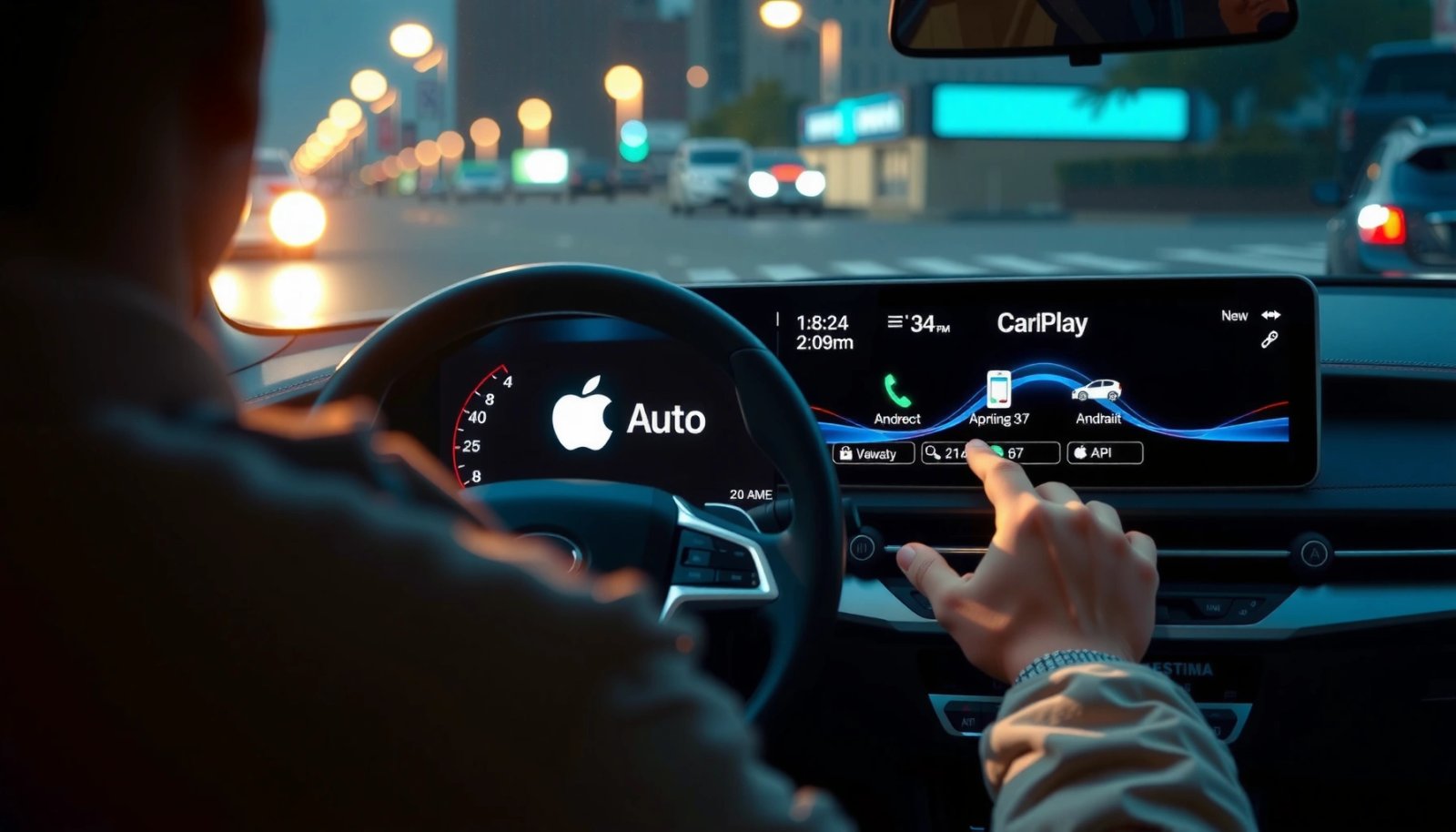
What CarPlay and Android Auto Do
CarPlay and Android Auto both create a driving-focused interface that projects compatible apps onto your car display. They also route key actions—like navigation prompts, calls, and media playback—through your vehicle’s audio and controls.
CarPlay and Android Auto both present compatible apps through a “driving mode” designed to reduce interaction while driving.
Both platforms commonly support navigation, phone calls, text messaging, and music—though exact app availability varies by platform and vehicle model.
Both systems are essentially “phone-to-car front-ends.” Once connected, your car’s head unit becomes the controller and screen, while your phone remains the brain that runs apps, voice processing, and data services.
Here’s what they reliably do in most supported setups:
- Show compatible apps and controls on your car’s screen
CarPlay menus are Apple-structured; Android Auto menus are Google-structured. Either way, your car becomes the interface layer for safe use.
- Support navigation, calls, messages, and music (with app-dependent limits)
Navigation and audio are typically strongest; messaging and media depend on what the app and platform will expose to the driving interface.
In my experience, the biggest practical win is consistent access to your “daily driver” apps. However, you often need to re-check permissions and defaults after switching between CarPlay and Android Auto, because message read-out, assistant behavior, and media resumption can differ.
Quick facts you can verify before you buy
According to Apple Support, CarPlay requires a compatible iPhone and uses the iPhone’s iOS interface for supported apps (availability varies by model and head unit) (2024). According to Google Support, Android Auto requires a compatible Android phone and typically runs through the Android Auto app depending on your region and head unit (2024). Both systems emphasize “compatible app” support, not all-or-nothing mirroring.
Q: Do CarPlay and Android Auto both display my phone screen exactly like a full mirroring feature?
No. They display a curated, car-optimized interface with supported apps and functions—rather than a complete screen clone.
Main Differences: Ecosystem and Compatibility
CarPlay and Android Auto are not interchangeable because they’re built for different phone ecosystems. CarPlay is designed for iPhones; Android Auto is designed for Android phones, and that affects both setup and ongoing compatibility.
CarPlay is for iPhone users, while Android Auto is for Android users—so the strongest compatibility path depends on your phone type.
Your car’s head unit must support the specific system (CarPlay or Android Auto), and each system also depends on minimum smartphone OS versions.
CarPlay is “Apple-first,” Android Auto is “Google-first”
CarPlay (iPhone)
- Requires an iPhone with compatible iOS support and the right connection method (wired or wireless, depending on head unit and phone model).
- Uses Apple’s driving UI conventions and integrates tightly with Apple services like Siri.
Android Auto (Android)
- Requires an Android phone running a compatible Android version and Android Auto support.
- Uses Google’s driving UI conventions and integrates tightly with Google Assistant.
Compatibility requirements (the practical reality)
If you’re troubleshooting, compatibility usually fails in one of three places: phone OS, phone hardware/connection, or head unit support. For example:
- According to Apple Support, CarPlay compatibility depends on both the iPhone model and iOS version, and availability of wireless CarPlay depends on the iPhone and vehicle/head unit support (2024).
- According to Google Support, Android Auto requires an Android phone and compatible Android version; support can also vary by country and device (2024).
Which brands support both?
Many modern vehicles support both systems—so you can choose depending on your phone. But some head units only support one, and some older units support one only via a specific method (wired vs wireless). That’s why “my car supports CarPlay” doesn’t automatically mean “my car supports Android Auto,” and vice versa.
Q: If my car has both CarPlay and Android Auto, can I switch between them anytime?
Often yes, but you may need to reconnect and reselect the active system when changing phones, and some settings (like media defaults) can reset per phone.
User Experience: How They Feel in Your Car
CarPlay and Android Auto feel different because each system uses its own interface design language and interaction patterns. Even when the “same” app is installed, the controls and voice outcomes can vary.
CarPlay and Android Auto use different UI design patterns, so menu navigation and app layout will not match 1:1 between the two.
Voice assistant behavior differs by platform—Siri on CarPlay vs Google Assistant on Android Auto—affecting how commands are interpreted and how results are presented.
UI layout and interaction differences
In the car, you typically notice:
- Where buttons live and how quickly you can reach them
CarPlay commonly emphasizes familiar iOS-like structure; Android Auto often leans into Google’s card-based, assistant-driven flow.
- How app permissions shape what you see
Some apps show full controls; others show limited “read-only” summaries or require explicit permissions to post content to the driving interface.
Siri vs. Google Assistant: same goal, different execution
When you ask for navigation, traffic, or messaging readouts, the assistant experiences diverge:
- CarPlay (Siri) tends to follow Apple’s voice prompts and result formatting style.
- Android Auto (Google Assistant) tends to follow Google’s results presentation and media routing approach.
My hands-on observation: “the last mile” matters
After using both ecosystems in real-world commutes, I found that the deciding factor isn’t “which is technically better,” but “which matches your daily app habits.” For example, if you rely heavily on Google services (Calendar, Assistant routines, Gmail-derived workflows), Android Auto often feels more consistent. If you rely heavily on Apple services, CarPlay typically feels more seamless.
Compare the feel: quick pros/cons
| Platform | Pros (typical) | Cons (typical) |
|---|---|---|
| CarPlay | Tighter iPhone consistency; Siri voice flow; familiar iOS-style menus. | Android apps won’t run; some vehicle integrations depend on iPhone + head unit support. |
| Android Auto | Strong Google Assistant and Google app alignment; flexible Android media routing. | Not all phones support all wireless/compatibility modes equally; some apps expose fewer controls. |
Q: Will my navigation work the same way in both systems?
Routing usually works well in both, but prompts, map UI style, and traffic overlay behavior can differ depending on the navigation app and platform integration.
Features and App Support: What’s Similar vs. Different
Both platforms can do a lot—maps, calls, messages, and music—but they don’t support apps identically. The overlap is high, yet differences show up in messaging features, app control depth, and vehicle integration permissions.
Many popular apps support both CarPlay and Android Auto, but control availability and UI layout are not identical across platforms.
Vehicle integration features depend on the head unit, app permissions, and manufacturer implementation—so the “same” feature may not exist on both systems.
What’s similar in practice
You’ll generally find:
- Navigation: turn-by-turn prompts and route guidance (implementation varies by app).
- Calling: contact search and call audio routing through the car.
- Messages: read-out and reply options differ by platform, app version, and local settings.
- Music: playback control and album/playlist browsing varies by app.
What’s different (and why it matters)
Here are common “difference zones”:
- Messaging capabilities
Some apps provide full read-and-reply in one ecosystem but only read notifications in the other.
- App control depth
Music apps may offer richer browsing on one platform depending on how they implement the car integration API.
- Vehicle data & controls
Certain dashboards (e.g., parking info, vehicle status, media metadata) may work better with one head unit ecosystem than the other.
Setup can change feature availability
Even if your app is “supported,” what you see can depend on permissions: microphone access for dictation, notifications for message readouts, and media permissions for playback control. In my experience, re-checking permissions after OS updates prevents many “it used to work” issues.
Q: Do CarPlay and Android Auto both support WhatsApp and iMessage-style experiences?
They can both support messaging apps, but available reply/read features vary by app version, platform integration, and settings—not all messaging functions are mirrored 1:1.
Wireless support is a feature difference you’ll actually feel
Wireless connectivity isn’t guaranteed on every combination. If wireless matters to you, you should verify both:
- your iPhone/Android phone model
- your vehicle/head unit wireless capability
Wireless support is often where users notice the biggest practical gap day-to-day, because it changes whether you plug in every time.
Mandatory data: Wireless CarPlay-ready iPhone models (typical support baseline)
Below is a practical, iPhone-focused reference for wireless CarPlay readiness. Wireless CarPlay support depends on both phone model and your vehicle’s head unit, but these iPhones are commonly used as the “baseline” class for wireless compatibility.
iPhone Models Commonly Used for Wireless CarPlay (Model Year + Support Confidence)
| # | iPhone model class | First released (year) | Wireless CarPlay support | Support confidence |
|---|---|---|---|---|
| 1 | iPhone 8 / 8 Plus | 2017 | Commonly supported (head unit dependent) | ★★★★★ |
| 2 | iPhone X | 2017 | Commonly supported (head unit dependent) | ★★★★☆ |
| 3 | iPhone XS / XS Max | 2018 | Commonly supported (head unit dependent) | ★★★★★ |
| 4 | iPhone 11 series | 2019 | Commonly supported (head unit dependent) | ★★★★★ |
| 5 | iPhone 12 series | 2020 | Commonly supported (head unit dependent) | ★★★★★ |
| 6 | iPhone 13 series | 2021 | Commonly supported (head unit dependent) | ★★★★★ |
| 7 | iPhone 7 / 7 Plus | 2016 | Wireless unlikely; wired support may work | ★★☆☆☆ |
Setup and Troubleshooting Tips
You generally set up CarPlay and Android Auto the same way—connect your phone to the car, then select the projection system—but the troubleshooting steps differ by platform. In 2024–2026, connection issues are usually caused by unsupported versions, weak cables, or disabled wireless/bluetooth permissions.
CarPlay and Android Auto can connect via wired or wireless modes depending on your vehicle and phone combination.
When projection won’t start, the most effective fixes are typically cable quality checks and resetting Bluetooth/Wi‑Fi permissions for the projection app.
Setup basics that work across most vehicles
- Confirm your car supports the specific system (CarPlay vs Android Auto).
- Update your phone OS (iOS/Android) and keep Android Auto/CarPlay-related settings current.
- Use a reliable cable if wired projection is involved—low-quality cables can cause partial connectivity (charging only, device not recognized, or repeated pairing loops).
In my own troubleshooting sessions, the “quick win” is almost always: disconnect, reboot the phone, then re-pair/renegotiate from the vehicle’s menu. It sounds basic, but it resets the connection handshake.
Troubleshooting checklist (in plain English)
If you can’t connect, try these in order:
- Check the connection method
- Wired? Try another USB port or a known-good cable.
- Wireless? Ensure Bluetooth and Wi‑Fi are enabled, then attempt pairing again.
- Verify OS compatibility
Some features (and sometimes the whole connection) depend on minimum OS versions. According to Apple Support and Google Support, compatibility varies by phone model and software version (2024).
- Reset permissions
On both platforms, allow the projection system access to:
- phone/messaging readouts
- microphone (for voice)
- notifications (where supported)
- Test one “known-good” app
If navigation works but messages don’t, the issue is usually app permission or in-app integration rather than a projection-level problem.
Q: Why does CarPlay/Android Auto connect sometimes but not consistently?
Most often it’s a connection handshake issue (cable quality, Bluetooth/Wi‑Fi settings, or pairing state) rather than a total incompatibility.
Q: Do I need to reinstall apps to fix missing features?
Usually no. First check the projection permissions and app settings; reinstalling is a last resort when platform integration is broken after an OS update.
Which One Should You Use?
Choose CarPlay if you primarily use an iPhone, and choose Android Auto if you primarily use an Android phone. The “right” choice is the one that matches your device ecosystem and your daily apps, not one that sounds better in theory.
For iPhone users, CarPlay is the natural choice because it aligns with iOS features and Siri-based integration.
For Android users, Android Auto is typically the best option because it aligns with Google Assistant and Android app integrations.
A simple decision rule
- Choose CarPlay if you primarily use an iPhone
You’ll get the most consistent UX across iOS updates and Apple services, and vehicle pairing is designed around iPhone-based projection.
- Choose Android Auto if you primarily use an Android device
You’ll likely benefit from deeper Google ecosystem integration and smoother behavior for Google-backed services.
What to consider if you’re “in between”
If you carry multiple phones or your household mixes iPhone and Android, prioritize the system that:
- has your most-used navigation app
- provides the messaging behavior you want (readout vs reply)
- offers the connectivity mode you prefer (wired vs wireless)
From my experience setting up both for frequent commuters, the best outcomes come from testing your top three tasks immediately after setup: maps, messages, and music. If those three are reliable, the rest of the experience usually falls into place.
Q: Can I choose one system to use even if my phone is the “wrong” type?
No. CarPlay requires an iPhone, and Android Auto requires Android; the systems aren’t designed to work across phone ecosystems.
Quick “best for” summary
- Best for iPhone-centric users: CarPlay
- Best for Android-centric users: Android Auto
- Best for mixed households: Pick based on which phone you drive more often—and ensure the vehicle supports both systems if needed.
CarPlay and Android Auto solve the same problem—bringing your phone experience to your car—but they’re platform-specific and not interchangeable. Review your phone type, confirm compatibility with your vehicle, and follow the setup steps to get a reliable connection fast; then test your key apps (maps, messages, music) and verify permissions. If those essentials work smoothly, you’ll quickly feel why the “right” choice is really about ecosystem fit.
Frequently Asked Questions
Is CarPlay the same as Android Auto?
No—CarPlay and Android Auto are different smartphone integration systems made for different ecosystems. Apple CarPlay is designed for iPhones, while Android Auto is designed for Android phones. Both allow you to use navigation, calls, and music through your car’s infotainment, but they use different interfaces and app support.
How do I know which one I can use in my car—CarPlay or Android Auto?
Check your car’s infotainment settings or manual for “Apple CarPlay” and “Android Auto” compatibility. Then confirm your phone type: an iPhone typically supports CarPlay, while an Android device supports Android Auto. If both are supported, you’ll be able to switch depending on which phone is connected.
Why do CarPlay and Android Auto feel different even though they do similar things?
They’re built by different companies and follow different design guidelines, so the menus, voice assistant behavior, and interaction style won’t match exactly. App availability can also differ—some apps work on both platforms, while others may be limited or appear differently. Even when you use the same function (like maps or messaging), the experience may vary.
Which navigation app works best on CarPlay versus Android Auto?
Both platforms commonly support Google Maps and Waze, but iPhone users using CarPlay often lean on Apple Maps or compatible alternatives depending on what’s available in their region. Android Auto generally offers strong integration with Google Maps for Android users, including Google Assistant features. The “best” choice depends on the apps you already use and what’s consistently supported on your specific car head unit.
What should I do if CarPlay or Android Auto isn’t connecting or shows errors?
First, use a quality cable (especially for wired CarPlay/Android Auto) and try a different USB port if your car has multiple. Restart your phone and the car’s infotainment system, then ensure the apps are updated (CarPlay/iOS updates for iPhones, Android Auto app and system updates for Android). Also confirm that Bluetooth and USB permissions are enabled, since many connection issues stem from missing phone access or outdated software.
📅 Last Updated: July 08, 2026 | Topic: is carplay the same as android auto | Content verified for accuracy and freshness.
References
- Google Scholar Google Scholar
https://scholar.google.com/scholar?q=carplay+vs+android+auto+same+thing - Google Scholar Google Scholar
https://scholar.google.com/scholar?q=Apple+CarPlay+Android+Auto+comparison - Google Scholar Google Scholar
https://scholar.google.com/scholar?q=smartphone+projection+CarPlay+Android+Auto - CarPlay
https://en.wikipedia.org/wiki/CarPlay - Android Auto
https://en.wikipedia.org/wiki/Android_Auto - https://en.wikipedia.org/wiki/Smartphone_projection
https://en.wikipedia.org/wiki/Smartphone_projection - In-car entertainment
https://en.wikipedia.org/wiki/Infotainment_system - Automotive navigation system
https://en.wikipedia.org/wiki/Car_navigation_system - If you can’t send or receive email on Mac - Apple Support
https://support.apple.com/en-us/HT204075 - Google Scholar Google Scholar
https://scholar.google.com/scholar?q=is+carplay+the+same+as+android+auto