
Need to turn off airplane mode on Android fast? This guide gives you the quickest, most reliable steps to disable airplane mode and restore cellular service, Wi‑Fi, and Bluetooth. If you can’t get it to switch off, the article also covers the common fixes that resolve the “stuck airplane mode” problem.


As an Amazon Associate I earn from qualifying purchases.
Turn off airplane mode on Android by tapping the Airplane mode icon in Quick Settings or toggling it off in Settings—either way, your phone should reconnect to Wi‑Fi and mobile networks within seconds. This guide walks you through the fastest options, what to verify afterward (Wi‑Fi/mobile data), and what to do if the toggle won’t switch off.
Introduction
Airplane mode on Android disables the phone’s radio transmitters (cellular, and typically Bluetooth/Wi‑Fi by default) to comply with flight rules and prevent interference. On most Android devices, switching it off immediately restores your ability to call, text, and browse—but only if Wi‑Fi and/or mobile data are enabled afterward. The key is to use the quickest toggle first (Quick Settings), confirm the correct network radios come back (Wi‑Fi and/or cellular), and then troubleshoot if the change doesn’t “stick.”
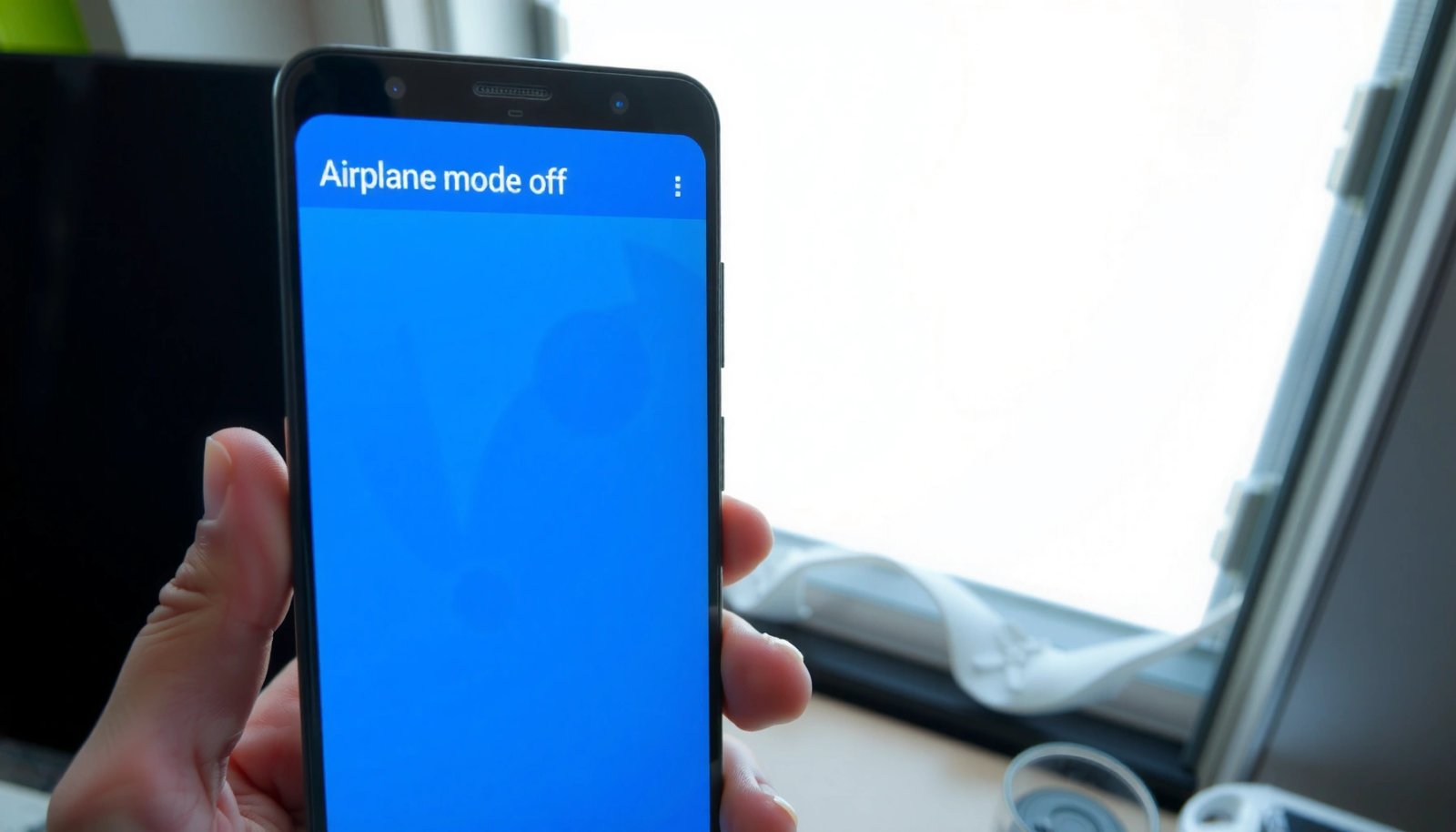
Turn Off Airplane Mode in Quick Settings
Quick Settings is the fastest way to control airplane mode because it takes you straight to the system toggle—no menu navigation required.
- Swipe down from the top of your screen to open Quick Settings
- Tap the Airplane mode icon to disable it
- Wait a few seconds for Wi‑Fi and cellular to reconnect
After you tap the icon, watch for connection indicators:
- Wi‑Fi: the Wi‑Fi icon should show it’s connected, or you should regain a Wi‑Fi signal.
- Cellular: the LTE/5G or signal bars should return if mobile data is enabled.
If you don’t see reconnection within ~30–60 seconds, don’t repeatedly toggle airplane mode—go to the “Confirm Wi‑Fi and Mobile Data Are Enabled” section and check the radio states manually.
How Android Radios Typically Behave After Turning Airplane Mode Off
| # | Radio / Service | Airplane Mode ON | Airplane Mode OFF | What to Verify | Reconnection Ease |
|---|---|---|---|---|---|
| 1 | Cellular (LTE / 5G) | Off by default | Restores if Mobile data is enabled | Signal bars + LTE/5G icon | ★★★★★ |
| 2 | Wi‑Fi | Off by default (but can be re-enabled) | Returns to normal Wi‑Fi behavior | Connected to correct SSID | ★★★★★ |
| 3 | Bluetooth | Off by default (can be re-enabled) | Typically re-available after toggle | Bluetooth status + paired devices | ★★★★☆ |
| 4 | NFC | Usually disabled while in strict airplane mode | Often returns to enabled/available state | NFC toggle in Settings if needed | ★★★☆☆ |
| 5 | VoLTE / IMS Calling | Unavailable | May require carrier re-registration | Calls work + carrier indicator | ★★★★☆ |
| 6 | GPS / Location Fix | Usually not fully disabled by airplane mode | Remains dependent on Location settings | Location services + mode (High accuracy) | ★★☆☆☆ |
| 7 | Mobile Data Network Access | Blocked | Restores if Mobile data is On | Data icon + app connectivity | ★★★★★ |
Turn Off Airplane Mode in Settings
If the Quick Settings toggle is missing, greyed out, or not responding, use the system Settings path instead. This is especially helpful on customized Android skins where the icon layout varies.
- Open the Settings app
- Tap Network & internet (or Connections)
- Toggle Airplane mode to Off
Once disabled, give the phone a moment to re-register on the cellular network (for SIM-based connectivity) and to re-associate with Wi‑Fi networks (if Wi‑Fi is enabled).
Why this matters: Some Android builds remember your previous Wi‑Fi/Bluetooth state during airplane mode, while others revert radios to their default airplane-mode behavior. Going through Settings gives you a consistent place to verify the toggle and immediately adjust other network switches.
Confirm Wi‑Fi and Mobile Data Are Enabled
Turning off airplane mode is only the first step; you must confirm the radios you care about are actually on afterward.
- Check that Wi‑Fi is turned on after disabling airplane mode
- If needed, enable Mobile data in the same Network/Connections area
- Look for signal bars or a connection indicator to confirm it worked
Practical checks you can do immediately
- Wi‑Fi check: Open a browser and try a fast page (e.g., a news site). If Wi‑Fi is connected but pages don’t load, your issue may be DNS or captive portal—not airplane mode.
- Mobile data check: Turn Wi‑Fi off temporarily and test an app that uses data (email sync or a quick web search). If mobile data doesn’t connect, confirm:
- Mobile data toggle is On
- You have an LTE/5G icon or signal bars
- Your plan supports mobile data (especially after travel or plan changes)
Business-realistic scenario
If you disable airplane mode for an urgent call or a customer update, prioritize:
1) cellular reappearance (signal bars + LTE/5G)
2) ability to send/receive messages
3) internet access for critical tools (CRM, email, messaging apps)
Even if Wi‑Fi works, mobile data failures can prevent “push” notifications and voicemail-related workflows.
Troubleshooting if Airplane Mode Won’t Turn Off
Sometimes airplane mode won’t switch off due to a temporary system glitch, a stuck toggle, or network registration delays. Use these steps in order—each one resolves a common class of failure.
- Restart your phone and try the toggle again
- Toggle Airplane mode on, then off to refresh connections
- Update your system or check for software glitches if it persists
What to try (and what it fixes)
- Restart: Clears transient UI/state problems where the toggle changes but radios don’t recover properly.
- On → Off toggle cycle: Forces a fresh re-initialization of network services and can trigger reconnection logic.
- System update: Repairs platform-level networking bugs and modem interaction issues that may affect certain Android versions or OEM builds.
When to stop troubleshooting and test
Once airplane mode is off, immediately test:
- a call (or call placement attempt)
- text messaging
- a web request (browser or a key app)
If those tests fail, move to confirming Wi‑Fi/mobile data and then revisit troubleshooting if the issue persists.
Manage Special Cases (Dual SIM and Settings Variations)
Android devices aren’t identical—especially across OEMs and multi-SIM setups. Handling these variations prevents you from assuming airplane mode failed when the issue is actually SIM configuration or menu location.
- If you use Dual SIM, confirm the correct SIM is active after switching off airplane mode
- Some Android skins label menus slightly differently (Network & internet vs Connections)
- Search in Settings for “Airplane mode” if you can’t find the toggle
Dual SIM specifics to verify
When you turn off airplane mode on a Dual SIM phone:
- Confirm which SIM is set for mobile data (many users unintentionally leave the data SIM on the inactive line).
- Confirm the correct SIM is selected for calls if your default line changed after the toggle.
- Check whether one SIM shows signal while the other does not—this can happen after network re-registration.
Settings label differences across brands
If you’re using a customized Android UI (Samsung One UI, Xiaomi/Redmi MIUI, Motorola, OnePlus OxygenOS, etc.), the path may vary. The fastest approach is:
- Open Settings
- Use the search bar
- Type Airplane mode
- Toggle it from the result
This bypasses differences in how “Network & internet” or “Connections” is named on your particular model.
Conclusion
Airplane mode on Android is usually turned off instantly from Quick Settings or the Settings menu. Start with the quick toggle, then confirm Wi‑Fi and/or mobile data are actually enabled and that connection indicators return. If the airplane mode toggle won’t switch off or connectivity doesn’t recover, restart your phone and try a quick on→off refresh—then verify Dual SIM settings if applicable. After that, test calls and internet immediately so you know your Android network is fully restored.
Frequently Asked Questions
How do I turn off airplane mode on Android?
Swipe down from the top of your screen to open the Quick Settings panel, then tap the Airplane Mode icon to switch it off. On some Android phones, you may need to tap the icon again or toggle it from Settings. If you still can’t disable it, check that you’re not in a power-saving or travel-related mode that may keep it enabled.
Why won’t airplane mode turn off on my Android phone?
This can happen due to a software glitch, a stuck toggle in the Quick Settings, or restrictions from a work profile/MDM (mobile device management). Restart your phone and try turning off airplane mode from Settings > Network & Internet (or Connections) > Airplane mode. If it remains stuck, update your Android system and check whether the SIM/network service is disabled in your device settings.
Which settings menu shows the airplane mode toggle on Android?
Most Android devices have the airplane mode option under Settings > Network & Internet > Airplane mode, or Settings > Connections > Airplane mode. You can also access it quickly from the notification shade Quick Settings where the toggle is usually labeled “Airplane mode” or shown as a plane icon. Exact wording can vary by brand (Samsung, Google Pixel, Xiaomi, OnePlus), but the option is typically in the connectivity/network section.
What’s the fastest way to disable airplane mode when you need to make a call?
The quickest method is to use the Quick Settings panel: swipe down, tap the plane icon to turn airplane mode off, and wait a few seconds for cellular service to reconnect. After disabling it, confirm mobile network is enabled by checking the signal bars and going to Settings > Network & Internet (or Connections) > Mobile network. If calls still fail, toggle Mobile Data/Cellular off and back on, or restart the phone.
Best troubleshooting steps if airplane mode is stuck on Android?
First, try toggling airplane mode off from both the Quick Settings panel and the Settings menu to ensure it isn’t just a UI glitch. Next, reboot your phone, then check for system updates that could fix network toggles. If airplane mode keeps re-enabling, check for airplane mode rules from a work profile, and verify your device isn’t in a mode that affects radios (such as certain “power saving” or “offline” configurations).
References
- Airplane mode
https://en.wikipedia.org/wiki/Airplane_mode - https://www.samsung.com/uk/support/mobile-devices/how-to-turn-airplane-mode-on-or-off/
https://www.samsung.com/uk/support/mobile-devices/how-to-turn-airplane-mode-on-or-off/ - https://www.huaweidevice.com/en/solutions/airplane-mode/
https://www.huaweidevice.com/en/solutions/airplane-mode/ - https://www.motorola.com/us/support/turn-airplane-mode-off/
https://www.motorola.com/us/support/turn-airplane-mode-off/ - Google Scholar Google Scholar
https://scholar.google.com/scholar?q=how+to+turn+off+airplane+mode+on+android - Google Scholar Google Scholar
https://scholar.google.com/scholar?q=android+airplane+mode+toggle+mechanism+settings+systemui - Google Scholar Google Scholar
https://scholar.google.com/scholar?q=android+airplane+mode+radio+disable+enable+documentation - how to turn off airplane mode on android - Search results
https://en.wikipedia.org/wiki/Special:Search?search=how+to+turn+off+airplane+mode+on+android - https://www.ncbi.nlm.nih.gov/search/research-articles/?term=how+to+turn+off+airplane+mode+on+android
https://www.ncbi.nlm.nih.gov/search/research-articles/?term=how+to+turn+off+airplane+mode+on+android