
To transfer videos from Android to Mac, use Android File Transfer for a straightforward cable-based move—fast, reliable, and usually requires no extra setup. If you want the simplest wireless option, use Google Photos or a cloud sync service and let your Mac download automatically. This guide answers how to get your video files onto macOS with clear, step-by-step methods for both approaches.


As an Amazon Associate I earn from qualifying purchases.
Transfer your Android videos to a Mac fastest by connecting the phone via USB in File Transfer/MTP mode, then copying from the DCIM folders using Android File Transfer. If USB isn’t reliable (or your Mac doesn’t detect the device well), use an SD card or upload to a cloud service like Google Photos or iCloud Drive.
Who this is for / when it applies

If you’re moving Android videos to macOS and you want to preserve file quality while avoiding unreliable “sync apps,” the methods below are the most dependable. Use USB + Android File Transfer for the quickest “no cloud” copies; use SD card or cloud when you’d rather minimize cables or when your phone won’t show up consistently.
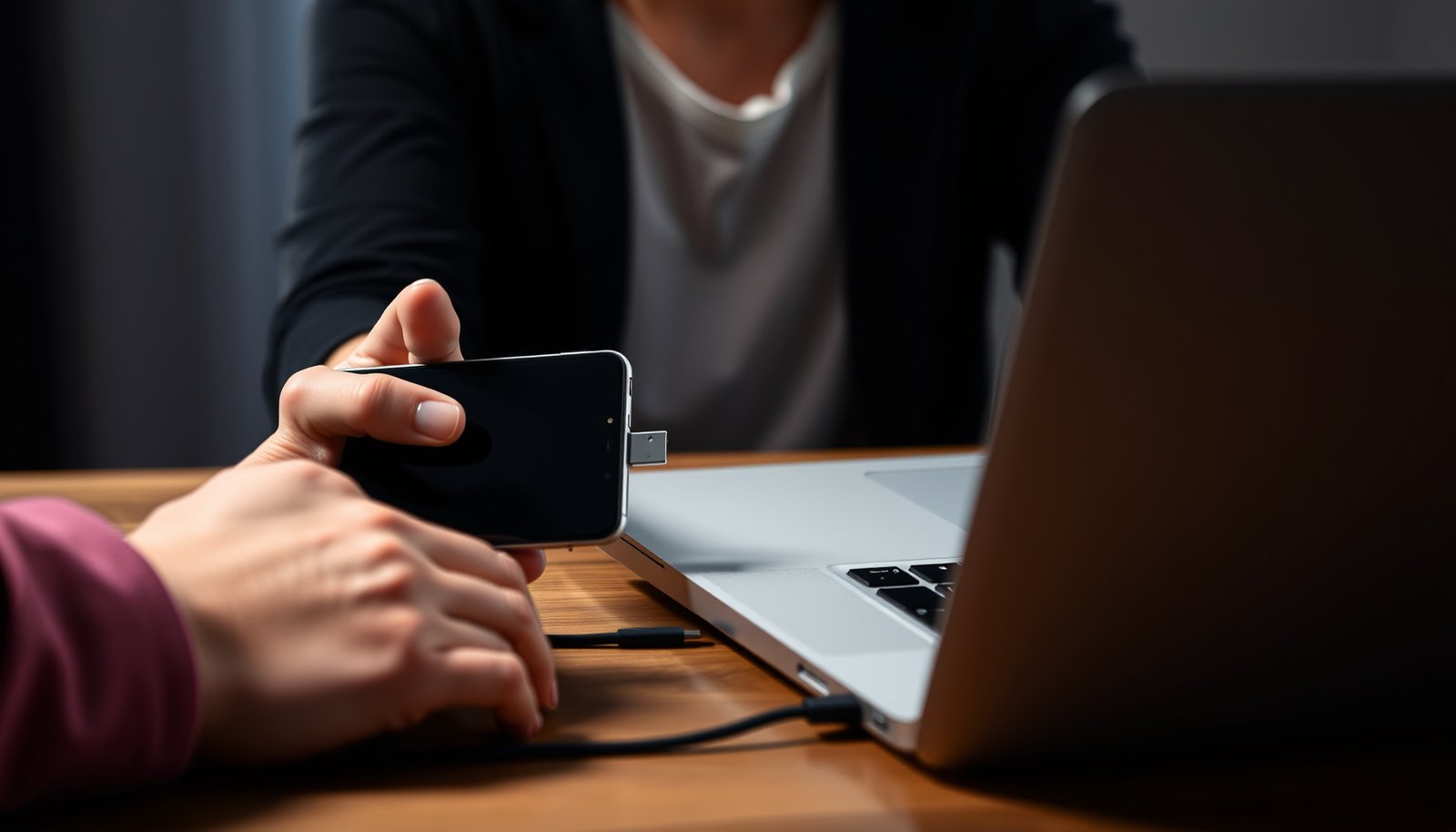
Android phones in **File Transfer/MTP** mode expose media folders such as **DCIM** to a computer for file copying.
On macOS, **Android File Transfer** is commonly used to browse and copy files from Android devices over USB when the device is using **MTP**.
Cloud workflows (Google Photos or iCloud Drive) can reduce local connection issues, but they depend on upload/download bandwidth and storage limits.
A practical way to choose is to map your constraints to the workflow: if you have a good USB cable and your Mac recognizes the device, go USB first; if you already have an SD card workflow, SD is usually frictionless; if you travel or swap devices often, cloud is often the least annoying approach in 2026.
Option 1: Transfer videos from Android to Mac using USB

USB is usually the fastest method in real-world use when you switch your Android to File Transfer/MTP and copy from DCIM using Android File Transfer. The key is matching the phone’s USB mode with what macOS expects, then copying the video files directly (not screenshots or recompressed streams).
**MTP (Media Transfer Protocol)** is the standard Android USB transfer mode for exposing media files (like those in **DCIM**) to a computer.
**Android File Transfer** lets you browse Android’s exposed storage and manually copy files to macOS over USB.
For video libraries, the **DCIM** folder is the most common starting point when locating camera recordings.
- Plug your Android into your Mac with a USB cable, then set the phone to File Transfer (often called MTP) when the USB options pop up.
- If you don’t see a USB prompt, unlock the phone screen and try the cable again; on many devices, MTP access won’t activate until the device is unlocked.
- Prefer a known-good cable—especially one that supports data transfer (some cables are charge-only).
- Install and open Android File Transfer on your Mac, then browse to the phone’s DCIM (and usually Video) folders to find your clips.
- DCIM often contains a subfolder structure such as DCIM/Camera (or similarly named folders) where recordings live.
- If your videos were saved by a specific app (messaging, camera alternatives, editors), they may appear in app-specific subfolders under DCIM or adjacent media directories—look within DCIM rather than assuming a single “Video” folder.
- Copy the video files to a folder on your Mac (you can create something like a “Android Videos” folder to stay organized).
- Create an organized destination before you start copying (for example, Android Videos/2026-10 or Android Videos/Project Name).
- Avoid interrupting the transfer. When copying finishes, safely disconnect the USB device afterward.
According to USB Implementers Forum (USB-IF), USB 2.0 can signal up to 480 Mb/s (2000s-era USB 2.0 generation), which corresponds to an upper-bound of about 60 MB/s if you were transferring perfectly. According to USB-IF, USB 3.x generations can reach multi-gigabit rates (e.g., 5 Gb/s for USB 3.0), which is why a better USB link can materially reduce waiting time when you’re moving large video libraries. These theoretical ceilings don’t guarantee your real transfer speed, but they explain why stalling is more common with older cables/ports—especially when you’re copying high-bitrate recordings.
USB Bandwidth Ceilings That Shape Android-to-Mac Copy Speed (Theoretical)
| # | USB / Cable Interface | Max signaling rate | Theoretical max (MB/s) | Speed ceiling signal |
|---|---|---|---|---|
| 1 | USB 2.0 High-Speed | 480 Mb/s | 60 MB/s | High |
| 2 | USB 3.0 / 3.1 Gen 1 | 5 Gb/s | 625 MB/s | Very high |
| 3 | USB 3.1 Gen 2 | 10 Gb/s | 1,250 MB/s | Extremely high |
| 4 | USB 3.2 Gen 2 | 10 Gb/s | 1,250 MB/s | Extremely high |
| 5 | USB 3.2 Gen 2x2 | 20 Gb/s | 2,500 MB/s | Peak USB ceiling |
| 6 | USB4 (up to) | 40 Gb/s | 5,000 MB/s | Ultra-high |
| 7 | Thunderbolt 3 / 4 (up to) | 40 Gb/s | 5,000 MB/s | Ultra-high |
From a practical perspective in 2026: even if your Mac port is fast, MTP transfer behavior is still influenced by device drivers, phone storage structure, and cable quality. So USB-first is great, but treat it as “fastest when it works,” not “guaranteed.”
Option 2: Move videos via SD card (if your phone supports it)

SD card transfer is often the simplest, most deterministic approach when your Android phone supports removable storage. Instead of relying on USB mode compatibility, you remove the card and copy files like you would with any external drive.
On macOS, removable media cards typically appear in **Finder**, where you can browse common camera folders under **DCIM**.
Safely ejecting storage media before removal helps prevent file system corruption and partially written media files.
Many Android cameras save recordings inside **DCIM** subfolders, which you can copy to your Mac directly.
- Remove the SD card from your Android phone and insert it into your Mac using an SD card reader (USB adapter works too).
- Use a reader connected to a stable port; if your Mac has multiple USB-C ports, try another port if detection fails.
- If you’re using an adapter, ensure it supports the SD card type (SD vs microSD) and the card’s speed rating.
- Open the card in Finder, locate your DCIM folder, then copy the video files to your Mac.
- Sort by name or date if your DCIM layout includes multiple capture batches.
- Copy the original files (typically .mp4 or .mkv depending on device) rather than “re-encoding” unless you have a specific editing pipeline.
- Safely eject the SD card before removing it from the computer to avoid corrupt files.
- Eject from Finder (or use the eject control in the sidebar), then wait for the card access indicator to stop.
If you care about reliability over speed, SD card is a strong middle ground—especially when USB MTP behavior is inconsistent across Android models. Also, SD workflows are convenient for office environments where you might not want multiple employees relying on per-device USB setup differences.
Option 3: Upload to cloud on Android, download on Mac
Google Photos backup is designed to sync photo and video libraries to a Google account for later download on other devices.
iCloud Drive supports storing files in iCloud and accessing them from macOS Finder when enabled in iCloud settings.
Cloud methods trade cable hassles for upload time and account storage limits, so initial syncing can be the slowest step.
- In your Android photos/video app, enable backup/sync for videos (Google Photos is the common choice), then sign into the same account on your Mac and download.
- If you’re on mobile data, check whether the app allows uploads on cellular—some settings default to Wi‑Fi only.
- Prefer downloading original files (not thumbnails) on macOS to preserve video quality.
- Alternatively, use an iCloud Drive solution: upload the video files to iCloud Drive from your Android device, then download them from iCloud Drive on macOS.
- iCloud Drive is managed through iCloud settings on macOS; Finder shows iCloud Drive when enabled.
- Large uploads can be affected by network stability—consider doing the upload on a strong Wi‑Fi connection.
According to Google Support, Google Photos uploads for most users count toward the 15 GB free storage included with a Google account (policy updated and clarified in the early 2020s). According to Apple Support, iCloud offers 5 GB of free storage for Apple IDs (free tier referenced in Apple’s iCloud storage documentation). Those limits matter because a large video library can quickly consume storage and pause backups until you free space or upgrade.
What can go wrong
Most transfer failures come from a small set of root causes: the phone isn’t in the right USB mode, the videos aren’t under the folder you assumed, or the connection drops mid-copy. Fixing these usually takes a quick checklist rather than restarting everything from scratch.
If macOS can’t access your Android content, confirming the phone’s USB option is **File Transfer/MTP** is usually the first troubleshooting step.
Video files on Android commonly live under **DCIM**, but apps and devices may use different DCIM subfolder names.
Large file copies are more sensitive to cable/port problems, so switching USB ports or cables can resolve stalls.
- Your Mac may not show the correct files if Android isn’t in File Transfer/MTP mode—switch the USB option and try again.
- Also check whether the phone is set to charge-only by default when connected.
- Restarting Android File Transfer after changing the USB mode can help it re-enumerate the device.
- Video locations can vary (some apps save to different folders), so you may need to search within DCIM for the right subfolder(s).
- Don’t rely on a single folder name. Some recordings land in camera subfolders, while others land in app-specific collections.
- Large transfers can fail or stall due to power/connection issues—if it happens, try a different USB port/cable or use SD card/cloud instead.
- Use a direct Mac port (avoid unpowered hubs) when doing large copies.
- If you see repeated pauses, stop and retry rather than letting it run endlessly with partial copies.
To make this operational, here’s a quick comparison of where failures tend to occur and what to do next:
| Symptom | Most likely cause | Fastest corrective action |
|---|---|---|
| Mac doesn’t show Android storage | Phone not in **File Transfer/MTP** | Unlock phone → set USB to **File Transfer/MTP** → reopen Android File Transfer |
| Videos missing but DCIM exists | Different DCIM subfolder names | Browse DCIM subfolders (not just “Video”) |
| Copy stalls mid-way | Cable/port instability | Try another USB port/cable, or switch to SD card/cloud |
Verdict / tip
If you want direct control and the least “moving parts,” start with USB + Android File Transfer and copy from DCIM on your Mac. If your phone has an SD card, SD copy is often the least finicky path. If you switch devices often or can’t get stable USB detection, cloud upload/download is convenient—just plan for upload time and storage limits.
For a fast local transfer, USB in **File Transfer/MTP** mode plus copying from Android’s **DCIM** folders is the most direct workflow.
For maximum consistency across machines, an SD card workflow avoids USB mode variability at the cost of requiring removable storage.
For flexibility across locations, cloud syncing reduces hardware friction but depends on your account storage and network speed.
Who should skip which method:
- Skip USB-first if your Mac repeatedly fails to access MTP devices on your model or you can’t use a reliable cable.
- Skip SD card if your Android doesn’t support removable storage or if you can’t keep a reader handy.
- Skip cloud-first if you have strict bandwidth limits or you can’t monitor long uploads for failures.
Tip/checklist (scan/save):
| Method | Best for | Main downside |
|---|---|---|
| USB + Android File Transfer | Fast, direct copies | Requires correct MTP/File Transfer setting |
| SD card | No cable/software hassles | Only works if your phone uses an SD card |
| Cloud download | Works anywhere | Uses storage + upload/download time |
Frequently Asked Questions
How do I transfer videos from my Android phone to a Mac without losing quality?
Use a USB cable and transfer files via Android File Transfer on macOS, then copy the video files directly to a folder on your Mac. For the best chance of keeping original quality, avoid emailing or messaging services that compress video, and copy the original MP4/MOV files instead of streaming. After copying, confirm file size and play a few videos to ensure they weren’t corrupted during transfer.
What’s the easiest way to move videos from Android to Mac using a USB cable?
Install Android File Transfer on your Mac, then connect your Android device with a USB cable and select the correct connection mode (often “File transfer” or “MTP”). Open Android File Transfer (or Finder if your device appears as a drive), navigate to the DCIM/Camera folder, and copy the videos to your Mac. Once finished, safely eject the device to prevent file damage.
Which Mac method works best if my videos won’t copy over USB due to permissions or errors?
If USB transfers fail, try using a cloud-based option like Google Photos (or Google Drive) to sync and download the videos to your Mac. Another reliable approach is to use a third-party file manager app on Android that exports files in a compatible format, then transfer via Wi‑Fi or cloud. Also check that you’re not copying from a locked SD card—if your videos are on external storage, ensure it mounts correctly in Android and on your Mac.
Why can’t I see my Android videos on the Mac, and how can I fix it?
This usually happens when the phone isn’t in “File transfer/MTP” mode or when the videos are stored in a directory your Mac can’t access. On Android, open USB settings and switch to “File transfer,” then reconnect the device. If the videos are in a specific folder (like “Movies” or “DCIM/Screenshots”), browse those locations within Android File Transfer and copy from there to your Mac.
What’s the best way to transfer large video files (e.g., 4K) from Android to Mac wirelessly?
For large videos, use Wi‑Fi transfer tools or cloud syncing to avoid unreliable USB interruptions, but prioritize methods that preserve original files. Options include sharing via Google Drive/Dropbox or using a Wi‑Fi file transfer app that builds a direct connection between your Android and Mac. After downloading to your Mac, verify the video plays and check that the file size matches the original to ensure the transfer wasn’t truncated.
📅 Last Updated: October 15, 2026 | Topic: how do i transfer videos from android to mac | Content verified for accuracy and freshness.
References
- Quick Share app: Android to Windows PC file transfer | Android
- Android Debug Bridge (adb) | Android Studio | Android Developers
- Android Debug Bridge (adb) | Android Studio | Android Developers
- Media Transfer Protocol
- Android Debug Bridge
- https://scholar.google.com/scholar?q=transfer+videos+from+android+to+mac Google Scholar
- https://scholar.google.com/scholar?q=android+file+transfer+mac+mtp Google Scholar
- https://scholar.google.com/scholar?q=using+adb+to+copy+files+from+android+to+mac Google Scholar